How to Add Social Media Feed On Wix Website?
Let’s be honest: Your Wix website does not need any static images or text in 2026; it needs something quirky to build engagement. And what’s better than your engaging social media feeds? Ever thought about embedding them on your Wix website and the magic they can bring?
I bet you have given it some thought, but got tangled up by its complexity and manual methods. Well, no more now, because this blog has a solution for all your problems, including the best tool to add social media feed to your Wix website.


Overview of Social Media Feed Solutions for Wix
Wix offers several ways to add social media feeds on website, and here is the overview for the same:
Native Social Media Integration
Officially, using Wix, you can easily collect and display content from various social media platforms such as Facebook, Instagram, TikTok, and more. Using POWR social media app by Wix, you can customize layouts, moderate content, automatically crop your images, and display multimedia content such as images and videos. There are also additional features that this social media widget provides, such as hover effects and share buttons. But wait, don’t get mesmerized by its amazing features. They come with several limitations that can impact your brand’s website.
- The customization options are there, but they are very basic. It makes it difficult for brands to match it with their brand identity. Also, advanced elements, such as customer CSS (much needed), are not available.
- When it comes to real-time updates, Wix’s real-time features update every 12 to 24 hours, which is pretty late (and not real-time, of course!). This means brands can’t display the real-time content instantly on their website if they use the native method.
- Marketers have limited content moderation options over the feed. With limited control, you might display something irrelevant on your website that can hamper your brand image and professionalism.
- Wix’s native embedding method has limited integration options, and it supports only some social media channels.
Nowadays, brands and marketers require more advanced options such as shoppable feed, easy third-party integration, and AI-powered customization that Wix’s native method fails to provide.
Social Media Aggregators
For brands and creators looking for instant updates and advanced features, social media aggregators like Tagembed are ideal for embedding. These tools have advanced functionalities and have multiplatform support with the following features:
- Shoppable galleries
- Real-time content updates
- Content moderation and advanced filtering
- Multiple social media content aggregation
- Full customization control
- In-depth analytics to measure and optimize
Compared to Wix’s native social media aggregation, these tools offer more flexibility and control.
Step-by-Step Guide to Add a Social Media Feed on Wix
Here’s the step-by-step guide to add a social media feed to your Wix website using Tagembed:
Step 1 – Create Your Tagembed Account
- Go to Tagembed.com and create your free account.

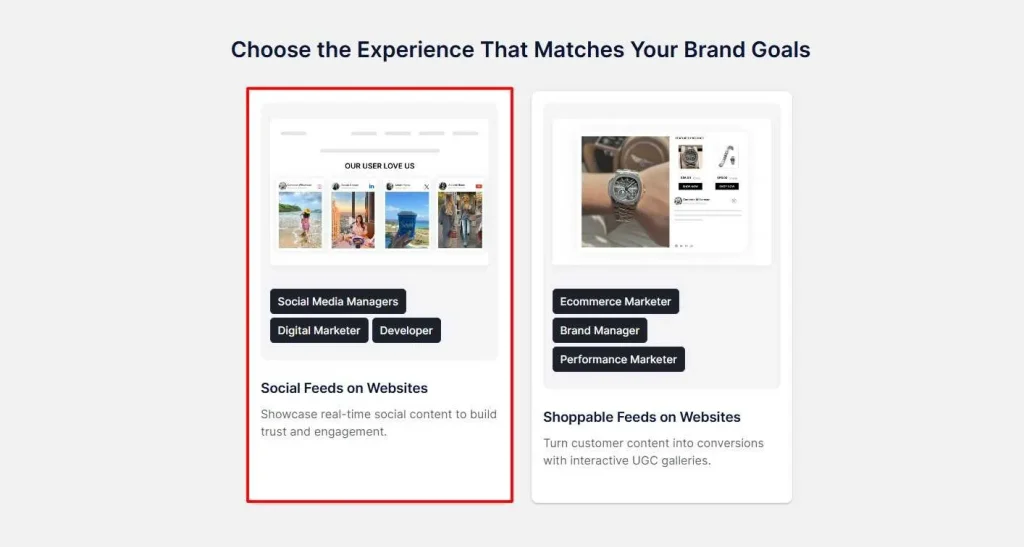
- A dashboard will appear with these options: Social Feeds on website, and shoppable feeds on website on Screens. Choose “Social Feeds on website” and proceed.
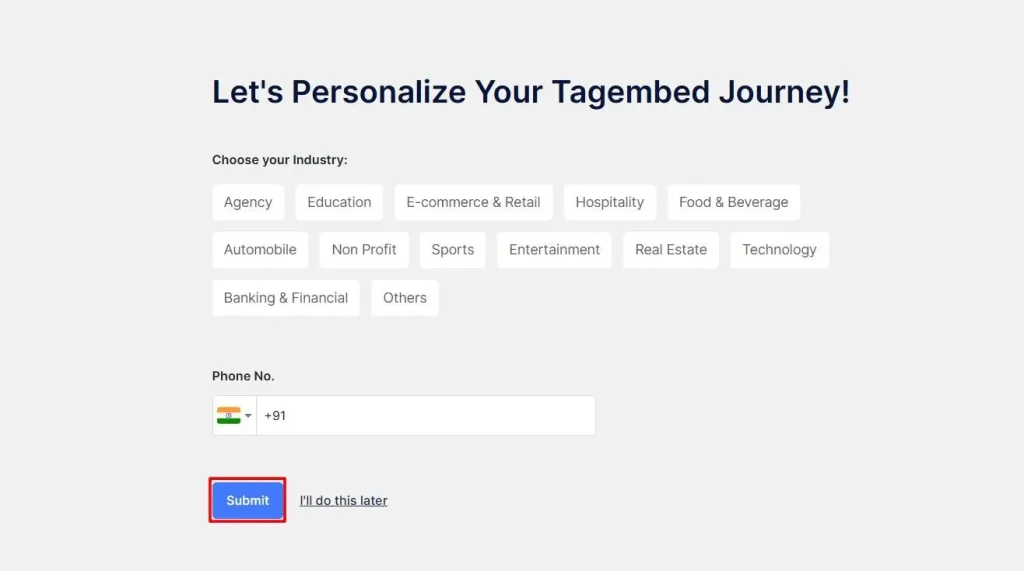
- Select your industry and add your contact details.
- Next, verify your email address and start creating your first social media feed.
Step 2 – Create Your Social Media Feed
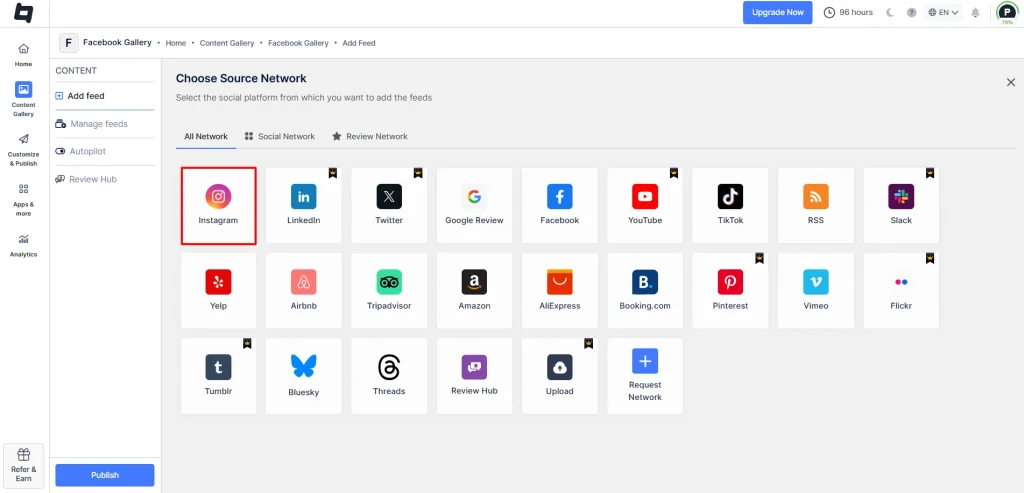
- Select the social media channel for which you want the feed to be displayed.
- Let’s use Instagram as an example.
- Select your feed types from the following options: Hashtag, handle, stories, mentions, etc.
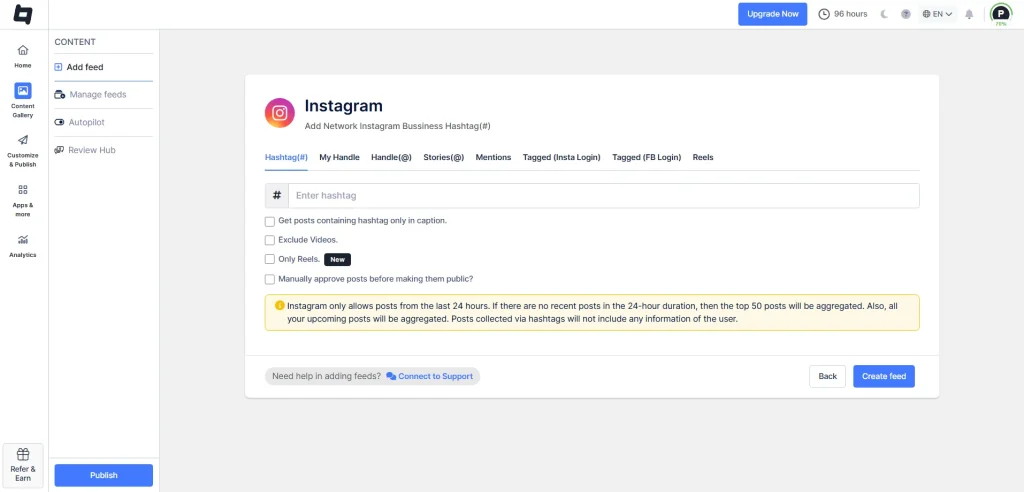
- Let’s choose hashtag options, enter the hashtag, and click ‘Create Feed’.
- You will see that your social media feed is created in a few seconds.
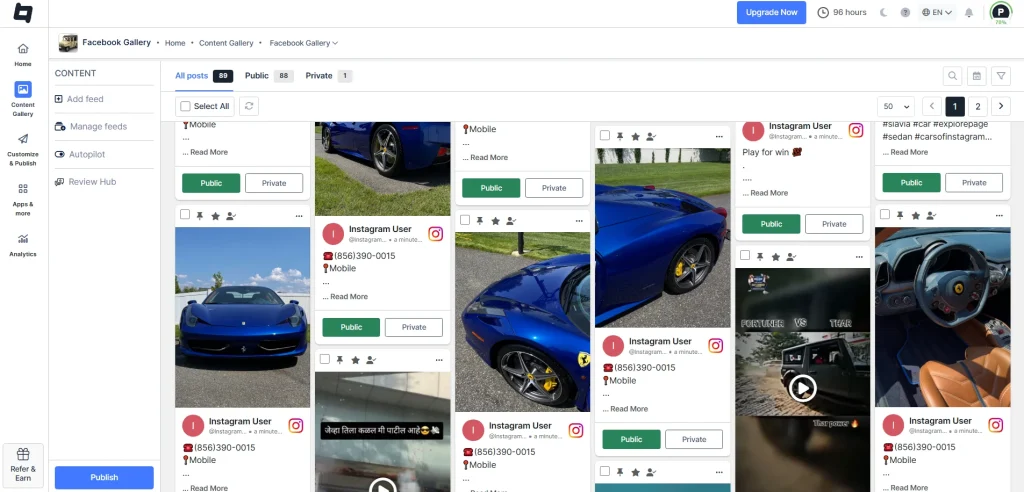
Step 3 – Content Moderation
- Now, you can moderate the feed by removing the irrelevant content from the feed.
- Go to the ‘moderation’ option from the sidebar and filter your content.
- You can do it either manually or using the autopilot feature.
Step 4 – Customize and Publish
- From the sidebar, go to the ‘Customize and Publish’ option.
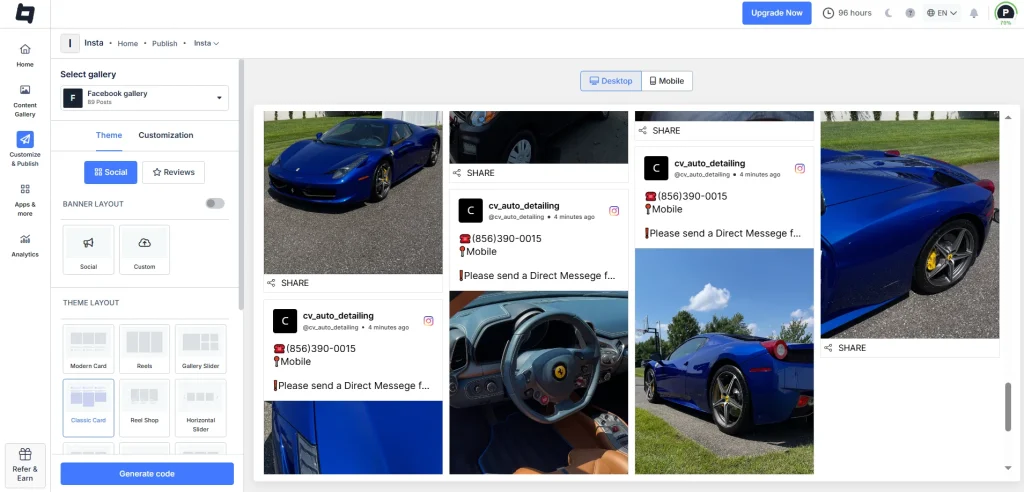
- Here you can customize your themes, backgrounds, colors, fonts, layouts, and more.
- You can even add custom CSS, card style, and localization options.
Step 5 – Generate Code and Publish
- Click on ‘Generate Code’ from the bottom.
- Select ‘Wix’ as your CMS platform and copy the embed code.
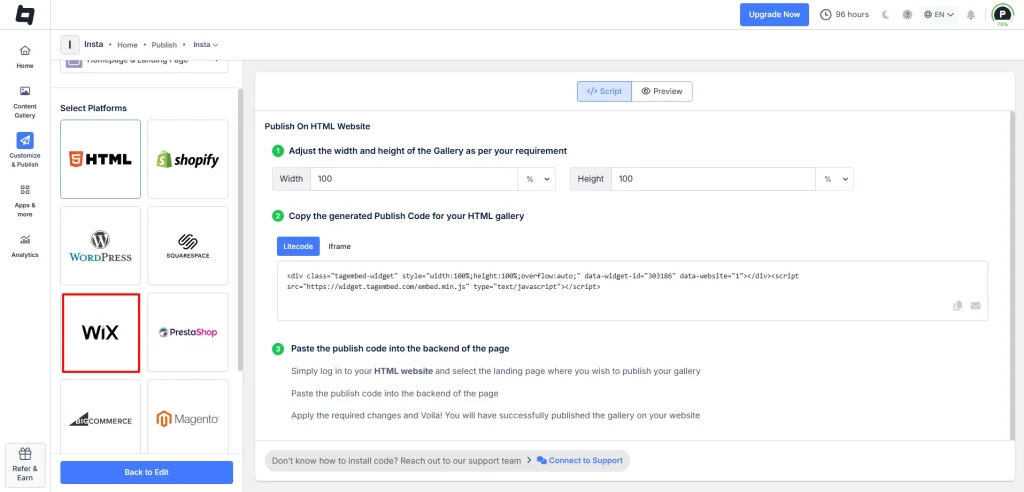
- Log in to your Wix website and select the page where you want to embed the social media feed.
- From the left sidebar, click on the ‘Add Element’ and select the ‘Embed Code’ option.
- Next, click ‘Embed HTML’ and paste your Tagembed embed code there.
- Click update, and you’re done.
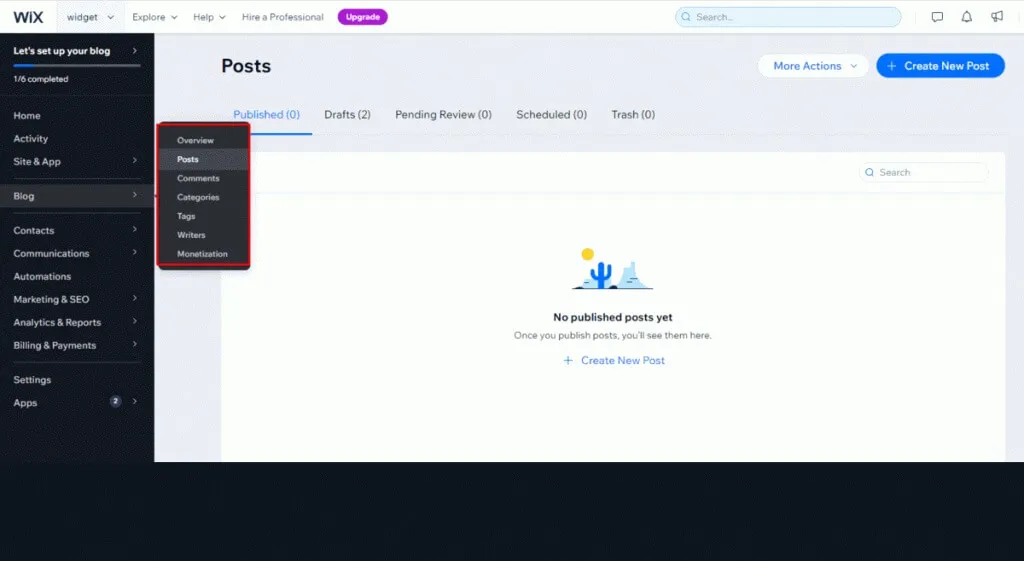
You can see that your social media feed has been successfully embedded on your Wix website.
Drive More Traffic and Conversions by Adding a Live Social Feeds To Your Website.


Why Choose Tagembed for Wix Social Media Feeds?
Tagembed offers a range of features and functionalities that make it worth considering for integration. Let’s look at them in detail:
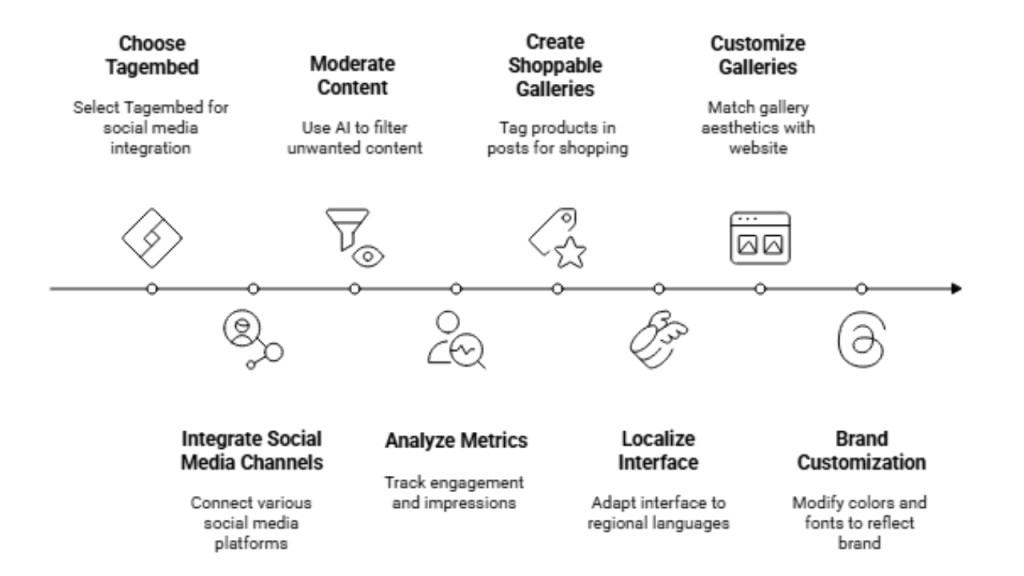
1. 15+ Social Media Channels
Tagembed supports UGC integration from more than 15 social media and review platforms for your website integration. You can seamlessly collect, curate, and display social media feeds and drive user engagement. In fact, it is a no-code/low-code solution, so there are no complexities when embedding. With this exquisite UGC, you can build trust and drive 5x conversions.
2. Powerful Content Moderation
The content moderation feature in Tagembed is advanced and AI-powered. You can easily hide or remove the unwanted content from your feed by just selecting it manually. For the AI-powered content moderation, you have to use the autopilot feature. This way, you can keep your content professional and reliable in front of your website visitors and build trust.
3. AI-Powered Analytics
The AI-powered analytics by Tagembed help you track useful metrics such as engagement, impressions, sentiments, and more. Knowing these relevant metrics helps you understand what’s working and what’s not. You can easily identify the content driving the most engagement and optimize the content accordingly.
4. Shoppable Galleries
You can easily turn your social media feed shoppable with Tagembed. It allows you to sync your product gallery or upload your product list manually. After this, you can easily tag the product in the posts and make it shoppable. In fact, you can tag multiple products in a single post and allow users to shop the look. This encourages impulsive buying and makes a customer’s path to purchase simple.
5. Localization
The Tagembed localization feature can fully change a visitor’s user interface to a particular language based on their region. More than just a language, the tool ensures that all elements, such as text, dates, and times, are properly aligned with the region. This makes your global audience feel connected and more accessible.
6. Extensive Galleries
Tagembed provides extensive galleries and layouts for your Wix website. This means you can easily match your social media gallery with your website aesthetics. Doing this, your feed will look more aligned and better reflect your brand identity.
7. Brand Customization
Beyond galleries and layouts, Tagembed gives you full control over customization. You can easily modify the colors, backgrounds, CTAs, add logos, change fonts, and add custom CSS to your website. This flexibility helps in reflecting your brand’s identity and enhances the visual appeal of your Wix website.
Want to Boost Engagement & Traffic?
Tips for Optimizing Your Wix Social Feed
These are the tips and best practices that you need to follow for optimizing your Wix social feed:
A) Embed Only High Quality Content
You need to be specific about your content filtering. Ensure you embed only high-quality content from your social media channels, which must align with your brand voice and aesthetics. Avoid negative content, blurry images, and text-heavy content, as this might hamper the brand’s professionalism and identity.
B) Check for Responsiveness
Your social media feed should look sleek and great on all devices. Choose a responsive layout that looks great on your smartphones, desktops, and other devices. The layout should automatically adapt across different devices and provide strong mobile responsiveness.
C) Look for the Page Loading Speed
Adding large files might slow down your page speed if you are not using a third-party aggregator like Tagembed. You need to limit the number of posts and use only optimized images to ensure your website loads quickly.
Common Challenges While Embedding and How to Fix Them?
These are some of the common challenges that you might encounter while adding a social media feed on Wix and how to fix them:
– Feed is Not Displaying Properly
When your feed is not displayed properly, it means there is an error copying the embed code, the API key, or the access token has expired.
- Double-check the embed code that you copied. It must be error-free.
- Regenerate your API key or access token.
- Get all the access to your website’s embed code.
– Layout or Styling Issues
Your website might face layout or styling issues because of some custom code errors or unoptimized images.
- Optimize your images and content.
- Make your that your feed has a responsive design.
– Privacy or Consent Problems
Some social feeds track users’ data, which may raise privacy concerns or GDPR compliance issues.
- Add the consent banner or load the feed only after user consent.
- Review the platform’s data sharing policies
Conclusion
We hope this guide has made it clear about the incredible benefits that adding a social media feed on Wix provides. It builds huge amounts of trust, engagement, and conversions. However, you need to use the right social media aggregation platform like Tagembed to make it really work.
It will give your site visitors a really engaging experience and will make their path to purchase easy. Why? Because of its amazing features, such as shoppable galleries, extensive layouts, AI-powered content moderation, and more. Sign up to Tagembed today to get acquainted with all the benefits that it provides.
Embed social feed from Facebook, YouTube, Instagram, Twitter on your website, like a PRO
Invalid Email Address Multiple Themes