Looking to enhance the appeal of your Squarespace website? How about integrating it with Instagram? Sounds interetsing, right? Read the blog till the end to know how to add an Instagram feed to a Squarespace website and how it can boost your business.
You must be wondering why Instagram? Here is the reason – While people regard Instagram as a great medium to express themselves and spread their message, businesses view this social media giant as an opportunity to capture a wider audience and as a platform to market their products and services.


A New Dimension To Squarespace Marketing With Instagram:
Instagram is known for its captivating content, offering a wide range of features to its users to showcase their creativity and share their message.
Hence, we are witnessing a trend where businesses are actively adding Instagram feeds on Squarespace websites to showcase excellent and appealing Instagram content to their website visitors. After all, in this digital age, one needs to have an attractive website as websites are now considered the representative of their respective brands. And who doesn’t want an impressive representative, right?
Hence, this is where adding an Instagram feed to Squarespace comes in handy. The engaging, entertaining, and lively Instagram widget not only adds charm to the website but also helps businesses expand the reach of their Instagram profiles, boost engagement, increase dwell time, and more.
With such advantages, you might think that adding an Instagram feed to the Squarespace website might be a tedious task. So, allow us to pop your thought bubble by providing you with simple ways to add an Instagram feed to your Squarespace website.
Simple Ways To Add an Instagram Feed to a Squarespace Website
Displaying an Instagram feed on a Squarespace website is a straightforward task, and there are several ways to accomplish it. For your convenience, we are providing two straightforward ways to do it.
- Social Media Aggregator: Tagembed
- Using Instagram directly
#1 How to Add Instagram Feed to Squarespace – Tagembed
Step 1 – Create a Free Tagembed Account
- Start by signing up for Tagembed or creating an account if you already have one.

- A dashboard will appear with the following options: social feeds on the website or Shoppable feeds on the website. Select the option that best aligns with your brand goals and proceed.

- Now choose your industry, add your phone number, and click ‘Submit’. Verify your email ID and continue.

Step 2 – Create an Instagram Feed
- From the ‘Content’ option on the sidebar, choose ‘Instagram’ as your source network.
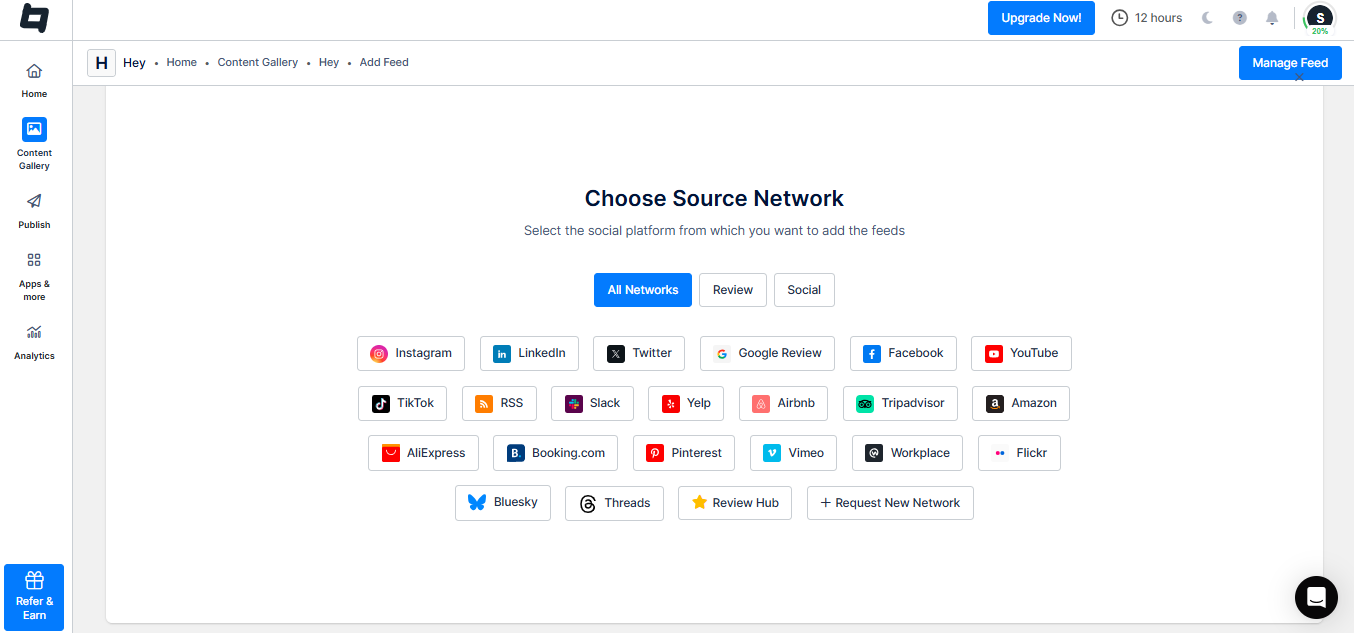
- Choose your feed type from the following options: Hashtags, My Handle, Handle, Stories, Mentions, Tagged, and Reels.

- Now connect your Instagram account and click on ‘Create Feed’.
Step 3 – Moderate and Customize Feed
- Your Instagram feed will be created, and you will automatically be redirected to the ‘Content Gallery’ option.

- Here, moderate your feed by removing the unwanted content either manually or using the autopilot feature.
- Go to the ‘Customize & Publish’ option and click on ‘Add New Channel’. Enter the channel name and click on ‘Save’.

- Now, customize your Instagram feed with various fonts, colors, layouts, backgrounds, and more.
Step 4 – Generate Code and Embed
- Click on the ‘Generate Code’ option and choose ‘Squarespace’.
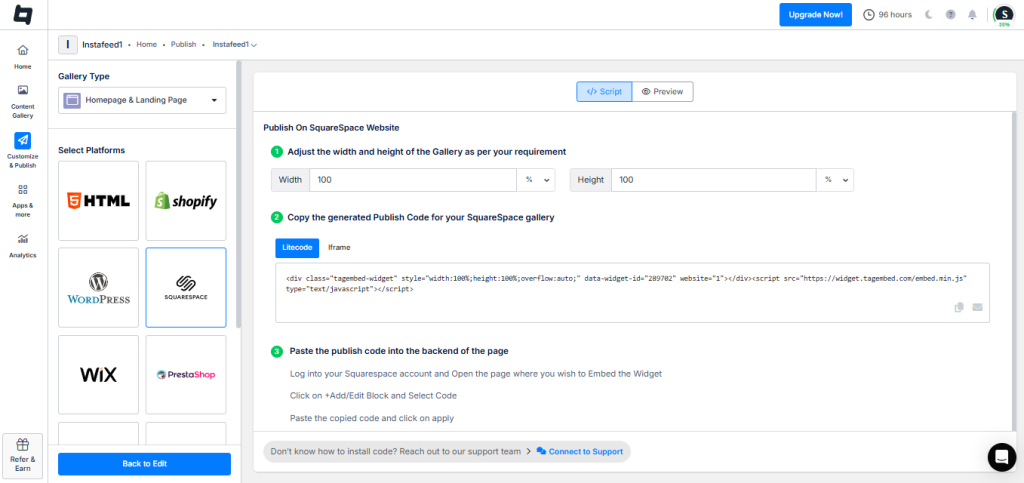
- Adjust the width and height of the gallery and copy the embed code.
- Go to the Squarespace dashboard and click the ‘Edit’ button.
- Paste the embed code in the editor and click on the Apply button.
Note – You can also make this Instagram feed shoppable by syncing in your products and tagging them on the posts via Tagembed.
Hook visitors. Build trust. Drive clicks.


#2 Using the Instagram Embed Option
Many would argue that you can use Instagram directly to embed Instagram posts on the Squarespace website. You just need to follow the steps:
- Login to your Instagram account.
- Choose the desired post that you want to embed. Click on the three dots “…” present on the top right corner of that post.
- Click on embed option
- Copy the embedding code on your clipboard.
- Now on a separate window, log in to your admin account of your Squarespace website, and click on the embed button.
- Click on the “+” button on your screen, and select the “</> Code” option. Then, paste the embed code on the editor and click on the Apply button.
- Save the changes.
Unfortunately, this method does not involve any customization options. Another limitation is that you have to embed each post one by one and go through the same process manually to embed each post on your website. And that is why many consider this a time-consuming process.
So, now you know ways to add Instagram feed to Squarespace website, this thought might be troubling you: What is the need for embedding. And that is a quite justified doubt. Hence, here are some benefits :
| Multiple Themes |
Benefits of Adding Instagram Feed To Squarespace Website
Websites play a vital role for businesses today, and people often judge the brand’s quality based on their website representation. Therefore, it is important to have an attractive website, and what is a better option than integrating an Instagram feed into Squarespace to display interactive content?
Other than enhancing the beauty of the website, it provides these significant benefits:
1. Increase website traffic
Who wouldn’t like to visit an appealing and attractive website, right? As mentioned above, Instagram is a hub for attractive and lively websites. Whereas Instagram users are known for creating engaging and entertaining content. People usually prefer visiting a website that enhances their browsing experience.
2. Decreases bounce rate of the website
Every business wants their visitors to stay on the website as it sparks interest in their minds and at the same time, also improves the search engine ranking of the website. The engaging content from Instagram can keep the visitors hooked to the website. And with Scrabble feed, they will be able to view more content.
3. Provides a boost to user-generated content related to your business
User-generated content is marketing gold. UGCs provide much more traction compared to mouth publicity and also increases brand recognition. And therefore, one must find different ways to boost them, and embedding an Instagram feed is one of them. A user feels valued when a brand displays its content on its official website, and at the same time, it encourages other users to post content related to the brand and enjoy the limelight on the website.
4. Provides social proof to the potential customers
Users often use Instagram to post images and videos of the product that they recently purchased. By embedding them on the website, you can showcase social proofs to your visitors and potential customers – and eventually helps in their buying decision and build your website’s credibility.
5. Helps in converting visitors into customers
Social proofs, reviews, happy customer images – all these measures help win trust and attain more sales. Hence, it is important to display them on the website. All these measures help businesses to convince their visitors about the credibility and quality of the brand and eventually convert visitors into customers.
Conclusion
In this age of digital marketing, social media plays a vital role in the growth of a business. And when we talk about social media platforms, no one can afford to ignore the impact of Instagram. It is an influential platform and provides excellent benefits to the business. In addition, you can extract more benefits from the website by embedding its feed.
With the help of Tagembed, you can easily add an Instagram feed to your Squarespace website and provide desired modifications to add appeal to your website. So ahead, try Tagembed and watch your business grow!
FAQs
The best way to add Instagram Photos to Squarespace is using Tagembed. Just connect your Instagram account and create the embed code. Place this embed code in the backend of your website and done. The best part is you can embed multiple Instagram Feed on your Squarespace website with just one embed code. Not only that all your latest Instagram post gets automatically updated on your site.
You can Add Instagram Feed to Squarespace using two methods: 1. Tagembed – Instagram Widget 2. Official Instagram Embed It is recommended that you use Tagembed as it lets you save a lot of time and resources to collect, curate, embed and update new posts.
Embed social feed from Facebook, YouTube, Instagram, Twitter on your website, like a PRO
Invalid Email Address Multiple Themes