Instagram Couldn’t Refresh Feed? 15 Proven Fixes That Actually Work (2026)
You open Instagram expecting to see your feed, and instead you see a stubborn little message: “Couldn’t Refresh Feed.” No new posts, no stories uploading- well, you are not alone. It’s one of the most common issues that most of the users are facing. Most of it is a connection hiccup, a cache problem, or a server issue from Instagram.
This guide walks through every fix that works on Android, iPhone, and for anyone managing an Instagram feed widget on a website.

Instagram
Hashtag

Instagram
Handle

Instagram
Stories

Instagram
Reels

Instagram
Mentions & Tag
TL;DR: Quick Fixes
These quick fixes cover the most common reasons Instagram may fail to refresh your feed and how to resolve them.
| Problem | Quick Fix |
| Weak internet | Switch between Wi-Fi and mobile data |
| Cache issue | Clear Instagram’s cache |
| Server outage | Check Instagram’s status page |
| Outdated app | Update Instagram to the latest version |
| Login issue | Log out and log back in |
| Website widget | Reconnect your Instagram account to the widget |
What is the “Instagram Couldn’t Refresh Feed” Error?
Instagram works like this: it pulls the fresh data from its servers every time you open the app or pull down to refresh. That request depends on a stable connection between your device and Instagram’s backend, plus a valid, active session on your account.
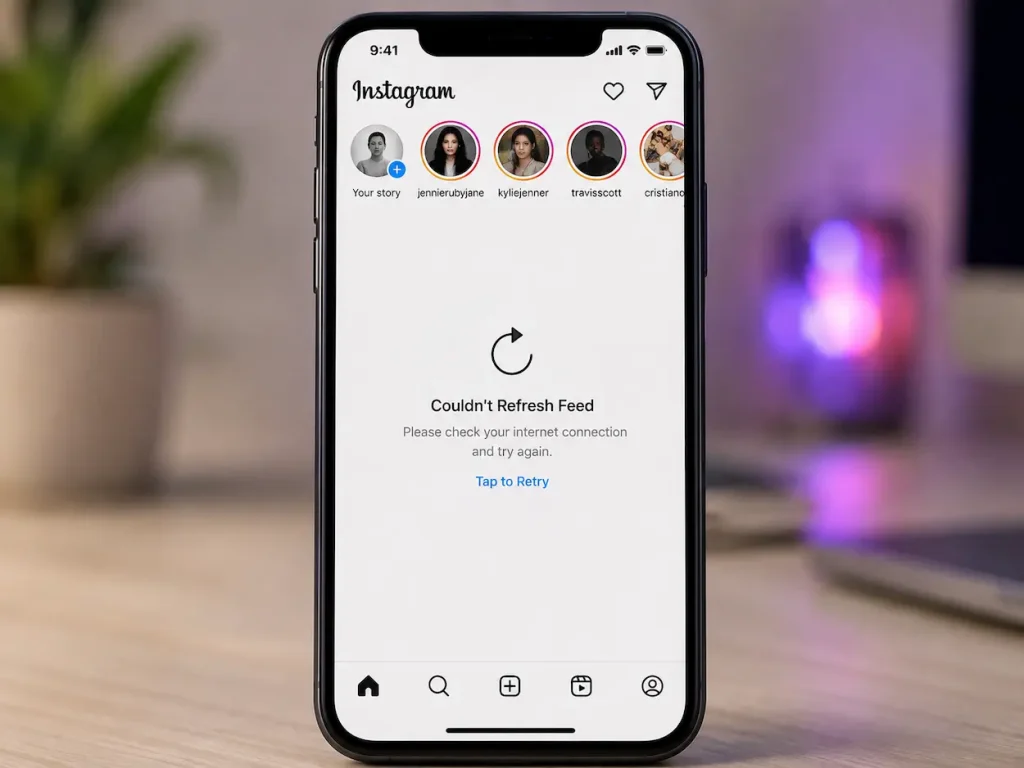
This request may fail for various reasons. These reasons can be your weak internet connection, an outdated app version, a full cache, or Instagram’s own servers being slow; the app shows the “Couldn’t Refresh Feed” message instead of silently failing. It’s Instagram’s way of telling you the refresh request didn’t complete, not that anything on your account has been changed or removed.
However, keep in mind that this is almost always a temporary loading issue, not an account issue. Rest assured that your Instagram followers, posts, and account status are unaffected. You won’t be losing followers; your posts won’t be deleted. The “Couldn’t Refresh Feed” error is about a failed data request at that moment, which resolves within a few minutes, you just need to wait.
Showcase Your Latest Instagram Posts
Keep your latest Instagram posts visible on your website
Try It FreeWhy Is Instagram Showing a “Couldn’t Refresh Feed” Error?
There could be various reasons that your Instagram is showing a “Couldn’t refresh feed” error. Some of the common reasons are:
1. Poor internet connection
Instagram needs a consistent connection to pull new content. A weak Wi-Fi signal, spotty mobile data, or a connection that drops intermittently is the single most common cause of this error.
2. Instagram server outage
Instagram’s servers occasionally experience partial or full outages. It has become quite common nowadays. When this happens, the refresh error can appear for large numbers of users simultaneously, regardless of their own connection or device.
3. Outdated Instagram app
Instagram often updates its app, and you might not have updated to the latest version. Running an old app version means you may be trying to communicate with Instagram’s servers using outdated request formats, which can trigger refresh failures after Instagram updates its backend.
4. Corrupted cache
Instagram stores temporary data locally to load content faster. If you aren’t clearing old cache data, then that cached data becomes corrupted or overloaded, and it can interfere with new refresh requests instead of helping them.
5. Low phone storage
Phone storage is one of the common reasons for this error. If your device is nearly out of storage, Instagram may not have enough room to write new cached data, which can cause the refresh to fail even when your connection is fine.
6. VPN or proxy issues
A VPN or proxy can route your connection through a server location Instagram treats with extra scrutiny, or simply introduce enough latency that the refresh request times out.
7. Account restrictions
In rare cases, a temporary account restriction or a flagged login attempt can interfere with normal feed loading, though this is far less common than the other causes on this list.
8. Instagram API issues (website users)
If you’re seeing this error on a website that displays an embedded Instagram feed rather than in the app itself, the cause is usually different: an expired API token. This can also be due to a disconnected account, or an API-level issue on Instagram’s side affecting third-party widgets.
How to Fix Instagram Couldn’t Refresh Feed
“Couldn’t Refresh Feed” can be fixed easily. You need to identify the reason and go through these solutions. As most of the problem lies due to some common reasons, these are easy-to-follow solutions and might resolve issues.
Fix #1: Check your current internet connection
Start here, since it resolves the error more often than anything else. Try switching from Wi-Fi to mobile data or vice versa. To double check and clear your doubt, confirm other apps are loading normally. If your other apps aren’t working as needed, then the problem lies on your internet connection.
Fix #2: Close and open your Instagram app
Fully close the app rather than just leaving it in the background. People often leave it in the background, which doesn’t close the app. So, make sure you close the app, and then reopen it. This clears out any temporary glitch in the current session without needing to touch your device settings.
Fix #3: Restart your phone
A full device restart clears background processes and temporary memory issues that a simple app restart won’t touch, and it resolves a surprising number of stubborn refresh errors.
Fix #4: Log out and log back in
This forces Instagram to establish a completely fresh session with its servers, which can clear up authentication-related refresh issues that a restart alone won’t fix.
Fix #5: Clear Instagram’s cache
On Android: Go to Settings > Apps > Instagram > Storage > Clear Cache. This removes temporary data without affecting your posts, saved content, or login.
On iPhone: iOS doesn’t offer a direct cache-clearing option for individual apps. Instead, offload the app through Settings > General > iPhone Storage > Instagram > Offload App, which clears cached data while preserving your account data, then reinstall it from the App Store.
Show Instagram Content on Your Website
Automatically display your latest Instagram posts in a responsive website widget.
Get Started FreeFix #6: Update Instagram
Check the App Store or Google Play Store for a pending Instagram update. An outdated version is one of the more overlooked causes of persistent refresh errors, especially after Instagram rolls out backend changes.
Fix #7: Check Instagram’s server status
Before troubleshooting further on your end, confirm the issue isn’t on Instagram’s side. This takes thirty seconds and can save a lot of unnecessary troubleshooting if it turns out to be a wider outage.
Fix #8: Disable your VPN
Turn off any active VPN or proxy connection and try refreshing again. If the feed loads normally without it, the VPN is likely the cause, and switching to a different server location may resolve it if you need to keep using one.
Fix #9: Reset network settings
On both Android and iPhone, resetting network settings clears out saved Wi-Fi configurations and network-level glitches that a simple reconnect won’t fix. Note that this will require re-entering saved Wi-Fi passwords afterward.
Fix #10: Reinstall Instagram
If nothing else has worked, uninstalling and reinstalling the app gives you a completely clean copy, clearing out any deeper corrupted data that cache-clearing alone didn’t touch.
Fix #11: Update your phone’s operating system
An outdated OS version can cause compatibility issues with the latest Instagram app builds. Checking for and installing pending system updates resolves this in cases where the app itself is already up to date.
Fix #12: Check app permissions
Confirm Instagram has the network and background data permissions it needs. On some devices, background data restrictions or battery-saving modes can quietly prevent the app from refreshing properly even with a strong connection.
Fix #13: Free up storage space
If your device is nearly full, delete unused apps, photos, or files to give Instagram enough room to write cache data normally again.
Fix #14: Report the problem to Instagram
If the error persists after working through the fixes above, use Instagram’s in-app “Report a Problem” option under Settings > Help. This flags the issue directly to Instagram and can surface account-specific causes you can’t diagnose from your end.
Fix #15: Wait it out (if it’s a global outage)
If Instagram’s status confirms a widespread outage, there’s genuinely nothing to fix on your end. These typically resolve within a few hours, and repeatedly restarting or reinstalling won’t speed that up.
How to Fix Instagram Couldn’t Refresh Feed on Android
Android-specific steps worth prioritizing, in order: clear the app cache through Settings > Apps > Instagram > Storage, confirm background data isn’t restricted under battery optimization settings, and check that no data-saving mode is throttling Instagram’s background activity. If the issue persists, a full reinstall from the Google Play Store clears out anything a cache clear alone missed.
How to Fix Instagram Couldn’t Refresh Feed on iPhone
On iPhone, start by offloading the app through Settings > General > iPhone Storage rather than searching for a cache-clear option that doesn’t exist on iOS. Confirm Instagram has background app refresh enabled under Settings > General > Background App Refresh, since disabling this can prevent the feed from updating even when the app is open. If the problem continues, deleting and reinstalling from the App Store gives you a clean copy without losing your account data.
Instagram Couldn’t Refresh Feed on Website? (Widget Users)
If you’re seeing a refresh failure on a website displaying an embedded Instagram feed rather than in the Instagram app itself, the underlying cause is usually different from the device-level issues above.
Expired API token
Instagram feed widgets connect to your account through an access token, which can expire or need re-authorization periodically, especially after Instagram or Meta pushes an API update. An expired token is the most common reason a previously working widget suddenly stops refreshing.
Disconnected account
If the Instagram account originally connected to the widget was disconnected, deleted, or changed its password, the widget loses its authorized connection and stops pulling new content until it’s reconnected.
Business account requirement
Most third-party Instagram widgets require a Business or Creator account rather than a personal account, since Instagram’s API restricts feed access for personal profiles. If a widget was connected to a personal account, or an account type was changed after setup, the connection can break.
What to do about it:
- Reconnect your Instagram account through your widget provider’s dashboard, which typically resolves an expired token issue in a couple of minutes.
- Manually refresh the widget from your dashboard rather than assuming it will resolve itself immediately.
- Clear your website’s cache (or your CDN’s cache, if you’re using one) since a cached version of the page can display outdated widget content even after the underlying feed has been fixed.
- Use a reliable Instagram widget tool built to handle token renewals and API changes automatically, rather than a manual or outdated integration that requires constant babysitting. You can find various Instagram embed code generator tools that make your task smooth.
Looking to display a live Instagram feed on your website? Learn how to embed an Instagram feed on your website using Tagembed, which handles reconnections and API changes without requiring manual fixes every time Instagram updates something on its end.
How to Know if Instagram Is Down
Like mentioned before, there are chances that Instagram app itself might be down, you can check that by following ways:
1. Instagram’s official status page
This is the most direct source, confirming known outages and ongoing issues in real time.
2. Downdetector
A spike in user-submitted reports here is usually one of the fastest ways to confirm a widespread outage before Instagram officially acknowledges it.
3. X (Twitter)
Searching “Instagram down” often surfaces real-time reports from other users experiencing the same issue, which is useful for confirming it’s not isolated to your account.
4. Reddit
Communities like r/Instagram frequently discuss ongoing outages in real time, often with more detail than a status page provides about which specific features are affected.
What NOT to Do
Don’t panic, and avoid doing the following during the error.
Don’t reinstall the app repeatedly
Reinstalling once is a legitimate troubleshooting step. Doing it repeatedly in a short window doesn’t fix anything further and just wastes time and data.
Don’t use fake “repair” or “booster” apps
Third-party apps claiming to “fix” Instagram errors are rarely legitimate and can introduce security risks or account issues far worse than a refresh error.
Don’t spam the refresh button
Repeatedly pulling to refresh doesn’t speed up a server-side issue and can occasionally make the app less responsive while it’s already struggling to complete a request.
Don’t factory reset your phone immediately
This is a drastic step for what’s usually a simple, temporary error. Work through the fixes above first.
Don’t share your login credentials
with anyone or anything claiming it will help “fix” your account, including unofficial support accounts or third-party tools. This is a common social engineering tactic, not a legitimate troubleshooting step.
How to Prevent This Error
- Keep the Instagram app updated to the latest version.
- Clear the app’s cache periodically, roughly once a month for heavy users.
- Maintain a stable internet connection when using data-heavy apps.
- Avoid installing Instagram through unofficial or outdated APK sources.
- Keep reasonable free storage space available on your device.
- Keep your phone’s operating system updated.
- If you manage a website with an embedded Instagram feed, reconnect and check the integration periodically rather than assuming it will keep working indefinitely.
Still Having Instagram Feed Issues?
Display your latest Instagram posts on your website.
Create Widget FreeCommon Myths About This Error
People often relate this error to the following myths, but these are just “myths”
You are shadowbanned
A refresh error has nothing to do with reduced reach or visibility. Shadowbanning, if it’s occurring at all, shows up in different metrics entirely, not a failed feed load.
Instagram is deleting your account
This error is unrelated to account status. Your posts, followers, and data remain exactly as they were.
Hashtags are causing this error
There’s no connection between hashtag usage and a feed refresh failure. This is a connection or server issue, not a content moderation one.
Clearing cache deletes my posts
Cache data is temporary and local to your device. Your actual content lives on Instagram’s servers and is completely unaffected by clearing local cache.
A VPN is causing this issue
While VPNs can contribute to refresh errors in some cases, plenty of refresh failures happen with no VPN involved at all, so it’s worth checking rather than assuming.
Troubleshooting Flowchart
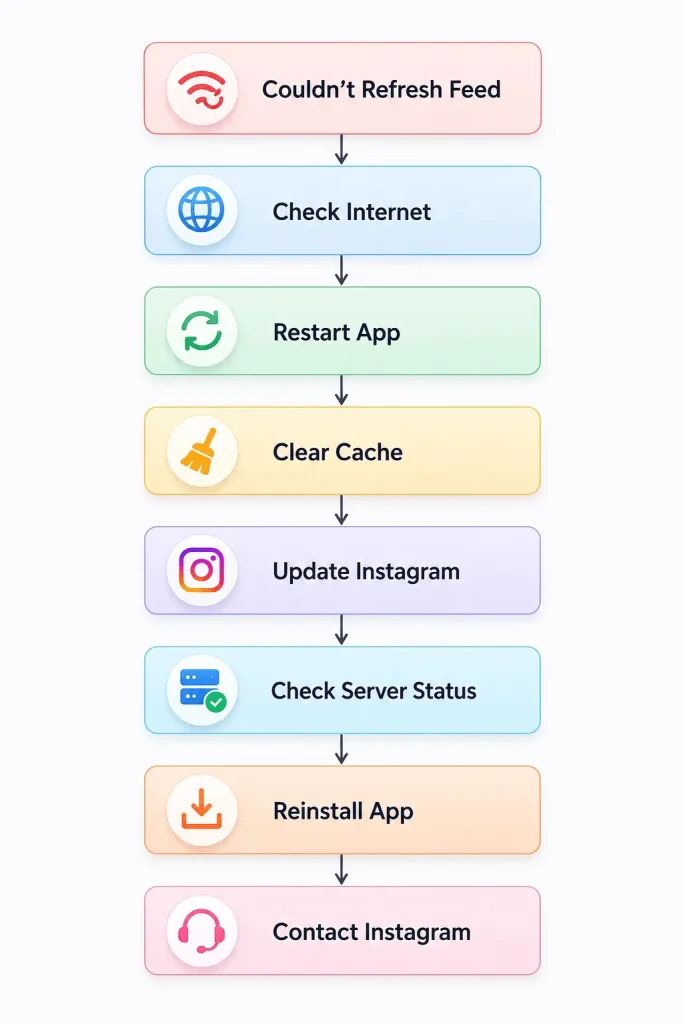
Couldn’t Refresh Feed
↓
Check Internet
↓
Restart App
↓
Clear Cache
↓
Update Instagram
↓
Check Server Status
↓
Reinstall App
↓
Contact Instagram
Work through this in order. Most refresh errors resolve within the first three steps, and it’s rarely necessary to reach the bottom of the list.
Conclusion
Most cases of “Instagram Couldn’t Refresh Feed” are temporary and resolve with the basics: checking your connection, restarting the app, and clearing cache before reaching for more advanced fixes like reinstalling or resetting network settings. Keeping your app and device updated goes a long way toward preventing the error from recurring in the first place.
For anyone managing an Instagram feed embedded on a website, the cause is usually different from the app-based issues above, most often an expired token or a disconnected account rather than anything related to internet connection or device storage. Reconnecting your account, and using a widget tool that handles token renewals automatically, keeps that from becoming a recurring headache.
Frequently Asked Questions
Most often it’s a weak or unstable internet connection, a corrupted local cache, or a temporary server issue on Instagram’s end. It’s rarely a sign of an actual account problem.
This usually points to an unstable Wi-Fi connection, a router issue, or a network firewall restricting the app’s access. Try switching to mobile data briefly to confirm whether the Wi-Fi network itself is the cause.
No. Cache data is temporary, local storage used to load content faster. Your photos, posts, and account data are stored on Instagram’s servers and are completely unaffected by clearing your device’s cache.
Yes, in some cases. A VPN can introduce added latency or route your connection through a location Instagram flags for extra verification, either of which can cause refresh requests to fail or time out.
Pull down on your feed from the top of the screen. If that doesn’t trigger a successful refresh, closing and reopening the app fully is the next step.
Often, yes, especially if the cause is corrupted local data that a simple cache clear didn’t fully resolve. It gives you a completely clean installation with no leftover cached files.
New app versions occasionally introduce temporary bugs affecting feed loading for some users. If this happens right after an update, checking Instagram’s status page and waiting a short period usually resolves it once Instagram pushes a fix.
Reels rely on heavier video data than standard feed posts, so a weaker connection can cause Reels specifically to fail even when photo posts load fine. Try switching networks or waiting for a stronger connection.
This is typically caused by an expired API token, a disconnected Instagram account, or cached website content displaying an older version of the feed. Reconnecting the account through your widget provider’s dashboard usually resolves it.
Most third-party Instagram widget tools require a Business or Creator account, since Instagram’s API restricts this level of feed access for personal profiles.
No. Being logged out shows a distinct login screen. This error occurs while you’re still logged in, and it specifically reflects a failed attempt to load fresh content.
Embed social feed from Facebook, YouTube, Instagram, Twitter on your website, like a PRO
Invalid Email Address Multiple Themes