How To Embed Twitter Video On a Website?
Adding videos to your website makes it visually appealing and engages visitors. Twitter, now known as X, is one of the platforms where you can find ample media, be it text, images, or videos. Moreover, content on the platforms adds value, but as video content has more engagement, in this blog, you will learn how to embed Twitter video on the website. We will go through two methods. The first is the native method. Second and simpler is by using Tagembed. So let’s get into it and make your online presence more presentable.
Types of Twitter Videos You Can Embed
Twitter or X isn’t a full-fledged video platform like YouTube, but it still has ample video content. Here are the types of videos that you can find and embed on your website.
a.) Hashtag Videos
Hashtags are an essential element for Twitter, as they help content reach an audience, and they also help audiences reach the content they are looking for. Using hashtags, you can also find videos and even add them to your website. You can collect videos that are using your hashtag, or you can have topical Twitter hashtags like #MondayMotivation or #NewPhone and more. Using hashtag videos feed on your website, you can even showcase content related to your industry. When you embed Twitter videos on your website using hashtags, you can provide a variety of content to your website visitors.
b.) Profile Videos
Do you have a Twitter account, and do you often post videos on it? How about showcasing them all on your website? You can embed all the videos from your profile and display them on your website, so your audiences get to see all content related to your brand in one place. You can even showcase all the videos of a particular Twitter profile that you think can engage the audience.
c.) Post Videos
You can embed a specific video on your website. It often happens that one particular video on a tweet can be helpful to you and your audience. You can simply add that particular video to your website.
d.) Live Twitter Videos
Live videos can be helpful in producing great engagement, it also help audiences to connect with the creator. A live video from your Twitter profile can be displayed on the website, so visitors on your site get to know about it. Moreover, they can interact with your brand help to to build a brand and customer relationships.
e.) List Videos
Twitter’s List enables you to combine multiple videos based on a theme or interest, like tech news, fashion influencers, or sports channels. When you embed Twitter video content on your website, it automatically displays video content shared by all the accounts in that list.


| Multiple Themes |
How To Embed Twitter Video: Native Method
So, now you are well aware of the types of videos you can embed, lets learn how to embed Twitter video through native method.
- Find the tweet with the video you like.
- Click on the three dots (…) on the top right of the tweet.
- Choose “Embed Tweet”.
- Twitter gives you a code.
- Copy the code.
- Paste it into the backend of your website.
The steps are simple, but you need to repeat the steps every time you need to embed twitter on website. You can eliminate this whole process for each tweet, and that is by using Tagembed.
How To Embed Twitter Video: Using Tagembed
Alongside making the embedding process simple and less time-consuming, Tagembed also provides you with a customization feature that helps you personalize your feed. That means you can modify your Twitter widget by changing font size, style, widget theme, and more. To embed them on your website, just follow these steps:
a.) Sign up to Tagembed, if you are a new user and, if you already have an account, then simply login to your Tagembed account.

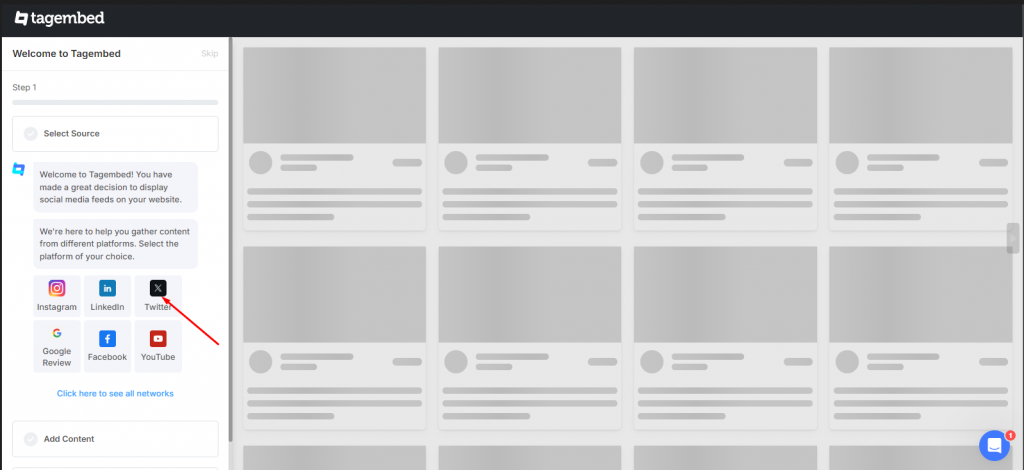
b.) Pick X/Twitter as your source from the given options.
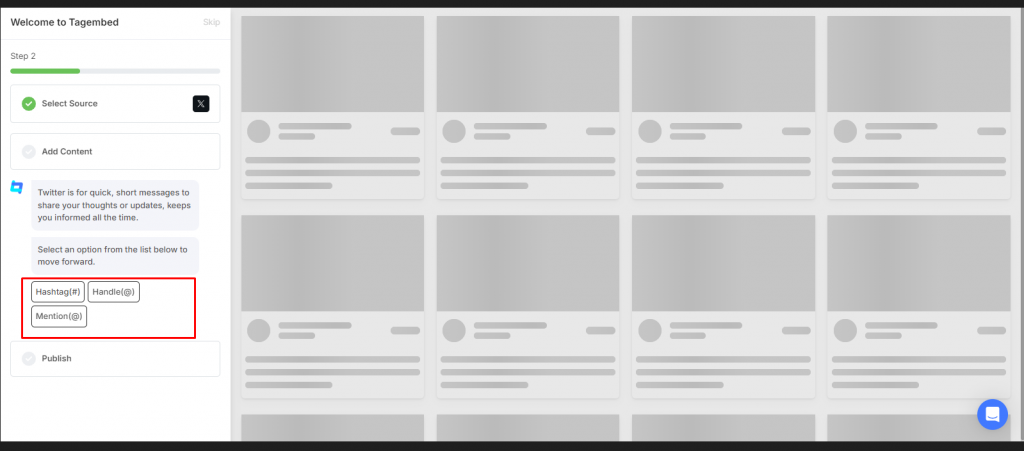
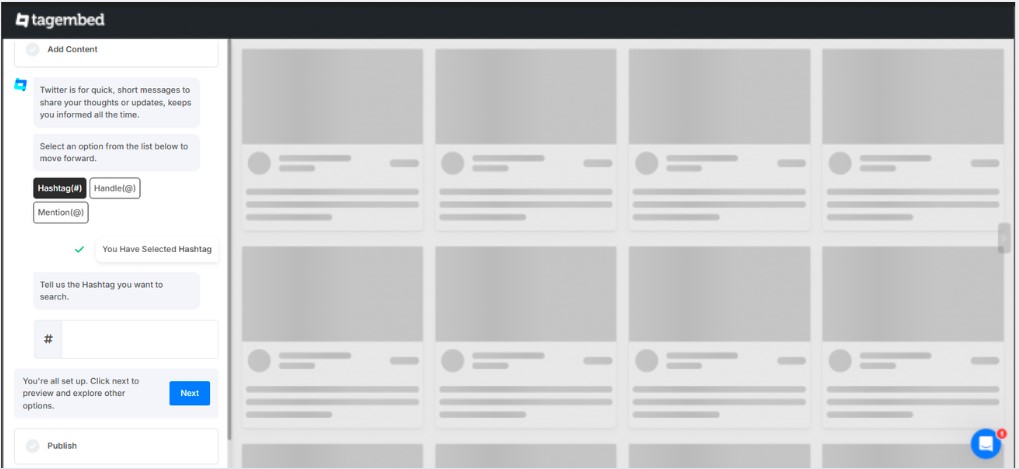
c.) You have options to fetch video, which we discussed above. You can fetch video content using ‘Hashtag, Handle, Mention and Advanced’ (in advanced, you can submit a query, and video will be collected).
d.) After choosing the medium and providing details, click on the ‘Create Feed’ button.
e.) Your screen will now showcase all collected videos.

f.) Click on the Design button present on the left side to customize your widget. You can also moderate the feed by clicking on the Moderation button. Here, you can either remove all the content manually or choose Auto Pilot. In ‘auto-pilot,’ you can provide a “rule,” and based on that, Tagembed will automatically remove all the content.
g.) Click on the Publish button in the bottom left corner to start the embedding process.

h.) You can now set the size of your widget and choose your CMS platform.

i.) Copy the provided embed code and paste it on the backend of your website.
As mentioned, you have different CMS platforms as options; the steps after clicking the Publish button for each are as follows:
Embedding on different CMS Platforms
1.) To HTML Website

- Copy the code to your clipboard.
- Paste the code into the main section of your HTML website.
- Save the changes, and Twitter videos will be live on your site!
2.) To WordPress Website

- Log in to your WordPress account.
- Go to the webpage where you want to display the Twitter video feed.
- In the page editor, switch to ‘Text’ mode (instead of ‘Visual’).
- Paste the generated embed code into the text editor.
- Save or update the page.
- Your Twitter video feed will now be visible on your WordPress website.
3.) To WIX Website

- Sign in to your Wix account.
- Go to the webpage where you want to display your Twitter video feed.
- Click the “+ Add” button to add a new section.
- Select More and then choose “Embed a Site.”
- Paste the embed code or widget link into the Embed section on your Wix page.
- Click Apply and then Save the changes.
4.) To Squarespace Website

- Sign in to your Squarespace account.
- Scroll to the webpage where you want to showcase your Twitter videos.
- Click on + Add/Edit Block and choose the Code block.
- Paste the embed code into the code editor.
- Click the Apply button.
- Save the changes.
5.) To Shopify Website

- Sign in to your Shopify account.
- Go to the Online Store section in the sidebar and click on Themes.
- Click the “Edit Code” (formerly Edit HTML/CSS) option from the top-right of the page.
- Select the Layout, Template, or Section file where you want the Twitter video feed to appear.
- Paste the copied embed code into the selected area.
- Click Save to apply the change.
Why Should You Embed Twitter Video on Your Website
– Fresh Content
When you embed Twitter video on website, especially from active profiles or trending hashtags, your website gets updated content. Although with native method you need to follow steps over and over again, but Tagembed automatically updates your website. This keeps your website dynamic, interesting, and always buzzing with the latest updates without any extra effort.
– Better Engagement
Videos are one of the most engaging types of content on the internet. When visitors see moving visuals, they’re more likely to stop, watch, and interact. By embedding Twitter video, you’re giving your audience a reason to stay and engage with your page—whether it’s a product demo, a trending moment, or a user testimonial. Embedding Twitter content on your website also redirects your site visitors to your profile, ultimately increasing engagement on Twitter as well.
– Adds Charm To Your Website
Websites represent your brand online. It is important to make your online representation memorable. A live Twitter video feed instantly adds a modern, interactive touch to your website. It’s not just a block of text or static images—it’s real-time, social, and visually appealing. This makes your site look more professional, up-to-date, and connected. A beautified website not only attracts visitors but also helps you to stand out from the crowd.
– Decrease bounce rate
When people find interesting videos on your site, they naturally spend more time watching them. The longer they stay, the more they explore your website. This reduces bounce rates and gives you more chances to convert visitors into followers, customers, or fans of your brand. Moreover, reduced bounce rates also assist in improving search engine rankings.
– Boost SEO
Search engines like Google pay attention to how people interact with your website. If users spend more time on your pages and engage with content, it sends a signal that your site is valuable. This can improve your SEO ranking and help more people find your website through search.
– Social Proof
By choosing to embed tweets with videos from happy customers, influencers, or fans, you show proof that people are talking about your brand. When consumers will go through all these feedback, it will helps them in making their purchase decision. This also builds trust, helping you to convert your visitors into customers.
Conclusion
The competition in the market is fierce, and you require some extra to stand out from the crowd. By choosing to embed Twitter video on website, you can beautify your website and enjoy SEO benefits. By following the steps mentioned above, you can easily add Twitter video on website. Native method might be time consuming, but with Tagembed you can easily embed Twitter videos on website and also make them presentable.
Embed social feed from Facebook, YouTube, Instagram, Twitter on your website, like a PRO
Invalid Email Address Multiple Themes