What Is YouTube API? Complete Guide for Marketers & Developers
YouTube API is a game-changer for businesses looking to leverage YouTube video content. It gives you direct access to YouTube’s massive video ecosystem, which is flexible, optimized, and customizable. It enables businesses to seamlessly integrate YouTube videos into their websites, apps, and marketing campaigns. Using the YouTube feed API, brands can automatically display the latest videos, playlists, and channels, eliminating the need for manual updates.
In this blog, we will break down the YouTube API for you. We will discuss the YouTube Data API v3, its various types, how to obtain one, and more. Let’s get into it.
What Is the YouTube API?
The YouTube API (Application Programming Interface) is a service provided by Google that enables developers to integrate YouTube data with other apps, platforms, or websites.

In simple terms, it enables you to fetch YouTube content, automate actions, and customize the appearance of videos on your site or app. For example, instead of manually updating your website with the latest videos, the YouTube feed API can automatically pull and display new uploads in real-time.
Types Of YouTube API
Here are some of the significant types of the YouTube Data API v3.
1. YouTube Data API
The YouTube Data API acts as a gateway to YouTube’s content library. It lets developers access and manage data related to your videos. With this YouTube Data API, you can :
- Search for videos based on Keywords, categories, or filters.
- Retrieve metadata like titles, thumbnails, descriptions, and tags
- Access and display playlists or entire channels
- Pull and manage comments.
- Handle subscriptions and user activity.
In short, the YouTube Data API serves as the backbone for apps and websites that want to embed a YouTube feed on their website or other marketing touchpoints.
2. YouTube Analytics API
For business and creators focused on performance, the YouTube analytics API is a powerful tool. It provides access to in-depth audience and engagement metrics such as
- Video views, impressions, and watch time.
- Audience demographics
- Engagement data such as likes, shares, and comments
This API enables developers and businesses to build analytics dashboards, reporting tools, and performance trackers that give clear insights into what’s working and what needs improvement.
3. YouTube oEmbed API
The YouTube oEmbed API is a simple way to embed YouTube videos, playlists, or channels on your website without manually copying and pasting embed codes. Instead, you just provide the video URL, and the oEmbed endpoint automatically returns the embed code in JSON or XML format.
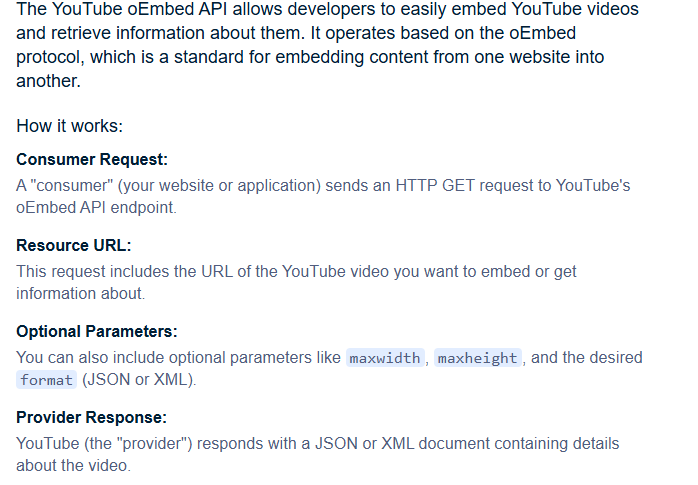
Here are some key features of the YouTube oEmbeds API :
- No API key required
- It’s lightweight and simple, perfect for quick integrations.
- Supports video playlist and channel embedding
- Returns structured data like video title, thumbnail, and player embed code
4. YouTube Search For Content API
The search.list method allows you to fetch relevant content based on:
- Keywords and topics
- Location-based searches
- Publication dates
- Categories and filters
You can even search not just for videos, but also for playlists and channels.
Example: An educational website can use the API to automatically pull and display the most recent videos on “YouTube for education” or “science tutorials.”
How To Get YouTube API Keys?
Here is a step-by-step guide on how to get YouTube API keys:
1: Sign in to Google Developers Console
- Go to the Google Developers Console
- Log in with your Google account.
- You will land on the dashboard
2: Create a New Project
- Click on the Create Project button
- Enter a Project name, choose your Organization, and select a location.
3: Explore and Enable APIs
- Once your project is created, you will see a new dashboard.
- Under Getting Started, click Explore and Enable APIs.
4: Find YouTube Data API v3
- In the API library, scroll down to the YouTube APIs section.
- Select YouTube Data API v3.
5: Enable the API
- On the API page, click the Enable button.
- This activates the YouTube API for your project.
6: Create Credentials
After enabling, navigate to the Credentials section (located at the top right).
Select:
– Which API are you using? – YouTube Data API v3
– From where will you be calling the API?- Web server (e.g., Node.js, Tomcat)
– What data will you be accessing? – Public data
Click: What credentials do I need?
Step 7: Get Your API Key
- Your API Key will be generated instantly.
- Copy it and store it safely.
- You can also find it at any time under ‘Credentials’ in your project dashboard.
How To Get the YouTube API Without Coding?
Setting up YouTube Data API v3 can be tiring and time-consuming. Starting from creating a project in the Google Developer Console may require some technical knowledge.
But what if we tell you that you can leverage the power of the YouTube API integration, without having to write a single line of code? This is possible with Tagembed. These tools eliminate the need for coding and provide a user-friendly interface that handles all the technical work behind the scenes.
Why Use a No-Code YouTube API Solution?
- No technical hassle required: With Tagembed, you can easily skip the Google API Console and API Keys.
- Real-time updates: You can automatically update all the YouTube content on your website.
- Custom Layouts: Change the themes and layouts, add CTAs, and customize the YouTube widget on your website to match your website.
- Moderation Tools: Utilize the moderation tool to remove content that does not align with your marketing campaign.
YouTube API Limits
The YouTube Data API v3 comes with usage restrictions that are managed through a quota system. Every request made to the API consumes a certain number of units. Once your daily quota is exhausted, your API key will be temporarily suspended until the quota resets.
Google provides a quota calculator to help developers estimate usage based on their specific needs.
Default Daily Quota: 100000 units
Cost of operations :
- Read operation – 1 unit (e.g., retrieving video details, fetching playlists)
- Write operation – 50 units (e.g., updating metadata, adding to playlists)
- Video upload -1600 units (e.g., publishing a new video to a channel)
Note: Insert and update operations often involve both writing and returning data. For example, inserting a playlist requires 50 units for the write operation plus additional units for the returned playlist resource.
What Can You Do With the YouTube API?
The 1,000,00 daily units quota might sound huge, but how you spend it depends on the operations you perform. Here are a few examples.
- 2,00,000 read operations, for example, fetching video details, playlists, and comments.
- 10,000 write operations + 90,000 read operations.
- 400 video uploads + 1,500 write operations + 50,000 read operations.
The Final Call
The YouTube API offers powerful tools to automate content, track engagement, and grow your audience. However, managing quotas, API keys, and technical setup might frustrate the users at some point. With Tagembed, businesses can skip the coding and instantly embed live YouTube feeds on their website.
Embed social feed from Facebook, YouTube, Instagram, Twitter on your website, like a PRO
Invalid Email Address Multiple Themes