RSS Feed Examples: 10+ Ways to Display RSS Posts on Website
RSS feed examples show that RSS content does not have to appear as a basic list of links. With the right layout, you can display the same content as cards, grids, sliders, carousels, tickers, or even a magazine-style feed. The format you choose should depend on the type of content you want to display and the kind of website you have.
In this guide, we’ll look at different ways to display RSS feeds on your website and where each format works best. You’ll see examples for blogs, news websites, business sites, publishers, and more. We’ll also cover different RSS feed layouts, designs, and themes to help you choose a format that looks right for your content and makes it easy for visitors to explore.
Collect, Moderate, and Add RSS Feed Examples on Website
Try for freeWhat Is an RSS Feed?
An RSS feed is a structured XML document that provides a website’s latest content in a format that apps and other tools can read automatically. It can include details such as a post title, link, description, author, category, and publication date. When new content is published, an RSS feed reader can pick up the update automatically, so users do not have to check the website themselves.
Businesses and bloggers can also use an RSS feed on their website to show recent content to visitors. For example, an RSS feed format example might show recent posts as a list, while an RSS format example could use cards or images. An RSS feed widget takes that feed content and turns it into a visual display for a website. In simple terms, the feed provides the content, while the widget controls how visitors see it.
What Does an RSS Feed Look Like? (XML Example)
An RSS feed is an XML document that follows the RSS specification. In RSS 2.0, the feed uses a <channel> element to describe the feed and <item> elements for individual entries. Here is a simple RSS 2.0 example:
10+ RSS Feed Examples for Websites Compared
There are plenty of ways to display RSS content beyond a basic list of links. These RSS feed examples show how different RSS feed layouts can change the way visitors browse and interact with your content. From simple lists and grids to carousels, tickers, and magazine-style displays, each format works better for certain types of websites and content.
1. RSS Classic Card

With the RSS Classic Card theme, each post is shown in its own card, which makes the RSS feed easy to look at and organize. Depending on the layout, the cards may contain an image, the title, a short excerpt and the publication details. The well-known arrangement enables visitors to tell the posts apart and to quickly locate the content that interests them. Hence, the theme is suitable for websites that issue a number of updates and wish to keep their content neatly organized.
Best for: Blogs, business websites, resource pages, and content hubs.
2. RSS Modern Card

The RSS Modern Card theme gives your feed a clean, contemporary look through its card-based layout. It organizes posts in a way that helps visitors browse headlines, images, and brief descriptions without feeling overwhelmed. Moreover, its modern visual style can complement websites that want a polished appearance while keeping content easy to read. You can also explore different RSS feed templates to find a suitable RSS feed design for your website.
Best for: Modern business websites, SaaS websites, blogs, and landing pages.
3. RSS Horizontal Slider

The RSS Horizontal Slider theme arranges posts in a row, allowing visitors to browse across multiple items in one section. It can display images, titles, and short previews where supported, helping readers discover recent articles without scrolling through a long vertical feed. Moreover, this layout makes good use of limited page space. Explore the RSS Horizontal Slider theme to find a suitable option for your website’s RSS feed layouts and RSS feed themes.
Best for: Homepages, compact content sections, and pages featuring recent updates.
4. RSS Gallery Slider
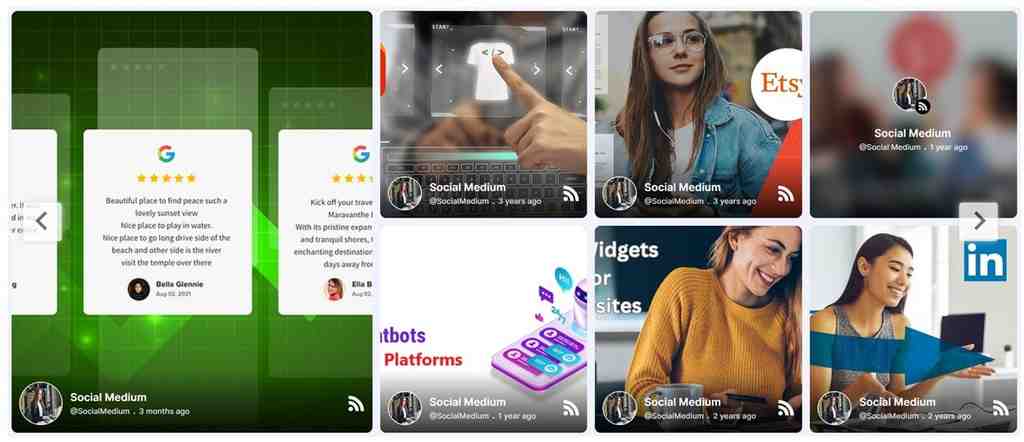
The RSS Gallery Slider theme puts images at the center of your feed, presenting posts in a gallery-style slider. Visitors can browse horizontally through visual content and discover articles or updates at a glance. Unlike a text-focused RSS feed sample, this layout works best when images help tell the story, such as travel photos or food features. It also gives image-rich content a more visual RSS feed design without filling the page with lengthy descriptions.
Best for: Travel blogs, photography websites, food blogs, and visual publishers.
5. RSS Widget Theme
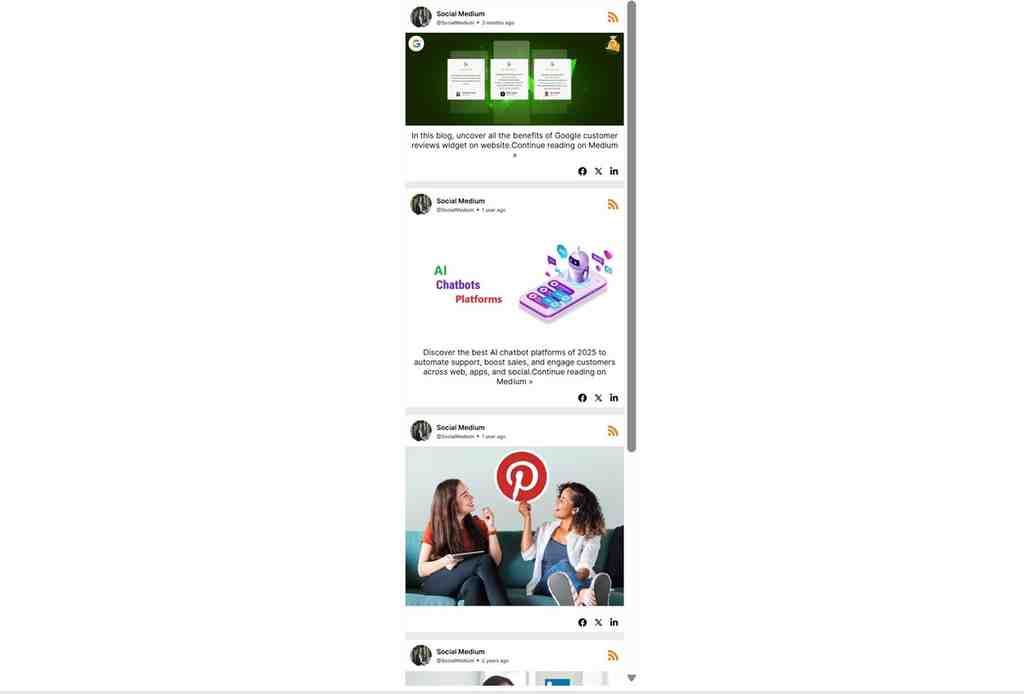
The RSS Widget Theme helps you add recent feed content to an existing webpage in an organized, widget-style layout. It can fit naturally into a page without competing with the main content for attention. Depending on the design, visitors can scan post titles, excerpts, or images to find updates worth exploring. As a result, this theme suits websites that want a compact RSS feed display within their RSS feed on website pages.
Best for: Website side sections, blog pages, resource pages, and existing content layouts.
Collect, Customize, and Embed RSS Post Examples
Try for free6. RSS Horizontal Columns
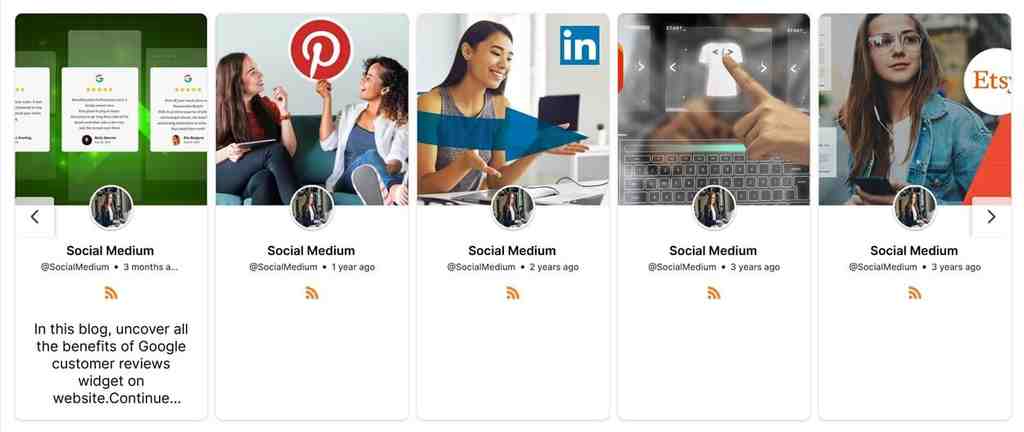
The RSS Horizontal Columns theme displays the posts side by side, allowing visitors to scan multiple updates at a glance. This example of the RSS format makes effective use of the page width and maintains an organized layout without producing a long vertical list. It allows visitors to quickly compare the headlines and to look into the posts that interest them. Unlike a slider, which enables users to browse through the content, this layout shows several items together for easier viewing.
Best for: Business websites, blog homepages, resource pages, and content overview sections.
7. RSS Single Post
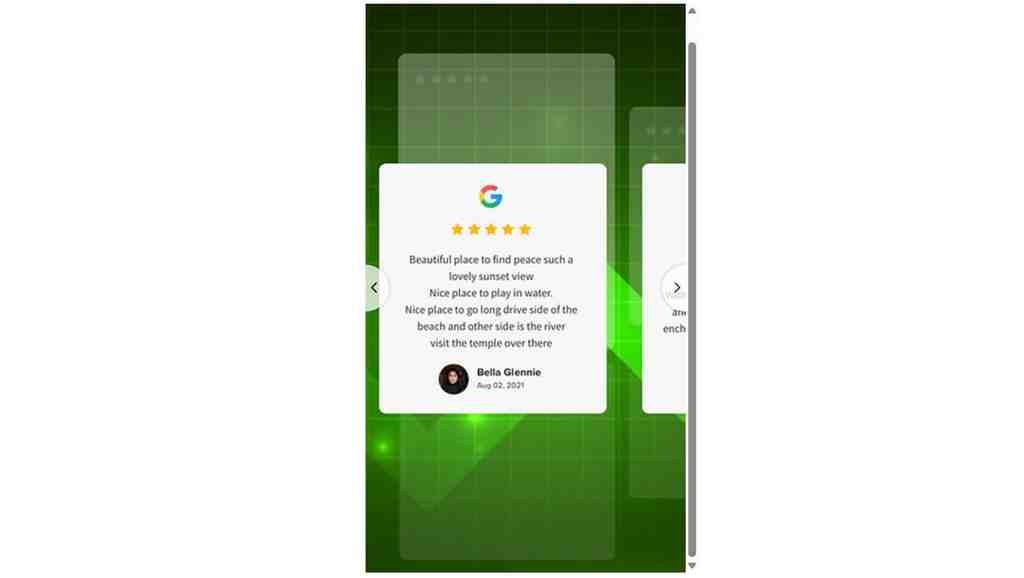
The RSS Single Post theme highlights one article at a time, giving it more attention than a feed containing multiple posts. Depending on the design, it can display a headline, image, excerpt, or publication date to help visitors understand the content. For example, businesses can use this RSS feed sample to feature an important update or a business news RSS feed on their website, keeping a relevant story easy to find.
Best for: Featured articles, company announcements, selected resources, and highlighted updates.
8. RSS Collage

The RSS Collage theme brings posts together in a collage-style arrangement, creating visual variety within a single display. Unlike a Gallery Slider, which lets visitors browse horizontally, this layout presents content in a more varied composition. As a result, image-rich feeds become more dynamic and engaging to explore. It also offers a practical way to showcase recent articles or updates while exploring different RSS feed themes and finding an RSS feed design that suits your website. You can also embed social media feeds to bring more visual content to your pages.
Best for: Creative websites, online magazines, visual blogs, and publishers.
9. RSS Slider

The RSS Slider theme lets visitors browse feed posts through a slider within a dedicated section of your website. Instead of displaying every update at once, it gives selected posts room to stand out while keeping the page tidy. Visitors can browse the available content without leaving the page. When exploring different RSS feed templates, consider how each layout presents your content and fits your website. You can also compare RSS feed aggregator tools to find an option that meets your needs.
Best for: Homepage highlights, featured articles, and compact content sections.
10. RSS Vivid

The RSS Vivid theme gives RSS content a distinctive visual presence through its expressive styling and layout. It helps posts stand out within a webpage, making it a suitable choice when presentation matters as much as the updates themselves. For example, creative brands and publishers can use this RSS feed design to showcase recent articles or visual stories. If you also want to display social content alongside website updates, a social media feed aggregator can help bring different content sources together.
Best for: Visually expressive websites, creative brands, blogs, and content sections that need to stand out.
11. RSS Classic Photo

The RSS Classic Photo theme puts post images at the center of the feed, helping visitors recognize content at a glance. It pairs visual previews with post information, such as headlines, so readers can quickly identify articles that interest them. Unlike the RSS Modern Card, which focuses on a contemporary card layout, this theme prioritizes photography. As a result, it works well for image-led RSS feed samples and offers a practical choice among RSS feed themes for visually rich content.
Best for: Travel, food, photography, lifestyle, and image-rich blogs.
12. RSS Ticker
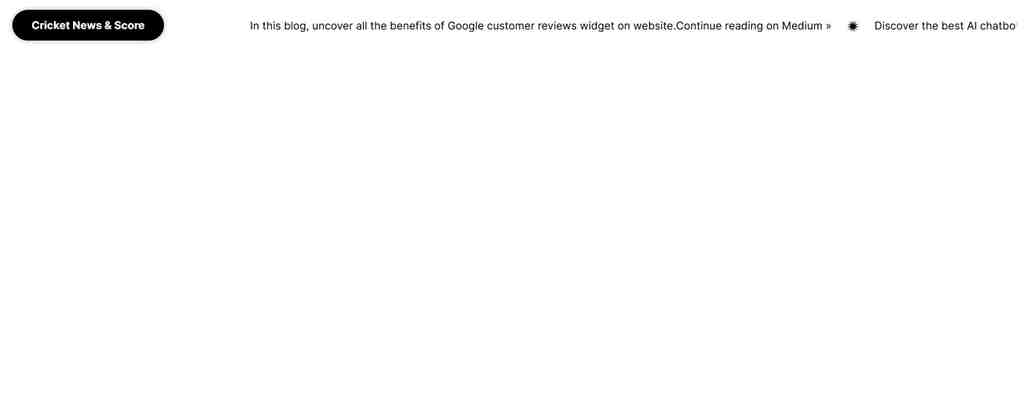
The RSS Ticker theme displays headlines in a compact ticker-style format, helping websites present several updates without taking up much page space. Its scrolling presentation suits short headlines that visitors can scan quickly, especially when content changes frequently. As a result, news publishers and businesses can highlight timely stories, financial updates, or announcements. For example, you can feature a Google News RSS feed to share current headlines. This makes the ticker a practical choice for compact RSS feed layouts on your website.
Best for: News websites, financial updates, media websites, and announcement sections.
Choose Themes and Embed RSS Content Effortlessly
Try for freeRSS Feed Examples by Website Type
RSS feeds can serve different purposes depending on the type of website and the content you want visitors to discover. Here are some RSS feed examples based on common website use cases.
RSS Feed Examples for Blogs
Blogs can use RSS feeds to display recent posts, category updates, or related content in one place. For example, you can display RSS feeds on WordPress for a specific topic below an article or create a section for your latest posts. The right RSS feed templates can also help organize content without adding every update manually.
RSS Feed Examples for News Websites
News websites can use RSS feeds to gather the latest headlines, industry updates, and articles on specific topics. A business news RSS feed can keep readers informed about developments in the industry, and publishers can embed sports news RSS feeds to share the latest sports updates. Additionally, you can embed Google News RSS feed content in order to select relevant headlines.
RSS Feed Examples for Business Websites
Business websites have the option of using RSS feeds to promote company news, industry updates, expert insights, and thought leadership material. Such a news RSS feed can enable visitors to remain up to date with developments in their industry, and for more comprehensive coverage, RSS feed aggregator tools can gather content from a number of different sources and show it all in one place.
RSS Feed Examples for E-commerce Websites
E-commerce websites can use RSS feeds to showcase buying guides, product-related articles, brand updates, and other useful content. For example, a store could display recent buying guides alongside product categories to help visitors find useful information while browsing. This can also give visitors more reasons to explore the website beyond product pages.
RSS Feed Examples for Publishers
Publishers can use RSS feeds to organize articles, research, reports, and updates from different publications or subject areas. For example, academic publishers can use Academic RSS feeds to share new research and papers with readers. They can also use a social media feed aggregator to bring articles and social posts into a single content display.
RSS Feed Examples for WordPress Websites
WordPress websites can use RSS feeds to display recent posts, content from other websites, or updates from selected sources. RSS feed plugins for WordPress can connect external feeds and give site owners different ways to present that content. This is useful for websites that want to keep certain sections updated without adding every post manually.
RSS Feed Examples for Online Magazines
Online magazines can use RSS feeds to aggregate articles from various categories, authors, or external publications. For instance, a magazine might show off its most recent stories on culture, business, and technology in separate sections. A special feature area can be used to bring attention to significant articles, while smaller sections will make it easy to find other recent ones.
How to Choose the Right RSS Feed Layout
The right layout depends on how much content you want to show and how visitors should browse it. These RSS feed examples can help you compare different RSS feed layouts at a glance.
| RSS Layout | Best For | Main Benefit |
| List | Blogs, resource pages | Easy to scan |
| Grid | Business sites, blogs | Shows more content at once |
| Cards | Content websites | Adds visual context |
| Carousel | Homepages | Saves page space |
| Ticker | News websites | Highlights latest headlines |
| Masonry | Magazines, visual blogs | Creates visual variety |
| Sidebar | Blogs, content pages | Keeps recent posts compact |
| Magazine | Publishers, news sites | Creates editorial hierarchy |
When choosing between layouts, consider your content type, available page space, and how quickly visitors need to find an update.
RSS Feed Widget Checklist
A good RSS feed widget should do more than pull content from a feed. It should make that content easy to scan, useful to visitors, and consistent with the rest of your website. Use this checklist before publishing an RSS feed on your site.
- Post title: Keep the original title clear and easy to read. Avoid cutting it off too early.
- Featured image: Use an image when it adds context or makes the post easier to recognize.
- Description/excerpt: Include a short excerpt so visitors know what the post covers before opening it.
- Publication date: Show the date when content freshness matters, especially for news and regular updates.
- Author: Add the author when the person behind the content matters to your audience.
- Source name: Useful when you pull posts from more than one website or feed.
- Read More button: Give visitors a clear way to open the original post.
- Categories: Helpful when your feed covers several topics and visitors may want to browse one area.
- Pagination/Load More: Use this when you have a large number of posts and want to keep the page manageable.
- Responsive design: Check how the feed looks on phones, tablets, and desktops before publishing it.
- Customization options: Look for control over fonts, colors, spacing, buttons, and card styles. Tagembed also offers RSS feed themes that give you different ways to present the content on your site.
- Content moderation/filtering: Filter out posts you do not want to show, especially when you combine content from several sources. This also helps keep your RSS feed design focused and relevant.
Choosing the right RSS feed templates can make a difference too. Pick one that suits the amount and type of content you want to display rather than choosing a layout simply because it looks good.
How to Embed an RSS Feed on Your Website in 6 Steps
Adding an RSS feed to your website is fairly simple. With Tagembed, you can connect your feed, choose how it looks, and add it to your page without much setup.
- Choose the RSS feed you want to display.
- Connect the feed to Tagembed and let it pull in your latest content.
- Pick a suitable layout and RSS feed theme for your website.
- Adjust the design, spacing, content, and other display settings to fit your page.
- Generate the code you need to embed RSS feed content.
- Paste the code where you want the feed to appear on your RSS feed on the website page.
Why Use an RSS Feed Widget on Your Website?
An RSS reader is mainly built for reading feed content, while an RSS feed widget helps you present that content directly on your website. If you want to embed RSS feed content in a way that feels like part of your site, a widget gives you more control over how visitors see and interact with it.
- Better design: Instead of showing plain feed entries, you can present posts as cards, grids, lists, or other layouts that fit your website.
- More customization: Adjust fonts, colors, spacing, buttons, and other details so the feed does not look out of place on your page.
- Responsive layouts: A good widget adapts to different screen sizes, so visitors can browse your content comfortably on phones, tablets, and desktops.
- Automatic updates: Once connected, the widget can pull in new posts as the original RSS feed updates, so you do not have to add content manually.
- Multiple themes: Different themes give you more flexibility when choosing a presentation that suits your content and website.
- No-code embedding: You do not need to build the feed display yourself. Tools such as Tagembed let you set up and add the widget with minimal technical work.
- Better visitor experience: Instead of sending visitors to a separate RSS reader, you can let them discover and browse fresh content directly on your website.
If you are comparing RSS feed aggregator tools, this on-site experience is one of the main advantages to consider. You can also explore our best RSS Aggregator guide to compare your options.
Frequently Asked Questions
A sample RSS feed shows the way in which the content is formatted in raw XML (for example, titles, links, and dates) before an RSS widget carries out the processing and transforms that data into a visual layout on a website.
To display RSS feeds on your website, copy the RSS feed URL, connect it to an RSS feed widget, choose a suitable layout and theme, and add the generated code to your page. You can also embed RSS feed content without coding using tools such as Tagembed.
An RSS feed usually appears as structured XML rather than a designed webpage. An RSS feed sample can contain titles, links, descriptions, authors, and publication dates for each item. An RSS feed widget can turn this data into lists, cards, grids, or other RSS feed layouts.
Typical RSS feed layouts are lists, grids, cards, carousels, tickers, masonry, sidebars, and magazine-style displays. Lists are suitable for quick reading, whereas grids and cards provide a visual context. Depending on the tool, you can make use of various RSS feed templates and RSS feed themes.
Yes. Depending on the tool, you can customize your RSS feed design by changing the layout, theme, fonts, colors, spacing, and content elements. Some RSS feed aggregator tools also let you filter content by source or topic before displaying it on your website.
Yes. You can embed RSS feed content without coding by connecting the feed to a no-code RSS feed widget, choosing a layout, customizing the display, and adding the generated code to your website. WordPress also provides an RSS block for displaying feed content.
Yes. You can display separate feeds in different sections or combine multiple sources with RSS feed aggregator tools. Depending on the tool, you may also be able to filter content by source or topic and display the combined feed using different RSS feed templates.
An embedded RSS feed can update when the source publishes new content and the widget checks for the latest entries. The exact timing depends on the tool’s refresh process and caching. Automatic updates help keep your RSS feed on website content current without manual updates.
Embed social feed from Facebook, YouTube, Instagram, Twitter on your website, like a PRO
Invalid Email Address Multiple Themes