You can embed an RSS feed on your website using an RSS widget, custom code, or a CMS plugin. A no-code RSS widget is the easiest option because it automatically fetches, updates, and displays your feed without requiring any technical knowledge, making it the fastest path from “we have a feed” to “it’s live on the site.”
TL;DR
- RSS widgets (like Tagembed) are the fastest, no-code route: connect a feed URL, customize the layout, and it stays synced on its own.
- CMS plugins work well if you’re already inside WordPress or a similar platform and don’t want to leave the dashboard.
- HTML embed code gives more manual control but needs to be refreshed or scripted to actually auto-update.
- Custom API integration is the most flexible option and the most work, best reserved for developers building something highly specific.
- Finding your RSS feed URL is usually as simple as adding /feed to a site’s homepage URL, or looking for the small orange RSS icon.
- RSS doesn’t directly boost SEO, but fresh, auto-updating content keeps pages from going stale and can support engagement metrics that indirectly matter to rankings.
- Most common issues (blank widget, feed not updating, broken layout) trace back to an invalid feed URL, caching, or a CSS conflict, all fixable in minutes.
- Best for: publishers, bloggers, news sites, SaaS companies, and e-commerce brands that want fresh third-party or in-house content on their site without manual updates.
Quick Comparison of RSS Feed Integration Methods
| Method | Coding Required | Auto Updates | Difficulty |
| RSS Widget | No | Yes | Easy |
| CMS Plugin | Sometimes | Yes | Easy |
| HTML Embed | Yes | Limited | Medium |
| Custom API | Yes | Yes | Hard |
What is an RSS Feed?
An RSS feed is a structured, regularly updated file, written in XML, that lists a website’s latest content: articles, podcast episodes, videos, or product updates, along with titles, summaries, publish dates, and links back to the full content. Instead of a person checking a site manually for new posts, RSS lets software check it automatically and pull in whatever’s new.
How RSS Actually Works
Whenever a website publishes new content, it updates its RSS feed – a structured XML file usually available at a URL ending in /feed, /rss, or /feed.xml. An RSS widget, RSS reader, or content aggregator connects to this feed URL, checks it at regular intervals, and automatically fetches the latest posts. This allows websites to display fresh content without manual updates, making RSS widgets an easy way to automatically update news, blogs, podcasts, or other syndicated content.
The XML Format, briefly
RSS feeds are written in XML because it’s a format built specifically for structured, machine-readable data. Each feed has a set of standard fields, title, link, description, publish date (pubDate), and sometimes an enclosure tag for attaching media like a podcast audio file or a featured image. That consistent structure is exactly what lets a widget or reader parse the feed correctly regardless of which website it came from.
Common RSS Feed Sources
News outlets, blogs (WordPress generates one automatically for every site), podcast platforms, YouTube channels, and many SaaS product blogs all publish RSS feeds by default, often without the average visitor ever knowing the feed exists.
Why Websites Still Use RSS Feeds
RSS predates most modern content platforms, and it’s still around because it solves a problem that hasn’t gone away: getting fresh, structured content from one place to another without manual copying or a heavy API integration. It’s lightweight, it’s an open standard with no login or API key required in most cases, and it works the same way it did over a decade ago, which is exactly why so many tools still support it.
Collect, Moderate, and Embed RSS Feeds on Website
Try for freeWhy Embed an RSS Feed on Your Website?
An RSS feed automatically displays the latest content from blogs, news sites, podcasts, or other sources on your website. Whether you want to showcase your own updates or curate industry news, embedding an RSS feed helps keep your website fresh without requiring constant manual work.

Keep Your Website Fresh with Automatically Updated Content
A site that hasn’t visibly changed in months reads as inactive, even if the business behind it is running fine. An embedded feed solves this by showing real, dated content that updates on its own.
You’re Manually Copying Articles or Updates Onto Your Site
If someone on your team is currently pasting new blog posts or news mentions onto a page by hand, that’s a maintenance cost an RSS feed eliminates entirely. Once it’s set up, it keeps itself up to date automatically.
You Want to Share Industry News Without Writing It Yourself
Curating relevant industry headlines or partner updates on your site adds value for visitors, but writing original commentary for every external story isn’t realistic for most teams. An RSS feed pulls that content in automatically while keeping the original attribution intact.
Visitors Leave Because There’s Nothing New to Look At
Fresh, scrollable content keeps people on a page longer than static text. Whether it’s your latest blog posts or curated updates from trusted sources, regularly refreshed content gives visitors a reason to stay and come back.
Updating Multiple Pages Every Time You Publish Is Unsustainable
If new content needs to appear on your blog, homepage, and sidebar, RSS lets you publish once and automatically display it wherever the feed is embedded instead of updating every location manually.
Your Content Lives in Too Many Different Places
If you’re publishing content across multiple blogs, a podcast, and a YouTube channel, an RSS aggregator can combine everything into a single feed instead of forcing visitors to check multiple pages or platforms.
| Without RSS | With RSS |
| Manual updates every time new content goes live | Automatic updates as soon as the source publishes |
| Static content that looks the same for months | Live, constantly refreshing content |
| High effort to keep pages current | Low effort, set up once and it maintains itself |
| Visitors may see outdated information | Visitors always see the latest content |
| Time spent copying and publishing content manually | Time saved through automated content syndication |
How to Add an RSS Feed to Your Website: 4 Easy Methods
Below are 4 proven methods to add an RSS feed to your website, each offering different levels of customization, automation and technical complexity.
Method 1: RSS Widget (Recommended)
This is the no-code route, and it’s the one most businesses should default to. You paste in a feed URL, the RSS aggregator fetches and formats the content automatically, and it keeps syncing without anyone touching code again.
Why it works well: no coding required, automatic syncing as the source feed updates, responsive layouts that adjust to any screen size, and enough RSS feed customization (colors, fonts, number of items, layout style) to match your site’s actual design instead of looking like a bolted-on box.
Method 2: CMS Plugin
If you’re running WordPress or a similar CMS, a dedicated RSS plugin lets you manage the feed directly from your dashboard rather than touching raw code.
Pros: integrates cleanly with your existing CMS workflow, usually has a simple settings panel, and doesn’t require leaving your admin area.
Cons: plugin quality varies widely, some are abandoned or poorly maintained, and you’re adding another plugin to keep updated and monitor for conflicts.
Method 3: HTML Embed Code
This means writing (or copying) a script that fetches and parses the RSS XML yourself, then displaying it with custom HTML and CSS.
Limitations: it gives you full control, but “auto-updating” usually means writing your own refresh logic, and most static HTML embeds won’t reflect new feed items until the page is manually reloaded or a script is scheduled to re-fetch the data. It’s also the method most likely to break silently if the source feed’s structure changes.
Method 4: Custom API Integration
For developers who need highly specific behavior, like feeding RSS content into a mobile app, a custom dashboard, or a non-standard display format, building against an RSS-to-JSON API or parsing the XML directly in your own backend is the most flexible option.
Best for: teams with development resources who need the feed data to do something beyond simply being displayed on a webpage, like filtering, combining, or transforming it before it reaches the front end.
Step-by-Step Guide: Embedding an RSS Feed Using Tagembed Widget
- Create a Tagembed account. Sign up and log into your dashboard.

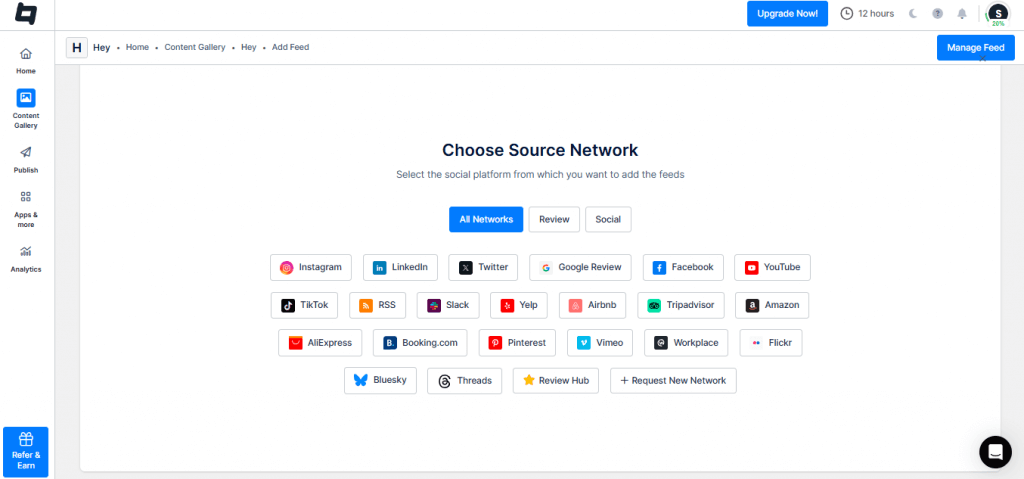
2. Choose RSS as your feed source. From the “Create Widget” option, select RSS Feed from the list of available platforms.
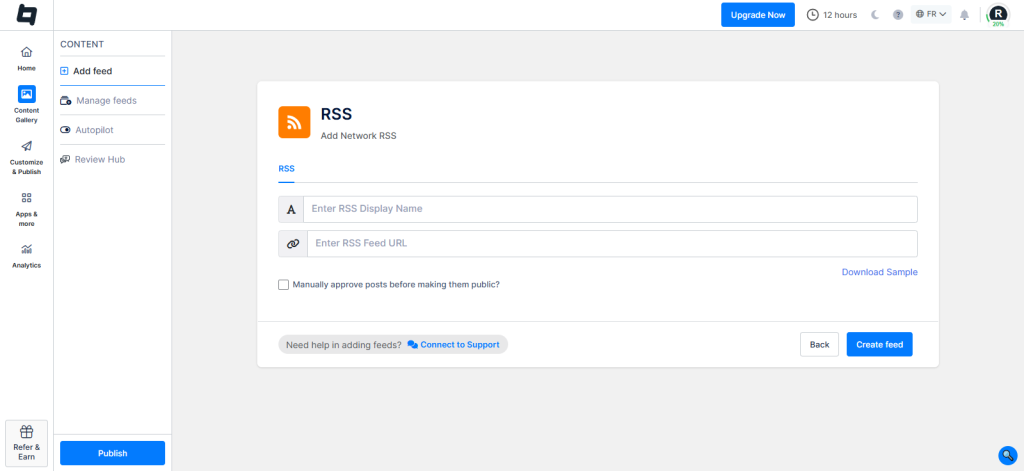
3. Paste your RSS feed URL. Enter the feed’s direct URL (see the section below if you’re not sure how to find it) and Tagembed will pull in a preview of recent entries.
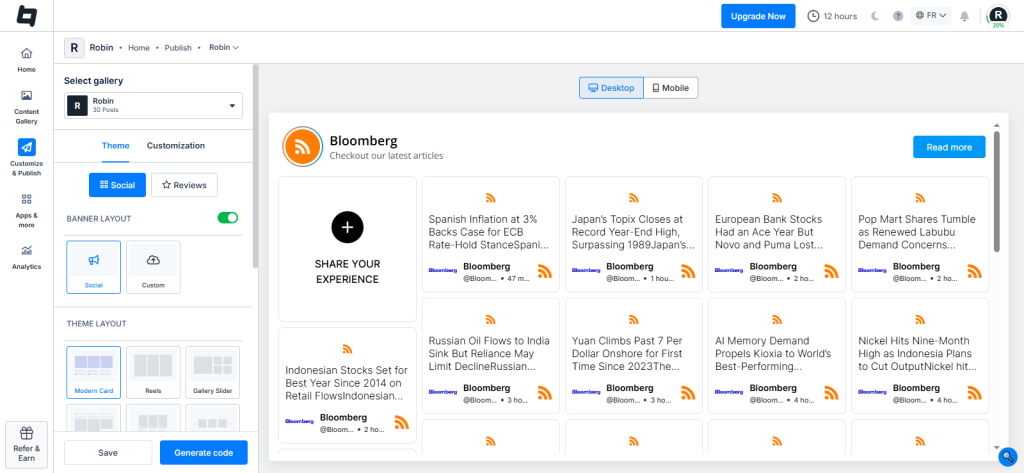
4. Customize the widget. Choose a layout (list, grid, or carousel), set how many items to display, toggle featured images and publish dates on or off, and adjust colors and fonts to match your site.
5. Generate the embed code. Once the widget looks the way you want, click “Embed Widget” and copy the generated snippet, or install the dedicated plugin if you’re on WordPress.
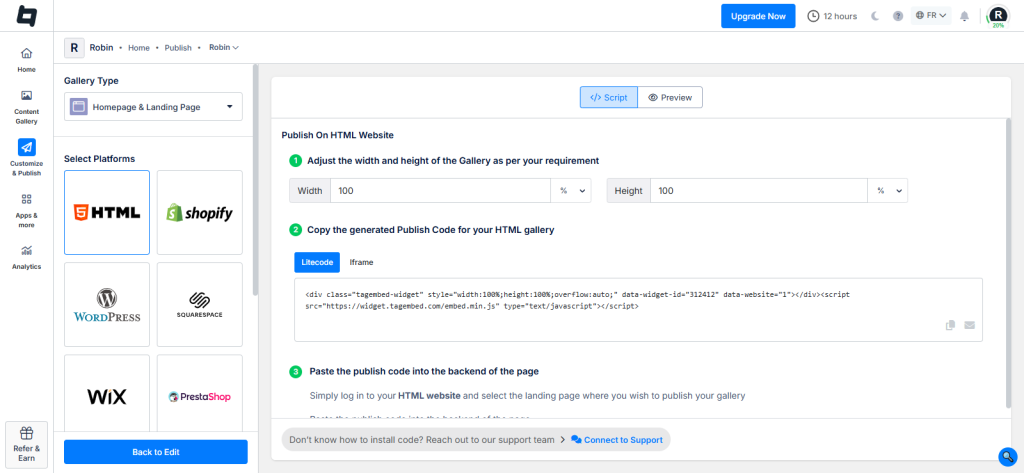
6. Paste the code into your website. Drop it into a custom HTML block, page builder embed element, or theme section wherever the feed should appear, then publish and confirm it’s displaying correctly on both desktop and mobile.
Collect, Moderate, and Embed RSS Feeds on Website
Try for freeHow To Embed RSS Feed on Different CMS Platforms
The initial steps for adding RSS feeds on websites using Tagembed remain the same for all. From there, here are the steps as per different CMS platforms.
1. Embed RSS Feed on an HTML Website
If your website is built using HTML, adding an RSS feed is quick with Tagembed’s embed code. Simply paste the generated code into your webpage and your feed will stay updated automatically.

Steps to embed an RSS feed on an HTML website:
- Log in to your Tagembed account and create your RSS Feed widget.
- Customize the widget layout, theme, and display settings as needed.
- Click Embed Widget and copy the generated HTML embed code.
- Open your website’s HTML file and paste the code where you want the RSS feed to appear.
- Save the file, upload it to your server, and refresh your website to see the live RSS feed.
2. Display an RSS Feed on Your WordPress Website
WordPress makes it easy to showcase an RSS feed using either the Tagembed plugin or the generated embed code. Both methods require no coding and automatically keep your feed updated.

Steps to embed an RSS feed on WordPress:
- Log in to your WordPress dashboard and install the Tagembed WordPress Plugin, or open the page where you want to add the feed.
- Connect your Tagembed widget or copy the generated embed code from your Tagembed dashboard.
- Add a Custom HTML block (or use the plugin shortcode) and paste the code.
- Click Update or Publish to make your RSS feed live on your website.
- Visit the page to ensure the widget is displaying correctly across all devices.
3. Add an RSS Feed to Your Shopify Store
Keep your Shopify store fresh by displaying automatically updated RSS content. You can easily do this using the Tagembed Shopify app or by adding the embed code manually.

Steps to embed an RSS feed on Shopify:
- Sign in to your Shopify admin and install the Tagembed Shopify App.
- Create or select your RSS widget from the Tagembed dashboard.
- Navigate to Online Store → Themes → Customize and add a Custom Liquid section where you want the feed.
- Paste the generated embed code and save your changes.
- Preview your storefront to confirm the RSS feed appears correctly.
4. Embed an RSS Feed on Your Wix Website
Wix allows you to embed RSS feeds without writing code using its built-in HTML embed feature. Once added, your feed updates automatically whenever new content is published.

Steps to embed an RSS feed on Wix:
- Open your Wix Editor and navigate to the page where you want to display the RSS feed.
- Click Add Elements (+) → Embed Code → Embed HTML.
- Copy the embed code from your Tagembed dashboard and paste it into the HTML box.
- Click Apply and adjust the widget size and position.
- Publish your website to make the RSS feed live.
5. Show an RSS Feed on Squarespace
Squarespace’s Code Block makes it simple to add dynamic RSS content anywhere on your website. The feed automatically refreshes whenever new content is available.

Steps to embed an RSS feed on Squarespace:
- Log in to Squarespace and edit the page where you want the RSS feed.
- Add a Code Block to your preferred section.
- Copy the embed code from Tagembed and paste it into the block.
- Save the page and publish your changes.
- Open the live page to verify the RSS feed is displaying properly.
6. Add an RSS Feed to Your Webflow Site
Whether it’s a blog, news section, or resource page, Webflow lets you embed an RSS feed in just a few clicks using the Embed component.

Steps to embed an RSS feed on Webflow:
- Open your Webflow project and navigate to the desired page.
- Drag an Embed element onto the canvas.
- Paste the Tagembed embed code into the Embed element.
- Save your changes and publish the project.
- Visit your website to confirm the RSS feed is loading correctly.
7. Embed an RSS Feed on Weebly
Adding an RSS feed to Weebly helps keep your pages fresh with automatically updated content. The setup takes only a few minutes using the Embed Code element.

Steps to embed an RSS feed on Weebly:
- Sign in to your Weebly dashboard and edit your website.
- Drag the Embed Code element onto the page.
- Select Edit Custom HTML and paste your Tagembed embed code.
- Save the changes and publish your website.
- Check the live page to ensure the RSS feed is working correctly
8. Display an RSS Feed on Google Sites
Google Sites lets you embed external widgets using its built-in Embed feature. Simply paste your Tagembed code and publish your website.

Steps to embed an RSS feed on Google Sites:
- Open your Google Site and go to the page where you want the RSS feed.
- Click Insert → Embed → Embed Code.
- Paste the embed code copied from Tagembed.
- Click Insert and position the widget on the page.
- Publish your website and verify the RSS feed appears correctly.
9. Embed an RSS Feed Using Elementor
Elementor makes it easy to display RSS feeds with its HTML widget. Simply paste the embed code and publish your page with no coding required.

Steps to embed an RSS feed on Elementor:
- Open the page using the Elementor editor.
- Drag the HTML widget to your desired section.
- Copy the embed code from Tagembed and paste it into the widget.
- Click Update or Publish to save your changes.
- Preview the page to make sure the RSS feed is displayed properly.
This version feels much closer to Tagembed’s current content style SEO-friendly headings, a short descriptive intro under each heading, and consistent 5-step instructions with up-to-date CMS workflows.
Collect, Moderate, and Embed RSS Feeds on Website
Try for freeHow to Find an RSS Feed URL
This trips people up more than any other step, so here’s every common way to track one down.
Try Adding /feed to the Homepage URL
Most WordPress sites and many blogs automatically generate a feed at yourwebsite.com/feed. It’s worth trying this first since it works more often than people expect.
Look for the RSS Icon
The small orange broadcast-style icon, often found in a site’s footer, header, or sidebar, usually links directly to the feed URL.
Check the Page Source
Open a site’s page source (right-click, “View Page Source,” or Ctrl+U/Cmd+Option+U) and search for rss+xml. The feed URL will typically appear in a <link> tag in the page’s head section.
Use a Browser Extension
RSS-detection browser extensions can scan any page you’re on and surface available feed URLs automatically, which is faster than digging through source code manually.
Check a Feed Reader
Feed reader tools like Feedly or Inoreader often have a built-in search function that can locate a site’s feed just by searching the site’s name or domain.
RSS Feed Examples
The following RSS feed examples show how different types of content can be automatically displayed on a website using RSS.
| Source Type | Example Use Case |
| News | A media outlet’s feed showing latest headlines, embedded on a partner or aggregator site |
| Blogs | A company blog’s feed displayed on a homepage “Latest Articles” section |
| Podcasts | A podcast’s episode feed embedded on a dedicated podcast landing page |
| YouTube | A channel’s upload feed shown as a “Latest Videos” section on a website |
| WordPress | Any WordPress site’s auto-generated feed, commonly used to share content across multiple owned properties |
| Google News | Topic or publication-specific feeds, where available, used to curate relevant industry headlines |
Best Practices
- Show a featured image when the source feed supports it, since a purely text-based feed reads as flat and low-effort.
- Display the publish date so visitors can judge how current the content actually is.
- Limit the number of items shown to a manageable range, generally 6 to 12, so the feed supports the page instead of overwhelming it.
- Set a reasonable auto-refresh interval rather than checking the source constantly, which can strain both your site’s performance and the source feed itself.
- Match your website’s design, adjusting fonts, colors, and spacing so the feed looks native to the page rather than pasted in.
- Confirm mobile responsiveness separately from desktop, since feed widgets can behave differently at smaller screen widths.
- Use lazy loading if the feed sits below the fold, so it doesn’t compete with your page’s initial load time.
Common RSS Feed Issues (Troubleshooting)
| Problem | Cause | Solution |
| Feed not loading | Invalid or malformed XML | Validate the feed using an RSS validator tool |
| Widget showing blank | Wrong or outdated feed URL | Double-check the source and re-enter the correct URL |
| Feed not updating | Cached content | Manually refresh the widget or clear the cache |
| Images missing | Source feed doesn’t include image data | Switch to a feed source that supports enclosures/featured images |
| Layout broken | CSS conflict with your site’s theme | Override conflicting styles or adjust the widget’s container CSS |
RSS Feed vs. API vs. Social Media Widget
| Feature | RSS | API | Social Widget |
| Setup | Easy | Complex | Easy |
| Coding required | No | Yes | No |
| Updates | Automatic | Automatic | Automatic |
| Best for | Blogs and news content | Custom app-level integrations | Social proof from platforms like Instagram or Facebook |
RSS is the right call when you just need to display published content from a blog, news source, or podcast. An API integration makes sense when you need the data to power something more complex than a display widget, like an app feature. A social media widget is the better fit when what you actually want is content from platforms like Instagram, Facebook, or X, since those platforms don’t publish standard RSS feeds for that content.
Does Embedding RSS Feeds Help SEO?
Embedding third-party RSS feeds alone does not directly improve search rankings. Google doesn’t treat embedded, externally-sourced content as your own original content for ranking purposes, so a feed by itself isn’t a shortcut to better rankings.
What it can do is support user experience. Fresh content that visibly updates gives visitors a reason to stay on a page longer, which affects engagement signals like dwell time and bounce rate, both of which search engines factor into how they evaluate page quality. It also helps a page avoid looking stale during periods when you haven’t published new content of your own.
The honest takeaway: treat an RSS embed as a user experience and engagement tool, not an SEO shortcut. It supports the broader picture rather than moving rankings on its own.
Conclusion
For most websites, a no-code RSS widget is the easiest and most sustainable way to embed a feed: no ongoing maintenance, automatic updates, and enough customization to match your site’s design. CMS plugins and HTML embeds have their place for specific setups, and custom API integrations make sense for developers building something beyond a standard display. Whichever method you choose, keep the item count reasonable, match the design to your site, and check back occasionally to confirm the feed is still syncing correctly.
Frequently Asked Questions
An RSS feed is a structured XML file that lists a website’s latest content, articles, episodes, or updates, along with titles, summaries, and links, allowing software to automatically check for and display new content without a person visiting the site manually.
The easiest way is through a no-code RSS widget: paste the feed URL into the tool, customize the layout, and copy the generated embed code into your website’s HTML, a custom code block, or a page builder’s embed element.
Yes. RSS widget tools like Tagembed handle the fetching, formatting, and display automatically, requiring only that you paste in a feed URL and customize the appearance, no HTML or scripting knowledge needed.
Yes, when using a widget or CMS plugin. The tool periodically checks the source feed and pulls in new entries as they’re published, so the display stays current without manual intervention.
Yes, most RSS widget tools support adding multiple feed URLs into a single widget, letting you combine content from several blogs, news sources, or channels into one unified display.
Most WordPress sites, major news outlets, podcast platforms, and YouTube channels generate RSS feeds automatically. Some newer platforms and social networks don’t support standard RSS, which is where API or social widget alternatives come in.
Yes. RSS is an open standard with no licensing cost, and reading or embedding a publicly available feed doesn’t require payment. Widget tools that display RSS feeds may have free tiers with paid upgrades for higher usage limits.
Yes. While it’s less visible to the average internet user than it once was, RSS remains a standard method for syndicating content across blogs, podcasts, news aggregators, and automation tools, and it’s still actively supported by most publishing platforms.
Yes, most modern RSS widget tools let you adjust layout style, colors, fonts, item count, and whether images or publish dates are shown, so the feed can match your website’s existing design.
No, embedding an RSS feed does not directly improve search rankings. It can indirectly support SEO by keeping pages feeling fresh and improving engagement metrics, but it shouldn’t be treated as a ranking strategy on its own.
Embed social feed from Facebook, YouTube, Instagram, Twitter on your website, like a PRO
Invalid Email Address Multiple Themes