You can add an Instagram link to Google Sites by copying your Instagram profile URL and inserting it using the Link option or a Button block in the Google Sites editor. Simply paste the link, customize the text or button label, and publish the site to make it clickable for visitors.
How To Add Instagram Posts To Google Sites For Free?
At some point, almost everyone building a Google Site asks the same thing: How do I show my Instagram posts here without breaking anything? I’ve also been there.
Whether it’s a portfolio, a business site, or a quick landing page, Instagram adds instant credibility. It turns a static page into something that feels active and real. That’s why adding Instagram post to Google Sites is so popular.
Let’s break down what’s actually possible, what’s free, and what works best. Read on!
Add Instagram Post to Google Sites in Second
| Multiple Themes |
How To Add Instagram Posts To Google Sites for Free?
Google Sites is intentionally simple. It’s great for speed and collaboration, but it doesn’t offer native social media integrations. That means there’s no built-in “Add Instagram post” button.
Here’s what Google Sites supports:
- Embed via URL
- Embed via iframe or custom HTML
- Third-party widgets, often with free plans
What it doesn’t support is a native, auto-updating Instagram posts to Google Sites without some kind of workaround.
Instagram posts won’t automatically sync to Google Sites. However, with the right embedding method or a free third-party tool, you can still display Instagram content without spending anything.
Things to Know Before Adding an Instagram Posts to Google Sites:
Before you paste anything into Google Sites, a few reality checks will save you a lot of frustration.
a.) Public vs private accounts
This one’s non-negotiable. If your Instagram account is private, embeds will fail. Google Sites can only display content from public Instagram profiles.
b.) Supported post types
You can embed:
- Single Instagram posts
- Reels
- Profile-based feeds (with tools)
Each option comes with trade-offs, especially if you’re trying to create a full, unblocked Instagram Google Sites.
c.) Common issues people run into
- Instagram embeds are not loading
- Layout breaking on mobile
- Posts show on desktop but not on phones
- Content disappearing after publishing
This is where searches like Instagram unblocked Google sites come from. People assume Google is blocking Instagram. In reality, it’s usually an embedded limitation, a private account, or a mobile rendering issue.
Nothing is actually “blocked.” It just needs the right setup. And that’s exactly where the simplest option comes in.
Method 1: Add a Single Instagram Post on Google Sites (Free & Native)
If you only need to display one or two Instagram posts, this is the easiest way to do it. No third-party tools. Without account connections & No unnecessary steps. Just a clean, native embed that works well for basic use cases.
Steps:
- Open the Instagram post you want to show
- Click the three dots on the post
- Select Embed
- Copy the embed code
- Open your Google Site
- Click Insert → Embed
- Paste the code or URL
- Publish the site
That’s it.
Pros
- Completely free
- No third-party tools
- Takes under two minutes
Cons
- One post at a time
- No auto-updates
- Not scalable
This method works fine, but it’s not ideal if your goal is dynamic Instagram posts on Google Sites. You’ll be manually embedding every new post, which gets old fast.
Add Instagram Post to Google Sites in Second
| Multiple Themes |
Method 2: How To Add Instagram Posts To Google Sites Using Free Third-Party Tools
This is the approach most people eventually switch to. Instead of embedding individual posts, you display Instagram content using tools like Tagembed. The widget pulls posts automatically and displays them inside Google Sites using an iframe.
What is an Instagram feed widget?
An Instagram Feed Widget is a web-based embed tool that allows website owners to display a live, auto-updating stream of Instagram content, such as posts, reels, or profile feeds, directly on a website using an embed code or iframe. The widget connects to a public Instagram account or content source and dynamically pulls posts in real time, ensuring the displayed content stays current without manual Instagram updates.
It’s a small embed block that:
- Connects to your Instagram account
- Pulls posts in real time
- Updates automatically
- Displays multiple posts at once
This is the cleanest way to create a proper unblocked Instagram Google Sites.
How it works with Google Sites
Google Sites doesn’t care what’s inside the iframe. As long as the widget provides an embed code, Google Sites will display it.
How To Add Instagram Posts To Google Site Using Tagembed:
Let’s understand how you can get an Instagram posts on a Google Sites using tools like Tagembed –
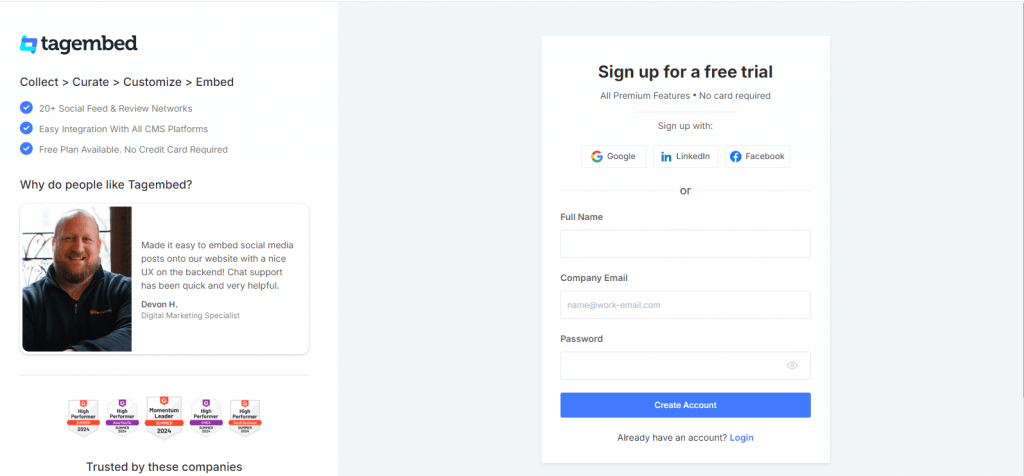
Step 1: Create Your Free Tagembed Account
Head over to Tagembed and sign up for a free account. The process is quick, and you don’t need a credit card to get started.
Step 2: Set Up Your Instagram Post
Once you’re logged in, you’ll see a few setup options. Choose “Social Feeds on Website” to start creating your Instagram gallery.

After verifying your email, you’ll be redirected to your dashboard. A window titled “Choose Source Network” will pop up. Select Instagram as your source.
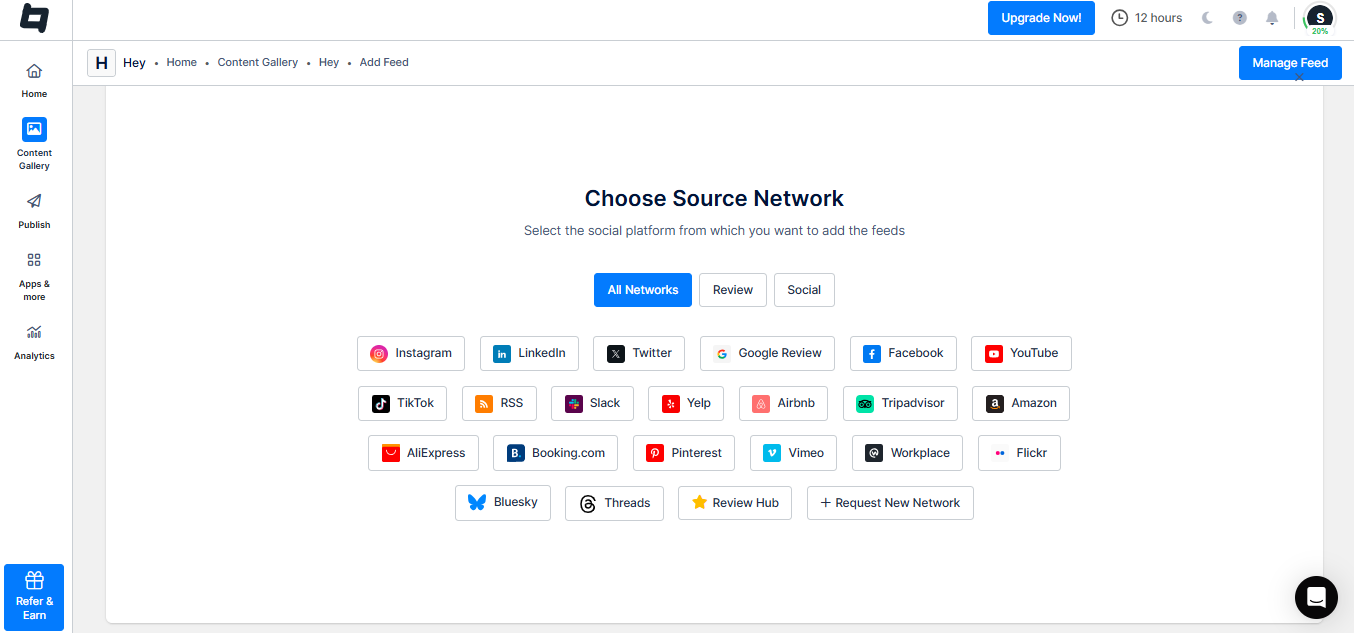
Next, choose how you want to pull content (profile, hashtag, mentions, etc.), then connect your Instagram account.

Click “Create Feed” to generate your gallery.
Step 3: Customize Your Instagram Gallery
From the left-hand sidebar, click “Publish.”

In the list of available channels, select Google Sites.
Want to change how your feed looks?
- Open the Theme tab to pick a layout that fits your site
- Use the Customization tab to tweak fonts, font size, colors, spacing, and card styles
This step helps your Instagram posts blend naturally into your Google Site instead of looking like a random embed.
Step 4: Generate The Instagram Embed Code
Once you’re happy with the design, click “Generate Code.” Choose your preferred Gallery Type, then select Other (Google Sites) as the platform.
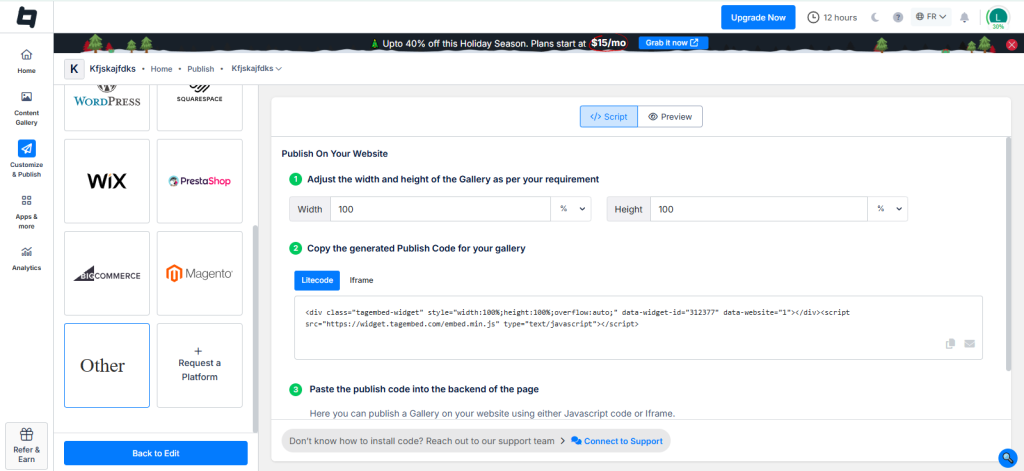
Adjust the width and height if needed, then copy the generated embed code.
Step 5: Add Instagram Posts To Google Sites
Now open your Google Site and log in

Click the + ‘Blank‘ button in the ‘Start a new site‘ section to create a new site or locate your existing website in the ‘Recent sites‘ area.

Create a new blank page or edit your existing one. In the right sidebar, locate the ‘Embed‘ button and click on it.

Now, copy the embed code, and then click the ‘Insert‘ button on the right.

That’s it. Your Google Site will now display live, auto-updating Instagram posts, no manual updates needed.
Benefits of adding an Instagram post to a Google Site:
Adding Instagram posts to your Google Site instantly brings your pages to life. Here’s why it works so well:
- Auto-updating content: Your feed refreshes automatically as you post on Instagram. No manual updates, no copy-paste work. What’s new on Instagram shows up instantly on your site.
- Clean, visual layouts: Instead of cluttered posts or broken embeds, you get a polished grid or slider that looks professional and easy to scan.
- Mobile-responsive by default: The feed adjusts smoothly across devices. Whether visitors are on desktop or mobile, the experience stays consistent.
- Better than manual embeds: Manual Instagram embeds often break, load slowly, or look messy. Dedicated feeds stay stable and faster.
Instagram Posts Not Showing on Google Sites? (Common Problems & Fixes)
If your feed isn’t showing, it’s almost never Google Sites “blocking” Instagram. Here are a few common problems that you might face with the solutions you need –
1. Embed not loading
- Make sure the Instagram account is public
- Re-publish the Google Site
- Try embedding via iframe instead of URL
2. Mixed content issues
If your site is HTTPS, your embed must be HTTPS too. Older widgets sometimes fail here.
3. Private account restrictions
Private accounts will never show. No exceptions.
4. Cache delays
Google Sites sometimes takes a few minutes to reflect changes. Open the site in incognito mode to check.
5. Mobile view not rendering
Some embeds look fine on desktop but break on mobile. Always preview mobile before calling it “done.”
How to Instagram unblocked google sites for free?
| Multiple Themes |
Best Practices To Display Unblocked Instagram Posts On Google Sites:
If you want the feed to look professional and not slow your site down, follow these.
- Choose lightweight layouts: Avoid massive grids with dozens of posts. Fewer posts load faster and look cleaner.
- Don’t over-embed: One Google Sites Instagram post per page is usually enough. More than that hurts performance.
- Ensure accessibility: Add context around the feed, don’t rely on visuals alone, and make sure text remains readable.
- Placement matters: If Instagram content supports your goal, place it above the fold. If it’s just decorative, move it lower.
- Optimize load speed : Heavy embeds slow down Google Sites quickly. Less is more.
All of this helps your unblockedly Instagram on Google Sites feel intentional, not slapped on.
SEO Benefits of Adding an Instagram Content to Google Sites:
This is where things get interesting. An Instagram post won’t directly push your Google Site to the top of search results. That’s not how SEO works. But what it does improve are the behavioral and trust signals that search engines pay close attention to.
When visitors interact more with your site, stay longer, and trust what they see, those signals add up.
Here’s what embedded Instagram content helps improve your Google sites:
- Fresh content signals – Your page regularly displays updated visuals and posts, making it feel active instead of static.
- Longer time on page – Scrolling through real Instagram content naturally keeps visitors engaged.
- Better visual trust – Authentic posts, reels, and images build instant credibility.
- Stronger social proof – Real followers and interactions reassure users that your brand or profile is legitimate.
A well-placed feed keeps users scrolling. And when content is visible and accessible, even users searching for confusing terms like Instagram unblocked Google sites are more likely to stay instead of bouncing.
Final Thoughts
If you only need one post, native embedding works fine. If you want something dynamic, a feed widget is the better long-term choice.
Both options are free. Both work. It just depends on scale.
No matter which method you choose, always:
- Test on mobile
- Check visibility
- Publish and recheck
Google Sites is simple by design. Instagram embedding doesn’t have to be complicated either. Use tools like Tagembed to seamlessly embed your social feed on your website!
Frequently Asked Questions
Open the Instagram post, copy the embed code, then paste it using Google Sites’ Embed option. For feeds, use a third-party widget and embed via iframe.
Make your profile public, link it from your website, add Instagram posts on indexed pages, and connect your bio link properly.
Use a free Instagram content tool, generate an embed code, paste it into Google Sites, publish, and test on mobile.
Free Social Media Aggregator
 Multiple Themes
Embed social feed from Facebook, YouTube, Instagram, Twitter on your website, like a PRO
Invalid Email Address Multiple Themes