How to Add Facebook Feed to Elementor (Step-by-Step Guide)
If your Elementor website feels a little dull, a live Facebook feed can make it look active and trustworthy. When you add Facebook feed to Elementor with a Facebook widget from Tagembed, your latest posts, photos, and reviews show up automatically on your site. This helps keep your content fresh, builds social proof, and gives visitors more reasons to stay and interact.
In this guide, you’ll see how to add a Facebook feed to Elementor step by step using Tagembed, so you can connect your Facebook page and display it on your WordPress website without any coding.


Method 1 – Add Facebook Feed to Elementor Website Through Facebook Code
Follow the step-by-step process to add a Facebook feed to your elementor website using Facebook code:
1) Create an account on Tagembed
- Go to Tagembed, log in or create your free account.

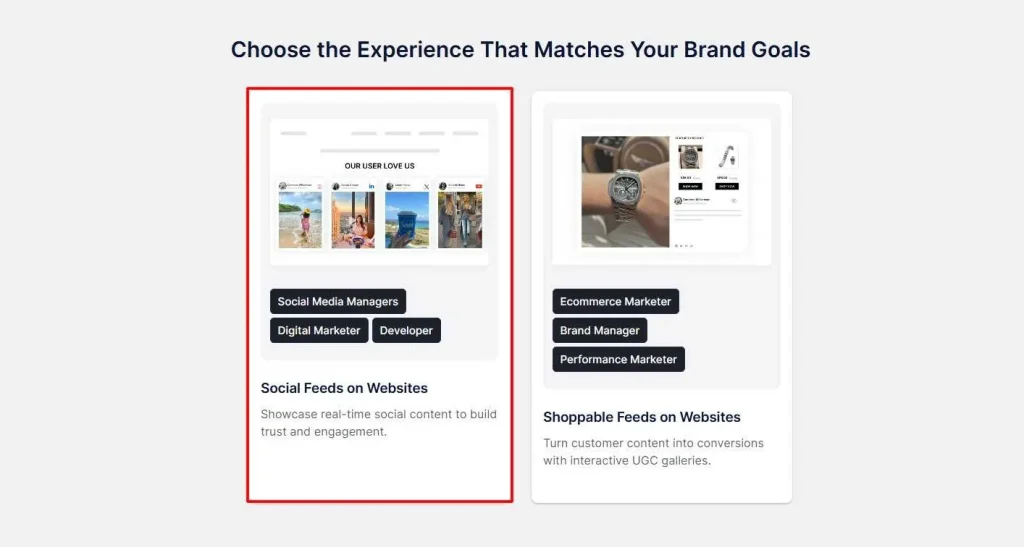
- From the dashboard, choose one of the following options: Social feeds on website or Shoppable feeds on website. Select the first option and proceed.
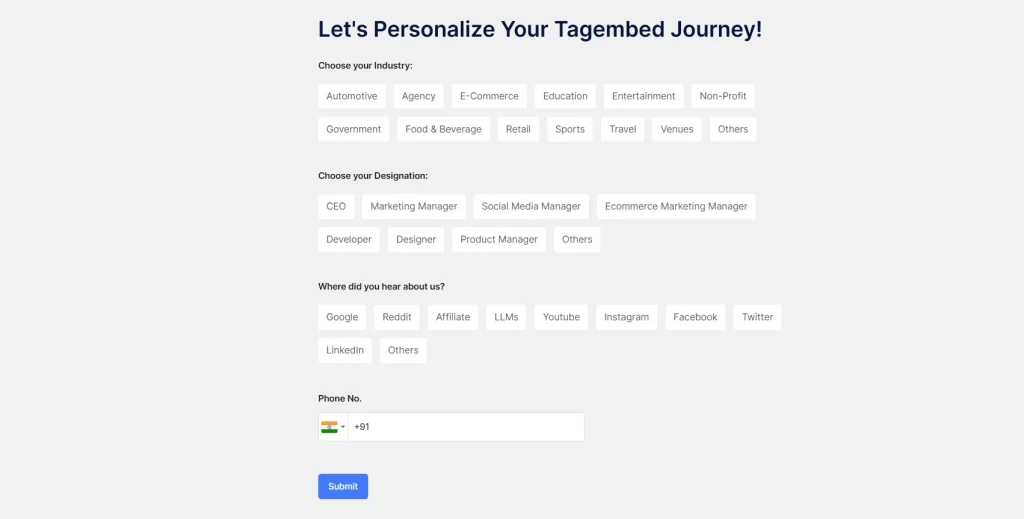
- Select your industry, enter other details, and click Submit. Verify your email to proceed further.
2) Make a Facebook Feed Widget
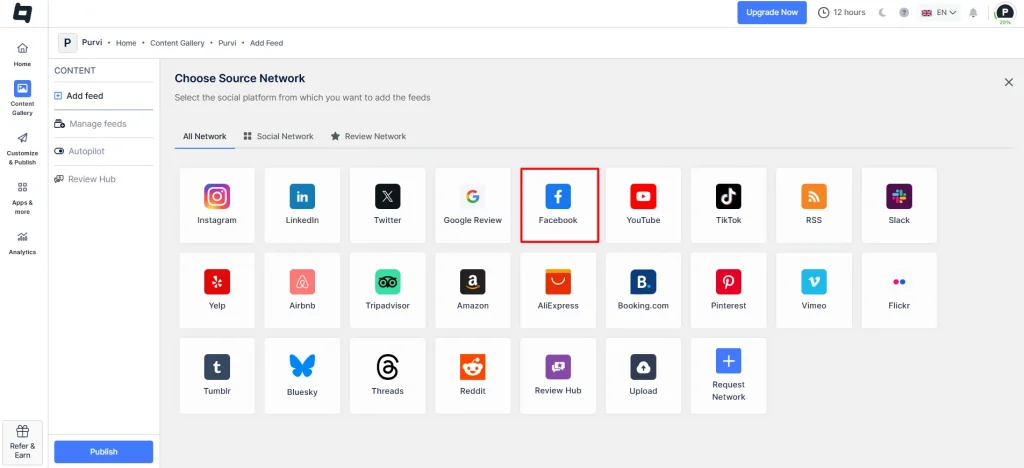
- Select ‘Facebook’ as your source.
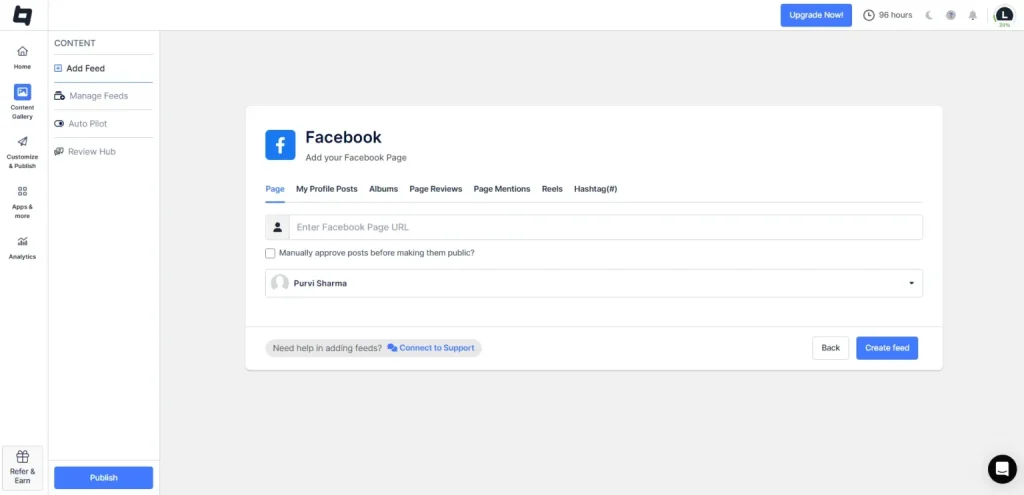
- Connect your Facebook account and add content from the following options: Facebook page, my profile posts, albums, page reviews, page mentions, and reels.
- Once your content is added, click on “Create Feed.”
3) Customize your Facebook feed
- You will see that your feed has been created and that you can moderate it by removing unwanted content. Simply go to the “Customize & Publish” option from the sidebar.
- Click on add channel, enter the channel name, and click “Publish.“
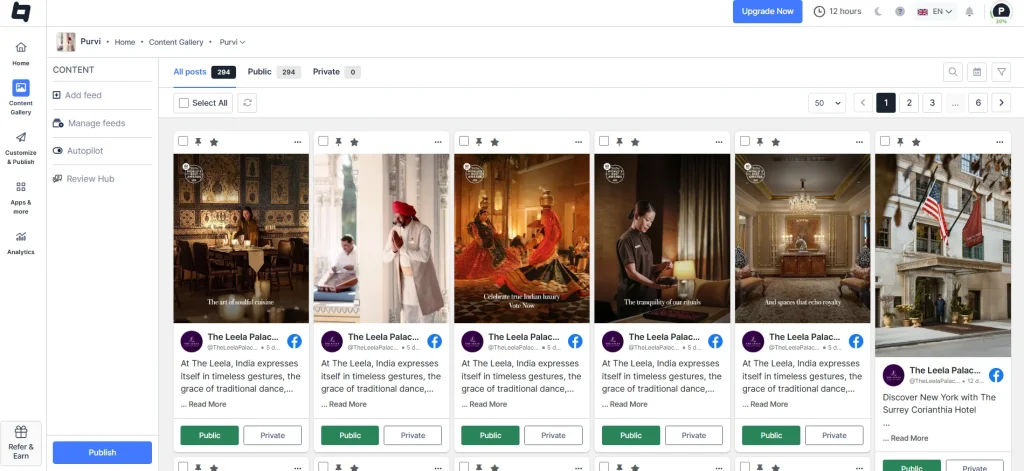
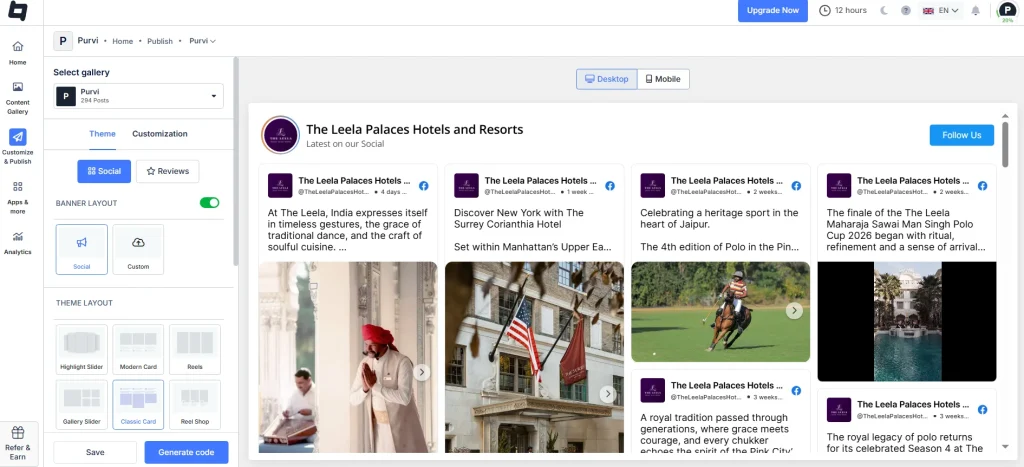
- Next, customize your feed by choosing themes, layouts, backgrounds, fonts, CTAs, and more.
- Once customization is complete, click “Generate code“.
4) Add the Facebook feed on the Elementor Website
- Adjust the width and height, and copy the Facebook embed code.
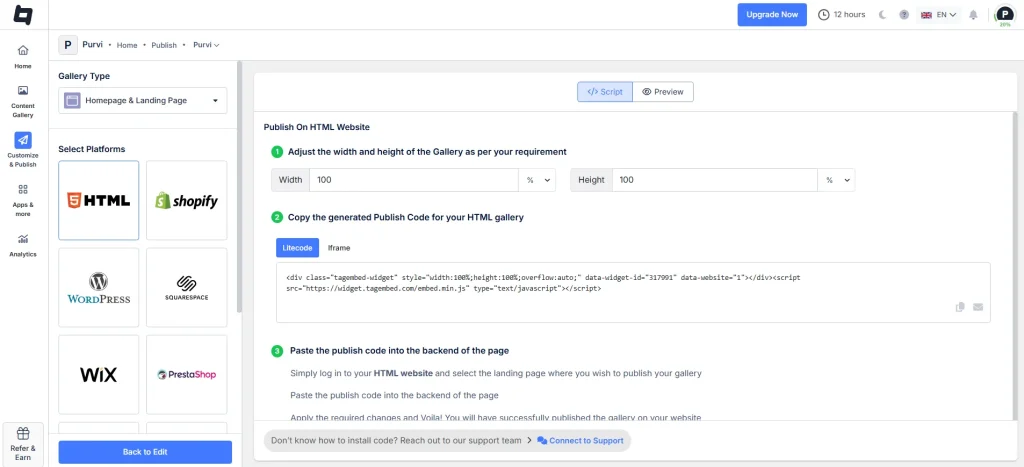
- Log in to your Elementor website and go to its dashboard.
- On the left side, click the ‘Pages’ menu and click ‘add new’.
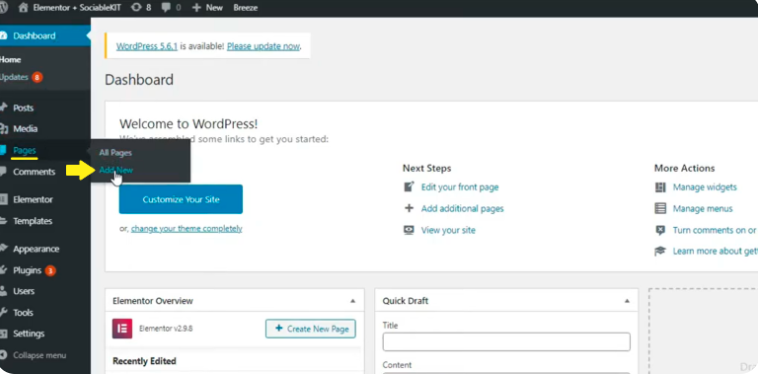
- Enter your page name and click the ‘Edit with Elementor’ button.
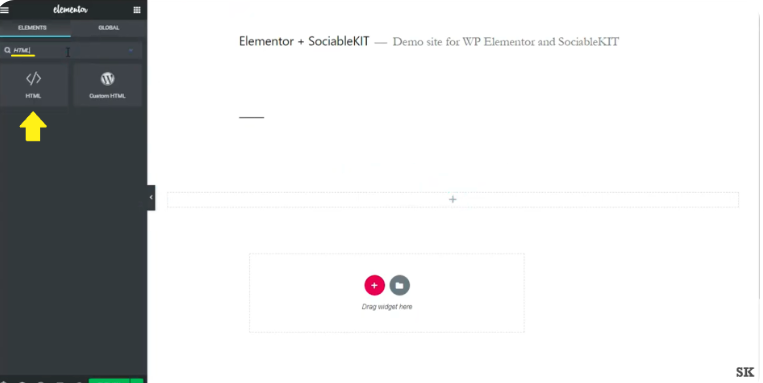
- Paste the Facebook embed code you copied from Tagembed.
- Preview your page, click save, and you’re done.
Adding a Facebook feed on the Elementor website transforms it from a static information hub into a lively one. It adds instant credibility through visible engagement, keeps content automatically up to date, and encourages visitors to interact with your brand.
If you check the Boston University Alumni website, it uses a Facebook feed to showcase real-time community updates and alumni engagement. They have added a QR code on their website and asked their alumni to share their favourite BU moments, making the page feel active and community-driven.

Method 2 – Add Facebook Feed to Elementor Website using Native Method
These are the step-by-step instructions to add a Facebook feed to your Elementor website:
- Log in to your Facebook account and navigate to the post you want to embed.
- Click the 3 dots in the upper-right corner of the post.
- Choose the embed code option.
- Copy the code.
- Log in to your Elementor website’s admin panel.
- Create or edit the page where you want to embed the Facebook posts.
- Paste the code, and you’re done.
Key Benefits of Adding a Facebook Feed in Elementor
Here’s why you should showcase your interactive Facebook feed on your website:
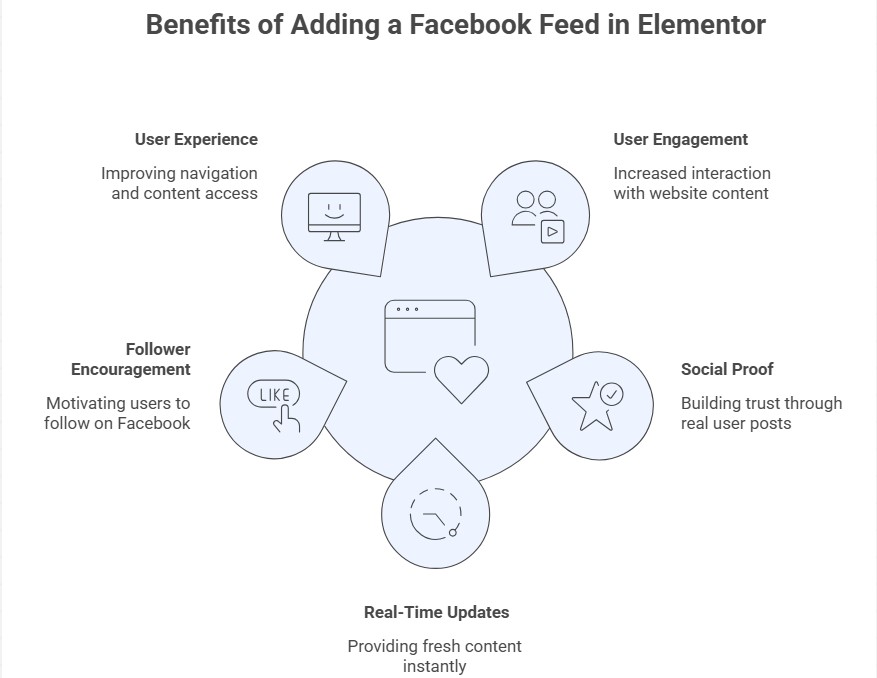
1. Enhanced User Engagement
Adding a Facebook feed to your Elementor website builds next-level engagement and interaction. The Facebook content is dynamic, featuring authentic posts, conversations, reviews, and testimonials. This means that each time a visitor visits your website, he sees more than just static text and other content. They will automatically explore more, navigate to different pages, and may convert due to enhanced engagement and credibility.
2. Strong Social Proof
By adding Facebook Feeds to your website, you show your brand is alive and has many customers. When a visitor sees that your brand is loved by other users, they will definitely trust you more. Hence, the Facebook feed serves as strong social proof, giving a user the confidence to become their customer.
3. Real Time Updates
Your Elementor website will be automatically updated in real time each time a new user posts on your Facebook page. You no longer have to update each post manually, and real-time updates will keep your website up to date with your current offers and other news. Real-time updates ensure that your visitor sees fresh, relevant content each time they visit.
4. Encourages Followers
While integrating the Facebook feed on the website, a user might end up following your page and vice versa. This will not only grow your social audience but also increase your brand awareness and community engagement.
5. Enhanced User Experience
An interactive Facebook feed makes your website feel dynamic, modern, and visually appealing. This means you are providing an enhanced user experience for your audience, which will, in turn, improve your SEO rankings.
Conclusion
A Facebook feed can make your Elementor website more engaging and dynamic. It helps keep your content fresh, build trust with visitors, and showcase real social proof. While there are different ways to embed a feed, using Tagembed makes the process simple and gives you full control over the design. Add the widget today to create a more interactive and engaging website experience.
Embed social feed from Facebook, YouTube, Instagram, Twitter on your website, like a PRO
Invalid Email Address Multiple Themes