How to Create a Facebook Business Page: Complete Guide
Want more people to discover your business online? Learning how to create a Facebook business page will help you build your brand’s presence, share updates, and connect with potential customers. Unlike a personal profile, a Facebook Page represents your business publicly, and Meta Business Suite lets you manage the page’s activities. The guide here shows you how to create your Page, set it up and optimize it, promote your business, embed your Facebook feed on your website, and resolve common setup problems.
What Is a Facebook Business Page?
A Facebook business page is a free, public profile that businesses, brands, and organizations use to showcase their products or services, share updates, and connect with customers. Unlike a personal profile, a Facebook business page supports business activities and provides features to help businesses communicate with their audience and understand how people interact with their content.
- Business Details: Add your website link, business hours, contact info, address, and custom @handle.
- Customer Communication: Direct messaging, automated replies, and comment management.
- Social Proof: Public customer reviews, recommendations, and ratings.
- Audience Insights: Analytics on page views, post reach, and audience demographics via Meta Business Suite.
Customer reviews and recommendations can help potential customers assess a business before making a decision. Managing reviews on Facebook business pages can help businesses understand customer feedback and give visitors more information to consider.
Before creating your Page, consider what you want visitors to do when they land on it, whether that’s browsing your store, calling your team, reading reviews, or heading straight to your website.

Facebook
Page Feed

Facebook
Profile Feed

Facebook
Album Feed

Facebook
Reviews Feed

Page
Reel
Facebook Business Page vs. Facebook Business Account: What’s the Difference?
A personal Facebook account lets you access Facebook and manage Pages, while Meta Business Suite helps you manage business activities from one place. Businesses can also use Facebook marketing tools to plan content, manage campaigns, and review performance.
| Type | What it is | Main purpose |
| Personal Facebook account | An individual’s Facebook profile used to access the platform. | Create and manage Pages, interact with people, and control access to business assets. |
| Facebook business Page | A public profile for a business, brand, or organization. | Share business information, publish posts, respond to customers, and build an audience. |
| Meta Business Suite | Meta’s management interface for connected Facebook and Instagram business accounts. | Create and schedule content, manage messages, and view performance insights. Available features depend on account access and setup. |
| Meta business portfolio | A space for organizing business assets, such as Pages, Instagram accounts, and advertising accounts. | Manage business assets, assign people access, and control permissions in one place. |
You generally don’t need a separate personal Facebook account for your business. You can use your existing personal account to create and manage a Facebook business Page. If you need to manage multiple business assets or give teammates access, a Meta business portfolio can help organize them.
Understanding these differences makes it easier to decide how you make a business page on Facebook and which management features your business needs.
What Do You Need Before Creating a Facebook Business Page?
Before you start, keep your business details and brand assets ready. This will help you fill in the required information without stopping halfway through the setup.
- Personal Profile: You’ll need an active personal Facebook account to create and manage your Page. Use your existing account rather than creating a separate personal profile for your business.
- Business Name: Choose the name customers recognize, whether it’s your registered business name or established brand name. Pick the category that most accurately reflects the type of business you are in, for example, a clothing store, a restaurant, or a marketing agency.
- Description: Write two or three sentences about what your business offers and who it serves. We keep the wording simple so that visitors will be able to understand what we do without having to look elsewhere.
- Brand Images: Prepare your logo for the profile picture and a suitable cover image. Verify that both the logo and the cover image appear well on both mobile and desktop screens, with any important text or visuals clearly visible.
- Contact Details: Keep your website URL, business email, and phone number handy. If you run a local business, prepare your address and opening hours too. Add the details that help customers reach you.
- Username: Think of a short username that matches your business name, such as @tagembed. If your first choice is unavailable, having a backup will save you time.
Tip: Get Everything Ready First
Keep your business description, logo, cover image, contact details, and preferred username in one folder or document. That way, when you start learning how to create a business page on Facebook, you can enter your details without interrupting the process. You can also use this checklist when figuring out how to create a FB business page for another brand you manage.
Share useful posts, engage with customers, and keep your Page updated.
How to Create a Business Page on Facebook: Step-by-Step
Creating a Facebook business Page is straightforward once you have your basic business details ready. If you’re learning how to create a Facebook business page, follow these steps to get your Page up and running.
- Log in to your personal Facebook account.
- Click the Menu icon (dots) and select Page under Create.
- Enter your Page Name, primary Category, and short Bio.
- Click Create Page.
- Add your contact details, brand visuals (logo and cover photo), and action button.
- Switch to your Page profile to claim your custom @username and write your first post.
Step 1: Log In to Your Facebook Account
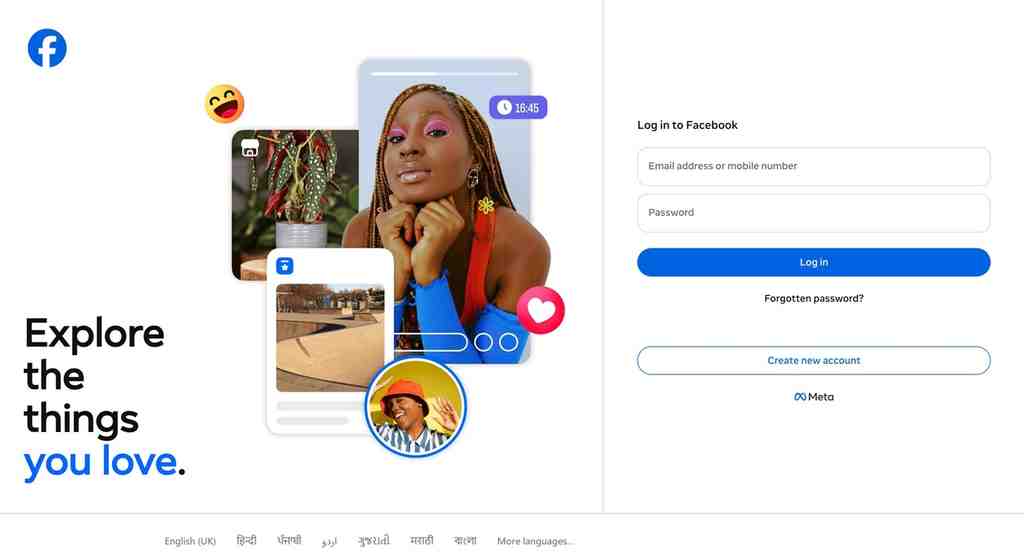
Go to Facebook and log in to your personal account. You’ll use this account to create and manage your business Page. You don’t need to make a separate personal profile for your business.
Step 2: Open the Facebook Pages Section
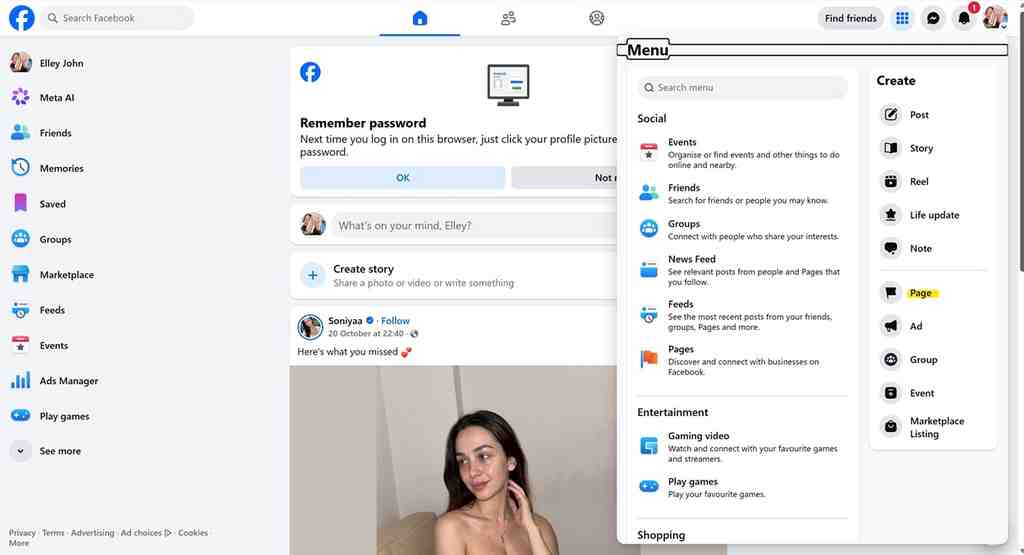
Once you have logged in, check the menu for Pages. If it’s not there, then choose ‘See more‘ on the desktop or look in the Menu section on a mobile device.
Open Pages and select Create new Page to get started. The exact menu location may differ depending on your device or Facebook’s current layout.
Step 3: Enter Your Business Page Name
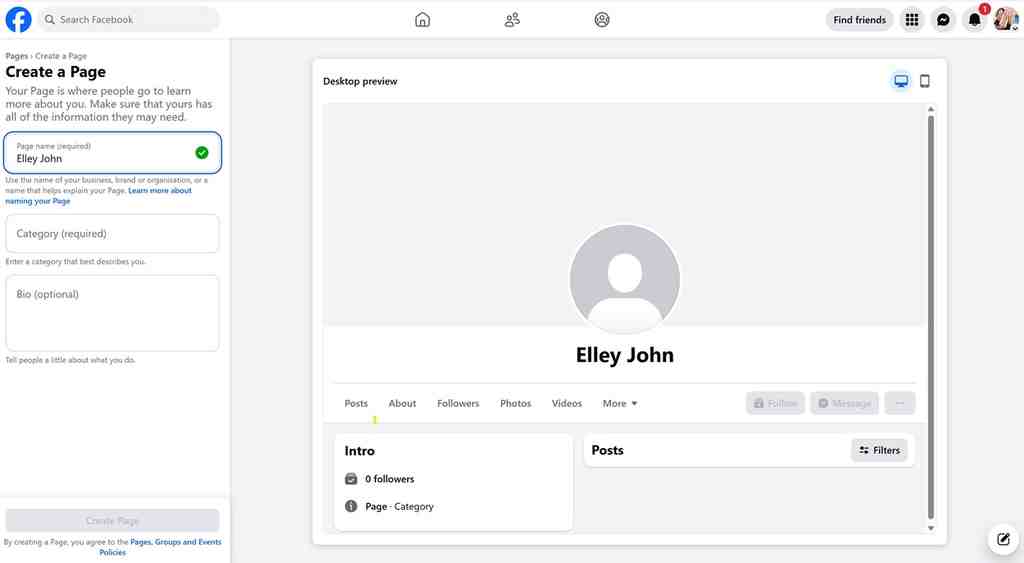
Enter your business or brand name in the Page name field. Choose a name customers will recognize and can easily associate with your business.
When deciding how to create a Facebook business page, keep the name simple and consistent with your existing branding. Avoid adding extra keywords or promotional phrases just to make it stand out.
Step 4: Choose the Right Business Category
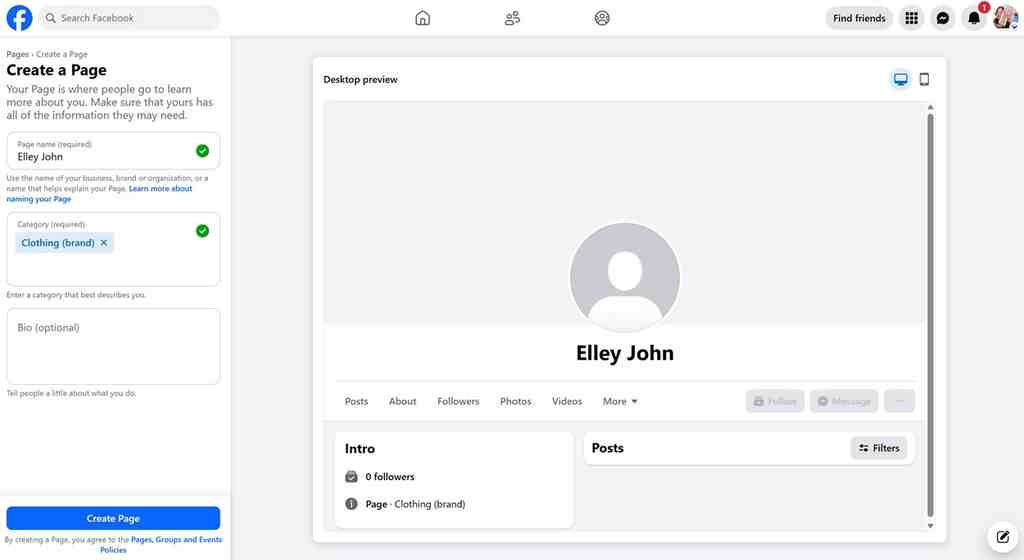
Enter the category which best describes your business and then pick one of the options that Facebook offers. For instance, a bakery could select Bakery, whereas a digital marketing company would choose a marketing agency.
If you’re wondering how to make a business page on Facebook that accurately represents your business, start with the category that most closely matches what you offer.
Step 5: Add a Business Description
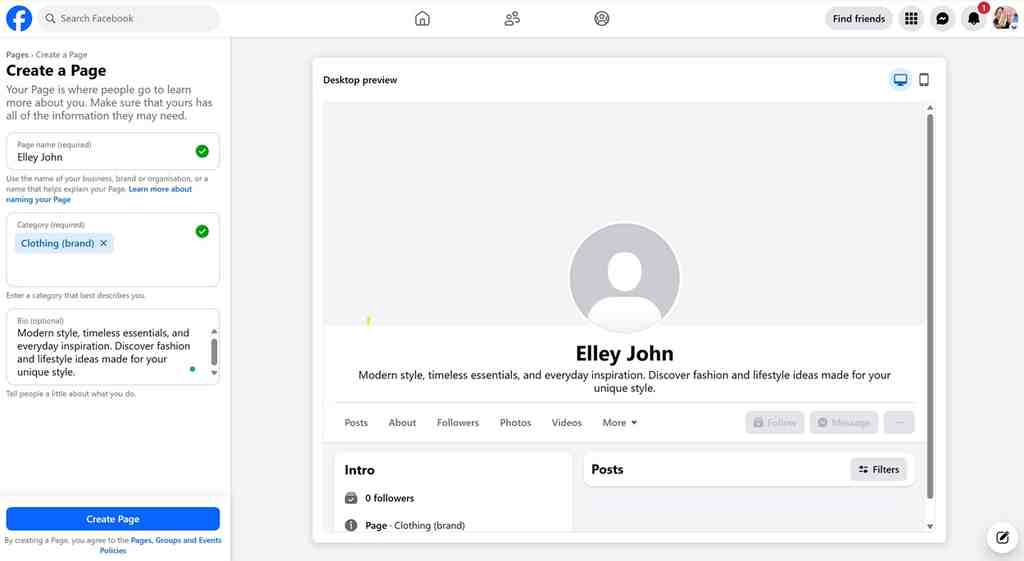
Write a short description explaining what your business does and what customers can expect from you. Keep it clear and specific so visitors can understand your business without having to search for more information.
For example, a bakery might write:
We make fresh cakes, pastries, and custom desserts for birthdays, weddings, and everyday celebrations. A few useful sentences are enough. You can add more details to your Page after creating it.
Step 6: Click Create Page & Complete Your Details
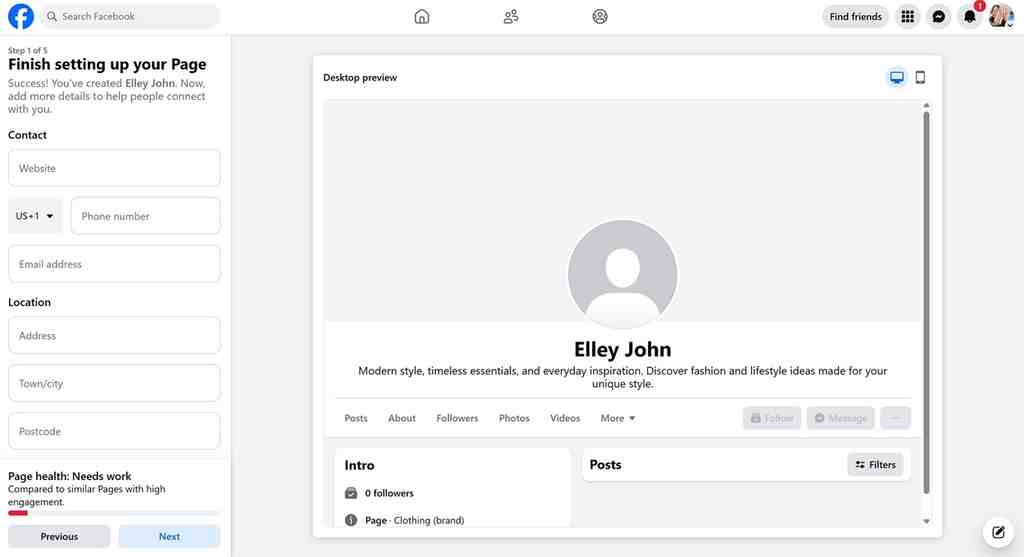
Make sure that your business name, category, and description are accurate and then press Create Page. If you are learning how to create a business page on Facebook, Meta will automatically lead you through the next steps, entering your website URL, contact phone number, address, opening hours, profile picture (size 170 x 170 px), cover photo (size 820 x 312 px), and a Call-to-Action button (for example, Contact Us or Shop Now).
Step 7: Switch to Your Page Profile & Set Your Username
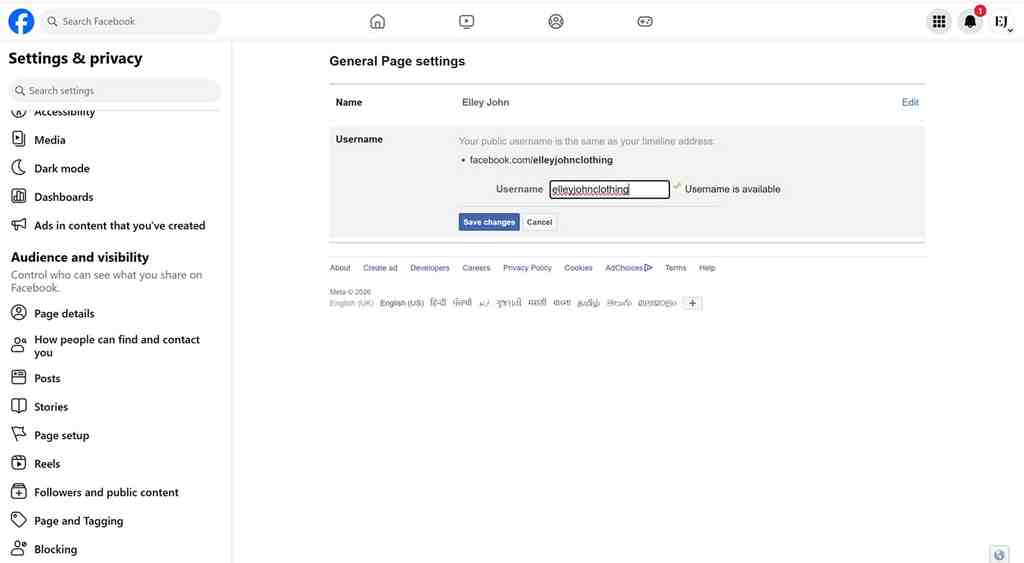
When the basic details have been completed, click on your profile picture in the top-right corner, choose “See All Profiles,” and then log into your new Page profile. Next, go to Settings → Page Setup → Name in order to set your individual custom @username/Handle (for example, @yourbrand) so that customers can easily find and tag your business.
Display your Facebook posts on your website with Tagembed and help more visitors discover your content.
How to Set Up a Facebook Business Account Using Meta Business Suite
Meta Business Suite helps you manage your Facebook Page and connected Instagram account in one place. If you’re learning how to create a Facebook business page, you can start with your Page and use these tools as your business grows.
1. Open Meta Business Suite
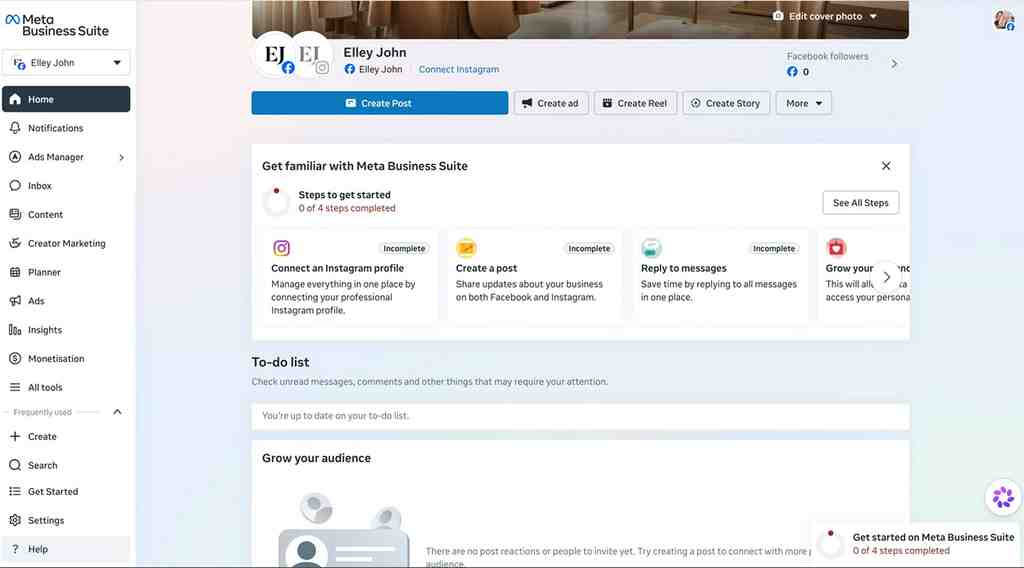
- Visit Meta Business Suite and sign in with the Facebook account that manages your Page.
- Use the available tools to publish posts, reply to messages, and check content performance.
- For Facebook business account setup, first check which Pages and Instagram accounts you can access.
2. Create a Business Portfolio if Needed
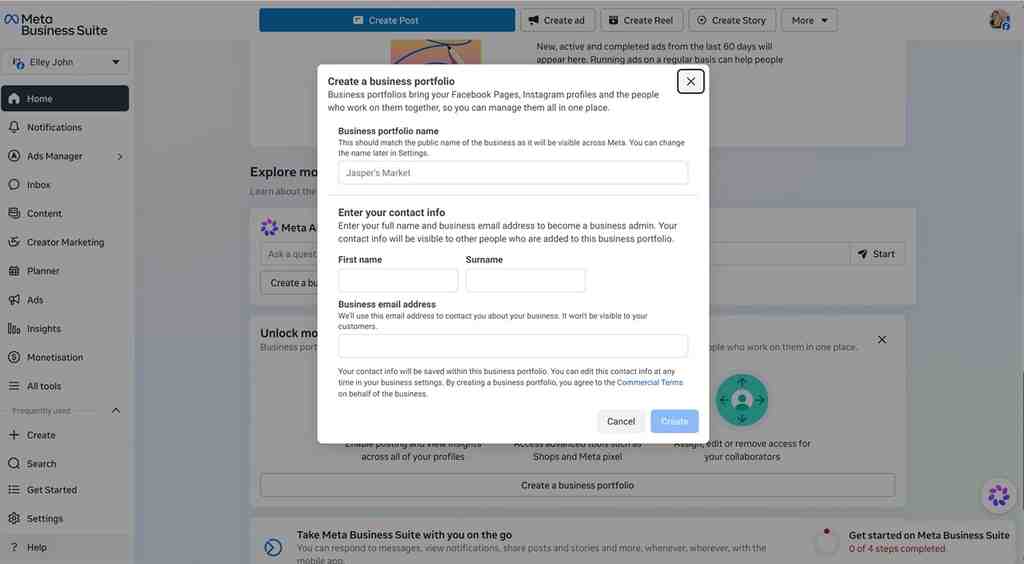
- A business portfolio helps organize multiple Facebook Pages, Instagram accounts, and advertising assets.
- It’s useful for businesses managing several brands, accounts, or team members.
- If you only manage one Page, you may not need a business portfolio straight away.
3. Connect an Existing Facebook Page
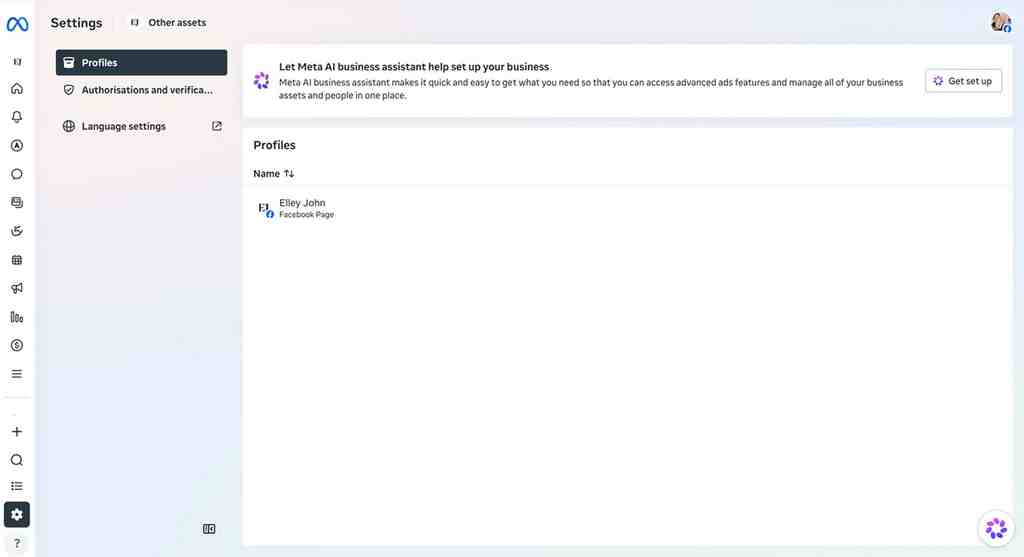
- Open the relevant business settings and follow Meta’s instructions to add or connect your existing Page.
- The available options depend on your current access and whether your business already manages the Page.
- If you’re learning how to set up a business account on Facebook, make sure you select the correct Page and business assets.
4. Assign Access to Team Members
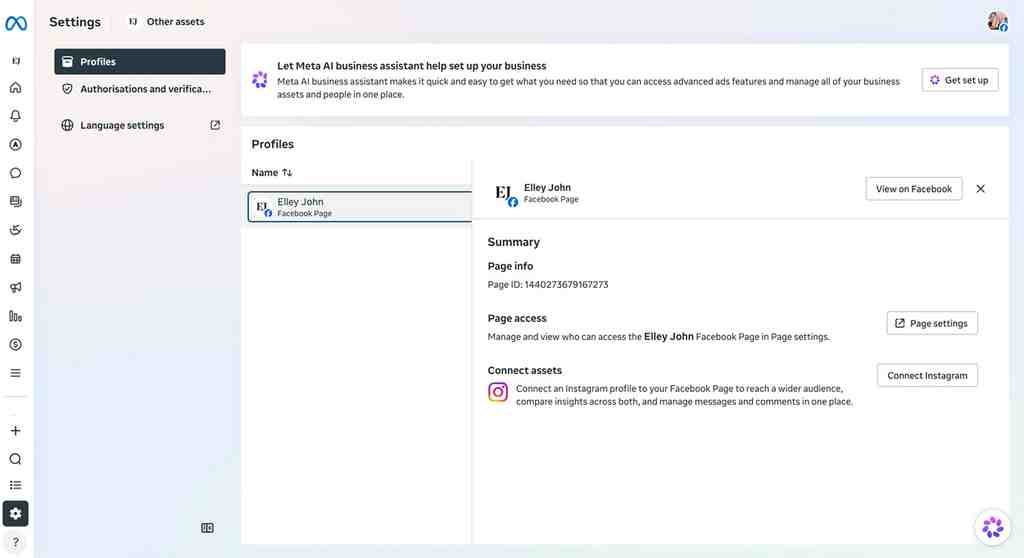
- Give employees or agencies the permissions they need to publish content, reply to messages, or view insights.
- Avoid sharing your personal Facebook login details. Assign access through Meta’s Page or business settings instead.
- Be careful when granting full control because it allows people to change settings and manage other users’ access.
Next Step: Want to display your social content directly on your site? Learn how to embed your Facebook feed using a social media aggregator.
How to Optimize Your Facebook Business Page for More Engagement
Creating your Page is one thing; giving people a reason to visit and follow it takes ongoing effort. If you’re learning how to create a Facebook business page that supports your business, focus on sharing useful information, staying active, and making it easy for customers to reach you.
Publish Helpful and Relevant Content
- Share product updates: Tell followers about new products, services, offers, or changes to your business.
- Answer common questions: Create short posts that explain how your products work or help customers solve a problem.
- Show behind-the-scenes moments: Give people a look at your team, workspace, or how you make your products.
- Post announcements and short videos: Use formats that suit your message and give followers a reason to interact.
If you’re considering how to create a business page on Facebook that reaches more people, make your posts useful enough to share. You can also explore how to go viral on Facebook to learn more about content reach, while keeping in mind that no post format guarantees virality.
Post Consistently
- Choose a posting schedule you can maintain, whether that means a few posts a week or a regular weekly update.
- Share content when you have something useful to say rather than posting just to stay active.
- Use the Facebook post scheduler to plan posts ahead of time and keep your content organized.
Respond to Comments and Messages
- Reply to customer questions as soon as you reasonably can.
- Thank people for feedback and address concerns politely.
- Check your Page’s messages and comments regularly so you don’t miss inquiries.
If you’re considering how to make a business page on Facebook useful to customers, remember that the conversation matters too. Helpful replies show people that someone is paying attention to their questions.
Invite Followers and Promote Your Page
- Invite relevant friends and contacts to follow your Page using Facebook’s available invite options.
- Add your Facebook Page link to your email signature, company website, and other business profiles.
- Mention your Page in newsletters or customer communications when it’s relevant.
To attract an audience that genuinely cares about your business, focus on reaching the right people rather than collecting likes alone. These tips can help you increase Facebook Likes while encouraging meaningful interactions.
Track Page Performance
- Check the insights available for your Page and posts through Meta Business Suite.
- Look at which posts receive the most engagement, reach, and responses.
- Use these patterns to decide what to share more often and what may need a different approach.
As you learn how to make a business Facebook page more effective, check out our guide to Facebook analytics tools to explore top platforms for tracking post performance, engagement metrics, and reporting on results.
Explore Business Opportunities on Facebook
If your business sells products or services, Facebook may also help you reach potential customers and generate sales. Depending on your business and available features, you can direct people to your website, promote offers, or explore selling options on Facebook.
For more ideas, see how to make money on Facebook. Keep in mind that earning opportunities and monetization features depend on the method you choose and any applicable eligibility requirements.
How to Display Your Facebook Business Page Feed on Your Website
Your Facebook Page gives people a place to follow your business, but not everyone who visits your website will also visit Facebook. Embedding your feed lets you show selected Facebook posts on your website, so visitors can see your updates without leaving the page they’re browsing.
Once you understand how to create a Facebook business page, adding its content to your website can be a useful next step. You can share product news, event announcements, and other posts where they’re relevant to your audience.
Why Embed a Facebook Feed on Your Website?
A Facebook feed can add recent social content to your website and give visitors another way to learn about your business.
- Keep Pages Fresh: Show Facebook updates alongside your website content.
- Share News and Announcements: Highlight product launches, events, offers, or company updates.
- Improve Social Presence: Give website visitors a reason to explore your Facebook Page.
- Support Landing Pages: Add relevant posts to campaign pages or service pages where visitors may want more context.
- Show Your Business In Action: Use posts that give people a closer look at your products, activities, or community.
You can also display social media feeds from different platforms on your website. This is useful if your business shares updates across Facebook, Instagram, YouTube, or other social channels and wants to bring relevant content together.
What Is a Facebook Widget?
A Facebook widget lets you display selected Facebook content in a section of your website. Instead of manually copying posts into your pages, you can use a feed widget to present supported content in a layout that fits your website’s design.
Depending on the widget and its supported connection, you can customize how posts appear and choose a layout that works with the surrounding content.
How to Embed a Facebook Feed Using Tagembed
If you want to display Facebook posts without building the feed manually, Tagembed offers a way to collect supported content, customize its appearance, and add it to your website. Here’s how the process works.
- Create a Tagembed account: Sign up or log in, then choose the option for displaying social feeds on your website.
- Choose Facebook: Select Facebook as your content source.
- Connect your content source: Choose a supported source, such as your Facebook Page, and follow the connection instructions.
- Select the content: Choose the available feed type and content you want to display. Options depend on the connection and permissions granted.
- Customize the feed: Select a theme and layout, then adjust the appearance to suit your website.
- Generate the embed code: Once the feed looks right, select the website publishing option and generate the code.
- Add the code to your website: Copy the code and paste it into the relevant page or section using your website platform’s embed or HTML option.
- Preview the result: Publish or update the page, then check the feed on desktop and mobile to make sure it displays properly.
If you’re exploring how to create a Facebook business page and bring its updates onto your website, you can follow Tagembed’s step-by-step guide to embedding a Facebook feed for additional instructions and screenshots.
Where Should You Display Your Facebook Feed?
Choose a location where your Facebook posts add useful information rather than distract visitors from the page’s main purpose.
- Homepage: Show recent updates so visitors can see what your business has been sharing.
- Product or service pages: Include relevant posts that help visitors learn more about your offerings.
- About Us page: Share company news or behind-the-scenes posts that give people a better sense of your business.
- Event or campaign landing pages: Display posts related to an upcoming event, launch, or promotion.
- Blog pages: Add relevant social content where it supports the topic.
When deciding how to set up a business Facebook page for your wider online presence, consider what visitors need on each page. For example, recent announcements may suit your homepage, while campaign-related posts make more sense on a dedicated landing page.
If your website uses Elementor, you can follow this guide to add Facebook Feed to Elementor. It explains where to place the feed code in the Elementor editor.
Follow the steps above to set up your Page, add your business details, and help customers find you on Facebook.
Common Facebook Business Page Setup Problems and How to Fix Them
When setting up a Facebook Page, you may run into issues with account access, Page names, or connecting your Page to Meta Business Suite. If you’re learning how to create a Facebook business page, these are the problems worth checking first.
1. Facebook Won’t Let You Create a Page
If Facebook won’t let you create a Page, check the account you’re using before trying again.
- Make sure you’re logged into your own active Facebook account.
- Check whether Facebook has restricted your account or access to certain features.
- Refresh Facebook, try another browser, create the Page via Meta Business Suite, or use the Facebook Lite mobile app if you encounter the “Created Too Many Pages Recently” bug.
- If the problem continues, check Facebook’s official Help Center for account restrictions and Page creation issues.
If you’re stuck on how to create a FB business page, don’t keep submitting the same request without checking whether Facebook has limited your account.
2. Your Page Name or Username Isn’t Available
Facebook may reject a name or username if it doesn’t meet its guidelines or someone else already uses the username.
- For the Page name: Use your actual business or brand name and follow Facebook’s Page naming rules.
- For the username: Try a shorter variation or add a relevant word that distinguishes your business.
- If you can’t change it: Check that you have the necessary Page access to edit the details.
Facebook usernames must also follow its character rules. You can check the official guidance for page usernames and page name changes.
3. You Can’t Access Your Business Page
You may not see your Page in Facebook or Meta Business Suite if you haven’t switched to your Page profile, the owner hasn’t granted access, or the Page belongs to another business portfolio.
- Switch to your Page identity by clicking your profile picture in the top-right corner and selecting “See all profiles”.
- Ask the Page owner to check your permissions if the Page is still missing.
- Confirm that you’re using the Facebook account that received the invitation.
- If a business owns the Page, ask its administrator to grant access through the relevant business settings.
If you’re learning how to start a Facebook business page with a team, make sure the right person retains full control and gives other team members only the permissions they need. See Meta’s guide to Facebook Page access.
4. Your Page Won’t Connect to Meta Business Suite
If your Page doesn’t appear when you try to connect it, check who owns it and which account you’re using.
- Make sure you’ve selected the correct business portfolio in Meta Business Suite.
- Check whether another business portfolio already owns the Page.
- Confirm that you have the permissions needed to add or manage the Page.
- If someone else owns it, ask them to grant access or approve your request rather than trying to claim it again.
These checks can help resolve common Facebook business account setup problems. Meta’s official business setup guidance can help you check ownership and access issues.
5. Facebook Posts Aren’t Appearing on Your Website
If you’ve embedded your Facebook feed but can’t see the posts, check the connection before changing the website code.
- Check the source: Make sure you selected the correct Facebook Page or supported content source.
- Review permissions: Confirm that the connected account still has the required access.
- Reconnect the source: If the connection has expired or been disconnected, follow the widget provider’s instructions to reconnect it.
- Check the embed code: Make sure you pasted the complete code into the correct website section and saved or published the page.
- Test the live page: Preview the published website, not just the editor, to see whether the feed appears.
If you’re still figuring out how to create a FB business page and display its content elsewhere, check each connection step before rebuilding the feed.
6. Your Embedded Facebook Feed Isn’t Updating
Sometimes a feed displays correctly at first but later shows older posts. The issue may relate to the source connection, permissions, or the feed’s refresh settings.
Check the connection status in your feed provider, confirm that the Facebook source is still accessible, and review the provider’s refresh settings. If the feed remains outdated, use this guide to troubleshoot Facebook Feed not updating.
These checks are useful when you’re learning how to set up a business account on Facebook and want to keep your website’s social content working reliably.
What If You Want to Get Your Facebook Page Verified?
Verification is used to build trust and ensure authenticity. A business can choose to subscribe to Meta Verified for Business (which is a paid monthly service that provides a verified badge and direct support) or it can carry out Meta Business Manager Verification (which is a free security procedure that involves the use of official business registration documents).
If verification matters to your business, review how to get verified on Facebook for further guidance, then check Meta’s current requirements before applying.
Where to Get Help With Facebook Page Problems
If you’ve checked the settings and still can’t create or manage your Page, use Meta’s official Help Center. It provides guidance on Page access, account restrictions, usernames, and other account issues.
Before contacting support, note the error message you see, the step where the problem occurs, and which Facebook account or business portfolio you’re using. These details can make it easier to identify the issue.
Conclusion
Creating a Facebook Page helps people discover your business, learn about your products or services, and stay updated. Once you understand how to create a Facebook business page, take time to complete your profile, share useful posts, and respond to customers. You can also display your Facebook feed on your website to keep visitors informed. If you’re ready to bring your social content to your website, explore Tagembed and see how it can help.
FAQs
To learn how to create a Facebook business page, log in to your personal Facebook account, open Pages, and select Create new Page. Enter your business name, choose a category, add a description, and create your Page.
Yes, creating a Facebook business page is free. You can add business information, publish posts, and connect with customers without paying. However, advertising campaigns and some optional business services may involve costs.
No, Facebook strictly requires an active personal profile to create and anchor a Business Page. However, your personal information remains hidden from the public. Once created, you can grant Page permissions or Business Portfolio access to team members so they can manage day-to-day operations without needing access to your personal login details.
First, decide whether you need a public-facing Facebook Page or Meta’s business management tools. Create a Page for your business, then visit Meta Business Suite to manage connected Pages, Instagram accounts, team access, and other business assets.
You can use a Facebook feed widget, such as Tagembed, to display supported Page posts on your website. Connect your Facebook source, customize the feed, and add the embed code to your site. Updates depend on the connection and provider’s refresh capabilities.
Embed social feed from Facebook, YouTube, Instagram, Twitter on your website, like a PRO
Invalid Email Address Multiple Themes