Facebook Feed Not Updating on Website? Troubleshooting Guide
Your Facebook presence is at its prime, and you open the Facebook page in excitement to see your feed performance. But you cannot see any impressions. Nothing has changed since the last time. Then it pops into your mind that the Facebook feed is not loading. The root cause of “Facebook feed not updating” is not usually Facebook. Rather, it could be a stale Facebook widget cache, an expired access token, changed page permissions, a website caching layer, a JavaScript conflict, or an incorrect widget source.
The purpose of this guide is to provide a solution to a situation of this kind. You will not only gain the ability to identify the problem but also how to remedy it.
TL;DR: Quick Fixes
Save yourself the headache of random troubleshooting and match your exact issue to its cause in the table below before changing any settings. Identifying the specific layer that’s stuck means you’ll fix the feed on your very first try.
| What You See | Likely Cause | Quick Fix |
| New posts aren’t appearing | Feed or widget cache | Clear the Facebook widget cache and wait for the next refresh cycle. |
| Feed shows very old posts | Stale cache | Clear the widget, website, and browser cache, then reload the page. |
| Something went wrong | Facebook encountered a problem loading a feature or content. | Reload the page/app, check your connection, update Facebook and try again |
| News Feed isn’t available right now | JavaScript, widget, or cache issue | Check the widget connection, clear cache, and look for JavaScript errors. |
| Facebook Page isn’t available | Permission or source issue | Check Page access and reconnect the correct Facebook Page. |
| Widget worked previously but stopped | Connection or token issue | Reconnect the Facebook Page and check whether the access token is valid. |
| Feed works in preview but not on live site | Website or script conflict | Check JavaScript optimization, caching, and the live page’s embed code. |
| Feed works on desktop but not mobile | Theme or responsive issue | Check mobile visibility settings, responsive layout, and theme conflicts. |
| Feed disappeared after website changes | Plugin or theme conflict | Temporarily check recent plugin, theme, or page builder changes and test the widget again. |
What Does “Facebook Feed Not Updating” Mean?
Facebook news feed not updating means a website is not displaying the latest content published on a connected Facebook Page. A social media feed widget may continue showing older posts, stop displaying Facebook posts, or appear blank even though the Page itself is active.
This issue can also appear as a Facebook feed not working or a Facebook widget not updating. Common causes include cached feed data, a broken Page connection, Facebook access token expired, permission changes, API issues, or conflicts with website scripts and plugins.
In simple terms, the Facebook Page is publishing new content, but that content is not reaching or rendering in the website feed. Finding where that connection breaks helps identify the right fix.

Facebook
Page Feed

Facebook
Profile Feed

Facebook
Album Feed

Facebook
Reviews Feed

Page
Reel
Why Is Facebook Showing a “Feed Isn’t Available” Error?
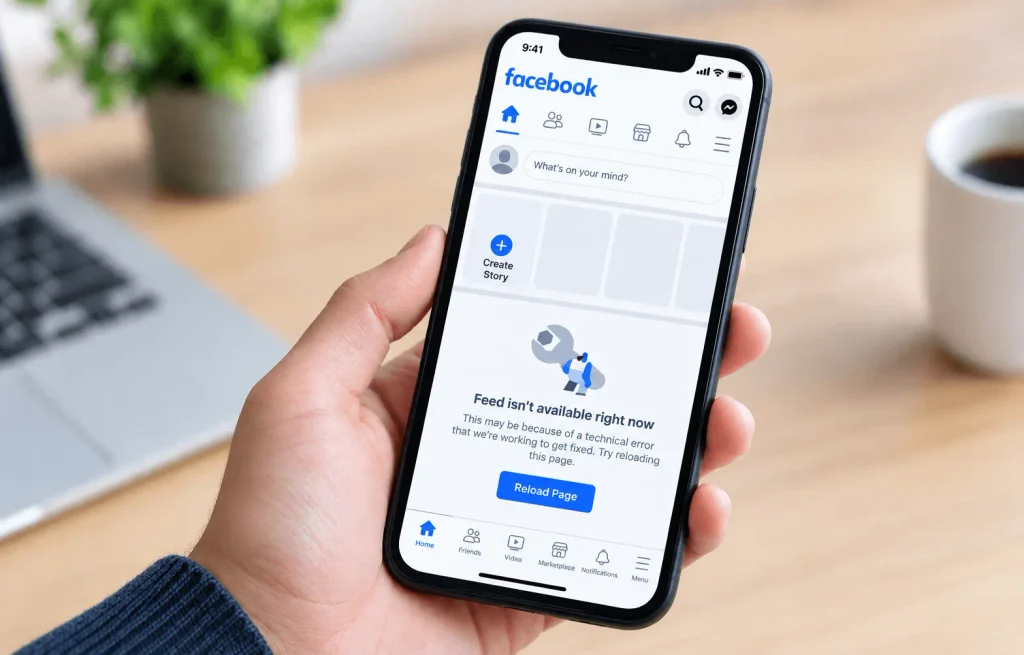
The “Feed isn’t available right now” message appears when Facebook cannot retrieve fresh content. If you are seeing a Facebook feed not refreshing on your website, the cause may be different from an issue inside the Facebook app.
- Unstable internet connection: A weak connection can prevent Facebook from loading new Facebook posts. Switch networks and refresh the feed again.
- Outdated app or cached data: Old app data can interfere with content loading. Updating Facebook or clearing its cache can resolve temporary refresh problems.
- Temporary Facebook service issue: There may be service disruptions on Facebook that affect the loading speed of content. According to Meta, 3.58 billion daily active people on fellow Meta Apps in quarter 4 2025, stepping up by 7% every year. This can be a strong reason for the temporary platform-related issues.
- Page access or permission changes: If the connected account no longer has the required Page access, content may not load correctly. Meta’s Page access settings control what people can manage on a Facebook Page.
- Facebook API issue: Website integrations can depend on the Facebook API to retrieve Page content. A temporary Facebook API error, permission change, or invalid connection can prevent fresh content from reaching a Facebook feed API widget.
- Website-side connection problem: You must check the widget connection, setup of the embedded Facebook feed on the website and cache if Facebook refreshes normally but the website does not. The issue might be different from an app-level error and may require you to reconnect with the source.
Start by troubleshooting the Facebook app and connection when the issue occurs within Facebook. For website-only feed problems, check the integration and website setup. This is a similar problem on other Meta apps, like the Instagram couldn’t refresh feed issue. You must take the same approach to find the issue first and then the solution approach.
How to Fix a Facebook Feed That Isn’t Updating
Before you make any changes to your website, begin by checking the source. A couple of simple checks will allow you to determine whether the problem is due to Facebook or to the way the feed has been set up on your website.
Fix 1: Confirm The Latest Post Is Actually Public
Before troubleshooting the widget itself, verify that Facebook is allowing the post to be retrieved through the API in the first place.
Open the Page directly and confirm:
- The post published successfully
- It’s visible on the Page itself
- It came from the correct Page (not a personal profile or a different Page you manage)
- There’s no unusual audience restriction on it
- The content hasn’t been deleted or later restricted
Facebook can restrict posts from reaching third-party widgets even if they appear live on your Page. Audience settings and content restrictions apply at the API level, not just the public-facing view. This matters specifically when posts are missing from your website but the Page itself looks completely normal.
If the post is missing on Facebook directly, fix that first. There’s no reason to troubleshoot the widget for content Facebook isn’t making available through its API.
Fix 2: Give The Refresh Cycle Time To Complete
A new post doesn’t always appear on your website instantly, and that’s expected behavior, not a bug.
Most Facebook feed widgets cache data instead of querying the Facebook feed API on every page load. This reduces server load and improves site speed, but it also means there’s a delay between publishing and display. The exact interval depends entirely on the tool. Elfsight’s Facebook Feed widget, for example, caches and refreshes data roughly every six hours. It is a plan-specific setting and not a universal Facebook rule.
If your post is only a few minutes or hours old, give the refresh cycle time before assuming something is broken.
Stop waiting, however, if:
- Older posts haven’t changed in an unusually long time
- The feed stays blank
- The Facebook widget not working
- Reconnecting the source doesn’t change anything
Fix 3: Check Your Facebook API Connection
A widget needs a live, authorized connection to pull data from the Facebook API. That connection breaks for a specific, predictable reason. Meta access tokens expire on a rolling basis, commonly around every 60 days and can also be invalidated immediately if an admin changes their Facebook password, updates account security settings, or Facebook forces re-authorization after a policy or API change. This is the single most common cause of a feed that “just stopped working” with no obvious trigger.
Check whether:
- The correct Facebook account is still connected
- The correct Page is selected
- The connection shows as active in the widget dashboard
- You recently changed your Facebook password or security settings
- Facebook has requested new authorization
- The widget is reporting an API or connection error
If the token has expired, the widget will typically keep showing previously cached posts until that stored content ages out, which is often what makes a broken connection look, at first, like a slow refresh.
Tools like Tagembed handle this token cycle automatically in the background, so the connection refreshes on its own instead of silently expiring on you every couple of months.
Fix 4: Reconnect Your Facebook Page
If the connection looks broken or the widget reports an authorization error, reconnect it directly:
- Open your Facebook feed widget dashboard.
- Go to source or connection settings.
- Disconnect Facebook if the tool requires it.
- Connect your Facebook account again.
- Select the correct Page.
- Approve the requested permissions.
- Save the connection.
- Refresh the feed.
This resolves most widget sync errors because it forces a fresh authorization handshake between the widget and Facebook’s API. In Tagembed specifically, this means selecting Facebook as the source, connecting the Page, choosing the feed type, and republishing the widget is the same flow you used the first time you set it up.
Fix 5: Check Facebook Page Permissions
Meta separates Facebook access from task access. Facebook access lets someone manage Page content and settings broadly, while task access assigned through Meta Business Suite grants narrower, specific permissions. If a team member’s role recently changed, that’s a likely trigger for a feed that stopped working without warning. This is particularly important for teams using Facebook marketing tools to manage Pages and business assets.
Check:
- Facebook access level
- Business portfolio permissions
- Which account is currently connected
- Required integration permissions
- Business integration settings
- Whether that account still manages the Page at all
If the originally connected account lost the required access, reconnect using an account that still has it.
Embed Facebook content and create engaging website experiences.
Fix 6: Confirm the Widget Is Pointing to the Right Source
Sometimes the connection is healthy, but the widget is simply pulling from the wrong Page.
Verify:
- The correct Page is selected in the widget
- The Page URL matches
- The connected account is the intended one
- The source hasn’t been removed on Facebook’s end
- The selected content type is supported
This is especially common for businesses managing multiple Pages or using a social media aggregator. You may check a new post on one Page while the widget is still connected to another. It’s a small mistake, but it produces symptoms identical to a genuine feed connection failed error.
Fix 7: Clear the Right Cache From 3 Layers
A Facebook feed passes through three separate caching layers. The widget’s own cache, your website’s cache, and your browser’s cache. Clearing one doesn’t clear the others, so it’s worth being specific about which layer you’re actually testing.
WordPress and CDN Cache
Empty the cache of your caching plugin and then refresh the page. If you’re using a CDN, you should clear its cache as well. CDN caches tend to remain in place even when the plugin cache has been cleared. With website builders that are not based on WordPress, check for the platform’s own cache or publishing feature and republish the page if necessary.
Browser Cache
On desktop, open the page in an incognito or private window to check whether your usual browser session is showing an outdated version. Android users can try a different browser or manually clear cached data if the old feed still appears. For iPhone, use a private Safari tab or switch to another browser.
If the feed updates correctly in a private window but not your normal browser, the issue is local to your browser cache, not the widget or website.
Fix 8: Check for JavaScript or Optimization Plugin Conflicts
Website speed tools frequently modify how JavaScript loads, including minifying scripts, deferring execution, lazy-loading content, combining files, or changing CDN delivery. Any of these changes can interfere with a dynamic widget that depends on JavaScript to render correctly when the page loads.
Optimization plugins can sometimes cause blank Facebook feeds because of conflicts involving lazy loading, script deferral, JavaScript optimization, or compatibility with page builders. Temporarily disable these optimizations and check whether the Facebook feed starts loading correctly. If it does, re-enable the settings one by one to identify which optimization is causing the conflict.
To isolate the cause, test the live page with one optimization setting disabled at a time, not all of them at once. If disabling a specific rule (for instance, script deferral or lazy loading) fixes the feed, add the widget’s required script to that plugin’s exclusion list rather than leaving the setting off site-wide.
Fix 9: Check Your WordPress Theme or Page Builder
Theme and page-builder behavior can independently break a widget that’s otherwise working correctly.
This is worth checking specifically when the feed:
- Works in the widget’s own preview but not live
- Works on one page but not another
- Broke immediately after a theme update
- Only appears after a manual refresh
- Works on desktop but fails on mobile
If you’re using Elementor, Divi, Gutenberg, or a similar builder, compare the widget’s dashboard preview against the live page directly. Check whether the widget is sitting inside a hidden tab, popup, slider, or a section that loads dynamically after the page renders. Custom CSS can also hide a fully functional feed, which is a container with zero height or an “overflow: hidden” rule will hide content without breaking the connection at all.
Fix 10: Rule Out A Facebook Outage
To be sure if the reason is Facebook, check whether the page is loading directly, new posts appear as expected and if the integration is working. You can take the help of Meta’s status page or a reliable outage-monitoring service to have the confirmation quickly.
Do not confuse this with the starting point, but rather a fast external check. You will find that most of the Facebook feed not updating problems go back to cache, connection or website setup and not a platform problem.
Fix 11: Inspect the Widget’s Embed Code
If you added the feed manually, check the embed code itself.
Confirm:
- The original embed code is still intact on the page
- The correct widget ID is in use
- Nothing was accidentally edited
- The code sits inside the intended page container
- The required script tag hasn’t been stripped out
- No duplicate scripts are conflicting with each other
A damaged or partially removed embed code will break the widget even when the Facebook connection itself is completely healthy.
Confirm the original embed code is still intact, especially if you’ve recently changed the content you’re displaying. For example, the setup used to embed Facebook Reels on a website can differ from a standard Page feed. If you’ve recently redesigned the page, changed templates, or swapped page-builder elements, compare the current embed code against the original.
How to Fix Facebook Feed Not Refreshing on Android
If the Facebook feed is not refreshing on an Android device, start by switching between Wi-Fi and mobile data. Make sure Facebook is updated, and then clear its cache by going to Settings → Apps → Facebook → Storage → Clear cache. After that, restart the app and check once more. If you still see the Facebook posts not displaying, reinstall Facebook and try the feed again.
How to Fix Facebook Feed Not Updating on iPhone
If your Facebook feed is not working on your iPhone, try using a different network and make sure Facebook is up to date via the App Store. Close the app completely and then reopen it, after which you should check for an iOS update. Since iPhone doesn’t have a cache-clearing feature similar to Android, you’ll need to reinstall the app if the Facebook feed stopped updating after carrying out these steps.
DO’s & DON’Ts When Facebook Feed Not Updating
| DO | DON’T |
| Check Page access after permission or account changes. | Don’t assume access stays unchanged. |
| Check the refresh cycle before troubleshooting further. | Don’t treat a short delay as a failure. |
| Clear the relevant cache when old content remains. | Don’t clear every cache without identifying the source. |
| Test JavaScript after changing optimization settings. | Don’t aggressively delay or defer widget scripts. |
| Check the live page after theme or plugin updates. | Don’t rely only on the website preview. |
| Verify the connected Facebook Page and its status. | Don’t reconnect the wrong Page repeatedly. |
| Check the App API when a Facebook API error appears. | Don’t rebuild the widget before checking the connection. |
| Test desktop and mobile after major website changes. | Don’t assume a desktop fix also works on mobile. |
| Keep the feed lightweight by displaying only useful content. | Don’t load more posts than visitors need. |
| Check the live feed regularly after major changes. | Don’t wait for visitors to report stale content. |
Showcase your latest Facebook posts, reels, and videos on your website.
Common Myths About Facebook Feed Not Updating
The “Feed Isn’t Available Right Now” message can make the problem seem more serious than it is. In many cases, the error points to a temporary connection, cache, or access issue rather than a problem with your Facebook Page itself.
Myth: The Facebook Page is broken
Reality: There are times when the problem is not about the page if it is opening normally and new posts appear. You might want to check the cache, permissions, connection or website integration.
Myth: Facebook feeds always update immediately
Reality: Third-party widgets may choose to use their own schedules for refreshing and caching, and a short delay doesn’t always mean that the feed is broken.
Myth: Clearing the browser cache will fix the problem
Reality: The outdated content may come from the widget cache, website cache, CDN, or browser. Clearing only one layer may not resolve it.
Myth: A blank feed means Facebook removed the posts
Reality: JavaScript errors, permission changes, broken connections, or website conflicts can also cause a blank feed.
Myth: A working widget preview means the website is fine
Reality: The live website can have JavaScript, page-builder, theme, or optimization conflicts that do not appear in the widget preview.
Myth: Reconnecting the Facebook Page fixes every problem
Reality: Reconnection can help with access or connection issues, but it will not fix website cache, JavaScript, or layout conflicts.
Myth: The Facebook app error affects the website
Reality: A Facebook app issue and a website integration issue can have completely different causes.
Quick Checklist Before You Escalate
- Facebook Page is public
- Correct Page is connected
- Facebook permissions are active
- Access token is valid (not expired or password-invalidated)
- Latest post is actually published
- Facebook widget cache has completed its refresh cycle
- Website cache has been cleared
- Browser cache has been checked in a private window
- JavaScript isn’t being blocked or deferred
- Optimization plugins aren’t interfering
- Embed code is intact
- Facebook isn’t experiencing an outage
If all the items on the list are correct and the feed still fails to sync, you should get in touch with the widget provider and provide them with the exact error message, the URL of the affected page, and the steps that you have already tried.
Final Thoughts
There are more reasons for an unupdated feed than just Facebook on its own. Instead, it’s caused by a connection, cache, or website configuration problem. You should first check the post itself, then look at the API connection and the Page permissions, before dealing with the Facebook widget cache, the website cache, the browser cache, any JavaScript conflicts, the page builder, and the embed code in that order.
Diagnose the symptom, verify the connection, check permissions, clear the correct cache layer, rule out website conflicts, reconnect if needed, then confirm the fix on the live page.
If this keeps happening, a maintained widget like Tagembed can remove most of the manual maintenance across different Facebook content types, including posts, Reels, and Facebook reviews.
People Also Ask
Changed Page permissions, stale Facebook widget cache, Facebook access token expired, website caching, or a JavaScript conflict are some of the very common reasons for delayed updates on the website. Check the Page directly first, then the connection, then test the widget on the live site.
There’s no universal refresh interval, as each widget sets its own caching schedule. Check your provider’s documentation for the specific interval your plan uses.
A blank feed usually points to a JavaScript conflict, an optimization plugin, a broken connection, or a page-builder issue. If the feed renders in the widget’s own preview but not on the live site, check your website’s scripts first.
The live site is likely blocking or delaying the JavaScript the widget needs to render. Page-builder settings, optimization plugins, lazy loading, CDN rules, and custom CSS can all cause this.
Use a widget that connects directly to the Facebook API and generates an embed code, like Tagembed. Once added to your site, it retrieves and displays new content on its own refresh schedule, with no manual copying required.
Embed social feed from Facebook, YouTube, Instagram, Twitter on your website, like a PRO
Invalid Email Address Multiple Themes