How To Add YouTube Feed To Google Sites For Free?
YouTube and Google Sites go well together. One is where your video lives, the other is where you quickly spin up a site without touching code. I’ve used this combo for client landing pages, internal team hubs, and even quick portfolio sites.
But here’s the thing. Adding a YouTube feed to Google Sites isn’t always as seamless as Google makes it out to be. Native options are basic, and styling is limited.
Nevertheless, there are some smart options that you can use to add YouTube video content to Google Sites. Read on this unblocked guide!


Why Add YouTube Video Feed To Google Sites?
I’ll be honest. Plain text pages don’t hold attention anymore. The moment I started adding videos, bounce rates dropped. People stayed longer, and they actually scrolled.
Here’s why it’s a good idea to unblocked the YouTube video content on Google Sites:
- Videos instantly improve engagement and time on page
- Your site feels “alive” without you updating it daily
- Social proof kicks in when visitors see real video content
Also, videos explain things faster than walls of text. Sometimes people just want to hit play and chill for a second.
Native Ways To Add YouTube Feed To Google Sites (Free)
Before touching any tools, it’s only fair to start with Google’s own options. These are free, built-in, and fine ways to add YouTube videos to Google Sites. However, they’re not always ideal if you want a YouTube-unblocked Google Sites experience with consistent performance.
Method 1 – Add a Single YouTube Video Content
This is the easiest method. And yeah, it works.
How I do it:
- Open Google Sites
- Click Insert → YouTube
- Paste the video URL or search directly
Best for:
- Tutorials
- Announcements
- Product walkthroughs
Limitations (and they’re annoying):
- One video at a time
- No layout control
- No branding tweaks
It’s fine if you just need one video. The moment you want more, things get clunky.
Method 2 – Add a YouTube Playlist Content
Playlists are slightly better. Slightly.
Works well for:
- Courses
- Webinars
- Series content
You can add it in the same way, but choose a playlist link instead.
Downsides:
- Outdated-looking UI
- No branding or customization
- Doesn’t match modern site design
It does the job, but it doesn’t fully support unblocked YouTube use cases in Google Sites, where smooth viewing is critical.
Method 3 – Add a YouTube Channel via URL
This one sounds great on paper. Full channel on your site. Easy, right?
Not really.
How it works:
- You paste the channel URL into the embed option
Why it’s unreliable:
- Sometimes it loads, sometimes it doesn’t
- Layout breaks on mobile
- Zero control over what videos show
Performance and styling limitations:
- Slow loading
- No filtering
- Looks out of place
If you’re serious about delivering an unblocked YouTube feed on Google Sites, this method quickly becomes frustrating.
Limitations Of The Native YouTube Integration Method On Google Sites:
After using the native method for a while, the cracks show. Big time.
Here’s what you can’t do:
- No auto-sync control beyond basic updates
- No moderation or filtering
- Cannot match your site design
- Not scalable for brands or marketers
For personal projects, it’s okay. For brands, campaigns, or content-heavy pages, it falls apart.
Using Third-Party Tools To Add YouTube Video Content To Google Sites in 2026
This is where most people ultimately end up. I did too. Third-party tools exist because Google Sites keeps things… minimal. These tools usually offer:
- Channel embedding
- Playlist layouts
- Custom widgets
Sounds great. Until you hit the limits.
Common issues I ran into:
- Forced branding
- Limited analytics
- Paywalls for basic features
Some tools promise YouTube-unblocked Google Sites functionality but lock key features behind a paywall. This is where Tagembed naturally comes into play.
Why Tagembed Is A Smarter Way To Add YouTube Video Content To Google Sites?
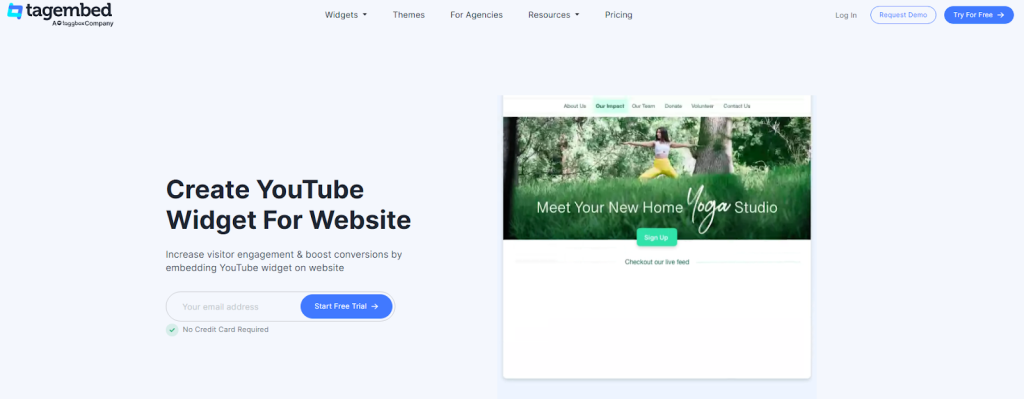
I didn’t switch tools for fun. I switched because I needed control without complexity.
What Tagembed does well:
- Works fully with Google Sites (yes, free plan supported)
- Integrate YouTube channels, playlists, and Shorts
- Auto-updates content in real time
- Clean, responsive layouts that don’t look dated
- Built-in moderation and filtering
- No technical setup, no coding
If you’re serious about YouTube unblocked Google Sites, Tagembed actually solves the real problems.
YouTube Unblocked Google Sites For Free (How To Add Guide)
This part is refreshingly simple. No learning curve. I’ll walk you through exactly how to add YouTube feed to Google Sites for free without any coding.
1: Log In or Sign Up
Head over to your Tagembed account and log in.
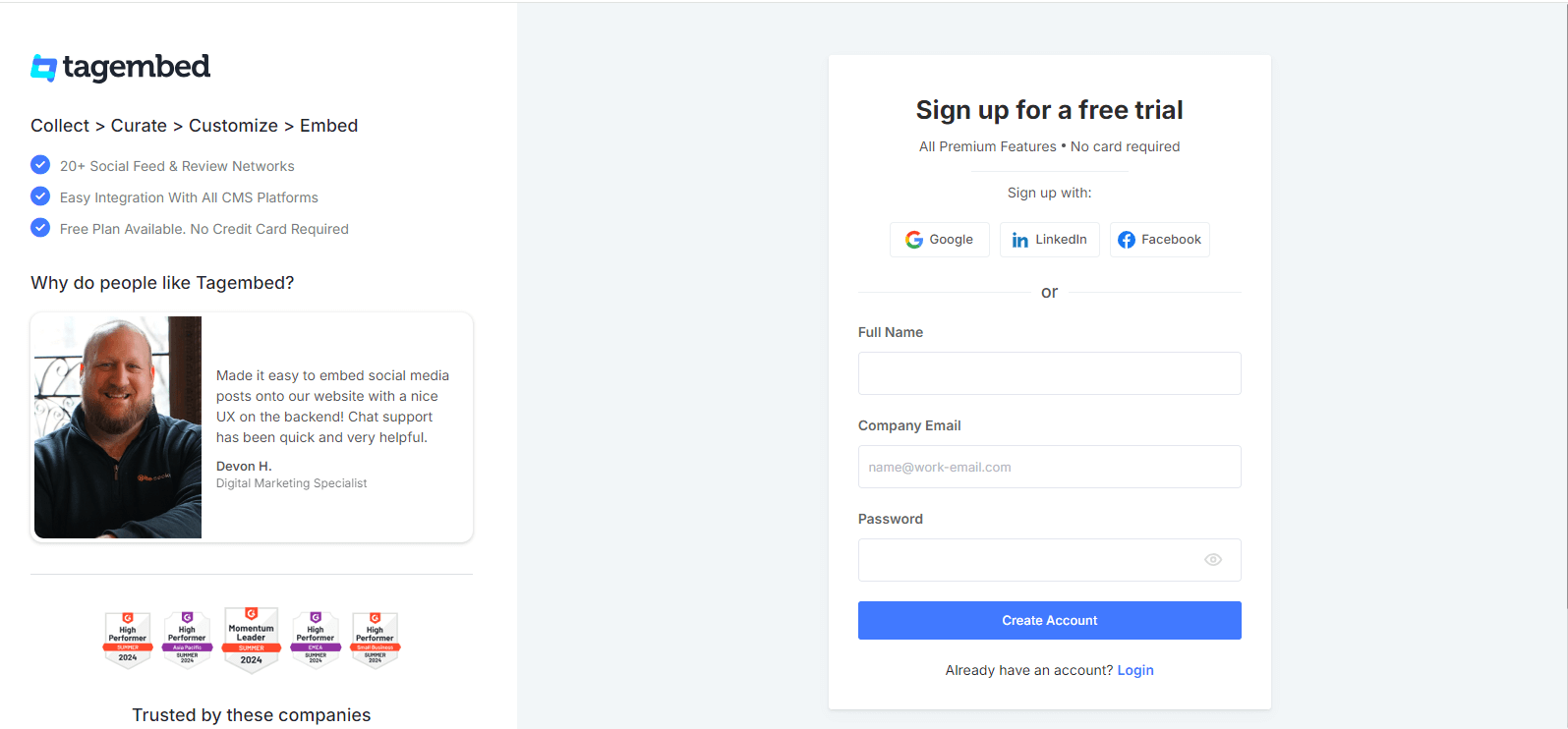
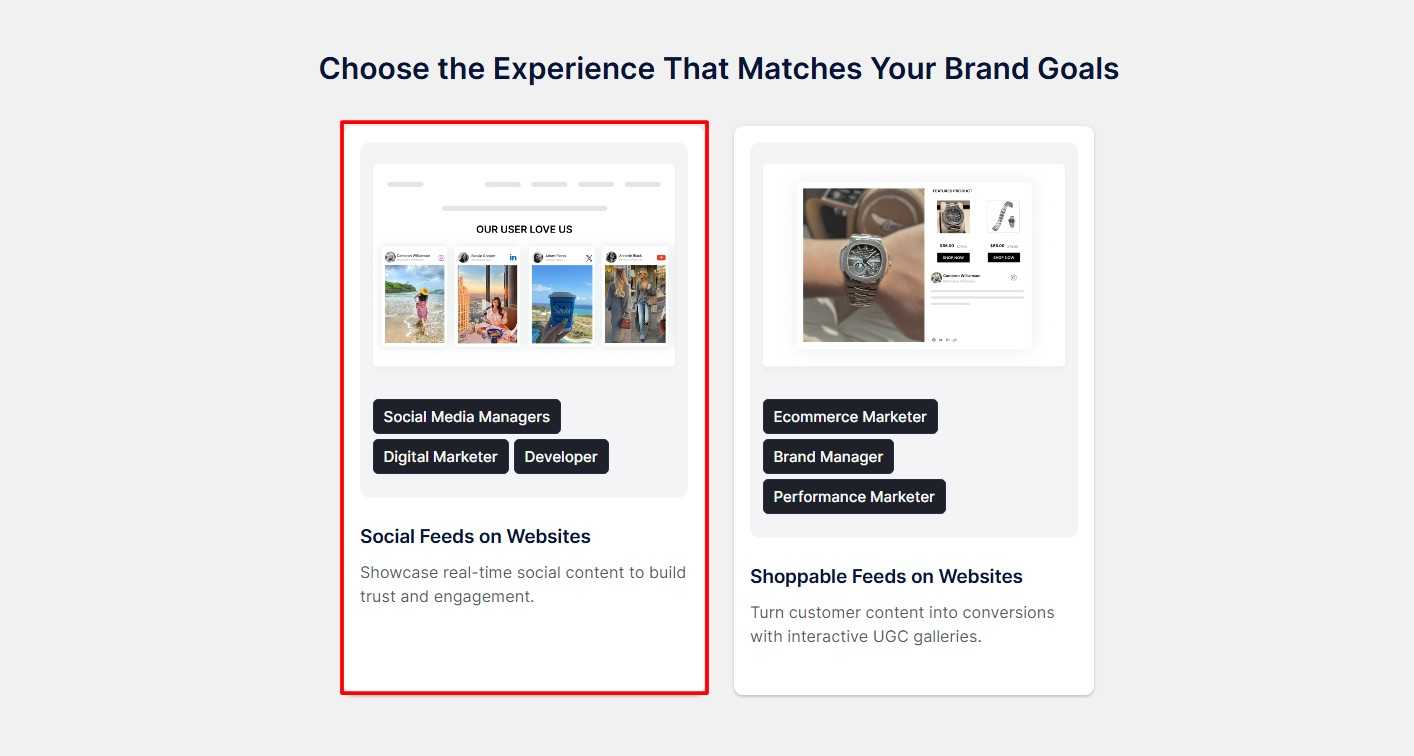
Just sign up for the for free, select “Social Feeds on Websites”, verify your email, and you’re in.
2: Choose YouTube as a source
Click Add New Gallery. Name your gallery something you’ll remember later. Select YouTube as the source
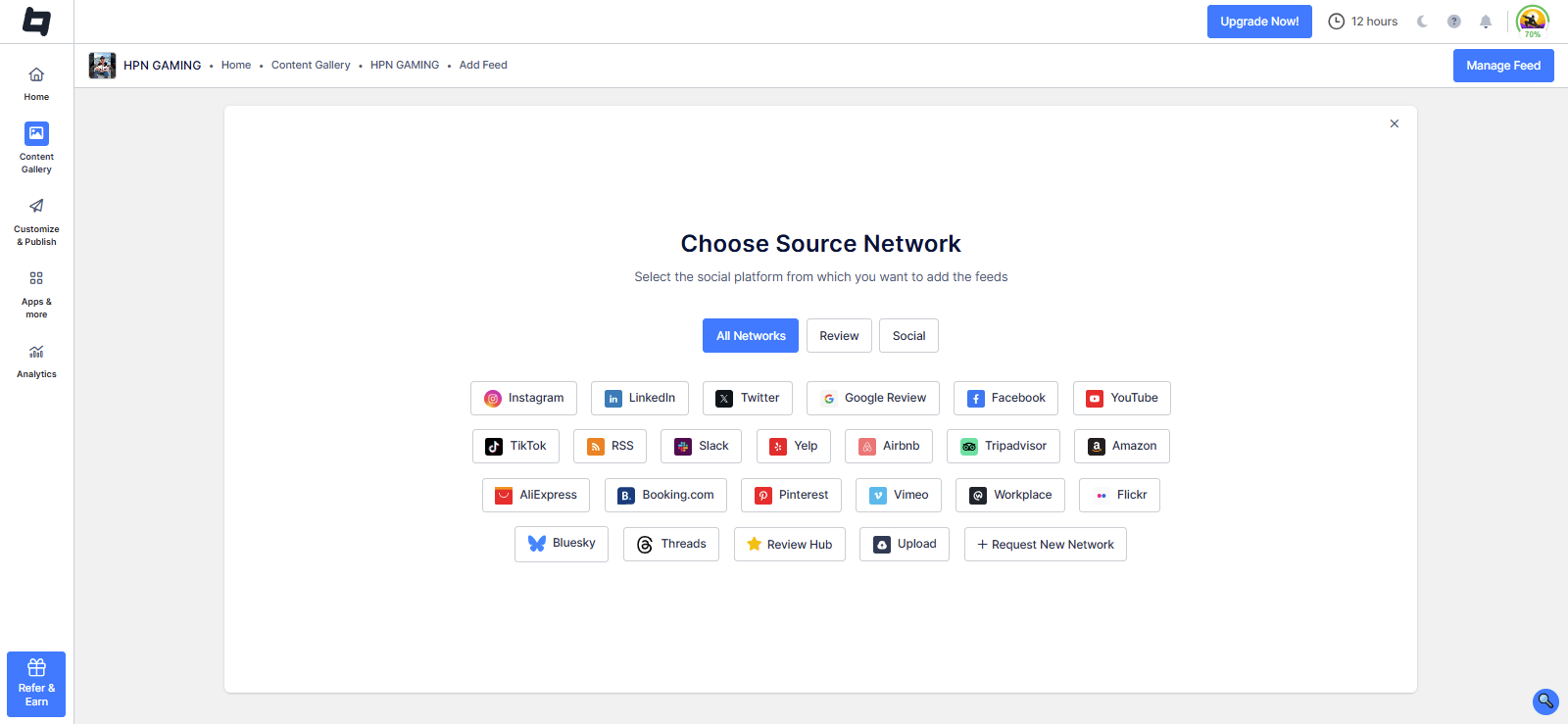
Paste your YouTube channel link and let Tagembed pull the content. Click Create Feed

3: Create & Customize Feed
Once videos are aggregated, moderate your feed to remove irrelevant videos.

Now customize your YouTube feed. Play with layouts, themes, spacing, and colors. I usually tweak it for mobile first.
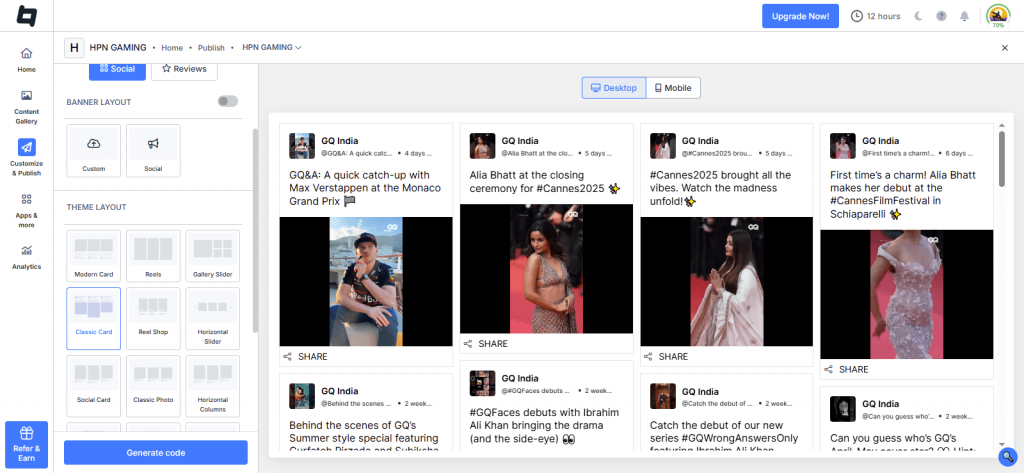
4: Grab the Embed Code
- Choose your gallery type
- Select your CMS as Other For Google Sites
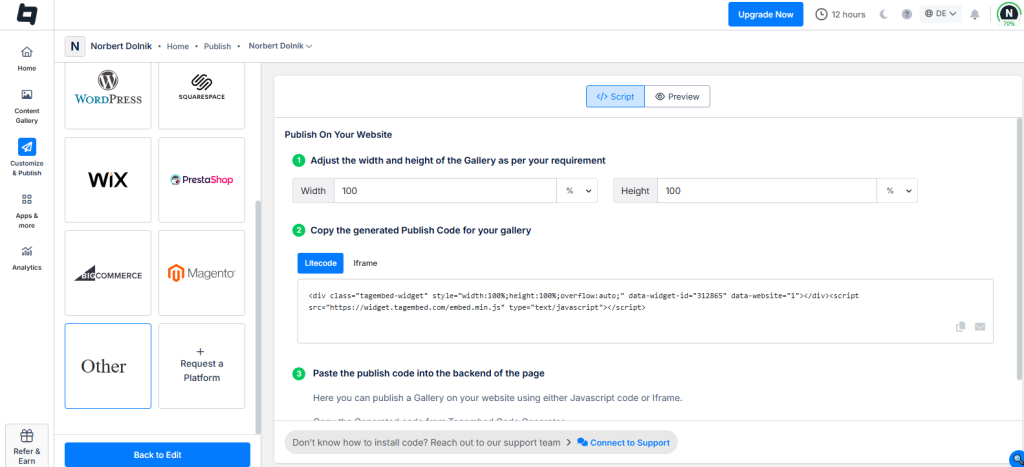
Adjust height and width, copy the YouTube embed code, and paste it into your Google Sites and Unblocked the YouTube Content.
5: Add YouTube Feed To Google Sites
Now Go to your Google Site and Log in.

Click the + ‘Blank‘ button in the ‘Start a new site‘ section to create a new site or locate your existing website in the ‘Recent sites‘ area.

Create a new blank page or edit your existing one. In the right sidebar, locate the ‘Embed‘ button and click on it.

Now, copy the embed code, and then click the ‘Insert‘ button on the right.

Now, click your Google Site. Display the amazing YouTube Videos on your Google Sites. Great, now all done!
Collect, Moderate, Customize & Publish YouTube Feed On Google Sites
Try for FreeBest Practices For Adding YouTube Video Feed To Google Sites:
Before you start adding, pause for a second. Here are some things you need to know –
- Don’t overload your pages with videos. It’s tempting, I know. But more than two or three videos in a single section usually hurts focus and slows the page load.
- Place important videos above the fold. That first screen matters. Put your key video where people naturally pause before scrolling.
- Always think mobile-first. Most visitors are on phones. If the layout looks weird or cramped on mobile, it’s already a problem.
- Mix video with text content. Search engines can’t “watch” videos. A few lines of context help both SEO and real users.
- Keep your feed curated. Not every upload deserves homepage space. Pick videos that actually support the page goal.
- Test loading speed. If the page feels slow, users will bounce before the video even plays.
These steps matter even more when building an unblocked YouTube feed in Google Sites.
Final Thoughts
If you only need to upload a single video, the native Google Sites integration is fine. No stress. But the moment you want flexibility, branding, or scalability, you’ll feel the limits fast. That’s where tools like Tagembed shine. It gives you control without complexity and looks good.
If you’re serious about displaying YouTube content on Google Sites, I’d recommend trying Tagembed. It’s free, and you’ll know pretty quickly if it fits.
Frequently Asked Questions
You can add YouTube feed to Google Sites using the built-in Insert → YouTube option, or by embedding a playlist or channel link. For greater control and design flexibility, tools like Tagembed let you embed curated YouTube video content with a simple code snippet.
Yes, it’s legal to add YouTube channels and videos as long as the content is public and you’re using YouTube’s official embed functionality. You’re not rehosting the video, just displaying it as intended.
Open your Google Site, click Insert, select YouTube, and paste the video URL. You can also add YouTube content using third-party tools like Tagembed to enable better layouts, moderation, and auto-updating feeds.
Embed social feed from Facebook, YouTube, Instagram, Twitter on your website, like a PRO
Invalid Email Address Multiple Themes