Achieving Pinterest unblocked Google Sites access while adding Pinterest feed to the Google website is easier than you think, and it is entirely free. Pinterest and Google Sites are a perfect match for visual storytelling. One hosts stunning pins and boards, the other lets you build clean, no-code websites fast. I’ve used this setup for inspiration mood boards, classroom resources, personal portfolios, and even brand idea galleries.
The challenge? Pinterest is often blocked on school or work networks, and Google Sites’ native embed options are limited or unreliable in restricted environments.
Good news: there are free, reliable ways to display Pinterest posts on Google Sites or Pinterest boards/pins on Google Sites. Let’s dive in.


Why Add Pinterest Feed To Google Sites?
Static pages feel flat these days. Adding Pinterest pin visuals changes everything. I’ve seen dwell time skyrocket and visitors explore more deeply.
Here’s why Pinterest posts on Google Sites work wonders:
- Visuals boost engagement and time on site instantly: Rich, colorful pins capture attention immediately, turning passive scrollers into active explorers. Eye-catching images outperform plain text every time, reducing bounce rates and encouraging visitors to stay longer while naturally absorbing your content.
- Your page stays fresh without constant manual updates: Pinterest feeds auto-sync with new pins in real time. Every time you add content to your board, it reflects instantly on your Google Site, no editing required. This keeps your site feeling current and alive effortlessly, even when using free, unblocked Pinterest solutions in Google Sites.
- Inspiration and social proof from real pins encourage sharing: Displaying authentic pins showcases community-approved ideas and trends. Visitors see others loving the duplicate content, building trust and social proof. This naturally motivates them to share your site or repin it, expanding your reach organically, all made possible by reliable Pinterest-unblocked Google Sites techniques.
- Pins communicate ideas faster than text alone: A single well-curated pin can convey mood, style, or concept in seconds, which might take paragraphs to describe. Visual storytelling through Pinterest makes complex ideas accessible, helping users grasp your message quickly and intuitively.
Whether it’s recipes, design ideas, travel mood boards, or educational resources, Pinterest content makes your Google Site pop.
Native Ways To Add Pinterest Posts To Google Sites:
Google Sites offers a built-in embed option that meets basic needs and is free.
Method 1 – Add a Single Pinterest Pin
Easiest for highlighting one idea.
How to do it:
- Open your Google Site → Edit page
- Click Insert → Embed → Embed code
- Grab the official Pinterest embed code from the pin (click ••• → Embed)
- Paste and insert
Best for:
- Spotlighting key inspiration
- Quick visual accents
Limitations:
- One pin only
- Limited sizing control
- May not load correctly on heavily restricted networks
Method 2 – Embed a Full Pinterest Board
Pinterest provides an official board embed widget.
How:
- Go to your board → ••• → Embed
- Copy the code → Paste into Google Sites Embed → Embed code
Downsides:
- Fixed size and outdated look
- No mobile optimization tweaks
- Often blocked or slow on school/work networks (loads directly from Pinterest servers)
Method 3 – Link or iFrame Attempts
Some try simple URLs or iFrames, but these rarely work well and frequently fail under content filters.

Limitations of Native Pinterest Board Embeds On Google Sites:
Native options are quick but show their age fast:
- No real-time auto-updates
- Minimal styling to match your site
- Often blocked entirely on restricted networks (schools, offices)
- Poor mobile responsiveness
- No curation or moderation
For personal or small projects, they’re okay. For anything serious or when Pinterest is blocked outright, they fall short.
The Smart Way: Third-Party Tools To Add Pinterest To Google Sites
This is where most people land eventually (myself included). Third-party widgets pull Pinterest content through their own servers, bypassing many network blocks while offering better design and updates.
Popular free-friendly options:
- Tagembed (free forever plan with robust features)
- Taggbox (free plan available)
These tools deliver:
- Responsive Pinterest feeds and boards
- Auto-sync with new pins
- Custom layouts, colors, and moderation
- Often work even when direct Pinterest access is blocked
Why Tagembed Is the Smarter Choice For Pinterest Boards/Pins On Google Sites?
I didn’t switch tools lightly. I needed something reliable, customizable, and that actually loads on restricted networks without complexity.
Tagembed stands out because:
- Full Google Sites compatibility (free plan works perfectly)
- Supports Pinterest profiles, boards, and pins
- Real-time auto-updates
- Modern, responsive designs that look current
- Built-in moderation to filter pins
- No coding required
It’s built for real users, marketers, educators, creators, not just developers.
How To Add Pinterest Posts To Google Sites Using Tagembed (Unblocked Guide)
Super straightforward, no steep learning curve, just a few clicks and your work is done.
1: Sign Up or Log In
Go to Tagembed → Sign up free (or log in)
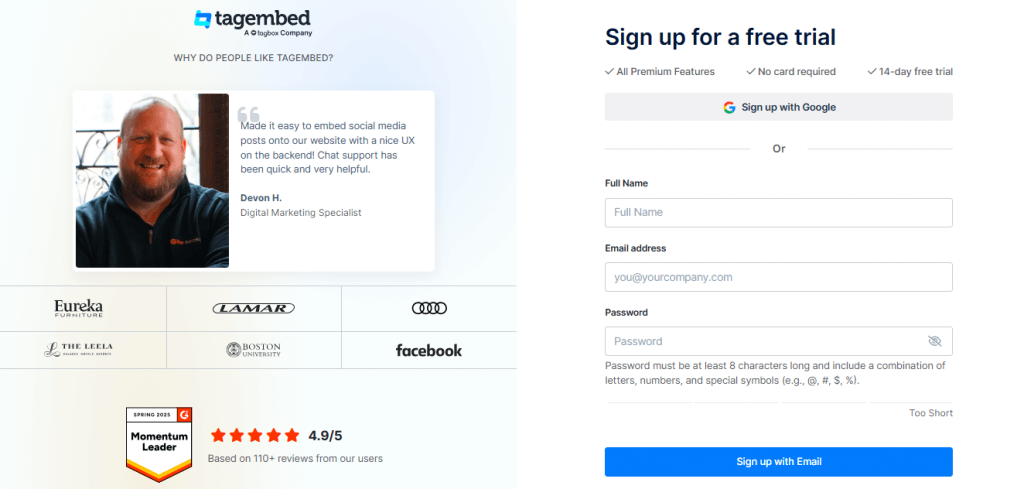
Choose “Social Feeds on Website” → Verify email → Dashboard ready.

2: Create Your Pinterest Feed
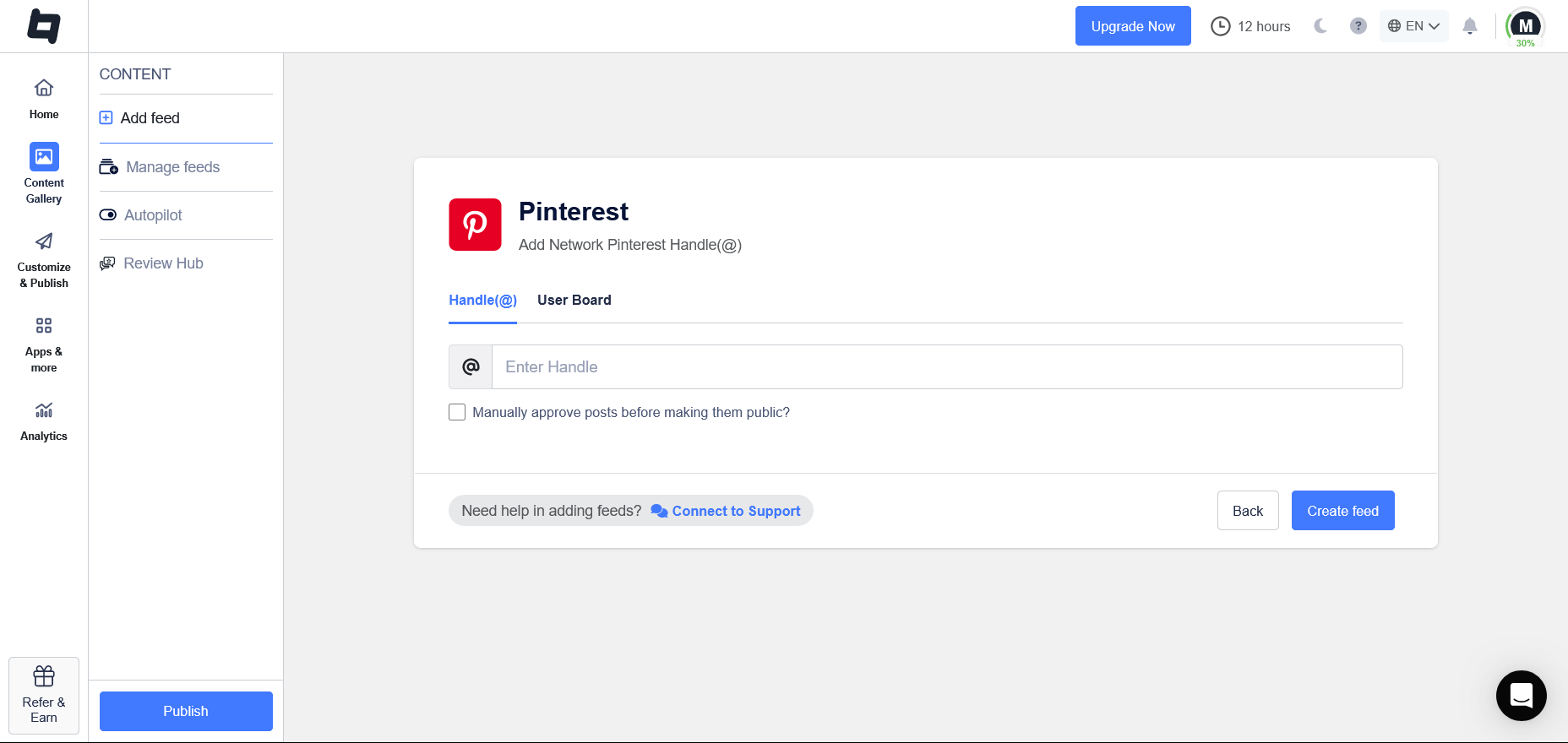
After verifying your email, you’ll be redirected to your dashboard. A window titled “Choose Source Network” will pop up. Select Pinterest as your source.

Enter your Pinterest username or board link → Connect and aggregate
3: Customize & Publish Your Pinterest Boards
Pins load instantly → Now, click on the Customization & publish section and customize unwanted content (moderation panel)
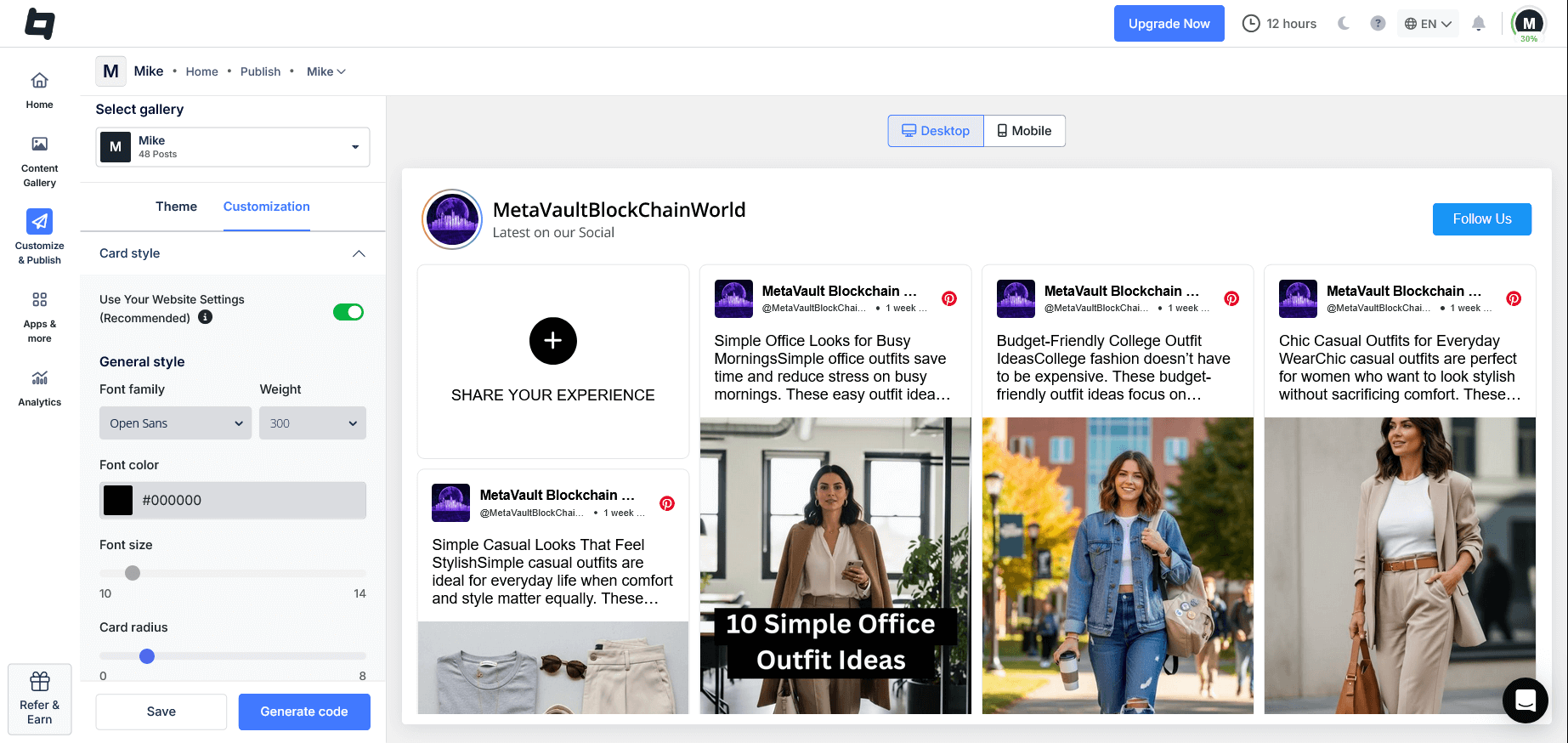
Go to Themes → Pick layout (grid, masonry, carousel, etc.). Tweak themes, colors, fonts, and spacing; always mobile-first. Hit Publish when it looks perfect.
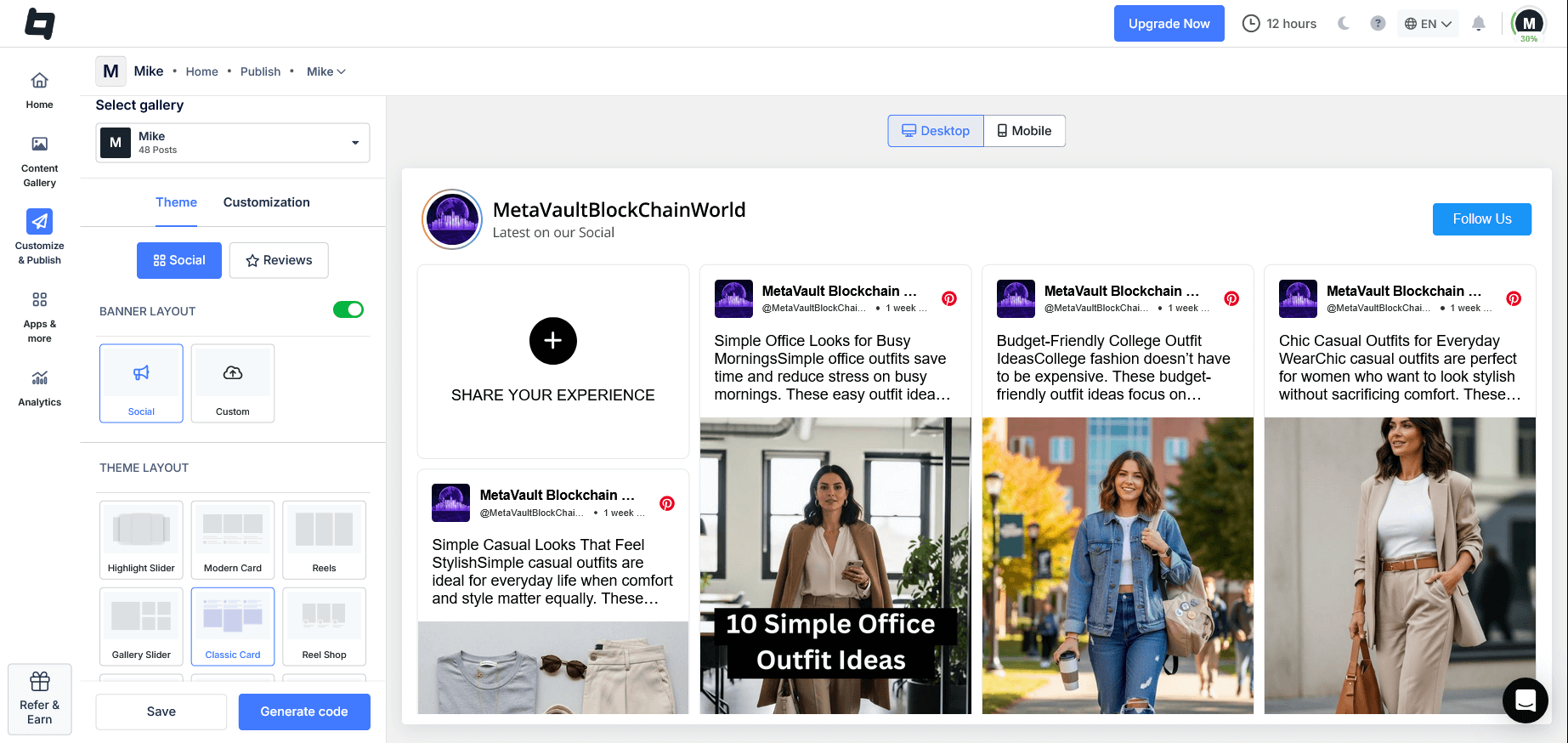
4: Generate The Pinterest Embed Code For Google Sites
Click “Save” → Generate the code (JavaScript snippet) and choose your preferred CMS platform, like Google Sites(Others) as the platform.
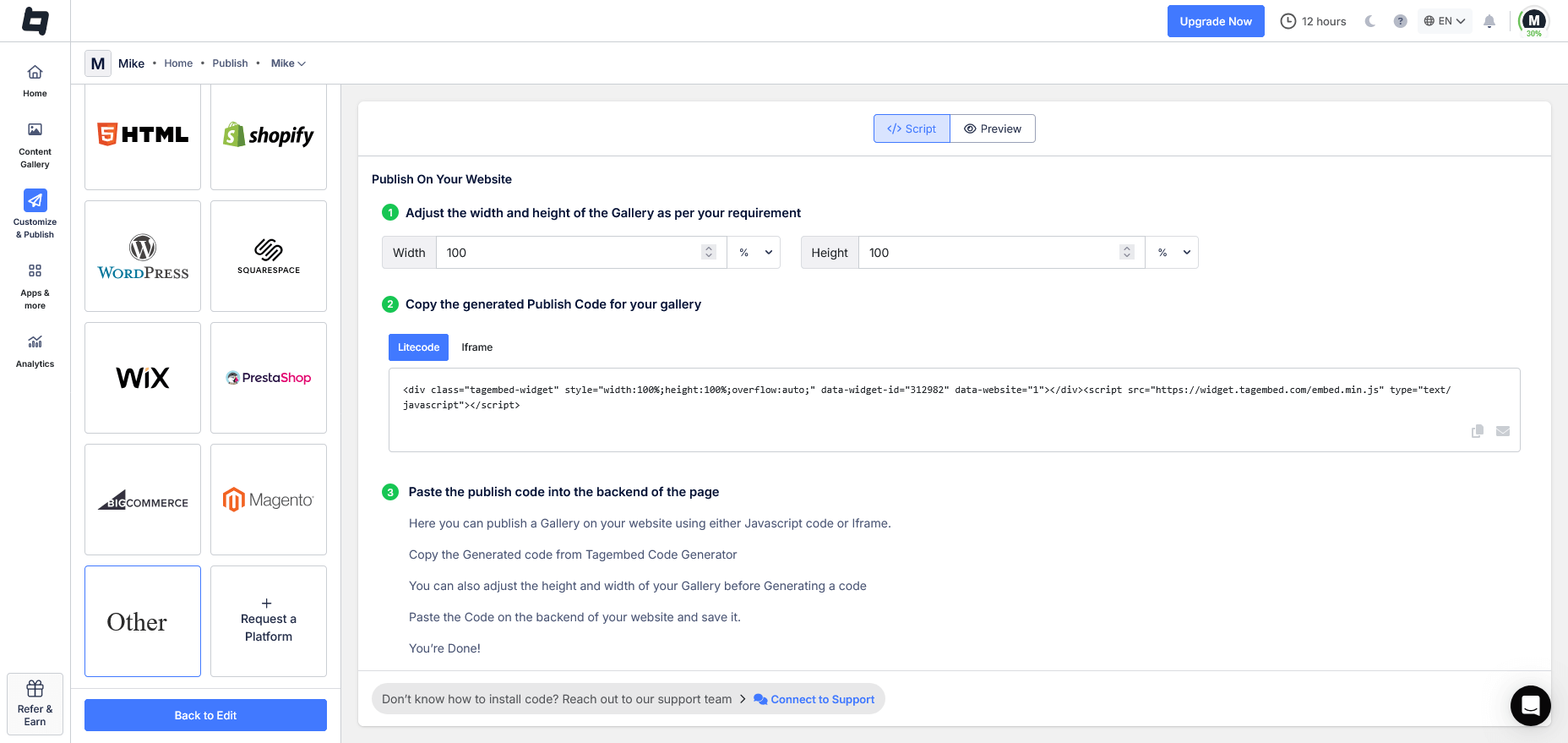
5: Add Pinterest Boards/Pins To Google Sites
Now Log in Google Site.

Click the + ‘Blank‘ button in the ‘Start a new site‘ section to create a new site or locate your existing website in the ‘Recent sites‘ area.

Create a new blank page or edit your existing one. In the right sidebar, locate the ‘Embed‘ button and click on it.

Now, copy the embed code, and then click the ‘Insert‘ button on the right.

Your Pinterest feed is now live, auto-updating, and often accessible even on blocked networks.
How To Pinterest Unblocked Google Sites For Free? Try for free
Best Practices For Adding Pinterest Feed To Google Sites:
A few pro tips to avoid common pitfalls:
a) Don’t overload 2–4 sections max per page to keep load times fast:
Too many pins can significantly slow your site, especially on mobile. Limit yourself to 2–4 feed sections per page. Fewer elements mean faster load times, lower bounce rates, and a smoother experience that keeps visitors engaged longer, even in Pinterest-unblocked Google Sites environments.
b) Place hero pins or boards above the fold for immediate impact:
The first screen is prime real estate where visitors decide to stay or leave in seconds. Position your most compelling Pinterest board or standout pins at the top so they grab attention immediately and encourage deeper scrolling through your content, using reliable Pinterest-unblocked Google Sites displays.
c) Always preview on mobile (most traffic these days):
Over 60% of web traffic comes from phones. What looks great on a desktop can break on smaller screens. Test every embed in mobile view first, adjust spacing, layouts, and sizes to ensure pins display beautifully without zooming or cropping issues.
d) Add short text captions; helps SEO since search engines can’t “see” images:
Google crawlers can’t interpret pins directly, so they rely on surrounding text. Include brief, keyword-rich captions or descriptions near your feeds. This boosts SEO visibility, improves accessibility, and provides context that helps users (and search engines) better understand your visual content.
e) Curate aggressively; only show pins that align with your page’s goal:
Auto-updating feeds are convenient but risky if irrelevant pins appear. Use moderation tools to filter and manually approve content. Display only pins that support your site’s purpose. This maintains professionalism, strengthens your message, and prevents distracting or off-brand visuals.
f) Test on your network; if blocked, third-party tools usually solve it:
School or work networks often restrict direct access to Pinterest, breaking native embeds. Always preview your live site on the target network. If pins don’t load, switch to third-party widgets like Tagembed, their servers bypass most filters reliably, delivering true Pinterest unblocked Google Sites functionality.
Final Thoughts
If you need one pin and have full Pinterest access, native embeds are fine. But for dynamic Pinterest Posts on Google Sites, real-time updates, beautiful design, or bypassing blocks (hello, school networks!), third-party tools always win.
Tagembed makes it effortless, looks professional, and has a generous free plan. Give it a try, you’ll see the difference immediately.
Frequently Asked Questions
Direct access blocked? Use a third-party widget (e.g., Tagembed) that pulls content from its servers, or use mobile data/VPN for setup. Embedding often works even when browsing Pinterest doesn’t.
Use Google Sites’ Embed → Embed code option with a widget code from tools like Tagembed, Taggbox, or Common Ninja. Free plans are available and offer better design and unblocking potential.
Best via third-party tools: Connect your board, customize, copy the embed code, and paste it into the Google Sites Embed section. Tagembed handles boards and pins beautifully with auto-updates and responsive themes.
Embed social feed from Facebook, YouTube, Instagram, Twitter on your website, like a PRO
Invalid Email Address Multiple Themes