How To Embed Social Media Stories On Any Website?
Social media stories are fun, tall snaps packed with real personality that just disappear after a day. Brands go crazy for them and often build their social media stories marketing around them. But here’s the downside: once they’re off the app, pretty much everyone else misses the party. When you embed social media stories directly on your website, you flip the script completely, turning short-lived content into something visitors can see anytime.
Live, fresh bits pop up, grab more attention, get people talking, and suddenly the whole page feels way more alive and current. With a social media widget pulling in updates automatically, it all happens smoothly without extra effort. Curious how this boosts real engagement and fits seamlessly into your website strategy? Let’s break it down.


Social Media Platforms That Provide Story Feature
Many popular social platforms offer “Stories,” which are 24-hour (or short-lived) content formats with photos, videos, text, polls, and stickers for authentic, real-time sharing. This feature, pioneered by Snapchat, has become a core engagement tool across apps, perfect for brands to embed dynamic updates on websites. Here are some social media platforms that enable you to upload stories.

- Instagram: The most widely used platform; supports creative stickers, music, polls, questions, and highlights for saving beyond 24 hours, ideal for visual brands and user-generated content.
- Facebook: Facebook stories are available on profiles and pages; allows cross-posting from Instagram, with similar interactive elements and easy sharing to feeds for broader reach.
- TikTok: Evolving short-lived posts and quick updates (beyond Reels); emphasizes trends and viral moments for high-engagement, Gen-Z-focused content.
- Snapchat: The original ephemeral pioneer; it focuses on quick, fun snaps with lenses/filters. It turned out and still is great for younger audiences, though embedding is more limited/manual.
Why You Should Embed Social Media Stories on Your Website?
Stories zip by so quickly on apps, but bringing them over to your site keeps that energy going strong. Visitors get the same lively, real-time feel without hopping between platforms, and it ties everything together nicely for better social media stories and marketing results.
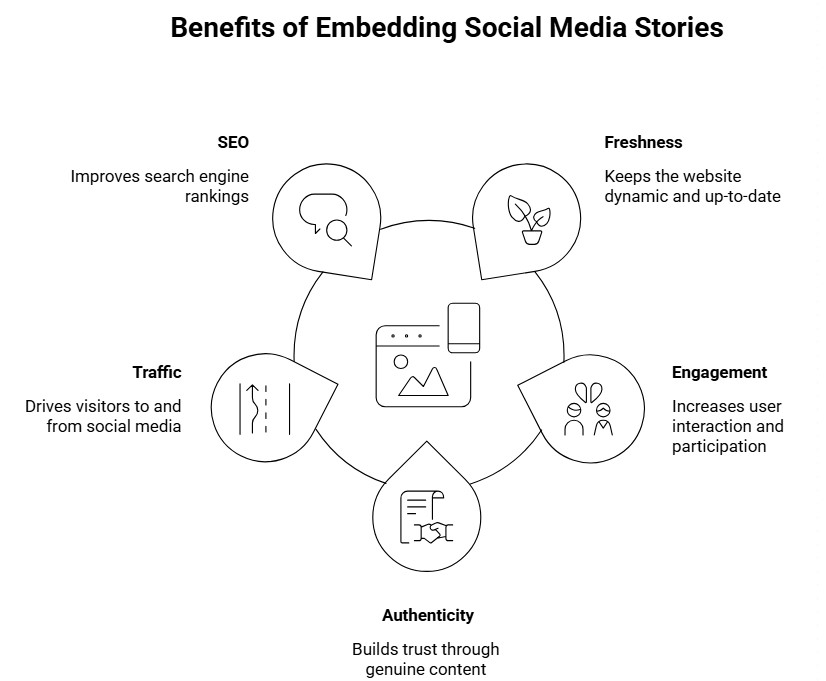
1. Keeps your site fresh and alive
Social media stories are constantly updated with new moments, polls, and quick updates from Instagram, Facebook, and others. When embedded, your website automatically shows the latest ones without you lifting a finger. No more stale pages, people stick around longer because there’s always something new popping up, making the whole experience feel current and exciting every single visit.
2. Boosts website engagement
Images drive around 10% more engagement than plain text on a website. Interactive elements like questions, stickers, or user-generated content in stories already grab attention fast. When you showcase that content through live social media feeds on your site, it sparks the same conversations and reactions from visitors who may not even follow you yet. More clicks, comments, and shares all add up to stronger connections and a much more dynamic experience across your pages.
3. Builds trust through authenticity
Nothing beats real people sharing genuine moments about your brand in stories. Embedding user-generated content from platforms like Instagram or Facebook actsase live social proof. It influences 90% of buyers, as visitors see happy customers, behind-the-scenes fun, or everyday shoutouts. That raw honesty makes your site feel trustworthy and approachable, turning casual browsers into confident customers much faster.
4. Drives more traffic both ways
Showing stories on your website exposes your social handles to everyone who visits, encouraging follows, likes, and profile checks. At the same time, people discover your web content through those embedded highlights and click over. It’s a simple loop that grows your social media audience and boosts site visits without extra ads or effort.
5. Helps with better search rankings quietly
Search engines notice when pages stay dynamic with fresh content like auto-updating stories. Embedding from Instagram, Facebook, and Snapchat keeps things moving, cuts bounce rates since folks linger, and signals your site is active. Over time, that consistent freshness gives a nice boost to visibility for terms like ’embed social media stories’.
Step-by-Step Guide: How to Embed Social Media Stories Using Tagembed
Getting stories from places like Instagram or Facebook onto your site sounds fancy, but Tagembed keeps it straightforward and quick. No heavy coding needed, just a few clicks to pull in those disappearing highlights and make your pages pop with fresh energy.
Here are the steps you should follow:
1) Create an account on Tagembed
- Head over to Tagembed’s site and grab a free account, super fast signup, no card stuff for starters.

- Once inside the dashboard, pick the “Social feeds on website” option right away.

- Choose your industry if it asks, verify your email quickly, and you are done.

2) Add Social Media Stories
- Jump to the content section on the left sidebar and hit up Instagram or Facebook as your main network.
- Let’s select “Instagram“.
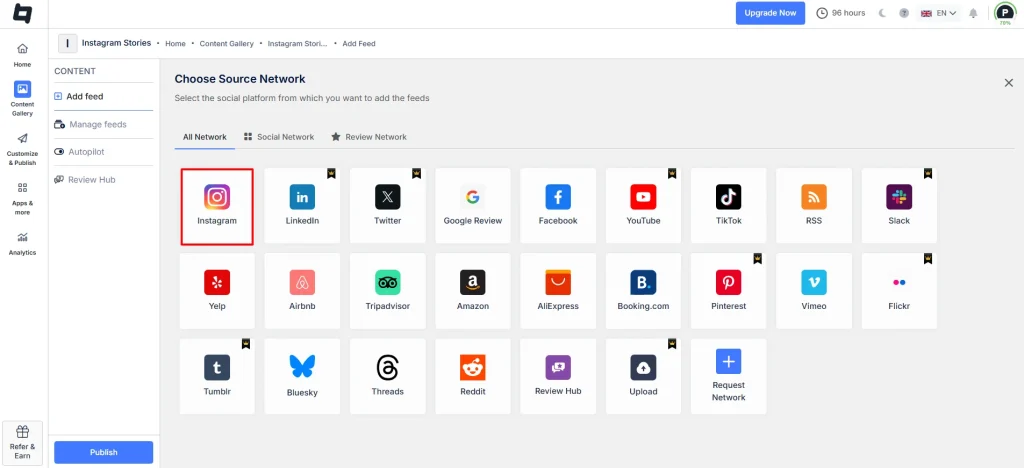
- Select “Stories” and connect “Instagram” to automatically collect the right content from those platforms.

3) Customize the widget
- Once connected, Stories start flowing in; Tagembed pulls the latest ones in real time. Go through moderation: approve the good ones, or use a profanity filter to automatically hide anything off-brand or old to make sure only spot-on content shows.
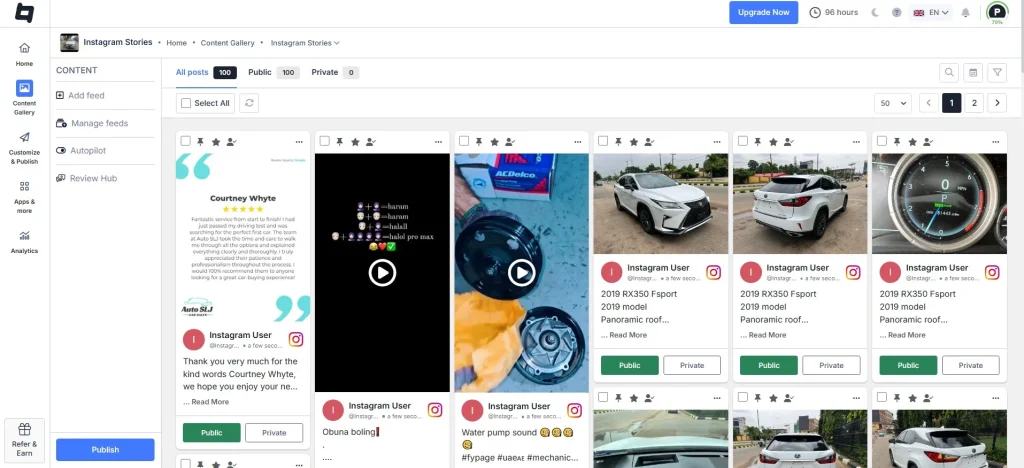
- Switch to the display or customize tab, pick a story-friendly layout like carousel for that swipe feel, grid, or slider. Play with colors, fonts, borders, and animations so it blends perfectly with your site’s style.
4) Embed the social media stories on the website
- Hit the “Generate Code” button at the bottom
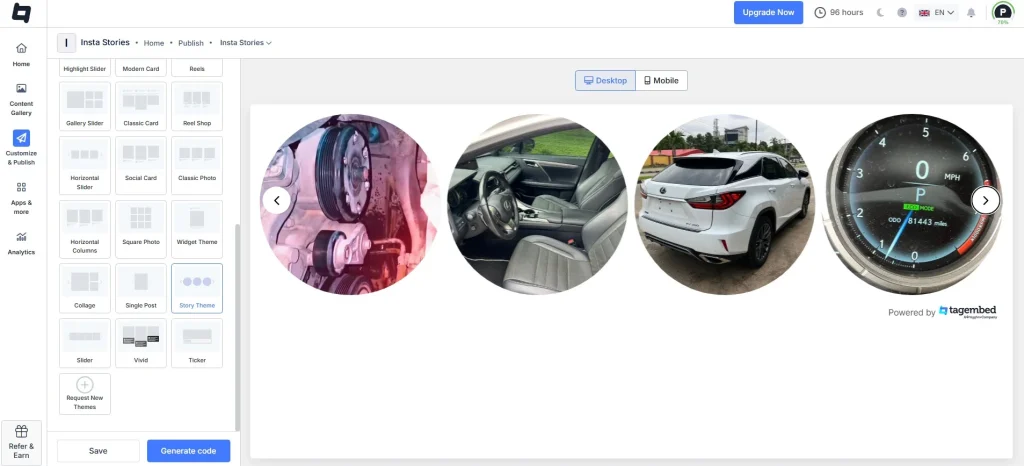
- Choose your platform, like WordPress, Shopify, Wix, or plain HTML. Adjust size if needed, copy the snippet or shortcode. Paste it right into the backend of your website.
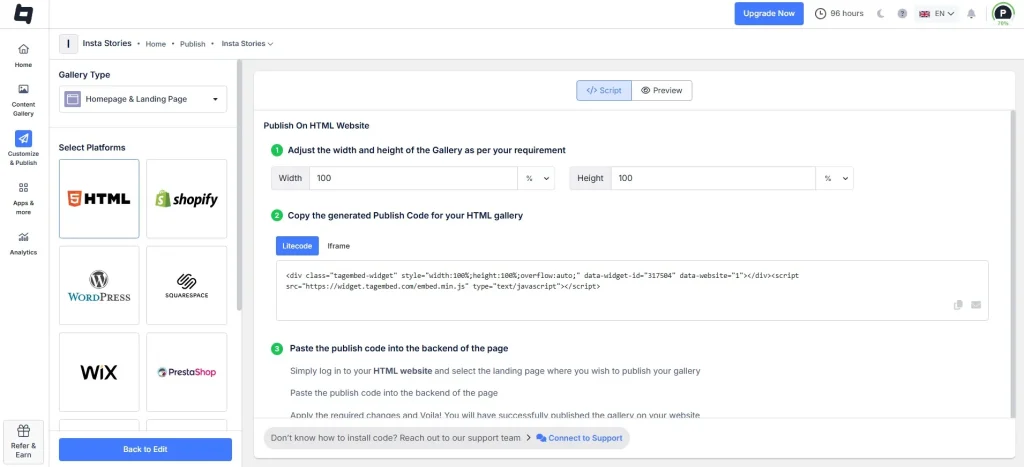
Congrats! You have successfully created and embedded a social media story on your website.
Want to Boost Engagement & Traffic?
How to Embed Social Media Stories on Any Website Without Any Tools
Stories from platforms like Instagram or Facebook don’t have a built-in, automatic embed for live, ongoing feeds the way regular posts do; most native options handle single items or highlights at best, and they vanish quickly after 24 hours. Still, you can share individual stories or saved highlights manually using platform tools and simple code. Here’s the straightforward way folks usually pull it off.
Step 1: Grab a single Instagram story or highlight link first
Open Instagram in a browser (desktop works best), then go to your story or a saved highlight reel. If it’s active, view it in full-screen mode. Head to the highlight page, then use the three dots to check options. This gets you the URL ready for linking or basic display without fancy tools. Keep it public so anyone can see it.
Step 2: Use Instagram’s native embed for related content or profiles
For posts in stories or full highlights, switch to a computer browser at instagram.com. Find a public post that aligns with your story vibe, click the three dots (…) in the top-right corner, and select “Embed.” Copy the HTML code, and the pop-up shows that it includes an iframe for clean display.
Step 3: Link directly or screenshot for quick story sharing
If the embed code isn’t popping up, copy the story URL from the app or the browser. Paste it as a plain hyperlink on your site. For visuals without code, take a screenshot of the story (add your branding), upload it as an image, and link to the Instagram URL.
Step 4: Embed Facebook stories via post or page options
On Facebook (desktop or app), open your story if saved as a highlight or cross-posted to your feed. For public posts from stories, click the timestamp or three dots, choose “Embed” if available (works for videos/photos). Copy the code; it will drop an iframe. Or embed your whole page.
Step 5: Paste the code into your website editor and test
In your site’s backend,d like WordPress custom HTML block, Shopify section, Wix HTML app, or raw code, paste the copied embed snippet where stories should show.
Conclusion
Embedding social media stories on your website isn’t some fancy extra; it’s a smart, simple way to keep things buzzing and real. Those quick Instagram snaps, Facebook shares, or Snapchat moments that normally fade away get a second life right where your visitors already hang out.
You attract more eyes, spark genuine conversations, build trust with authentic vibes, and quietly give your pages a fresh, active feel that search engines notice. Whether you go with an easy tool like Tagembed for automatic, polished feeds or handle individual embeds the manual way, the payoff stays the same: your site stops feeling static and starts feeling alive.
Embed social feed from Facebook, YouTube, Instagram, Twitter on your website, like a PRO
Invalid Email Address Multiple Themes