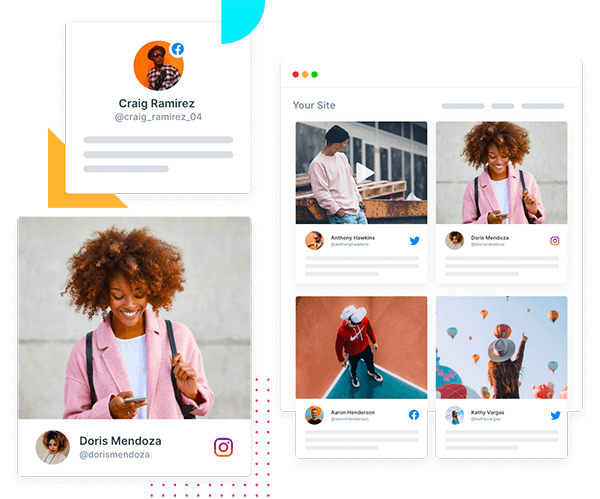
30+ Website Widget Examples You Can Embed Without Code
Key Takeaways (TL;DR)
- Website widget examples range from social feeds to review displays to booking tools, and each one adds a specific function to your site without custom development.
- Best website widgets pull live content from platforms like Instagram, Google, and YouTube, then update automatically so your pages never look stale.
- Tagembed lets you generate and customize widgets to add to a website in minutes, with no developer or code editor required.
- Placement matters as much as selection. A widget that converts on a product page may distract on a footer.
- This guide covers 30+ widget types across five categories, plus placement guidance and a step-by-step setup process.
The hunt for a functional element for your website ends with a website widget. It is a ready-made block of functionality, like a review carousel, live chat box, or social feed, that adds to your page without custom code. Plus, it installs in minutes and updates automatically, saving businesses the cost of building the same features from scratch. Instead of briefing a developer for every new feature, teams turn to widgets for websites because they launch faster and require far less upkeep. This guide covers 30+ website widget examples across five categories, with placement guidance for each.


Youtube


TikTok
What is a Website Widget?
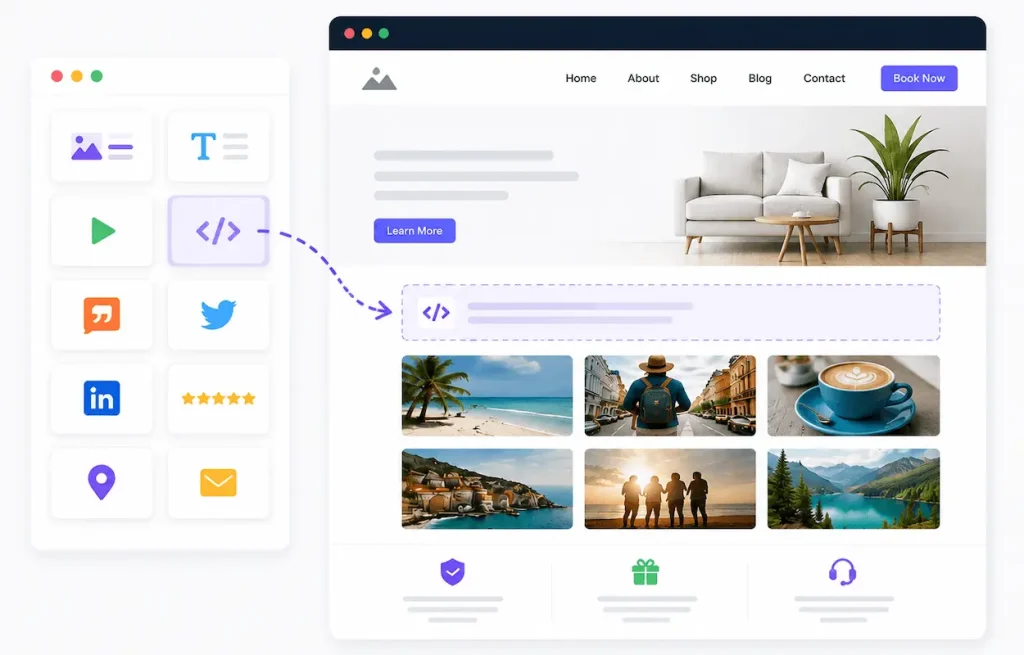
A website widget is a small, embeddable block of content or functionality, added to a page with a short code snippet, like a live Instagram feed or a stream of Google reviews. Website Widgets pull data from a source, like a social account or RSS feed, and keep updating automatically once installed. Most website widgets without coding come from a visual dashboard, with copy-paste code for the homepage, sidebar, landing pages, product pages, or footer.
Why Add Widgets to Your Website?
Each widget type maps to a real business objective, and understanding that connection helps you pick website widget ideas that actually move a metric, rather than ones that just look nice.
- Keep Website Content Fresh: A synced social feed updates automatically, so your homepage never looks abandoned.
- Build Trust With Reviews and UGC: A review widget or user-generated content gallery gives new visitors social proof before they ever speak to your team.
- Increase Engagement: Interactive widgets in the feed, like polls, keep the shoppers on the page longer.
- Generate Leads: Forms, newsletter bars, and chat widgets capture contact details at the exact moment of interest.
- Improve Customer Support: You can answer common questions with Live chat and FAQ accordions without a support ticket.
- Make Information Skimmable: Store locators and scheduling widgets remove friction from routine tasks.
- Increase E-Commerce Conversions: Shoppable galleries and urgency bars open up opportunities for visitors to become shoppers.
- Reduce Manual Efforts: Auto-syncing widgets remove the need to manually refresh a page every time new content goes live.
Website Widgets vs. Building Features From Scratch
| Factor | Website Widget | Custom-Built Feature |
| Setup time | Minutes, no developer needed | Weeks of design and development |
| Cost | Low, often subscription-based | High, ongoing maintenance included |
| Updates | Auto-synced from the source platform | Manual updates required |
| Flexibility | Pre-built themes with custom CSS options | Fully custom, but slower to change |
| Technical skill | None required | Requires a developer |
| Best for | Most businesses, fast iteration | Highly unique, one-off functionality |
30+ Website Widget Examples for More Trust and Engagement
The website widget examples below are grouped by function to help you choose according to the site requirement. Read about the use of widgets, benefits, and what they are best suited for.
Category 1: Social Media Feed Widgets
A social media feed widget pulls live posts from a connected account and shows them directly on your website. This category is the backbone of most widget examples, since it keeps a site’s content current without any manual effort.

1. Instagram Feed Widget
Still images on a website feel corporate and planned to visitors, as they wish to see the real side of a brand. Adding a live Instagram feed with the help of an Instagram widget gives your homepage a fresh look, and it stays updated along with every post. You can turn a casual browser into an engaged follower without any additional pressure.
- What it does: Pulls posts from one or several Instagram accounts, or from a hashtag, into a live grid.
- Best for: Fashion and beauty brands, restaurants, ecommerce stores with strong visual products.
- Where to use it: Homepage, product pages, landing pages.
- Key benefit: Builds authenticity through real, unedited customer and brand content.
2. Facebook Feed Widget
A stale Facebook page raises the question of whether the host is still active, even when you post somewhere daily. You can easily bridge this gap with the help of a Facebook widget on your website. The widget provides a place to keep visitors updated about your daily activities.
- What it does: Streams Facebook page posts, photo albums, or event listings.
- Best for: Local businesses, community organizations, service providers with an active page.
- Where to use it: Homepage, about page, footer.
- Key benefit: Extends your Facebook reach to visitors who haven’t followed you yet.
3. LinkedIn Feed Widget
B2B buyers quietly vet your credibility long before they ever fill out a contact form. A live LinkedIn feed puts your latest wins and industry commentary right where a skeptical prospect is already reading. A LinkedIn Widget helps build the trust that your sales team would otherwise have to do manually.
- What it does: Displays LinkedIn company page updates or hashtag-based content.
- Best for: B2B companies, recruiting teams, consultants building professional credibility.
- Where to use it: Careers page, about page, homepage.
- Key benefit: Reinforces authority for a professional, business-facing audience.
4. X / Twitter Feed Widget
News and hot takes move fast, and a static site can feel like it’s always a day behind. Streaming your X activity with no-code website widgets gives visitors a live pulse of what you’re saying right now, without them ever leaving your page. It keeps your site feeling current even when nothing else on it has changed.
- What it does: Displays posts from an account, list, or hashtag search.
- Best for: News publishers, tech companies, brands running active commentary.
- Where to use it: Homepage, blog sidebar.
- Key benefit: Surfaces timely announcements without extra copywriting.
5. Pinterest Board Widget
Around the world, 85% of weekly users have made a purchase based on brand pins. This makes Pinterest a powerful app for driving more traffic to your site. Now, when you add a Pinterest widget on your website, the same inspiration board stops the shopper from hopping onto a competitor’s site.
- What it does: Embeds pins from one or more boards in a grid layout.
- Best for: Home decor brands, food bloggers, fashion retailers.
- Where to use it: Product pages, blog posts, footer.
- Key benefit: Drives visual discovery for shoppers still in the inspiration phase.
Create a social media widget & embed your social feeds on your website.
6. Reddit Community Feed Widget
Approximately 42% of social media users trust Reddit’s recommendations more than influencer-sponsored posts or branded ads. An unscripted thread will always win more trust than polished marketing copy, as it screams authenticity. When you embed a subreddit’s activity using a reddit widget, the honest opinions and raw views actually reflect true feedback and work like a recommendation from a real human.
- What it does: Displays recent posts or discussions from a chosen subreddit.
- Best for: SaaS products, gaming communities, niche hobby brands.
- Where to use it: Community or support pages.
- Key benefit: Surfaces organic discussion without any manual curation.
7. Slack Channel Feed Widget
A product page that does not include any content makes visitors wonder if anyone is really using your tool. But by showing live Slack activity, you prove before any prospect has joined that there is an active and genuine community behind the software, turning abstract traction into something tangible.
- What it does: Streams messages from a public Slack channel.
- Best for: Developer tools, open-source projects, community-driven products.
- Where to use it: Community page, resource hub.
- Key benefit: Signals a responsive, active community to prospects sizing you up.
8. RSS & News Feed Widget
As facilities advance, you must keep pace to stay ahead of the competition. You can finish a lot of work instead of putting it on pasting a link every time a new article goes live. An RSS Feed widget does the work by pulling fresh headlines into your page by itself, so the content stays updated.
- What it does: Aggregates articles from one or more RSS feeds into a single feed.
- Best for: Media sites, agencies, blogs curating outside content.
- Where to use it: Blog sidebar, resource pages.
- Key benefit: Keeps a content hub current without manual publishing work.
Category 2: Short-Form Video & Story Widgets
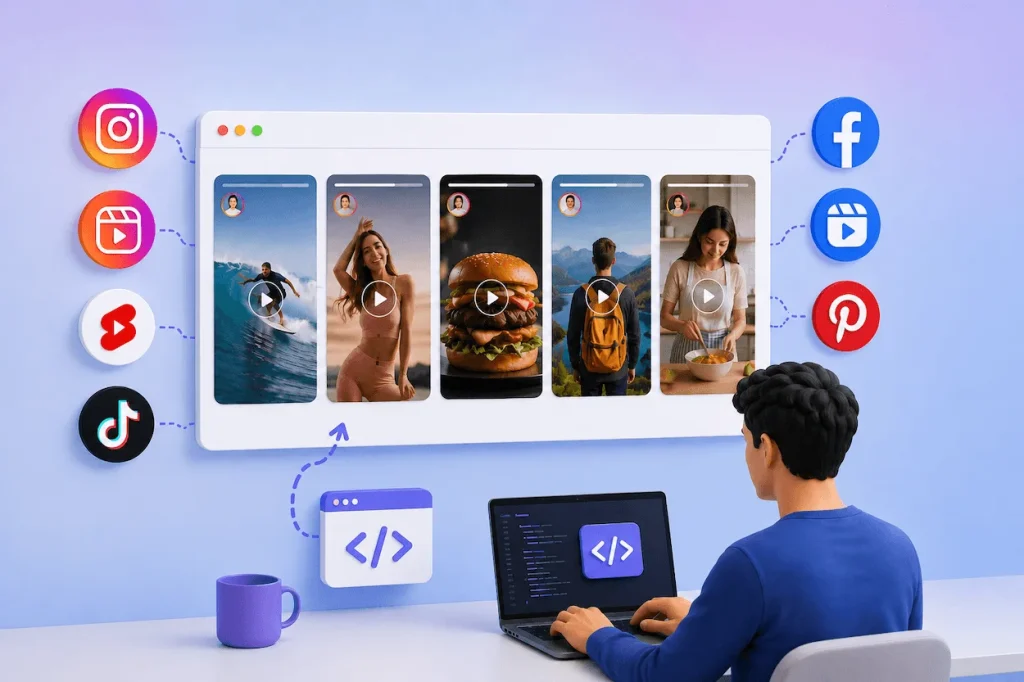
Short-form video drives a big share of on-site engagement now, and these social media widgets bring that momentum onto your own pages instead of sending traffic off to a third-party app.
9. Instagram Stories Widget
Stories are time-sensitive content and vanish after nearly 24 hours. However, along with the story, most of the important data and credits also vanish, which can heavily impact the credibility of the website. Hence, you can preserve it and keep it on your website with the help of a website widget, which keeps on updating regularly.
- What it does: Pulls Stories content from a connected account.
- Best for: eCommerce brands running flash sales, creators, event businesses.
- Where to use it: Homepage banner, landing pages.
- Key benefit: Extends the lifespan of Stories well past their 24-hour window.
10. Instagram Reels Widget
A reel presents the motive far better than a still photo. You can explain a topic much more easily with a short-form video format than with a lot of photos. For the same reason, adding a reel helps convert the visitor into a buyer, as it attracts a lot more attention than an image format.
- What it does: Displays Reels from a profile or hashtag in a video-first layout.
- Best for: DTC brands, beauty and fitness creators, restaurants.
- Where to use it: Product pages, homepage.
- Key benefit: Keeps visitors on the page longer through native video.
11. YouTube Shorts Widget
Taking visitors to YouTube to get a quick explanation risks losing them to autoplay and being directed to unrelated recommendations. By using a YouTube widget to embed Shorts, you keep that content on your page instead, precisely where the buying decision is taking place. It provides an answer without ever letting people’s attention move away.
- What it does: Displays a channel’s recent Shorts in a swipeable feed.
- Best for: Software companies, educators, creators with an active YouTube channel.
- Where to use it: Blog posts, homepage, landing pages.
- Key benefit: Repurposes existing YouTube content without re-uploading anywhere else.
12. TikTok Video Feed Widget
A company’s presence on TikTok usually exists in a separate world from the one on its website, with the two audiences never overlapping. By including the popular TikTok content on the website through a TikTok widget, the gap between them is closed so that one audience can naturally discover the other. This means that the momentum you’ve already generated won’t be wasted.
- What it does: Pulls TikTok videos into an autoplaying or click-to-play grid.
- Best for: Youth-focused brands, DTC ecommerce, entertainment businesses.
- Where to use it: Product pages, homepage.
- Key benefit: Captures a younger audience with a familiar video format.
13. Facebook Reels & Stories Widget
As soon as a time-limited promotion disappears from your Facebook feed, the sense of urgency associated with it is lost. By reflecting your Reels and Stories on your website, you keep the offer visible for as long as is necessary to convert customers. This turns a 24-hour promotion into one that lasts.
- What it does: Displays recent Reels and Stories from a Facebook page.
- Best for: Local retailers, restaurants, service businesses running promotions.
- Where to use it: Homepage, promotions page.
- Key benefit: Consolidates cross-platform video without duplicate uploads.
14. Pinterest Idea Pins Widget
Sending visitors to Pinterest to get a step-by-step guide is one way of losing them to another board’s page. By embedding Idea Pins, you keep that same tutorial content on your page, right beside the products it’s showing people how to use. Instead of making the instructions a side trip, you turn them into the very next step.
- What it does: Presents Idea Pins from a connected Pinterest board.
- Best for: DIY brands, recipe sites, home improvement businesses.
- Where to use it: Blog posts, tutorials, product pages.
- Key benefit: Adds step-by-step visual guidance without hosting extra video.
Category 3: Reviews & Social Proof Widgets
Review widgets are still one of the highest-converting website widget examples around, since shoppers routinely check reviews before they buy anything.

15. Google Reviews Widget
The new-age buyers are more likely to trust the review of a complete stranger rather than the best staged marketing copy. This is why having a Google Reviews widget on your website helps build more trust among the audience. The unedited third-party validation reduces hesitation and helps shoppers decide.
- What it does: Streams live Google reviews along with star ratings.
- Best for: Local businesses, service providers, any brand with a Google listing.
- Where to use it: Homepage, contact page, footer.
- Key benefit: Reinforces credibility using a source shoppers already trust.
16. Facebook Reviews Widget
A great review on your website cannot help you convert a visitor into a buyer if it is buried somewhere in between the Facebook feed. Adding the recommendations on your page makes the proof helpful for potential shoppers to make a wise decision. At times, it also saves visitors extra clicks.
- What it does: Displays Facebook recommendations and star ratings.
- Best for: Local shops, restaurants, small service businesses.
- Where to use it: About page, footer.
- Key benefit: Reinforces trust with visitors already active on Facebook.
17. Yelp Reviews Widget
People who shop locally usually look at Yelp before they get to your website, and if they have a poor first impression there. It can stop them from making a decision before that point has even begun. By adding a Yelp widget to your site, you can control when and where trust is established, rather than relying on visitors to search for it themselves.
- What it does: Displays Yelp star ratings and recent review snippets.
- Best for: Restaurants, salons, contractors, local service providers.
- Where to use it: Location pages, homepage.
- Key benefit: Strengthens local trust signals for service-based businesses.
18. Airbnb Reviews Widget
An Airbnb Reviews Widget helps vacation rentals, boutique hotels, and property managers build trust by displaying guest reviews and ratings directly on their websites. When someone is hesitating before booking, showing authentic guest feedback next to the booking form can address common concerns and give potential guests more confidence to complete their reservation.
- What it does: Displays guest reviews and star ratings pulled from Airbnb listings.
- Best for: Vacation rentals, boutique hotels, property managers.
- Where to use it: Property pages, booking pages.
- Key benefit: Reassures potential guests before they commit to booking.
19. Tripadvisor Reviews Widget
People regard Tripadvisor as a more trustworthy source than the information that hotels or tour companies provide about themselves. By displaying the Tripadvisor reviews and ratings on your own website, you take advantage of that independent credibility rather than asking visitors to look for them somewhere else. This way, a reliable third party remains part of the decision-making process.
- What it does: Displays Tripadvisor ratings and review excerpts.
- Best for: Hotels, tour operators, destination marketing sites.
- Where to use it: Homepage, destination pages.
- Key benefit: Adds third-party validation from a trusted travel authority.
20. Amazon Reviews Widget
When a customer is comparing your product on Amazon with your own website, they are quietly deciding where to make the purchase. By including Amazon ratings on your product page, you remove another reason they’ll leave to check another site. This ensures that the sale and the trust remain with you.
- What it does: Displays Amazon star ratings and reviews snippets by product.
- Best for: eCommerce brands that also sell through Amazon.
- Where to use it: Product pages.
- Key benefit: Reinforces confidence for shoppers comparing across channels.
Showcase authentic reviews from multiple sources.
21. Etsy Reviews Widget
Etsy has always been a shopper’s stop, with a lot of people confirming and committing to the products. You, as a website owner, would not want to miss that credibility for your website. Hence, collect your reviews from Etsy and add them to your website to make one shopper trust another’s word and make a decision.
- What it does: Displays Etsy shop ratings and buyer feedback.
- Best for: Independent makers, small craft businesses, artisan brands.
- Where to use it: Shop page, product pages.
- Key benefit: Transfers marketplace trust over to a standalone storefront.
22. Video Review & Testimonial Widget
A written quote is easy to write and just as easy to doubt. A real customer talking on camera is much harder to fake, which makes it far more persuasive for a hesitant buyer. It gives higher-consideration purchases the kind of proof a star rating alone can’t provide.
- What it does: Aggregates and plays customer video reviews.
- Best for: Service businesses, SaaS companies, higher-ticket ecommerce brands.
- Where to use it: Landing pages, product pages.
- Key benefit: Video testimonials tend to convert better than text since they’re harder to fake.
23. Star Rating Badge Widget
You cannot always add a wall full of reviews, but visitors still need proof that people trust you. A single star badge helps in giving that reassurance at a glance.
- What it does: Displays a single aggregate rating badge.
- Best for: Any brand that wants a quick trust signal without clutter.
- Where to use it: Header, footer, checkout page.
- Key benefit: Communicates trust instantly without eating up much space.
24. Recent Sales Notification Pop-up
A storefront that appears empty causes shoppers to pause, even if the product is of good quality. Minor pop-up displays featuring actual, up-to-date purchases show that other people are already making purchases and thus encourage those who are still undecided to make the same choice. When used in a restrained manner, such displays turn quiet stock levels into noticeable momentum.
- What it does: Displays real-time or recent activity notifications.
- Best for: eCommerce stores running active promotions or new launches.
- Where to use it: Product and checkout pages.
- Key benefit: Creates urgency by showing visible, ongoing customer activity.
Category 4: E-Commerce & Conversion Widgets
Ecommerce runs on impulse, and impulse dies the moment a shopper has to search for what they just saw. This category turns your existing social content into a direct point of purchase, no extra design work required.
25. E-Commerce & Shoppable Media Widgets
E-Commerce and Shoppable media widgets turn dead content into a direct source for sales. Tagembed, a pioneer, helps websites through a social media aggregator and product tagging engine.
- Instagram Shoppable Gallery: Transform curated lifestyle posts into click-to-buy storefronts so that the journey from inspiration to checkout is shortened.
- TikTok Shoppable Feed: Transform high-engagement, short-form video clips into active sales drivers by embedding direct product links right inside the video player.
- Pinterest Shoppable Board: Convert visual inspiration boards and saved pins into functional storefronts tailored for intent-driven shoppers.
Category 5: Lead Generation & Site Utility Widgets
Beyond feeds and reviews, widgets for websites also cover practical, everyday functionality. Picking the right combination here comes down to how visitors actually move through your site.
26. Contact Form Widget
It uses a customizable form on the page to collect visitor information. This is suitable for any business that needs a straightforward method of gathering inquiries and fits well on contact and landing pages, converting a passive visitor into a lead that can be tracked as soon as they submit the form.
27. Live Chat & WhatsApp Widget
Opens a real-time messaging window tied to your support team or WhatsApp Business account. It works best for brands that need to answer questions fast, and it belongs on product and contact pages, where it helps cut down on cart abandonment caused by unanswered questions.
28. AI Chatbot Assistant
Automates common customer questions using a scripted or AI-driven flow. Businesses handling high support volume rely on this one, and it works well site-wide, answering routine questions instantly even outside business hours.
29. Collapsible FAQ Accordion
Organizes common questions into expandable sections. Brands trying to cut down on support tickets rely on this one, and it works well on product and landing pages, improving page scannability by keeping long answers out of view until they’re needed.
30. Newsletter Signup Floating Bar
Displays a persistent, dismissible bar prompting email signups. Businesses building an owned audience get the most from this one, and it performs well on blog pages and the footer, growing an email list without interrupting the reading experience.
31. Google Maps Store Locator
Embeds an interactive map showing physical store or service locations from your Google Business Profile. It’s built for brands with a physical footprint, and it belongs on the contact or locations page, simplifying navigation for customers who are ready to visit in person.
Which Website Widget Should You Add & Where to Place?
Choosing from 30+ website widget examples gets easier once you match each one to a specific goal rather than picking widgets at random. The table below focuses only on the widgets covered in this guide.
| Your Goal | Suitable Widget | Best Placement | Why It Works |
| Show fresh, ongoing brand activity | Instagram, Facebook, or LinkedIn Feed Widget | Homepage | Auto-syncing content can lift homepage engagement noticeably since pages never look outdated |
| Build immediate trust with new visitors | Google Reviews Widget, Star Rating Badge | Homepage, contact page | Star ratings are one of the first trust signals shoppers scan for |
| Drive product-page conversions | Amazon or Etsy Review Widget, Shoppable Instagram Gallery | Product pages | Reviews and tagged UGC sit right next to the buy button |
| Capture leads from high-intent traffic | Contact Form, Newsletter Bar, Countdown Bar | Landing pages | Combines urgency with an immediate action step |
| Reduce support load | AI Chatbot, FAQ Accordion, Live Chat | Product, contact, site-wide | Answers routine questions before a ticket is ever created |
| Support local or in-person visits | Google Maps Locator, Appointment Scheduler | Contact page | Removes friction between online research and offline visits |
| Keep secondary pages engaging | RSS Feed Widget, social icons, compact review badge | Footer, sidebar | Adds value without competing with primary page content |
How to Add a Website Widget Without Coding
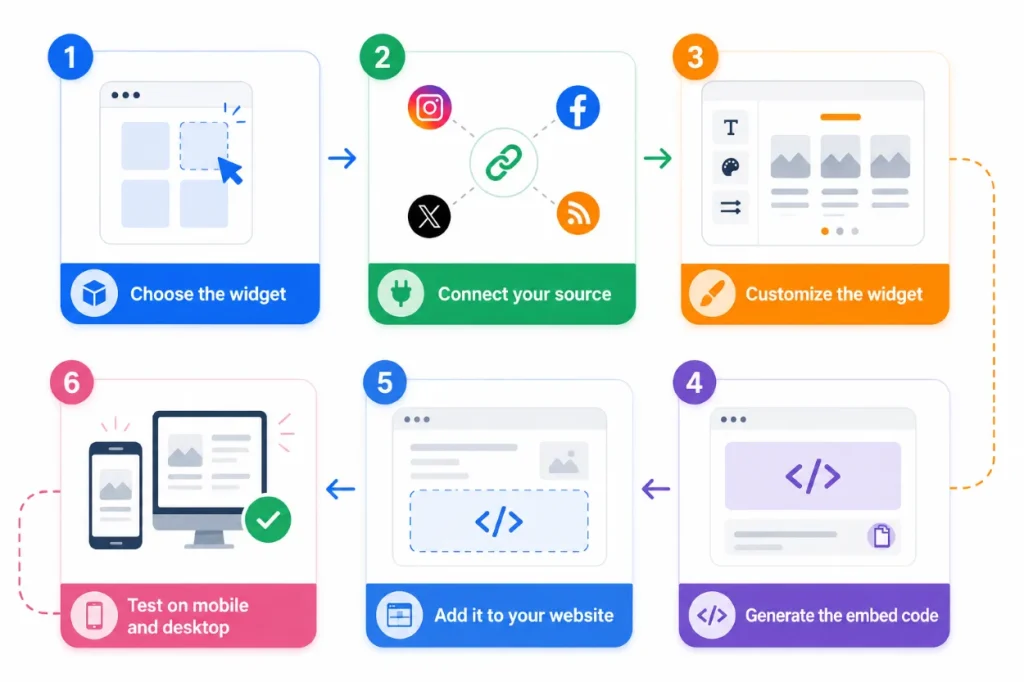
Setting up no-code website widgets through Tagembed follows the same basic flow regardless of the widget type, and the entire process typically takes under ten minutes.
Step 1: Choose the widget. Decide what content or functionality you want to add, whether that is a social feed, a review display, or a booking tool.
Step 2: Connect your source. For social media, reviews, RSS, or UGC, link the relevant account or platform directly inside the dashboard.
Step 3: Customize the widget. Adjust the layout, colors, spacing, number of posts, fonts, and overall display style until it matches your site’s design.
Step 4: Generate the embed code. The platform produces a single snippet ready to paste anywhere on your site.
Step 5: Add it to your website. The same basic process works across most website builders, although the exact location for pasting the embed code varies by platform, whether that is a custom HTML block, a page builder module, or your theme’s footer script area.
Step 6: Test on mobile and desktop. Confirm the widget loads quickly and displays correctly across screen sizes before publishing.
Tagembed generates lightweight, asynchronous embed code rather than heavy iFrames wherever possible, which helps protect Core Web Vitals metrics like LCP and INP instead of dragging page speed down. Built-in profanity moderation and custom CSS controls are also available at this stage, so you are not left cleaning up unwanted content after launch.
Moving Forward
With 30+ website widget examples covering social feeds, reviews, shoppable galleries and checkout tools, you have enough choice to make your site look active and trustworthy. Start by picking your main goal and choosing a social media aggregator like Tagembed to build trust, leads, or engagement. Match it to the right widget category, place it where visitors already look, and test results before adding another widget to the mix. Once that first widget proves its value, expand gradually instead of loading every page at once, since a cluttered site can undo the trust you’re trying to build. Keep track of what each widget actually contributes, and let that data guide your next addition.
Frequently Asked Questions
Reputable widgets are built to be responsive by default, though it is still worth testing display and load time on mobile before publishing.
Well-built widgets generally do not harm SEO, and fresh, auto-updating content can actually support it, provided the embed code loads asynchronously.
Poorly coded widgets can. However, widgets using lightweight, asynchronous scripts load without noticeably affecting page speed.
Yes, most embed widgets on website platforms work across WordPress, Shopify, Wix, Squarespace, and custom-coded sites using a simple HTML embed.
Check for HTTPS-secured embed code, transparent data practices, and moderation controls, since these indicate a platform built with security in mind.
Embed social feed from Facebook, YouTube, Instagram, Twitter on your website, like a PRO
Invalid Email Address Multiple Themes