How To Embed YouTube Video In Shopify Store – Complete Guide?
Of all the media, videos have emerged victorious to successfully convince people about the content that needs to be delivered. To make the most of this, budding brands and marketers began to use moving content to reach a wider audience, boost engagement and get more brand awareness.
In this blog, you’ll learn about the most efficient ways in which you can easily embed a YouTube video in Shopify website using Tagembed. Additionally, we will be shedding light on how this strategy can benefit your brand tremendously.
Without any further ado, let’s get started!
Collect, Moderate, Customize and Add Youtube Video to Shopify Product Page
Try Now3 Methods To Seamlessly Embed YouTube Video in Shopify Store:
The users can effortlessly adopt this strategy using Tagembed – a social media aggregator tool with a set of promising features that allow users to collect, curate, and embed content from over 15+ social media networks.
In this section, we will be shedding light on the step-by-step guide to add YouTube videos in shopify using the two easiest methods.
Method 1 – Embed YouTube Video on Shopify Using Tagbox App
Create Feed
- Start by logging in to your Tagembed account or Creating a free one.

- A new window will open with the following options to choose from: Social feeds on website or Shoppable feeds on website.

- Next, choose your industry, enter your contact information, and click ‘Submit’. You need to verify your email address to continue.

- Choose ‘YouTube’ as your source network from the ‘Content Section’ on the sidebar.
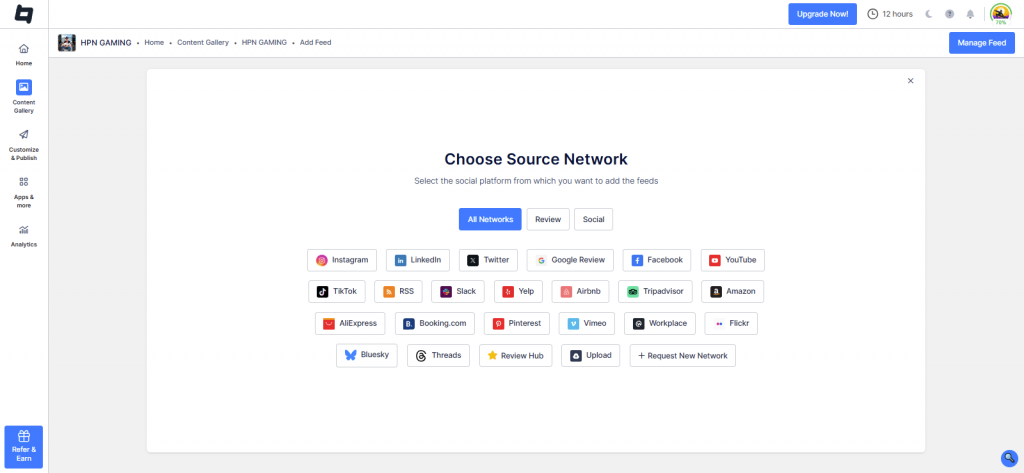
Next, select your feed type from: Channel URL, Shorts, Playlist, Keywords, and Location.

- Once done, click on ‘Create Feed’.
Customize the Feed
- From here you can moderate your feed either manually or using the autopilot feature.

- Now, from the sidebar to the ‘Customize & Publish’ option. Next, customize your YouTube gallery by selecting your preferred themes, layouts, fonts, CTAs, colors, and more.
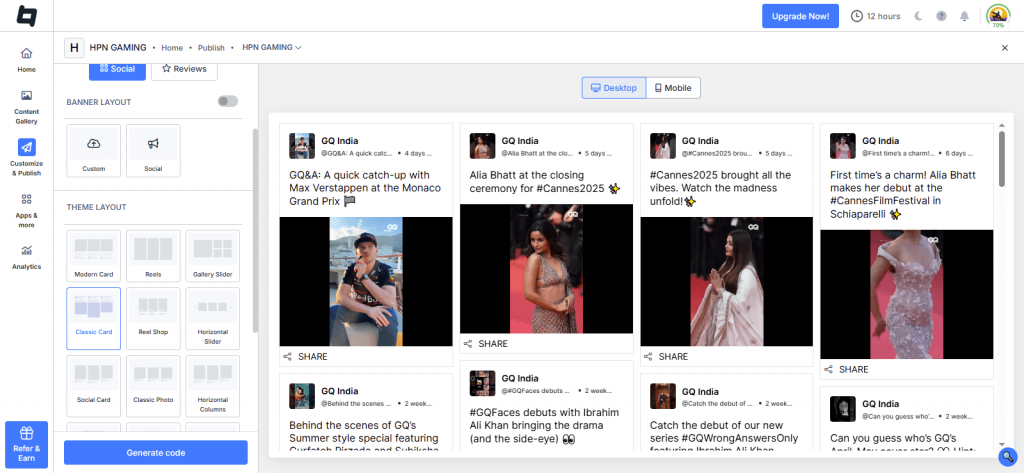
- Click on ‘Generate Code’ and choose Shopify as your CMS platform.

- Adjust the width and height of the gallery and copy the YouTube embed code.
Embed the Feed
- Log in to your Shopify admin panel and click on the ‘Online store’ option
- From the drop-down menu, select ‘Themes’ and click on the ‘Customize’ option.
- Select ‘Custom Content’ and then Custom HTML’.
- Paste the generated embed code and save the changes.
Method 2- Embed YouTube Video on Shopify Using Shopify App
Before we dive into the embedding steps, here’s a little insight into the Tagembed Shopify app.
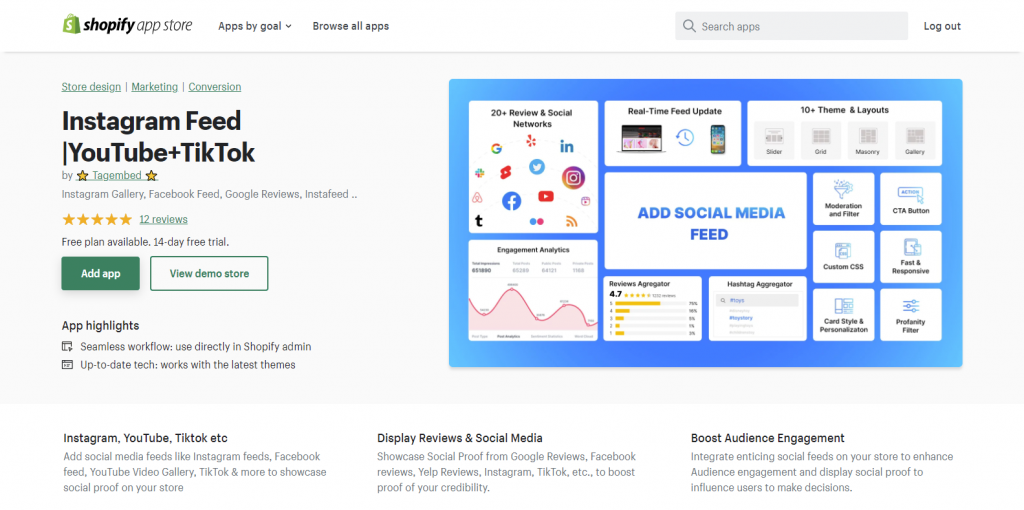
This app is designed exclusively for embedding social media content on Shopify. It can be easily downloaded from the Shopify app store and does not require any technical knowledge or coding skills to embed on website. Overall, it is great for all brands that own a Shopify store and wish to increase their impact.
Have a look at the steps below.
Step 1 – Install & Activate The Tagembed Shopify Plugin
1. Redirect to the Shopify app store and type in term “Tagembed” in the search bar
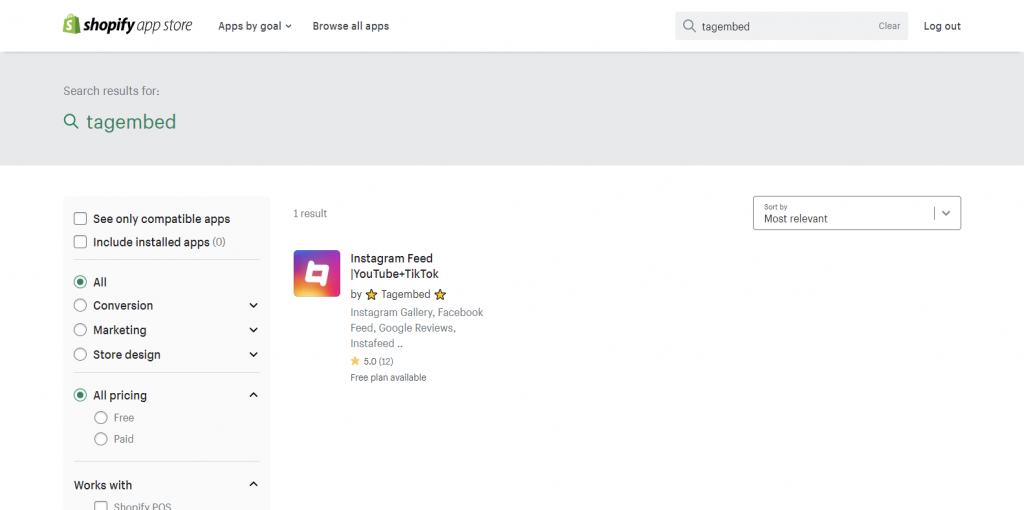
2. Click on the option to open the app & click on Add App to download the app for Free
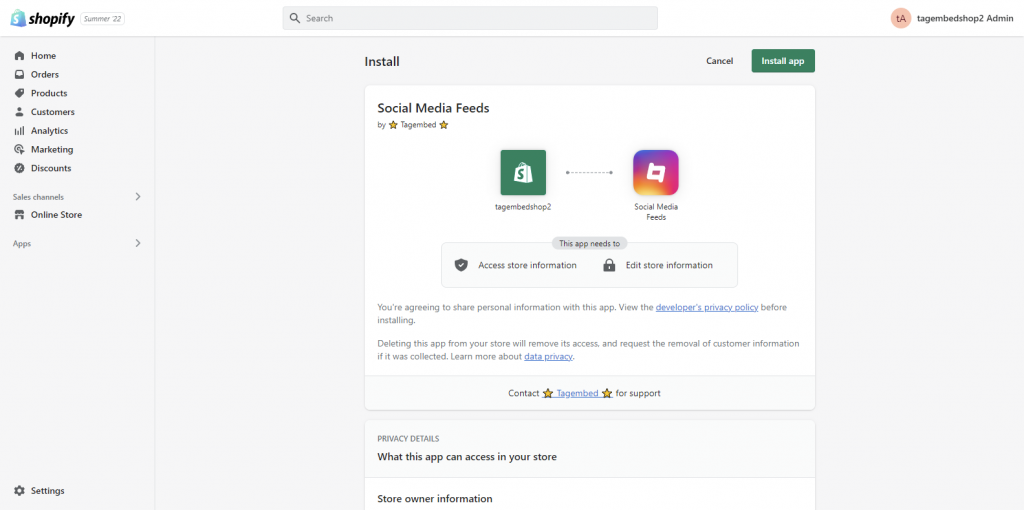
Once the app is installed and ready to function, follow the steps below.
Step 2 – Aggregate & Embed YouTube Videos on Shopify
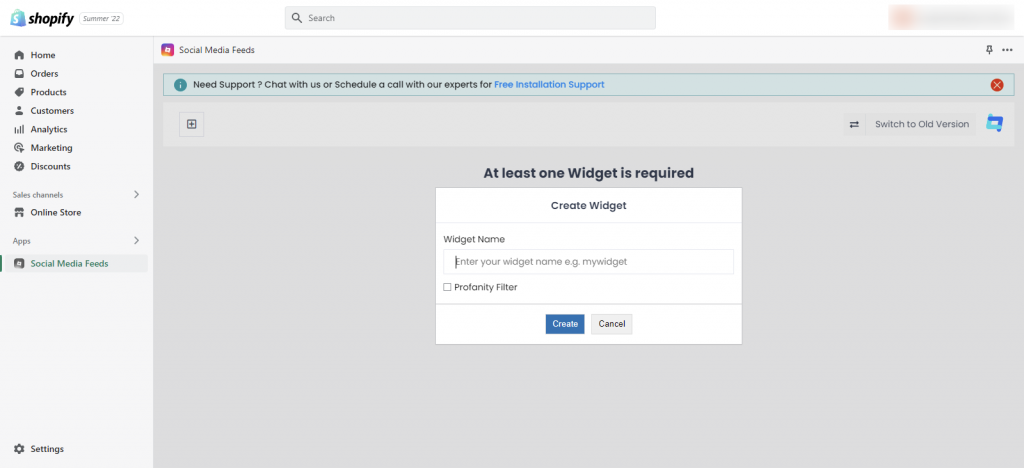
1. After opening the app, you will be redirected to the dashboard of the Tagembed Shopify app. Name your widget and click on the Create widget.
2. A pop-up will appear “Pick a source”, select YouTube as your content aggregation source.

3. Next, you will be given the option to aggregate the feeds by choosing your connection type (Channel, Playlist, Keyword, Shorts etc.)
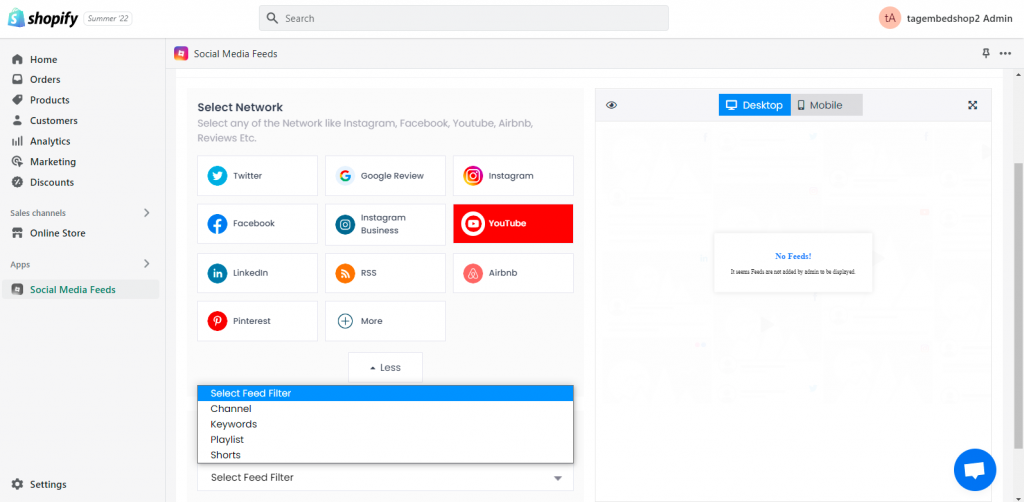
You will be able to see the aggregated feeds in the widget editor in a couple of seconds.
4. To increase the appeal and effectiveness of the YouTube widget, users can leverage features such as customization/styling options, content moderation panel, insightful analytics, and a back support team for assistance.
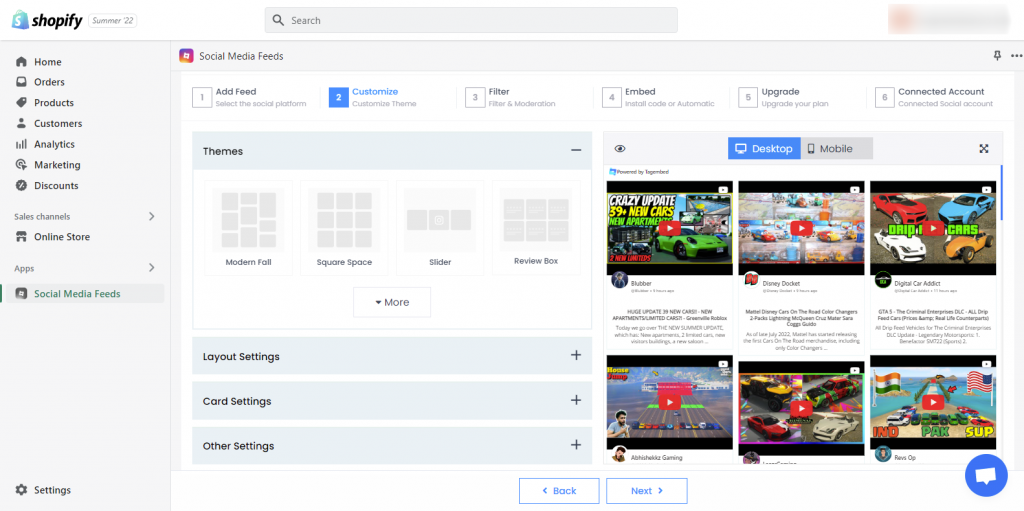
5. If you think some feeds are not cool to display, then you can use the Filter feature by Tagembed to customize widget content manually or automatically.
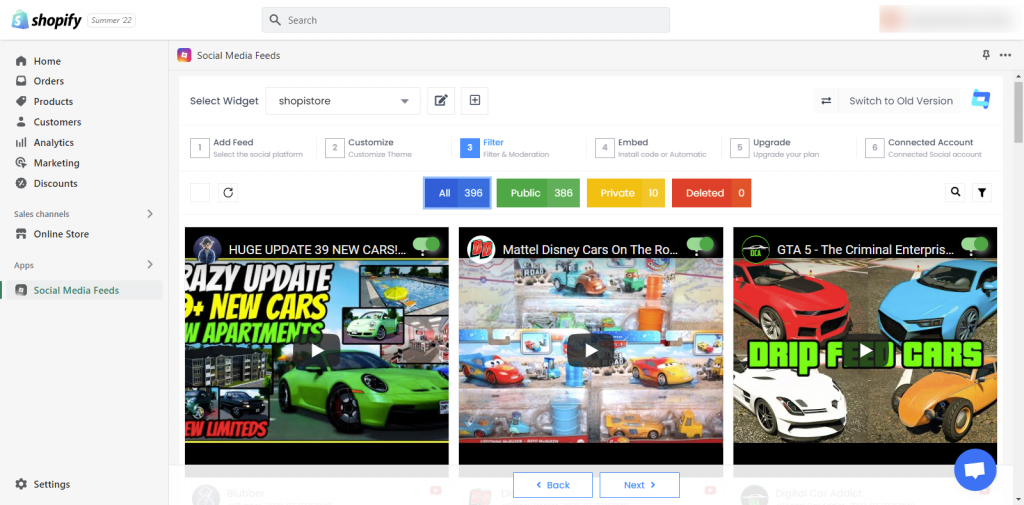
Note: You can now also embed YouTube Shorts in the Shopify store using the Tagembed Shopify App
 Best YouTube Video Shopify App

6. Now choose the Embed option from the three below and select the page like product page, home page, store page, blog page, etc. where you want to add Instagram reels to Shopify and the widget’s location.
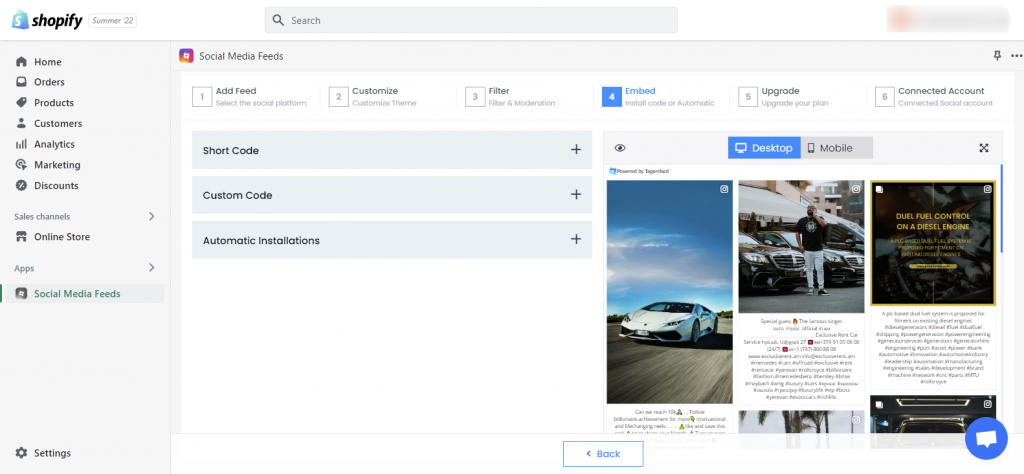
7. Paste the selected code to the required place.
Kudos! You will successfully embed YouTube video on Shopify store homepage using the above steps!

Method 3 – Embed YouTube Video on Shopify Manually
- Visit YouTube & open the respective video you’d like to embed on Shopify
- Now click on the share button and select embed from the list of option.
- A new screen will appear with the embed code, click on copy button.
- Now paste the embed code on the backend of your Shopify Store and save the change made.
Hence, your YouTube videos are embedded on your Shopify store. Eventually, if you have lots of videos to embed then it will cost you a huge time to keep repeating the step again and again.
Collect, Moderate, Customize and Embed Youtube Video on Shopify blog
Try NowWhy Embed YouTube Video On Shopify Website?
Here are no. of reasons to embed YouTube video on Shopify website. We list out some important from them.
1. Videos = More Engagement
As mentioned at the beginning of this post, YouTube has exploded in popularity since moving content is much more engaging than its text counterparts. Here is a fun fact: Visuals are 10 times more effective and engaging than texts.
Being the first point of interaction, websites need to comprise content that is engaging and holds the ability to keep the visitors hooked for a longer time. Hence, if you embed YouTube channel in Shopify Store then it may help you attain that.
2. Bring Vibrancy To Your Website
Apart from being engaging, YouTube videos have a stunning, appealing presence. When you fetch the appealing YouTube videos and embed them on your website, you add more liveliness to your website.
Moreover, the design of your website needs to be on point to make the visitors interested in your brand. Even though the content plays a major role in keeping your website on point, a boring and dull-looking website can be quite off-putting for the users. Try YouTube Shorts Widget to embed YouTube Shorts on your website to engage wide number of users with small & to the point videos.
3. Showcase User-Generated Content
User-Generated Content is a great source to convince your potential customers to convert into satisfied customers. It is obvious that customers feel overwhelmed with the choices. And this is why every brand should try its best to influence the users. Hence, in such a situation, User-Generated Content can definitely influence potential customers to make a decision.
Not only that, showcasing user-generated content on your website will let you generate more user-generated content and engage visitors to explore your services more.
4. Reduce The Bounce Rate Of Your Website
A high bounce rate reflects that your website lacks an interesting element that needs to be worked on. When you embed YouTube video in Shopify it holds tremendous potential to keep your visitors on the website for a long period, which would lead to an increase in their dwell time.
A high dwell time of the visitors would reduce the dwell time of your website.
Final Thoughts
It is obvious that customers feel overwhelmed with the choices. And this is why every brand should try its best to influence the users.
YouTube is the entertainment house for 2 billion people out there. And as a result, people are choosing to pick what YouTube has to say. So who says this entertainment and engagement should be confined to the platform itself? We have unveiled all the brilliant ways you can bring the magic to your Shopify store.
So what is stopping you now?
Go ahead and embed YouTube videos on the Shopify store and see the power of YouTube!
Embed social feed from Facebook, YouTube, Instagram, Twitter on your website, like a PRO
Invalid Email Address Multiple Themes