How to Embed a YouTube Video in Canva
Are you creating a website, presentation, PDF, or social media design in Canva? Adding a YouTube video can make your content more engaging, interactive, and informative. Whether you want to showcase a product demo, explain an idea, share a tutorial, or add visual storytelling, an embedded video can help communicate your message more effectively.
The good news is that you don’t need advanced technical skills to do it. Learning how to embed a YouTube video in Canva takes just a few simple steps using Canva’s built-in Apps and Embeds features. You can add a YouTube video to Canva presentations and slides, include Shorts in supported designs, or embed a video in a Canva PDF workflow.
In this guide, we’ll walk you through how to embed YouTube videos in Canva, add a YouTube link to your design, and preview playback before sharing. We’ll also cover how to embed a YouTube video in a Canva website, troubleshoot common playback issues, and understand the limitations of downloading designs with embedded videos.
Get customized Youtube video feed for your Canva website.
Try for FreeSteps to Embed a YouTube Video in Canva
Whether you’re creating a Canva presentation for work, adding videos to individual Canva slides, or building Canva websites to share information online, an embedded YouTube video can help make your content more engaging. Follow these steps to learn how to embed a YouTube video in Canva and incorporate it into your design.
Step 1. Open Your Canva Design
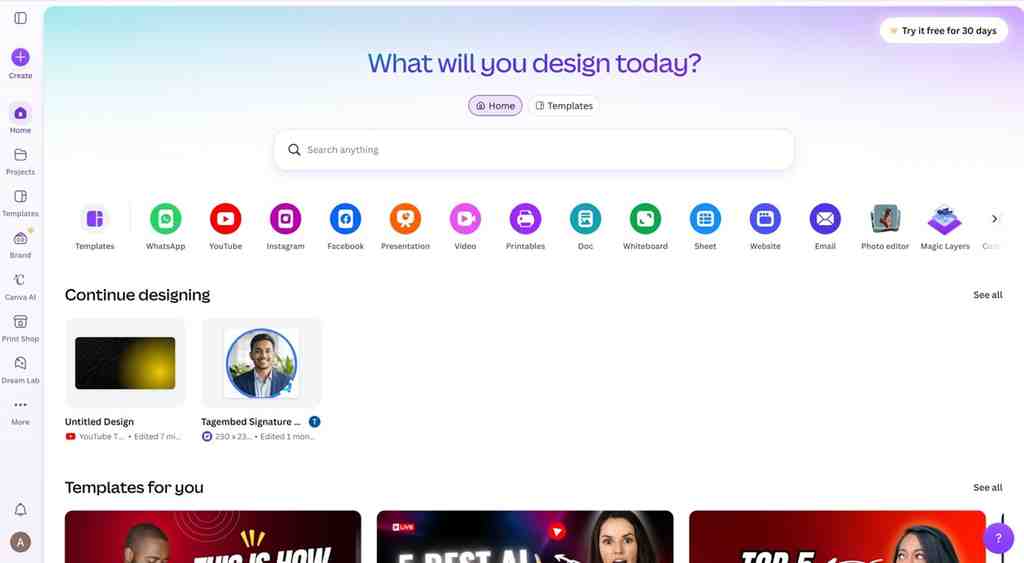
Sign in to Canva and open the design where you want to add the video. You can use an existing project or create a new one.
Select the page where you want the video to appear. If you’re working on a presentation, choose the slide where you want to add YouTube video to Canva presentation content that supports your message. This is where you can add YouTube video to a Canva presentation to support the information you’re sharing.
Step 2. Open the Embeds App
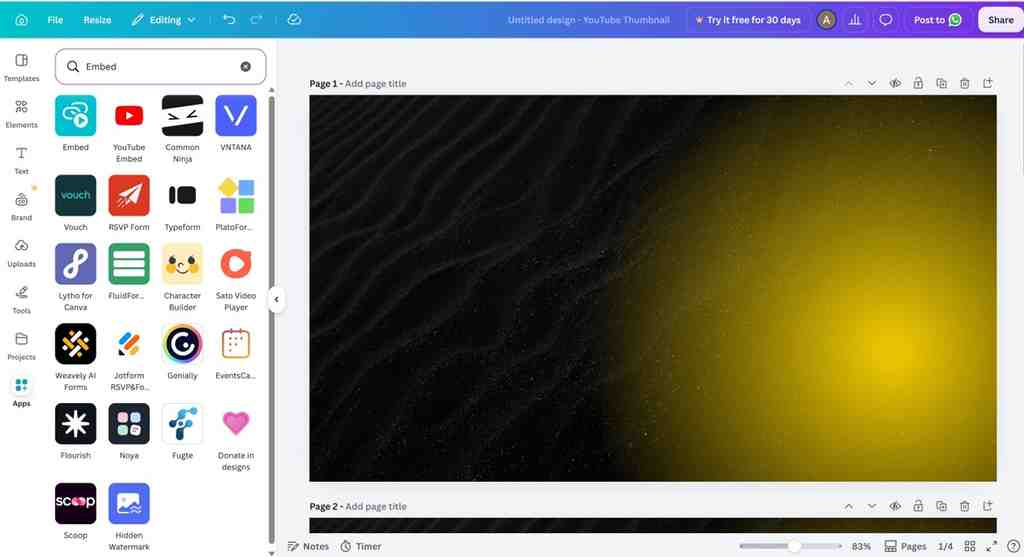
Follow Canva’s documented workflow to find the embedding option.
- Select Apps from the Canva editor’s side panel.
- Search for Embeds.
- Select the Embeds app to open its media embedding options.
Canva also lists YouTube Embed as a separate app. If it appears in your account, you can try it as an alternative. Keep the two options separate because their interfaces and instructions may differ.
If you cannot find the app, check the search results in the Apps panel to see which embedding options are currently available in your editor.
For additional guidance, refer to Canva’s official instructions for embedding media.
Step 3. Copy and Insert the YouTube Video
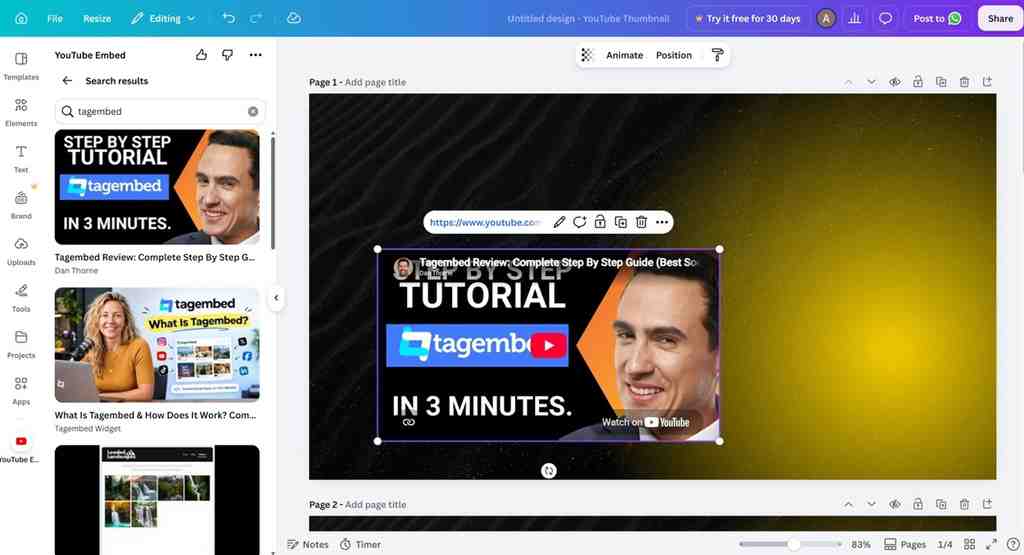
Open YouTube in another browser tab and find the video you want to add to your design.
- Select Share below the YouTube video.
- Copy the video URL.
- Return to Canva and paste the URL into the Embeds app.
- Select Add to design to insert the video.
These steps explain how to embed a YouTube video in Canva using the video’s URL rather than uploading a separate video file. Check that you copied the URL for the intended video. A link to a channel or playlist is different from a link to an individual video. You can also try to add YouTube Shorts for business to Canva using a Shorts URL if the embedding option accepts the link and supports playback.
If Canva does not accept the URL or the video does not appear, copy the link again and retry the embedding process. If the problem continues, check the troubleshooting section below.
Did you know?
Embedding a video is different from uploading a video file. An embedded YouTube video remains hosted on YouTube, while an uploaded MP4 becomes a media file within your Canva project.
Step 4. Resize and Position the Video
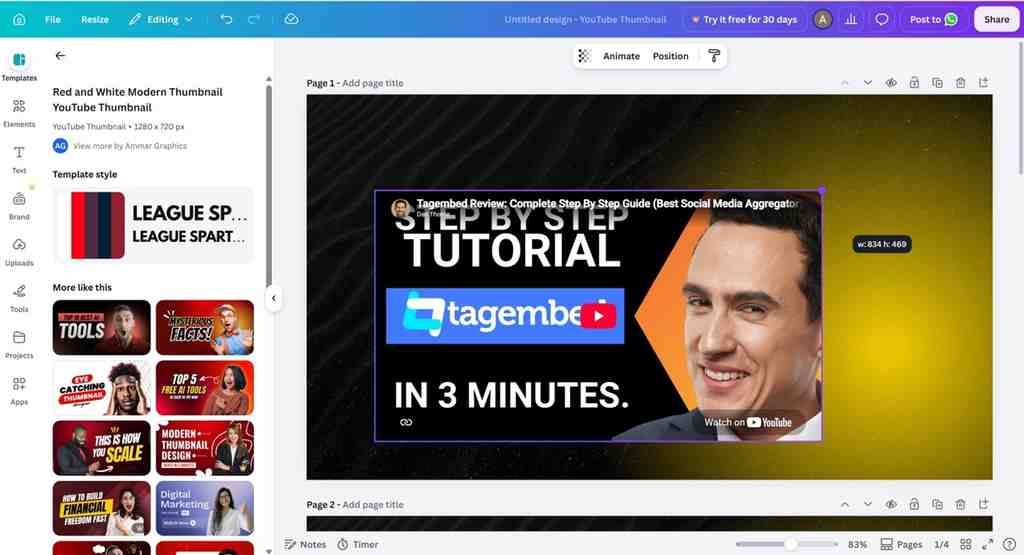
Once the video appears in your design, adjust its size and placement to add YouTube video to Canva slides without covering important text or other design elements.
The ideal video placement depends on your design. In a Canva presentation, position the player where it supports your talking points without covering essential information. For Canva websites, consider how the video fits into the page layout and whether visitors can view it comfortably alongside the surrounding content.
- Resize the player: Drag its corners to make the video fit the page.
- Keep text readable: Leave enough space around the player so headings and supporting information remain clear.
- Preview the whole slide: Check that the video does not overlap other design elements or make the layout look crowded.
Did You Know?
Before you resize the player, think about how much space the video should take up compared to your text and images. If the slide is mostly about the video, let the video player have room. If the slide is explaining a process, keep the video next to the steps it relates to. That way viewers can see both the video and the text at the time without needing to go to another slide.
Step 5. Preview and Test Playback
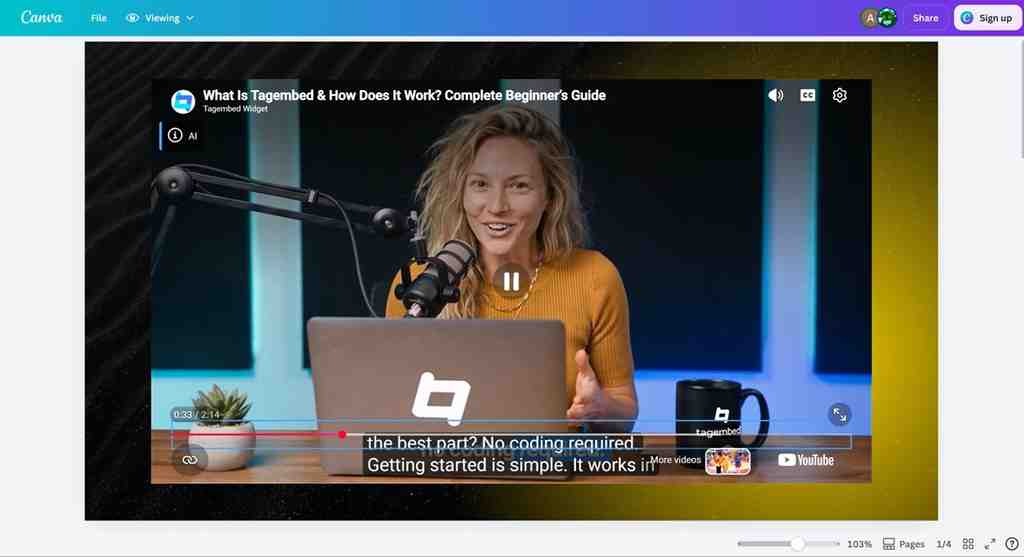
Preview your design and check that the video loads and plays as expected. If Canva offers a preview mode for your design, use it to review the page in context.
Before sharing, check that:
- The correct video appears.
- The player fits the design.
- The video loads in the intended viewing mode.
- The surrounding content is clear and readable.
If possible, test the design using the sharing method your audience will use. A video that appears in the editor may not behave the same way in every viewing environment.
If the video does not play, check the URL, video availability, and access restrictions before rebuilding the design.
Generate a YouTube video embed code for your Canva projects.
Try for FreeHow To Embed YouTube Video Feed in Canva?
Canva lets you add individual YouTube videos to presentations, PPTs, and websites. However, it does not offer a built-in way to display an entire YouTube feed with multiple videos in one engaging layout. To embed a YouTube video feed in Canva, use a social media aggregator like Tagembed. It helps you collect and display videos from your YouTube channel in one feed, with 10+ ready-to-use templates to match your Canva design. These layouts make your video content more engaging and help you create a richer viewing experience for your audience.
Follow steps mentioned below to create your YouTube video feed with Tagembed Youtube Widget and add it to your Canva design.
Step 1: Create a YouTube Feed in Tagembed
- Log in to your Tagembed account or create a free account.
- Select YouTube as your content source on the dashboard.
- Select how you want to collect videos, such as a YouTube channel, playlist, or keywords.
- Enter the required channel URL or details and click Create Feed.
Step 2: Customize Your YouTube Feed
- Once your feed loads, open Personalization & Layout.
- Browse the available themes and templates to find a layout that suits your Canva design.
- Customize the feed’s colors, fonts, spacing, and other design elements.
- Preview the widget to check how your YouTube videos appear.
Step 3: Generate the Embed Code
- Click Generate Code in the Tagembed dashboard.
- Select the platform for which you want to generate the code.
- Set the widget’s height and width according to your design requirements.
- Click “Copy Code” to copy the generated embed code.
Step 4: Add the YouTube Feed to Canva
1. Open your Canva design, which can be a Canva slide, presentation or a Canva website.
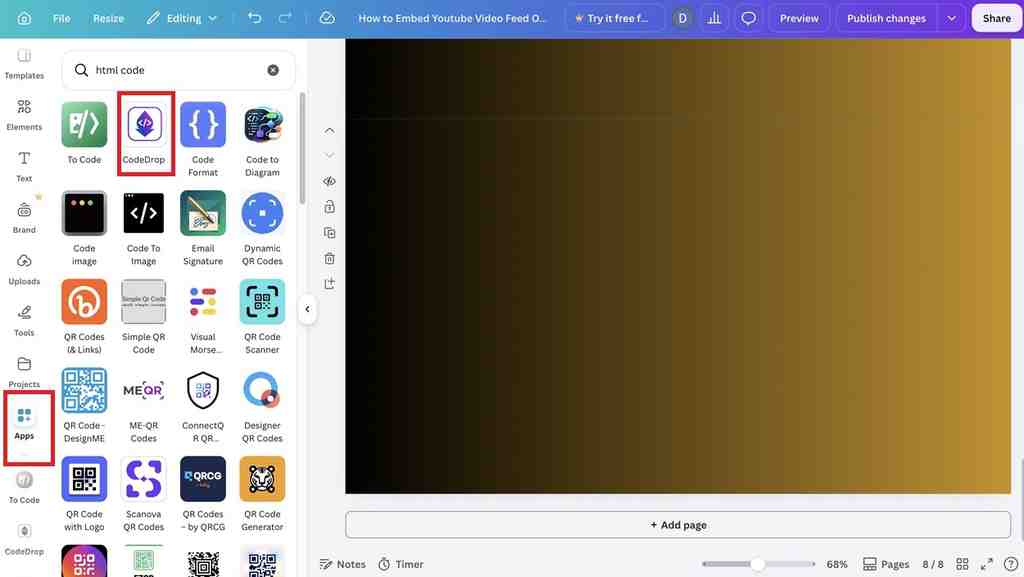
2. Go to Apps and type “HTML code” in the search box to find supporting apps to embed generated code.
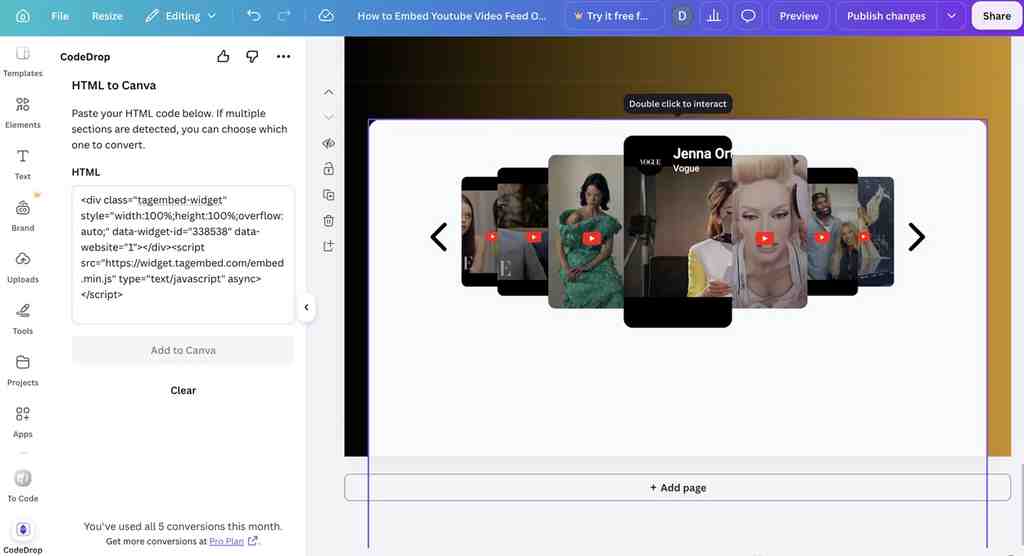
3. Choose the “Code Drop” app to add the generated embed code.
4. Click on “Add to Canva” and enjoy an engaging feed in your Canva design.
Note: If you find any difficulty in the process or get stuck at any step, feel free to connect with our experts.
Can You Paste a YouTube Link Directly Into Canva?
Yes, you can directly paste the YouTube video into Canva design.
Visit YouTube, choose your preferred video and copy the link. Come back to the Canva design and paste the link by pressing Ctrl+V. Next, Canva will detect the link and turn it into embeddable video which will up and playing on the Canva website or design. However, if you want to avoid the whole hassle and embed YouTube videos in Canva directly, then use the YouTube Embed App. This will allow you to search and add the video directly in your Canva slide.
To choose this alternative yet easier feature, follow the steps below and enjoy a hassle-free, engaging element in Canva design:
- Open Apps in the Canva editor.
- Search for Embeds and select the app.
- Paste the YouTube URL.
- Select Add to design.
A clickable link takes viewers to YouTube when they select it, while an embedded player displays the video within your design. If you want to embed a YouTube link in Canva as a playable video, check that the Embeds app has inserted a player rather than a text link.
Can You Download a Canva Design With an Embedded YouTube Video?
A Canva design containing a YouTube embed may not download as expected. If you need to embed video in Canva PDF, remember that a downloaded PDF should not be expected to retain a playable YouTube player. Canva’s Help Centre identifies YouTube embeds as a possible cause of download failure and recommends uploading an MP4 file or sharing a watch link as alternatives.
The best option depends on how you want your audience to view the video.
| Method | What to expect |
| Share a Canva design | Viewers may be able to play the embed, depending on access and video availability. |
| Download as PDF | Don’t expect a playable embedded YouTube player. Add a clickable link instead. |
| Download as MP4 | A YouTube embed can cause the download to fail. |
| Upload an MP4 to Canva | A better option when the video footage needs to be included in the export. |
For more details, refer to Canva’s download troubleshooting guidance and instructions for downloading a design as a video.
Did You Know?
If embedding doesn’t work for your project you can add text like “Watch the video” and then attach the YouTube URL using Canvas Link feature. This helps viewers find the video easily without having to place an embedded player in the design. Always test the link before sharing or exporting the design to make sure it works properly.
What to Do If the Download Fails
If Canva cannot download your design after you add a YouTube embed, consider these alternatives.
- Upload an MP4 file: If you have a suitable video file and permission to use it, upload the MP4 to Canva and add it to your design. This is a better option when you need the video footage to appear in the exported file. Make sure your use complies with the relevant copyright and licensing terms.
- Share a watch link: If viewers need to watch the original YouTube video, share its URL or provide access to the Canva design. A watch link lets viewers open the video on YouTube without requiring the exported file to contain the player.
- Check Canva’s download guidance: If the download still fails after you replace or remove the embed, follow Canva’s troubleshooting instructions. Other factors, such as file size or problems with the design, may also affect exporting.
The key difference is that an embedded YouTube player connects your design to online media, while an uploaded video file can be included in a suitable export. Choose the option that fits your audience’s needs.
How to Fix a YouTube Video That Won’t Play in Canva
If the video does not appear or play after you add it to Canva, use this table to identify the likely issue and the next step.
| Problem | What to try |
| Canva doesn’t accept the URL | Copy the link again and insert it through Apps → Embeds. |
| The video appears as text | Use the embedding app instead of relying on direct pasting. |
| The video won’t play | Check the original video, internet connection, and access restrictions. |
| The design won’t download | Share a viewing link or use a permitted MP4 file. |
If these quick fixes do not solve the problem, use the detailed checks below.
Check the YouTube Video Link
Make sure the URL points to the correct video and has been copied completely. Open the link in a browser to confirm that the video page loads.
If the link is incorrect or the video does not appear in Canva, return to the Embeds app and paste the URL again. If direct pasting did not create a player, use the documented Embeds workflow.
Check Video Availability and Restrictions
Some YouTube videos are unavailable to certain viewers. A video may have been removed, made private, restricted, or blocked in a particular location. These conditions can affect whether it plays when embedded.
Open the video directly on YouTube. If you cannot watch it there, resolve the availability issue or choose another video that your intended audience can access.
Check Your Internet Connection and Reload the Design
A weak or interrupted internet connection can prevent an embedded video from loading. Check that other websites are working, then reload Canva and reopen your design.
If the video still does not load, try opening the design in another browser or on another device. This can help you determine whether the issue is related to the current browser session or device.
Test Playback in the Intended Viewing Mode
A video that appears in the editor may behave differently when someone views the shared design. Preview the design and, where possible, test it using the sharing method you plan to use.
If the video plays in the editor but does not play for another viewer, I have seen this happen. Check the design’s sharing permissions and check whether the viewer can access the YouTube video. Do not rely on the editor view to confirm that the final viewing experience works.
Customize video displays to make every design feel more complete.
Try for FreeTips for Adding YouTube Videos to Canva Designs
A video should support the purpose of your design, not compete with it. Use these tips to make the video easier to understand and view.
- Choose a relevant video: Select a video that supports the information on the page. The connection between the video and the surrounding content should be clear to viewers.
- Introduce the video: Add a short heading or sentence to explain why the video matters. This gives viewers context before they watch.
- Keep the layout simple: Avoid crowding the player with too many images, text boxes, and decorative elements. Make the video easy to find without overwhelming the rest of the design.
- Check the video before sharing: Confirm that the link works and that your intended audience can access the video. If you will present the design live, test it on the device you plan to use.
- Choose a suitable format for output: If viewers need to interact with the YouTube player, share the design in a suitable online format. If you need a downloadable video, consider uploading the video file to Canva and testing the export.
- Adapt video to your design: A YouTube video on Canva slide may work well but may need a different placement on a Canva website. Keep videos aligned with the surrounding content, and check how the layout looks on different screen sizes before sharing or publishing your design.
Publish YouTube Videos on Your Website
Adding a YouTube video to Canva is useful when preparing a presentation, report, or other design. If you’re researching how to embed YouTube video in canva websites, first check whether your Canva website publishing option supports the video embed. For a separate website, you’ll need a website publishing method instead.
A YouTube Widget can help display YouTube content on website pages. If you want to publish a video on your website, see how to embed YouTube Videos on the website for a separate walkthrough.
Canva helps you prepare visual content, while a website embed displays video content on a web page. Choose the method that fits where your audience needs to watch the video.
Conclusion
You can put a YouTube video into Canva by going to Apps, looking for Embeds, putting in the video link and clicking Add to design. Make the player bigger or smaller by looking at the page. Make sure the video works for the people you want to see it before you send it out. If you want a file you can download, keep in mind that YouTube embeds might have issues when you try to export. Putting an MP4 file up or giving a watch link could be a better choice.
Frequently Asked Questions
Not necessarily. The video must be available. Supported by the embedding method you use. If the video is private, removed, restricted or region-limited, the video will not play for your audience. I recommend testing the video on YouTube and previewing your Canva design before sharing the video.
The link could be wrong and the video might not be available. The embed could not load correctly. Look at the video on YouTube, then put its URL through Apps → Embeds. If the problem still happens, refresh your design. Try it in a different browser or device.
You should not rely on a downloaded file to preserve a playable YouTube embed. Canva warns that designs containing YouTube embeds can fail to download. If you need a video file, upload a suitable MP4 to Canva or share a watch link instead.
Yes, if you have a video file that you are permitted to use. Uploading an MP4 adds the file to your Canva project, while embedding a YouTube URL connects the design to media hosted on YouTube. Uploading a file is generally more suitable when you need the video footage included in an exported design.
Embed social feed from Facebook, YouTube, Instagram, Twitter on your website, like a PRO
Invalid Email Address Multiple Themes