Embed LinkedIn Feed on Wix website
Wix is one of the leading website building platforms and helps users in having an online presence. And to add some professionalism to the website and to keep it more engaging users are choosing to embed LinkedIn feed on Wix website.
Tagembed is a coding-free tool that helps users easily embed LinkedIn feed on Wix website. By showcasing LinkedIn feed on website, you can improve your website’s overall look and feel. Moreover, it makes your site more informative and engaging.
By following some simple and easy steps you can easily add LinkedIn feed on Wix website, and here the steps that you need to follow. So without any further ado, let’s dive into it.
Follow the following step by step guide to embed LinkedIn Feed on Wix websites successfully.
Try Tagembed – Create Your Free Account Now
Step 1: Aggregate LinkedIn Feeds
1. Sign Up to create a Free Tagembed account or Login if you already have an account.

2. Create an account. From the dashboard, choose “Display Social Feeds on Website.”

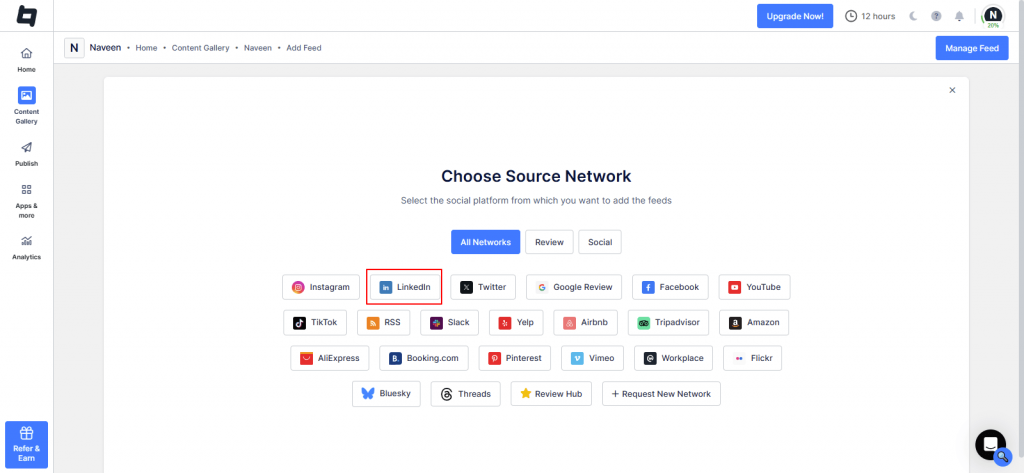
4. Select LinkedIn as your source Network.
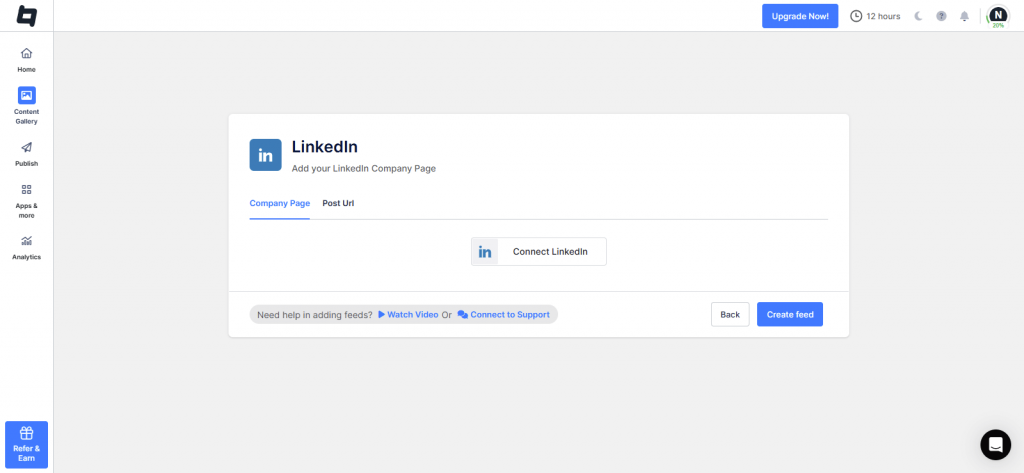
5. Connect a Company Page or paste a specific Post URL. Tagembed will pull the content instantly. You’ll see a live feed preview.
6. Moderate the posts you want to show or hide.

7. Head to the Publish tab. Choose a layout or theme that fits your site. Customize the look—change colors, fonts, spacing, and more. You can also add CTAs or buttons if needed.

Tip: You can click on the Themes or Customization tab on the left menu panel to change the themes & layout, background, banners and other dedicated themes settings to make the LinkedIn widget look more appealing and attractive.
Step 2: Generate Embed Code for Wix website
1. When done, click “Generate Code.” & select your CMS platform as Wix.

2. Set the width and height of your feed gallery. Copy the generated embed code.
Step 3: Embed LinkedIn Feed on Wix websites
After copying the embed code, follow a few more clickable steps to complete the embedding process.
1. Login to the admin account of your Wix website and navigate to the page where you want to embed LinkedIn Feeds.
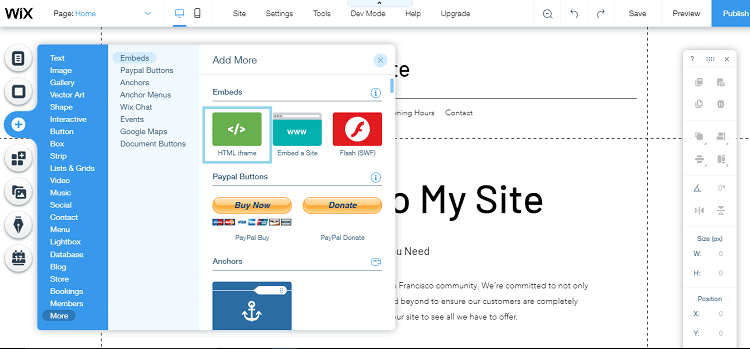
2. On the left menu panel, click on the +ADD button then select more and select Embed Button > Embed a Widget .
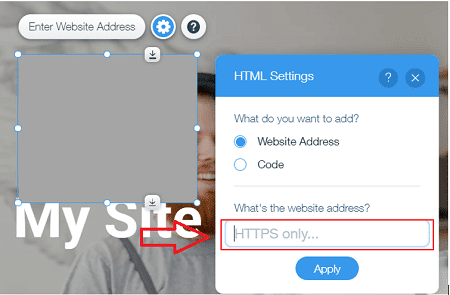
3. Paste the embed code into the input field and click on Apply button.
4. Save the changes made and reload the page.
Hence, your Wix webpage is loaded with LinkedIn Feeds
Congratulations! You have successfully embedded LinkedIn Feed on Wix website.
Try Tagembed – Create Your Free Account Now
Still have questions or need help, please Contact Us or write us at support@tagembed.com
Similar – Embed LinkedIn Feed on Shopify Website