Display Google Reviews To SharePoint
Your SharePoint site is great for sharing info, but it can do more than just hold documents. By adding Google Reviews, you can show off real customer feedback right where your team or visitors will see it. It’s a quick way to build trust and make your page more engaging.
Here’s how to add Google Reviews on SharePoint in just a few minutes, no coding needed.
Try Tagembed – Create Your Free Account Now
How To Display Google Reviews On SharePoint
Embedding Google Reviews on SharePoint is simple and takes just a few minutes, and you can go through these steps to easily showcase customer feedback directly on your site.
Step 1: Sign Up or Log in
- Create an account on Tagembed or log in if you already have one.

Select “Social Feeds On Websites” from the given options.

Now choose your industry type and submit it.
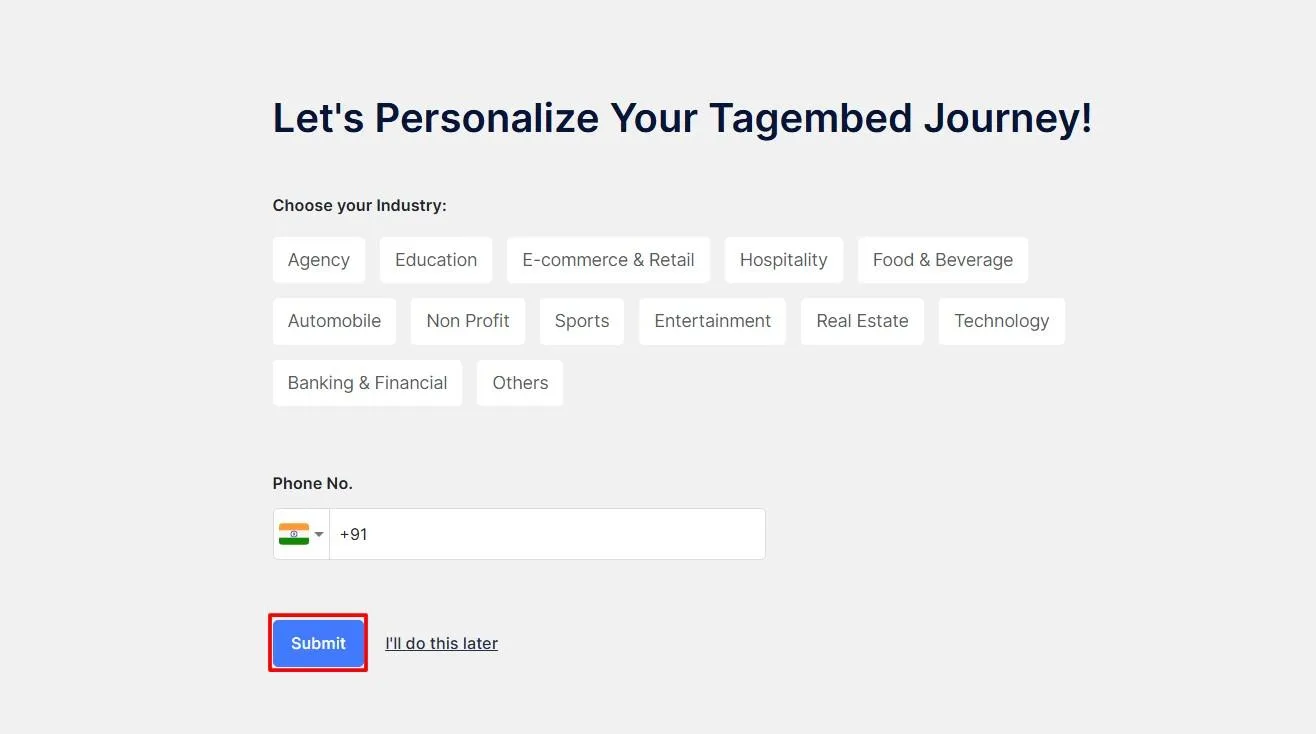
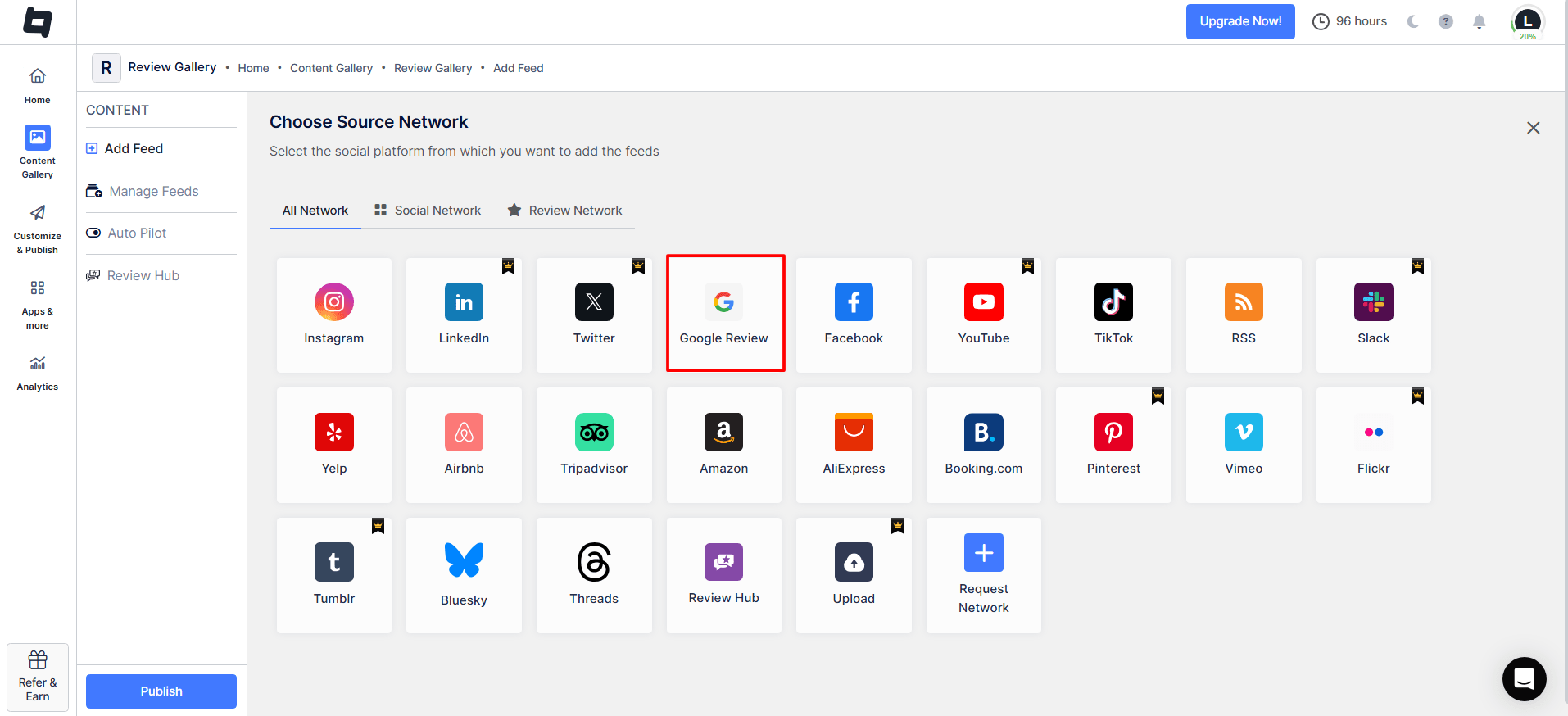
Step 2: Create Google Review Gallery
Select “Google Review” as your source network.
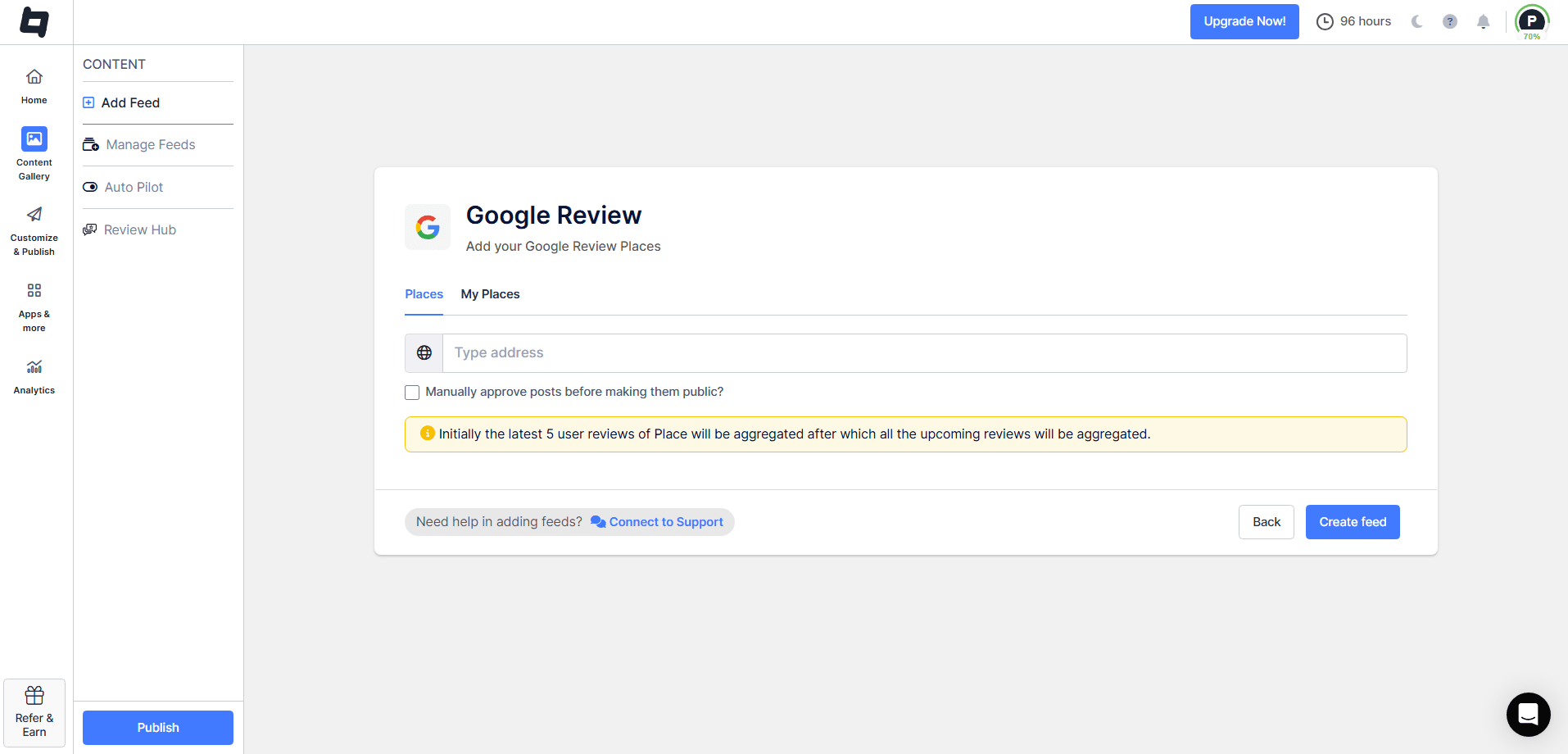
Now, select a connection type from “Places” or “My Places” and then click on “Create Feed“
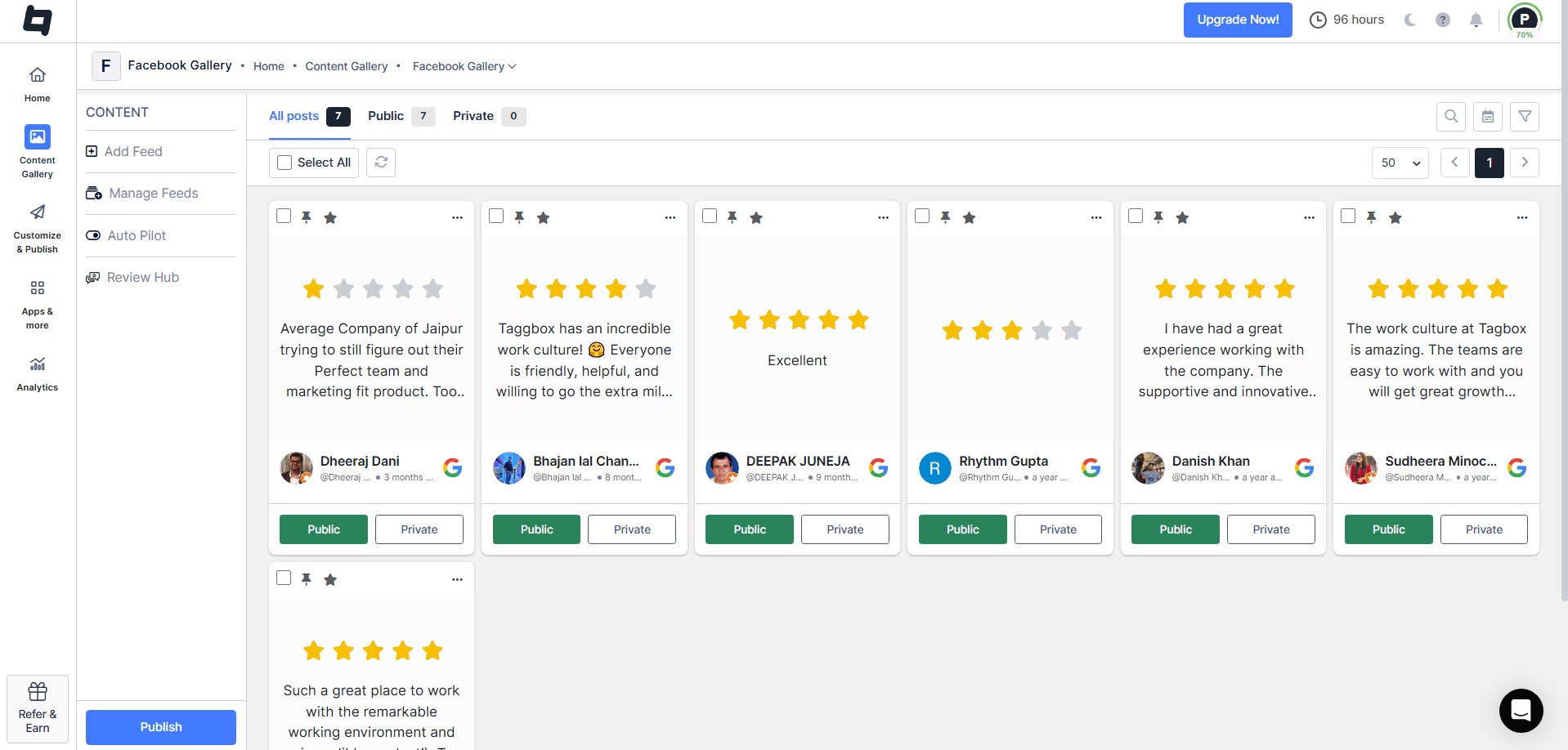
Step 3: Customize the Widget
Your Google Review gallery is created, you can moderate it, like you can make the reviews public or private.
After this click on “Customize & Publish” and select website as your channel.
Step 4: Generate the Code
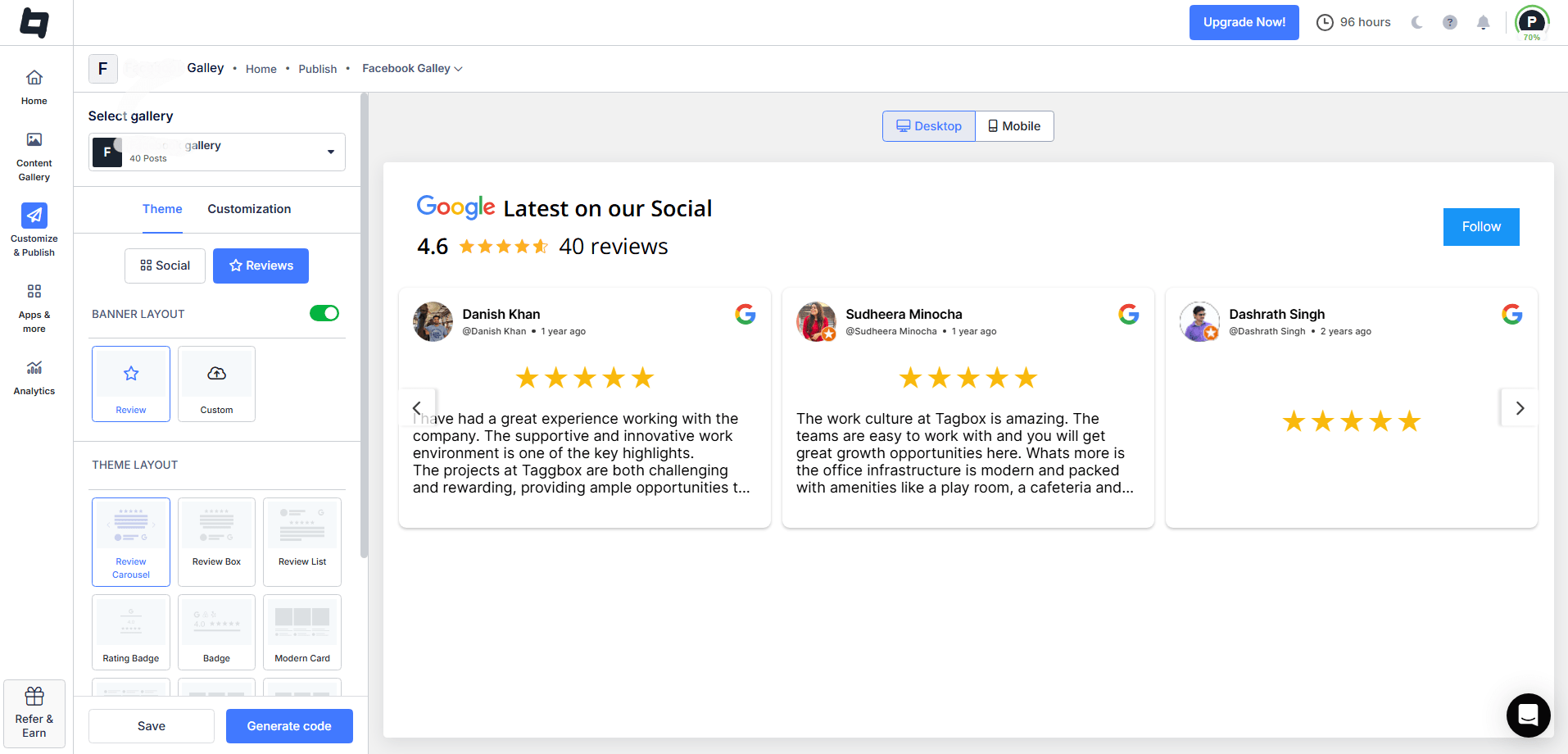
You will be redirected to a new window, where you can customize you google reviews. after customization click on “Generate Code.”
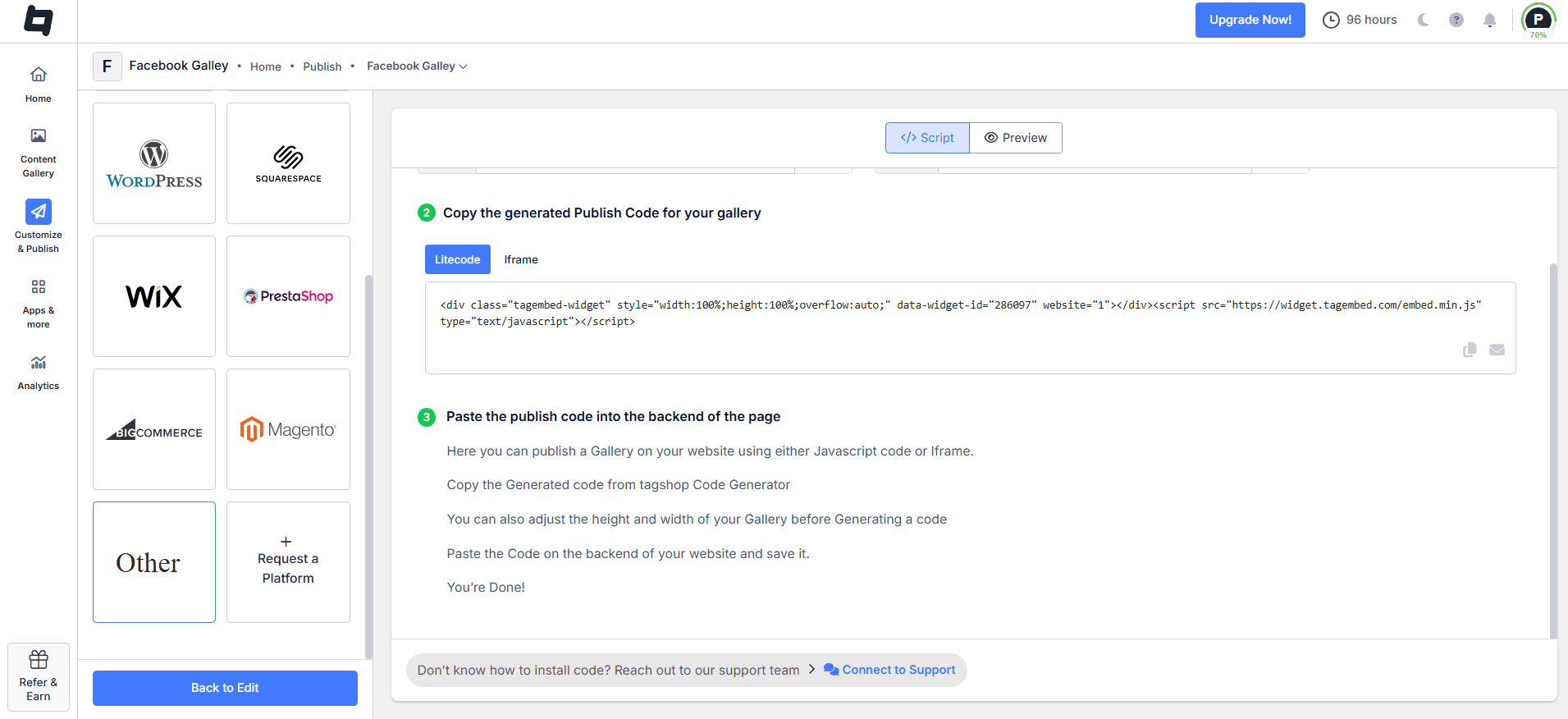
Select “Others” as the platform and set the height and width you want for your Google Reviews widget. Copy the embedded code.
Step 5: Add Reviews in SharePoint
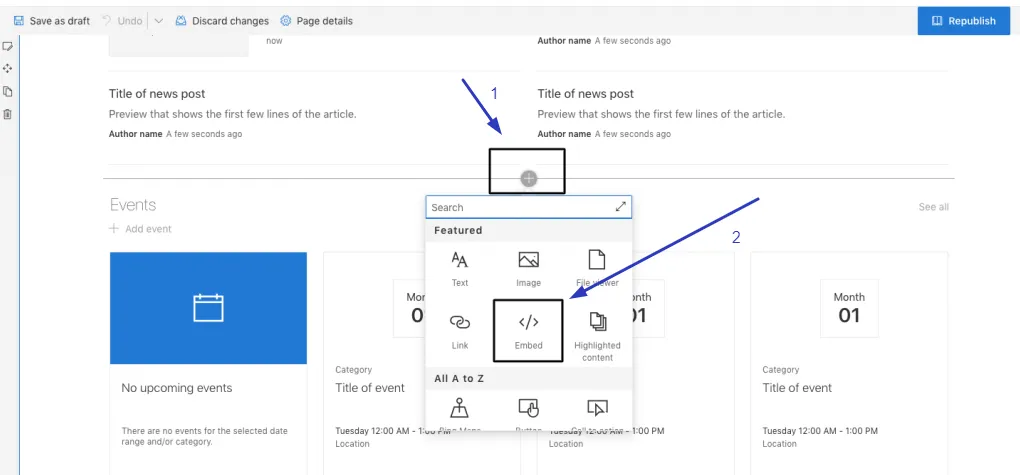
Go to the backend of SharePoint site, where you want to display your reviews, paste your code in embed section.
Woah! Your Google reviews will be shown to SharePoint site after this.
Try Tagembed – Create Your Free Account Now
If you face any issues, feel free to contact us or write us at support@tagembed.com