Now, you are pro in creating widgets and adding feeds at Tagembed. Hope, you have also explored card styles and selected theme of your choice. So, it’s time to Display Social Feeds on your Squarespace website.
1. Click on the Embed Widget button displayed below

2. Dialogue box will appear with “Choose Your Platform” Now Select Squarespace

3. Now a new Dialogue box will appear, now set the height and width accordingly and click on Get Code button & copy this code
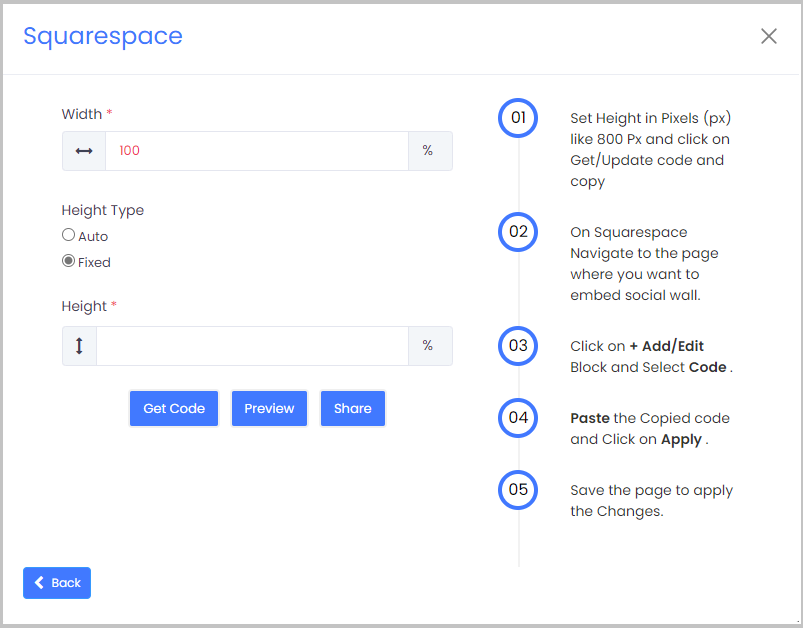
Embed Social Feed On Squarespace Websites
1. First, Log in to Squarespace Admin Panel and go to the Webpage where you want to Embed Social Feed.
2. Click the “Edit” button.

3. Now click on the “+” Button
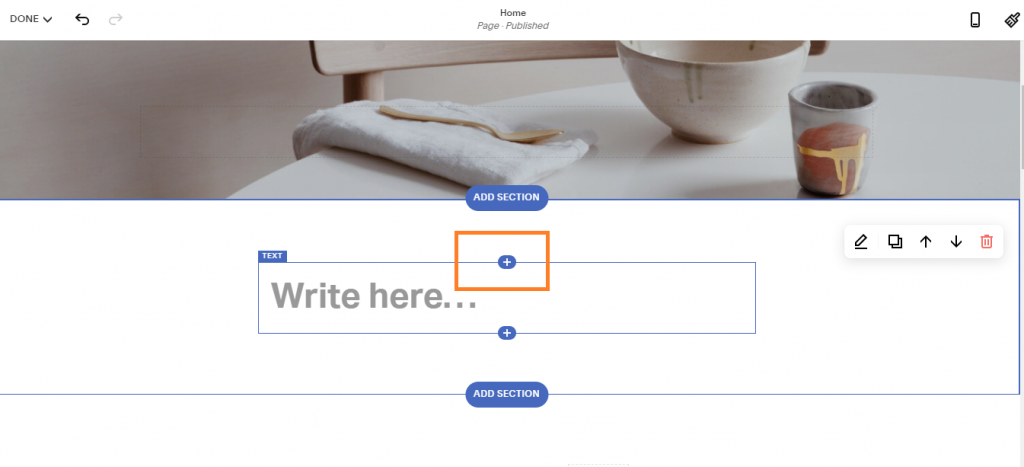
4. A new Option Menu will open, select the “</> Code” Option

5. Now paste the code and click on “Apply” to save the changes
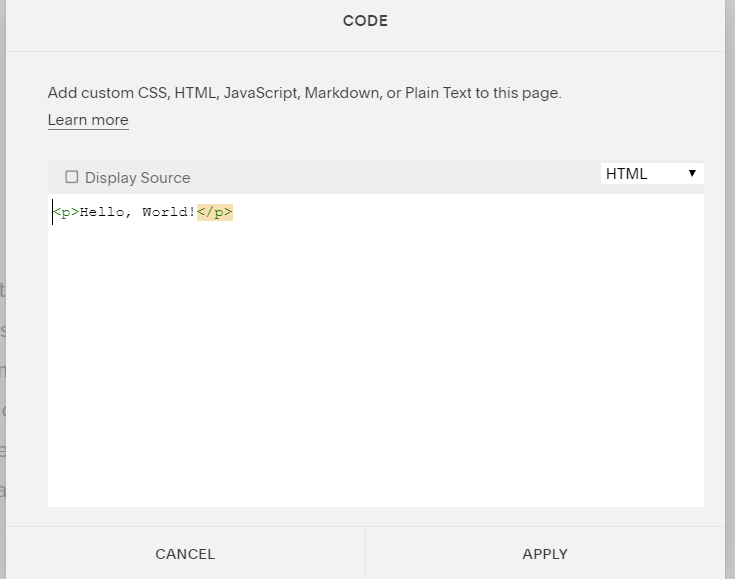
6. After pasting the code, it will show a script disabled message, not to worry, it is to avoid script related issues if any.

7. Now click on Done and Save it
Amazing. You have successfully embedded a Social feed on your Squarespace website.
It will look like this.

Amazing isn’t it!!!
If still, you see any trouble, feel free to contact us. We are happy to help you.