Let’s picture two websites selling the same product. One has an “About Us” page that hasn’t changed since launch. The other has a live wall of Facebook posts right on the homepage: customers tagging photos, sharing reviews, and posting user-generated content. Now put yourself in the shoes of the customer or website visitor and ask yourself: Which one feels alive? Which one would you trust with your money?
That’s the entire case for embedding a Facebook feed on your website in one comparison. It’s not just a design trend. A Facebook widget can turn your social content into social proof that keeps updating as your business and customers share new content. This guide covers every way to embed a Facebook feed, the common pitfalls to avoid, and how to keep your website fast.

Facebook
Page Feed

Facebook
Profile Feed

Facebook
Album Feed

Facebook
Reviews Feed

Page
Reel

Page
Mentions Feed
TL;DR
- Two main routes: Meta’s free official Page Plugin, or a third-party Facebook widget tool like Tagembed. Pick based on how much customization and multi-platform support you need.
- Page Plugin is free and official but limited to one layout, one Facebook Page at a time, and basic styling.
- Widget tools: (Tagembed and similar aggregators) offer grid, masonry, carousel, and slider layouts, content moderation, automatic syncing, and the ability to combine Facebook with Instagram, X, and other platforms in one wall.
- Platform setup is quick: WordPress, Shopify, Wix, Squarespace, and Webflow all accept the embed code through a custom HTML or code block, no developer needed for either method.
- Watch Meta’s rules: only public Business Pages can be embedded, not personal profiles or most Groups, and restricted or age-gated Pages will fail to render.
- GDPR matters: Facebook’s embed script loads third-party cookies, so it needs to sit inside your cookie consent flow if you have EU visitors.
- Performance matters too: use async/defer on the script, lazy-load the widget below the fold, and test mobile responsiveness separately from desktop.
- Common mistakes: embedding a restricted Page, skipping mobile testing, forgetting to refresh an expired access token, and picking the wrong method for your actual traffic and design needs.
- Bottom line: if you want a five-minute, no-cost timeline box, use the Page Plugin. If you want the feed to look like part of your site’s design and update itself without touching code again, use a widget tool.
What is a Facebook Feed?
A Facebook feed is a continuously updated stream of content from Facebook profiles and Pages, including posts, photos, videos, links, and other updates. It gives users a central place to discover and interact with content shared by people, brands, and organizations.
Facebook Feed Types You Can Embed on Your Website
Tagembed offers a range of sources you can use to aggregate your content. These sources are:
- Facebook Feed: This source enables you to embed Facebook page content directly onto your website, allowing you to seamlessly aggregate and display posts from a specific Facebook page. It’s an easy way to showcase updates, share news, and highlight engaging content from your Facebook page in one convenient place on your site.
- Facebook Profile/handle Feed: With this source, you can embed posts and updates from a specific Facebook wall on your website. It enables you to share personal or professional updates from individuals, public figures, or influencers.
- Facebook Album Feed: This source enables you to aggregate and showcase images and Facebook Videos from a specific Facebook photo album on your website. It’s a great way to embed Facebook photo albums and galleries on a website
- Facebook Review Feed: This source allows you to gather and display reviews from a Facebook page or profile on your website. It helps build social proof and trust by showcasing user-generated feedback and testimonials.
- Page Mention Feed: With this source, you can aggregate and display posts or mentions of a specific page on your website. It’s particularly useful for businesses or brands to showcase customer interactions, collaborations, or shout-outs on their website.
Live demo of an embedded Facebook Feed:
Here’s an example of how your Facebook feed can look when embedded on your website.
Why Bother Embedding a Facebook Feed at All
Before the how-to, it’s worth being specific about what this actually does for a website, because “social proof” gets thrown around without much explanation.
1. It signals activity
A feed that updates itself tells visitors your business is currently operating, currently posting, currently responding to customers. A static site can’t do that, no matter how well-written the copy is.
2. It increases dwell time
People scroll through feeds. That’s just a habit at this point. Give them a feed to scroll on your own site, and they stay on your page longer instead of clicking away in ten seconds. Longer sessions and lower bounce rates are indirect signals search engines use when judging page quality.
3. It drives cross-platform growth
Someone browsing your website who sees an active, engaging Facebook presence is far more likely to click through and follow your Page than someone who has no idea you’re even on Facebook. The embed becomes a quiet acquisition channel for your social following.
4. It reduces the “is this website abandoned” doubt
This matters more than most businesses realize, especially for e-commerce sites, local service businesses, or anything where trust is part of the purchase decision. A feed showing recent activity answers the “are they still in business” question before a visitor even has to ask it.
None of this requires the fanciest widget on the market. It requires picking the right method for your actual goals, which is exactly what the next sections walk through.
Quick Comparison: Official Plugin vs. Third-Party Widget
| Features | Official Facebook Page Plugin | Third-Party Widget (e.g., Tagembed) |
| Cost | Free | Free tier available, paid plans for more features and higher post limits |
| Setup time | 5–10 minutes | 5–10 minutes |
| Customization | Limited (width, height, tabs) | Full control over layout, colors, fonts, spacing, moderation |
| Layout options | Single timeline box only | Grid, masonry, carousel, slider |
| Mobile responsiveness | Manual CSS adjustments usually needed | Responsive by default |
| Multi-feed support | One Page at a time | Combine Facebook with Instagram, X, LinkedIn, and more in one wall |
| Content moderation | None | Keyword and hashtag filtering, manual approval options |
| Best for | Simple, no-budget setups with a single Page | Businesses that want a polished, branded, multi-source feed |
If your only goal is a basic timeline in a sidebar, the official plugin gets it done in minutes. If you want your Facebook content to look like it was designed for your site rather than pasted onto it, a widget tool is the better long-term choice. Let’s go through both in detail.
Method 1: The Official Facebook Page Plugin (Free)
This is Meta’s own embed tool, built directly into the Facebook for Developers platform. No third-party account, no sign-up elsewhere, just a form that generates a code snippet.
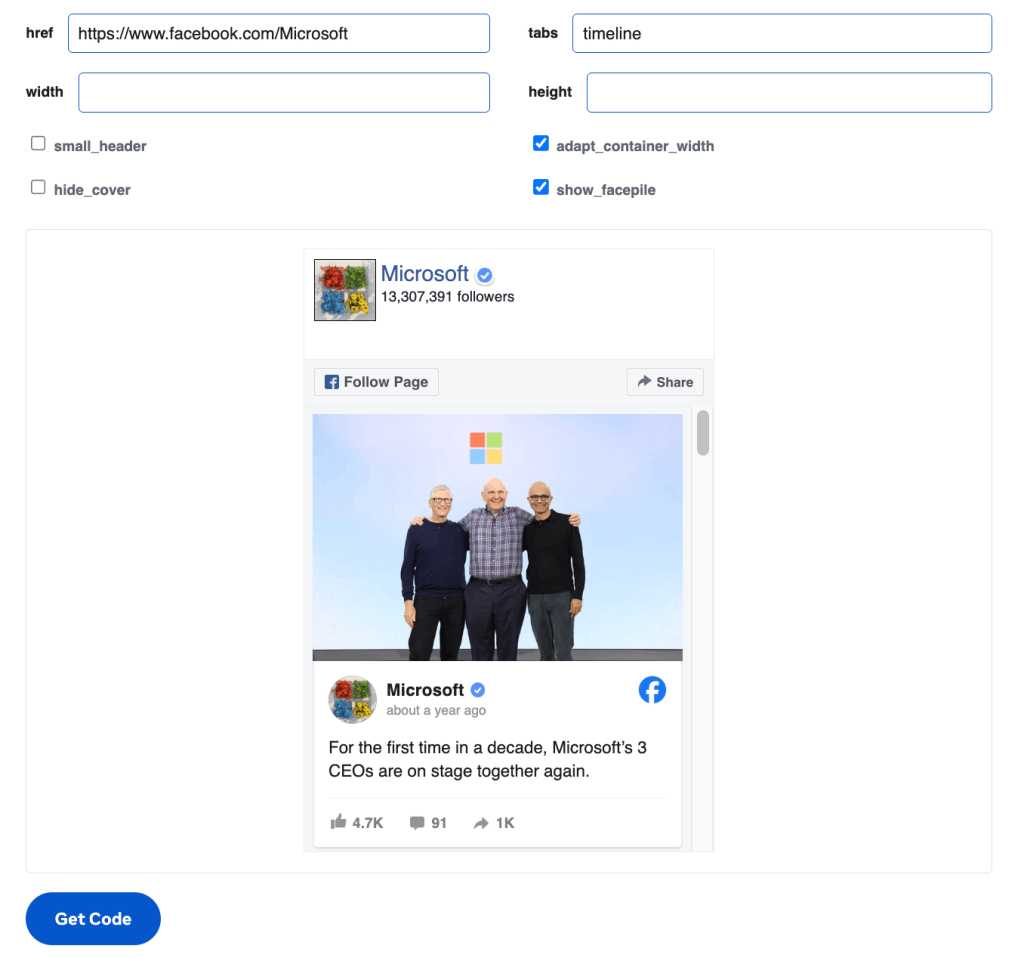
Best for: Simple setups, zero budget, and situations where you only need to display one Facebook Page’s timeline without any custom styling.
Step-by-step Instructions
- Go to Meta’s Page Plugin tool. It lives on the Facebook for Developers site under the Social Plugins section.
- Enter your Facebook Page URL. This has to be the full public URL of a Business or Creator Page, not a personal profile.
- Choose your tabs. Meta retired the older data-show-posts attribute in favor of tabs/data-tabs. Use the value timeline if you want your posts visible, or add events and messages if those are relevant to how your Page is used.
- Set width and height. The plugin caps out around 500px wide, which is worth planning your layout around if you were hoping to run it across a full content column.
- Toggle the extra settings. small_header trims the Page header down, hide_cover removes the cover photo, adapt_container_width lets the plugin resize itself to fit its parent container instead of staying fixed, and show_facepile displays friends who like the Page, which is largely a legacy feature at this point.
- Click Get Code. You’ll be given two snippet options: a JavaScript SDK version or a plain iframe. The iframe version is generally easier to drop into website builders that don’t want raw JavaScript floating in the page body.
- Paste it into a custom HTML block wherever you want the feed to appear on your site.
Pros and Cons
Pros: Completely free, built and maintained directly by Meta, and it includes native Like and Share buttons that let visitors interact without leaving your site.
Cons: The design flexibility is close to zero. There’s no grid or masonry option, no way to filter which posts show up, and no way to combine it with content from other platforms. The Page also has to be entirely public. Age-restricted, country-restricted, or otherwise limited Pages simply won’t render, often without a clear error explaining why.
Method 2: Third-Party Facebook Feed Widgets (Automated and Fully Customizable)
Best for: E-commerce stores, brands running a modern or highly designed website, and anyone who wants a feed that keeps itself updated and matches their site’s visual identity instead of looking like a Facebook plugin dropped into place.
This is the category Tagembed operates in. Instead of accepting whatever layout Meta gives you, you build the feed the way you’d design any other section of your website, then let it sync automatically from there.
Step 1: Sign Up and Create a Widget
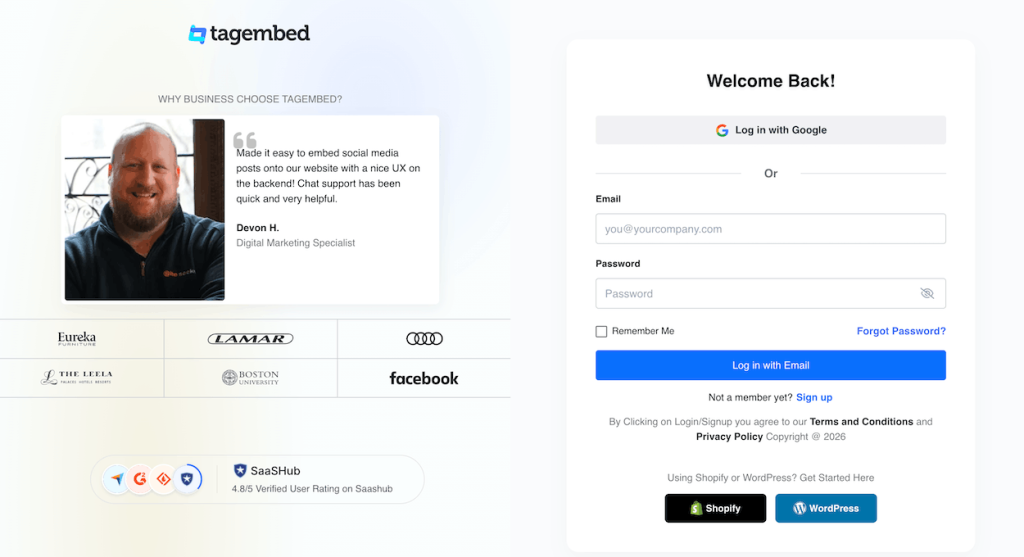
Sign up or log into Tagembed, click “Create Widget,” and give it a name that matches what you’re building, for example, “Homepage Facebook Feed.”
Step 2: Connect Your Facebook Account
Select “Add Social Feed,” choose Facebook from the platform list, and authorize the connection. You’ll then pick the specific Page you want to pull content from.
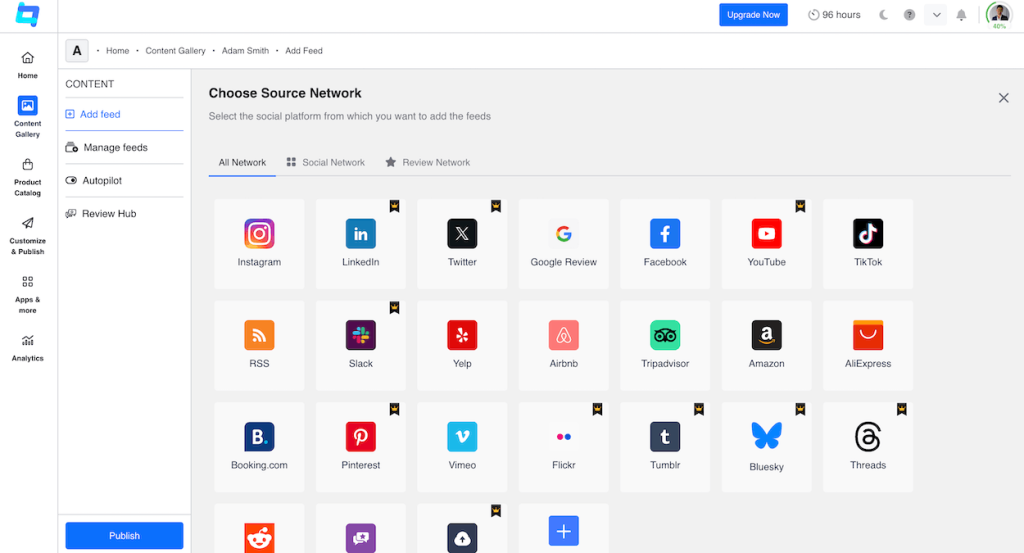
Specify the feed type, consisting of the following options: Page, My profile post, Albums, Page Reviews, Page mentions, Reels, Hashtag(#).
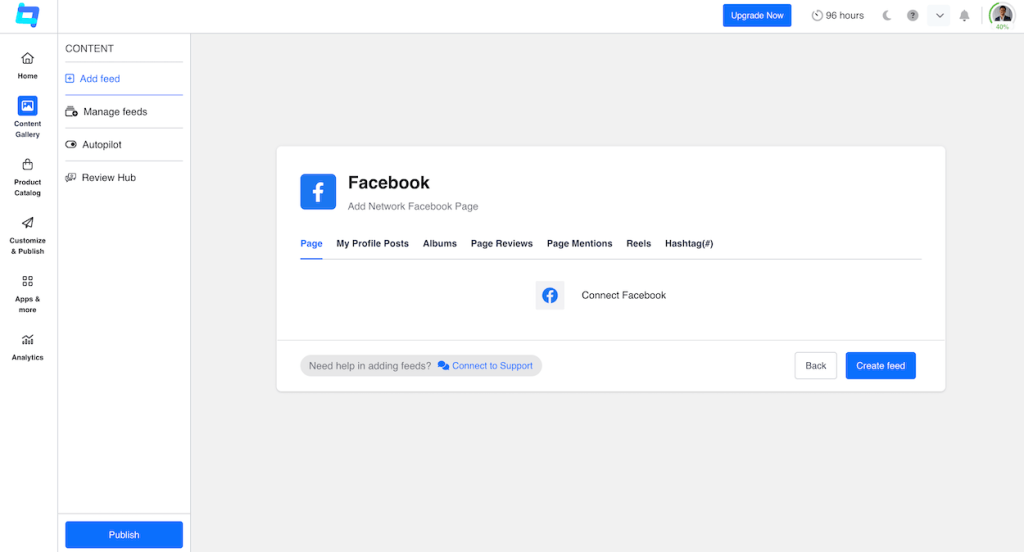
After choosing the content source, provide the needed information and click “Create Feed” to begin aggregating your social content seamlessly.
Step 3: Choose Your Feed Layout
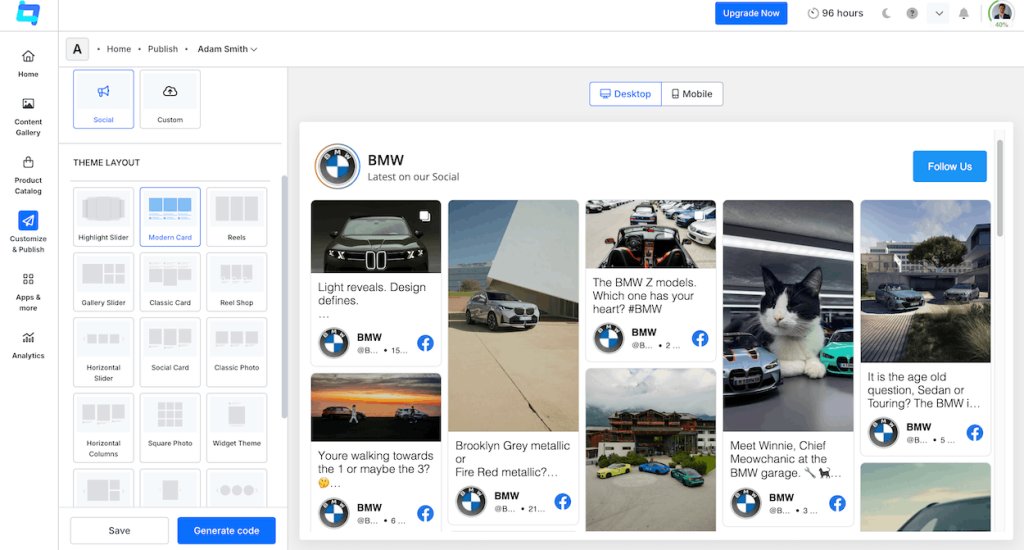
Choose a layout that fits your website. Grid works well for a clean, uniform look. Masonry suits image-heavy feeds where post sizes naturally vary. Carousel and slider are good choices for tighter spaces like a homepage banner or sidebar.
Step 4: Customize the Feed Appearance
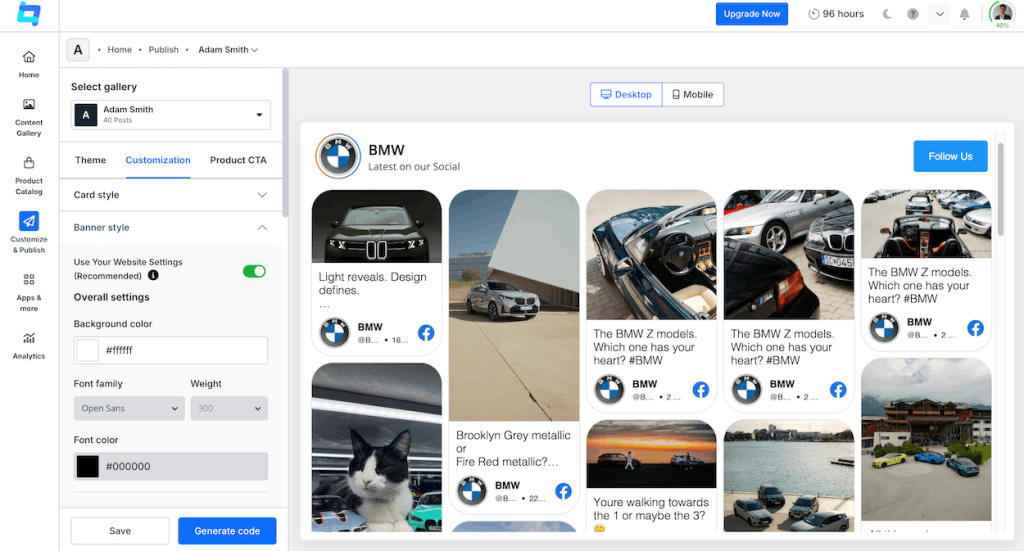
Adjust fonts, colors, spacing, and the number of posts shown so the widget matches your site’s existing design rather than standing out as a separate block.
Step 5: Generate and Copy the Embed Code
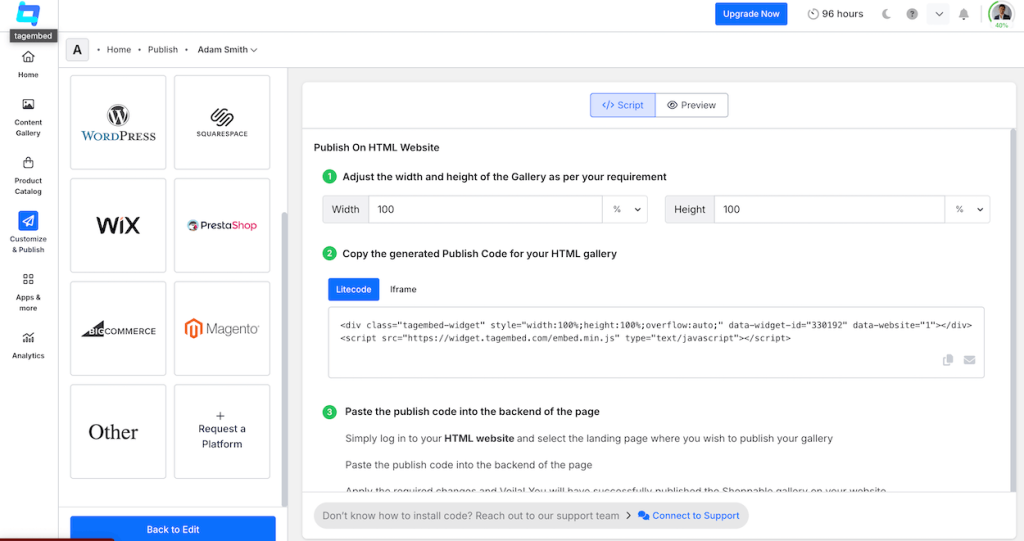
Click “Embed Widget,” select HTML (or the specific plugin if you’re on WordPress), and copy the embed code.
Step 6: Add the Feed to Your Website
Paste the code into your website wherever the feed should appear, whether that’s a homepage section, a dedicated “Follow Us” page, or a product page sidebar.
Pros and Cons
Pros:
- The feed genuinely looks like part of the site’s design instead of an obvious embed.
- It’s responsive by default and syncs automatically as new content goes live on the connected Page.
- Tools in this category typically support pulling in Reels, photos, and reviews alongside standard posts.
- You can also combine Facebook with other platforms into a single unified wall, something the official plugin has no way of doing.
Cons:
- Free plans usually cap the number of posts displayed or the monthly page views the widget can handle.
- High-traffic sites may eventually need a paid tier.
Show your Facebook posts, reels, and videos on your website to engage visitors.
How To Embed Facebook Feed On Different Website-Building Platforms?
The embed code itself barely changes between platforms. What changes is where you paste it. Here’s the breakdown for the site builders businesses use most often.
- Embed a Facebook Feed on an HTML Website
Adding a Facebook feed to an HTML website is simple with Tagembed. Generate your widget, copy the embed code, and paste it into your webpage to display an automatically updating Facebook feed.

Steps to embed a Facebook feed on an HTML website:
- Log in to your Tagembed account and create a Facebook Feed widget.
- Connect your Facebook Business Page and customize the widget’s layout and design.
- Click Embed Widget and copy the generated HTML embed code.
- Open your website’s HTML file and paste the code where you want the Facebook feed to appear.
- Save the file, upload it to your server, and refresh your website to view the live Facebook feed.
2. Display a Facebook Feed on Your WordPress Website
WordPress lets you add a Facebook feed in minutes using the Tagembed WordPress plugin or the generated embed code. Both methods require no coding and keep your feed synced automatically.

Steps to embed a Facebook feed on WordPress:
- Install and activate the Tagembed WordPress Plugin, or open the page where you want to display the feed.
- Create your Facebook widget in Tagembed and connect your Facebook Business Page.
- Copy the widget shortcode or embed code from your Tagembed dashboard.
- Add the shortcode or paste the code into a Custom HTML block.
- Click Update or Publish to display the Facebook feed on your WordPress website.
3. Add a Facebook Feed to Your Shopify Store
Showcase your latest Facebook posts directly on your Shopify store to build trust and keep visitors engaged. The Tagembed Shopify app makes the integration quick and code-free.

Steps to embed a Facebook feed on Shopify:
- Install the Tagembed Shopify App from the Shopify App Store.
- Create a Facebook Feed widget and connect your Facebook Business Page.
- Open Online Store → Themes → Customize and add a Custom Liquid section.
- Paste the generated embed code into the section and save your changes.
- Preview your storefront to ensure the Facebook feed is displayed correctly.
4. Embed a Facebook Feed on Your Wix Website
Wix’s built-in HTML embed feature lets you display a live Facebook feed without any technical expertise. Simply paste your widget code and publish your site.

Steps to embed a Facebook feed on Wix:
- Open your Wix Editor and navigate to the desired page.
- Click Add Elements (+) → Embed Code → Embed HTML.
- Copy the Facebook widget embed code from Tagembed and paste it into the HTML box.
- Resize and position the widget to fit your page layout.
- Publish it and make the Facebook feed live on Wix Website.
5. Show a Facebook Feed on Squarespace
Squarespace makes it easy to display dynamic Facebook content using its built-in Code Block. Your feed will update automatically whenever new posts are published.

Steps to embed a Facebook feed on Squarespace:
- Log in to Squarespace and edit the page where you want the Facebook feed.
- Add a Code Block to your preferred section.
- Copy the embed code from your Tagembed dashboard and paste it into the block.
- Save the page and publish your changes.
- Open the live page to verify the Facebook feed is displaying on Squarespace website correctly.
6. Display a Facebook Feed on Your Webflow Website
Whether you’re building a landing page or a full website, Webflow lets you embed a Facebook feed using its Embed component. The process takes just a few minutes.

Steps to embed a Facebook feed on Webflow:
- Open your Webflow project and navigate to the page where you want the feed.
- Drag an Embed component onto the canvas.
- Paste the Facebook widget embed code copied from Tagembed.
- Save your changes and publish your website.
- Visit the live page to ensure the Facebook widget on Webflow is working properly.
Make your website more engaging with your latest Facebook posts, reels, and videos.
7. Embed a Facebook Feed on Weebly
Adding a Facebook feed to your Weebly website helps keep your content fresh while showcasing your latest social updates. You can do it easily using the Embed Code element.

Steps to embed a Facebook feed on Weebly:
- Sign in to your Weebly dashboard and edit your website.
- Drag the Embed Code element onto the page.
- Paste the Facebook widget embed code from Tagembed into the HTML editor.
- Save your changes and publish your website.
- Check the live page to confirm the Facebook feed appears correctly.
8. Display a Facebook Feed on Google Sites
Google Sites allows you to embed external widgets using its built-in Embed feature. Simply insert the Tagembed code and publish your website.
Steps to embed a Facebook feed on Google Sites:
- Open your Google Site and navigate to the page where you want the Facebook feed.
- Click Insert → Embed → Embed Code.
- Paste the Facebook widget embed code copied from Tagembed.
- Click Insert and position the widget as needed.
- Publish your website and verify the Facebook feed is displaying properly.
9. Add a Facebook Feed Using Elementor
Elementor’s HTML widget makes it easy to display a live Facebook feed anywhere on your page. Simply paste the embed code and publish your design.

Steps to embed a Facebook feed on Elementor:
- Open the page in the Elementor editor.
- Drag the HTML widget to the desired section.
- Paste the Facebook widget embed code from Tagembed.
- Click Update or Publish to save your changes.
- Preview the page to ensure the Facebook feed is loading correctly.
10. Add a Facebook Feed on a Joomla Website
Joomla lets you add a Facebook feed to your website using the embed code generated by Tagembed.

Steps to embed a Facebook feed on Joomla:
- Go to your Joomla Admin page.
- Navigate to the page where you want to showcase your Facebook feed.
- Click Templates under the Extensions menu.
- Select the page where you want to showcase the Facebook feed from the list of pages.
- Add the Embed Code you copied from Tagembed and save the changes.
- Preview the page to ensure the Facebook feed is displaying correctly.
And voila! You have now embedded a Facebook feed on your Joomla website.
Meta’s Rules and the Gotchas Most Guides Skip
This is usually the part that determines whether an embed works on the first try or breaks silently. Most tutorials gloss over it. It’s worth reading closely.
Personal profiles vs. Business Pages
Meta’s API only permits embedding content from Facebook Business Pages, meaning Business or Creator Pages, not personal profiles. This is a hard privacy restriction baked into the platform, not a limitation of whichever embed tool you’re using. If you’re trying to pull content from a personal timeline, it will not work under any method, and no widget provider can override that.
Public status is non-negotiable
Both the Page itself and its individual posts need to be set to fully public. Age-gated content, country-restricted Pages, or anything limited to a specific audience will fail to render. The frustrating part is that this usually shows up as a blank box with no error message, so if your embed isn’t showing anything, checking the Page’s privacy and restriction settings should be the first troubleshooting step, not the last.
GDPR and cookie consent
Loading Facebook’s embed script pulls in third-party cookies, which is directly relevant if your site has European visitors. If you’re already running a cookie consent banner, the Facebook embed script needs to be wired into that consent flow so it doesn’t load before a visitor accepts tracking cookies. This is one of the most commonly missed compliance gaps on sites that added a Facebook feed without looping in whoever manages the site’s privacy settings, and it’s worth fixing before, not after, a compliance review flags it.
Facebook Groups are a different situation entirely
You cannot embed a full Group feed the way you embed a Page. Meta restricts Group content embedding to specific approved use cases that generally require Group admin permissions and direct sign-off from Meta, which puts it out of reach for the vast majority of small and mid-sized businesses. If your business runs its community through a Facebook Group rather than a Page, embedding individual posts one at a time through the post-level embed option is usually the only workaround available.
Token expiration and access issues
If you’re using an Facebook API based method, which is how most third-party widgets connect, the link between your Page and the widget relies on an access token. These can expire or need re-authorization periodically, especially after Meta pushes API updates. If a feed that was working suddenly stops updating, an expired token is one of the first things to check, well before assuming the widget tool itself is broken.
Keeping Your Site Fast After Adding the Feed
An embedded feed is only worth adding if it doesn’t tank your site speed in the process. A few things worth checking before you consider the job done.
Load scripts asynchronously
Add the async or defer attribute to your embed’s script tag so it doesn’t block the rest of the page from rendering while the Facebook content loads in the background.
Lazy-load anything below the fold
If the feed sits further down the page, load it only once a visitor scrolls near it rather than the moment the page opens. This keeps your initial load time clean and your Largest Contentful Paint score intact.
Test mobile separately from desktop
Facebook’s own plugin in particular doesn’t always resize gracefully on smaller screens. Check that your container’s CSS actually scales rather than assuming a fixed-width embed will adapt on its own.
Watch your Core Web Vitals specifically
If your site is already close to Google’s performance thresholds, a heavy embed can be the thing that pushes you over. Lighter-weight widget tools, combined with lazy loading, usually solve this without giving up the feature entirely.
Add alt text and structured data where it applies
If your embed includes images or Facebook reviews pulled from Facebook, make sure surrounding page content still carries proper alt text on your own images. And if you’re publishing a how-to page like this one, wrapping it in HowTo schema and FAQPage schema markup gives search engines and AI search tools a much clearer structure to pull answers from.
Common Mistakes to Avoid When Embedding a Facebook Feed
Facebook feeds on websites can provide you with various benefits if used correctly. And to use it correctly, you need to avoid following mistakes
Embedding a restricted or private Page
This is the single most common reason an embed shows up blank. Always confirm public status before troubleshooting anything else.
Skipping the mobile check
A feed that looks fine on a 27-inch monitor can break entirely on a phone screen. Test both before publishing.
Ignoring content moderation
If you’re using a widget tool with moderation options and you skip setting them up, you’re trusting that every post your Page ever publishes is something you’re comfortable showing prominently on your homepage. That’s rarely a safe assumption for an active Page.
Choosing the wrong method for your traffic
The free Page Plugin can genuinely be the right call for a low-traffic site that just needs a simple timeline. Don’t over-engineer a solution you don’t need. Conversely, don’t stick with a basic embed if you’re running a busy e-commerce storefront where design consistency actually affects conversion.
Forgetting about GDPR
This gets missed constantly, especially by teams outside marketing or legal who add the embed without thinking through cookie consent implications.
Not checking back after Meta API updates
Meta changes its plugin attributes and API versions periodically. An embed that worked perfectly a year ago can quietly stop functioning after an update, so it’s worth a quick check every so often rather than assuming a “set it and forget it” embed stays that way forever.
Best Practices for a Feed That Actually Performs
To get the most out of the strategy of embedding Facebook feeds on websites, you can consider following practices.
Keep the post count reasonable
Showing 6 to 12 recent posts is usually the sweet spot. More than that and the feed starts competing with your actual page content instead of supporting it.
Match the feed’s visual style to your brand, not Facebook’s
The whole point of a widget tool over the default plugin is that the feed shouldn’t look like it was airlifted in from a different website. Spend the extra ten minutes on color and font matching.
Place it where it earns its space
Homepages, “About Us” pages, and event or community pages are natural fits. Burying it at the bottom of a checkout page, where it adds friction instead of trust, is not.
Re-check the embed quarterly
A five-minute check every few months to confirm the feed is still syncing, still loading fast, and still showing appropriate content costs far less than discovering it’s been broken for two months when a customer mentions it.
Key Takeaways
Embedding a Facebook feed comes down to matching the method to the goal. The official Page Plugin is free, quick, and fine for a simple single-Page timeline with no design ambitions beyond function. A widget tool like Tagembed is the better call the moment design consistency, multi-platform content, or moderation control start to matter, which for most active businesses happens sooner than expected.
Whichever route you pick, the details that actually break embeds are rarely about the embed code itself. They’re about Page privacy settings, expired tokens, missed GDPR configuration, and skipped mobile testing. Get those right, and the feed does exactly what it’s supposed to do: make your website look like a place where something is actually happening.
If you want to see how a fully customized, branded Facebook feed looks on your own site before committing to anything, Tagembed’s free plan is a fast way to test it without writing a single line of code.
Frequently Asked Questions
The most common causes are an expired access token, a Page or post set to a restricted audience, or a browser ad-blocker treating the embed script as tracking content. Check the Page’s public status first, since that resolves the majority of cases.
Not in the same way you’d embed a Page. Meta restricts Group content embedding to specific approved use cases requiring Group admin permissions and direct approval from Meta, which puts it out of reach for most standard business websites. Embedding individual Group posts one at a time is usually the available workaround.
Not directly. Search engines generally don’t crawl embedded third-party content the way they crawl your own page text. What it does help with is engagement metrics like dwell time and reduced bounce rate, since a regularly updating feed gives visitors a reason to stay on the page and interact, both of which are factors search engines weigh when evaluating page quality.
Open the individual post on Facebook, click the three-dot menu in the corner, and select the embed option. This generates a snippet for just that one post, separate from the full Page Plugin or a widget-based feed.
It depends on what the feed needs to do. If you just need a simple, no-cost timeline for a low-traffic site, the Page Plugin is genuinely fine. If design consistency, multi-platform aggregation, or content moderation matter to your business, a widget tool pays for itself in the time saved not fighting with limited customization.
It can, if it’s implemented carelessly. Loading the script with async or defer, lazy-loading anything below the fold, and choosing a lighter widget tool over a heavier one all keep the impact on load time minimal.
No. Both methods generate a ready-to-use code snippet. The only requirement is knowing where your specific platform lets you paste custom HTML, which every major website builder supports in some form.
Embed social feed from Facebook, YouTube, Instagram, Twitter on your website, like a PRO
Invalid Email Address Multiple Themes