20+ Google Reviews Issues (and How to Fix Them)
A review goes missing, a customer swears they left five stars and nothing shows up, someone can’t figure out why they’re not allowed to reply to a one-star complaint anymore. Google Reviews issues rarely have one single cause, which is exactly why they’re so frustrating to troubleshoot. Most trace back to one of a few things: Google’s own moderation systems, a Business Profile setup problem, a browser or caching quirk, or in some cases, a Google review widget displaying those reviews on your website. This guide walks through more than 20 specific issues, grouped by what’s actually going wrong, with the fix for each.
TL;DR:
Google Reviews issues can happen for many reasons, from missing reviews and posting errors to Business Profile settings, Google’s moderation filters, browser glitches, or website widget problems. This guide covers 20+ common Google Reviews issues, explains why they happen, and provides practical, step-by-step solutions to help businesses restore, manage, and display their reviews effectively.

Google Places
Reviews

Google My Places
Reviews(GMB)
Common Google Reviews Issues & Quick Fixes
| Issue | Likely Cause | Quick Fix |
| Review not showing up | Moderation delay or policy flag | Wait 24-72 hours, then check in incognito |
| Review disappeared | Policy violation or profile merge | Check review count in dashboard vs. public listing |
| Customer can’t leave a review | Account restriction or profile issue | Confirm profile is verified and review link is correct |
| Can’t reply to reviews | Permission level or account issue | Check your role on the Business Profile |
| Embedded reviews not showing on website | Expired API connection or caching | Reconnect the widget and clear site cache |
| Reviews loading slowly or not at all | Google Maps API issue or traffic spike | Check Google’s status dashboard |
| Suspicious or fake reviews | Policy violation reported by others | Flag through Business Profile support |
Why Do Google Reviews Issues Happen?
Most Google Reviews issues aren’t random, they usually fall into one of 5 common categories. Identifying which category your problem belongs to is the fastest way to find the right fix.
- Google’s moderation system may delay, filter, or remove reviews that trigger spam checks or violate review policies.
- Business Profile issues such as an unverified profile, duplicate listings, or recent profile merges can prevent reviews from appearing correctly.
- Reviewer account issues like new Google accounts, account restrictions, or sign-in problems can stop reviews from being published.
- Business Profile permissions and temporary platform glitches can prevent owners or managers from replying to customer reviews.
- Website and review widget issues including expired API connections, caching, incorrect profile connections, or outdated integrations can cause embedded Google Reviews to stop updating.
The good news is that most Google Reviews problems have a straightforward explanation and can be resolved without contacting Google Support. In the sections below, we’ll walk through 21 common Google Reviews issues, explain why they happen, and show you how to fix each one.
Why are My Google Reviews Not Showing Up?

1. The review is still in moderation
Google typically takes anywhere from a couple of hours to 72 hours to publish a new review, and reviews flagged for manual review can take 3 to 5 business days. If a review is brand new, the most likely explanation is that it simply hasn’t finished processing yet.
Fix: Wait at least 24 hours before assuming something’s wrong, and check again after 72 hours if it still hasn’t appeared.
2. The reviewer’s account is new or has limited activity
Reviews from newly created Google accounts, or accounts with very little prior activity, get held for a longer review window since Google treats them with more scrutiny for spam signals.
Fix: If the reviewer’s account is new, expect a longer delay, generally up to 72 hours, before the review shows publicly.
3. The review is only visible to the reviewer
This is one of the most common sources of confusion. A reviewer can see their own review in their account history before it’s actually visible to the public.
Fix: Ask the reviewer to check the listing from an incognito browser window or a different device while logged out. If it’s visible there, it’s live. If it only shows up when they’re logged into their own account, it’s still processing.
4. Your Business Profile is unverified
Reviews can fail to display properly, or fail to sync to Google Maps and Search consistently, if your Business Profile hasn’t completed Google’s verification process.
Fix: Log into Google Business Profile and confirm your listing shows a “Verified” status. If it doesn’t, complete verification through the postcard, phone, or email method Google offers for your business type.
5. You have a duplicate listing
If your business has more than one Business Profile listing, whether from an old listing that was never merged or a location added twice, reviews can end up split across listings instead of consolidating in one place.
Fix: Search your business name on Google Maps to check for duplicates. If you find more than one listing, request a merge through Google Business Profile support.
6. The review contains a link or URL
Reviews containing links or URLs are frequently filtered automatically as a spam-prevention measure, regardless of how genuine the review’s content is otherwise.
Fix: Ask the reviewer to repost without any links, using plain text only.
Display real customer feedback and turn visitors into confident customers.


Why Did My Google Reviews Disappear?
7. The review violated Google’s content policies
Reviews get automatically removed if they contain spam, fake content, conflicts of interest (such as a competitor or an employee posting), or inappropriate language, even if the review appeared to be live for a period beforehand.
Fix: Compare your total review count in the Business Profile dashboard against what’s publicly visible. If the dashboard count is higher, you’re dealing with a removal rather than a display issue.
8. Your listings were recently merged
If your business went through a listing merge (common after a rebrand, address change, or duplicate cleanup), review data can take one to two weeks to fully consolidate, and some reviews may appear to vanish temporarily during that window.
Fix: Wait at least two weeks after a merge before contacting support. If reviews still haven’t transferred after that, open a support ticket with both profile URLs and the merge date included.
9. The reviewer deleted their own review
Sometimes a review disappears simply because the person who wrote it removed it themselves, whether due to a resolved issue, a change of mind, or an unrelated account cleanup on their end.
Fix: There’s no way to confirm this directly from your side, but it’s worth considering before assuming Google removed it.
10. Google detected suspicious review activity
A sudden spike in reviews (positive or negative) in a short window can trigger Google’s spam detection systems, sometimes resulting in reviews being held back or removed as a batch while Google evaluates the pattern.
Fix: Avoid review campaigns that ask many customers to leave reviews within the same narrow time window, since that pattern itself can look suspicious to Google’s systems even when every review is genuine.
Why Can’t Customers Leave Google Reviews?
11. The review link is broken or outdated
If you’re sharing a direct google review link with customers, an outdated or incorrectly copied link can send them to a broken page or the wrong listing entirely.
Fix: Generate a fresh direct review link from your current Business Profile and test it yourself in an incognito window before sharing it further.
12. The customer isn’t signed into a Google account
Leaving a Google review requires being signed into an active Google account. Customers browsing anonymously or signed out won’t see the option to leave one at all.
Fix: Remind customers to sign in first, or provide the direct link paired with a quick note to log into their Google account before submitting.
13. Your Business Profile has reviews temporarily disabled
In rare cases, Google disables reviews across categories or regions temporarily, most notably during major global disruptions. When this happens, existing reviews typically remain visible, but no new ones can be submitted until Google re-enables the feature.
Fix: Check Google’s official Business Profile Help updates for any category-wide or regional review restrictions before assuming the issue is specific to your listing.
Why Can’t I Reply to Google Reviews?
14. You don’t have the right permission level
Business Profile access has different roles (Owner, Manager, Site Manager), and not every role includes permission to reply to reviews.
Fix: Check your assigned role under the Business Profile’s “Managers” section, and ask the Owner to upgrade your permissions if replying is part of your responsibilities.
15. The review was removed before you could reply
If a review disappears (through the reviewer deleting it or Google removing it) before you’ve responded, any reply you attempt will fail since there’s no longer a live review to attach it to.
Fix: Refresh the listing and confirm the review is still visible before troubleshooting the reply function itself.
16. A temporary Google Business Profile glitch
Occasionally the reply function itself has a temporary bug or delay unrelated to permissions or the review’s status, especially following a Business Profile interface update.
Fix: Try replying from a different browser or the Google Business Profile mobile app. If it works in one but not the other, the issue is isolated to that specific interface rather than the review itself.
Why are Google Reviews Not Showing on My Website?
If you’re displaying Google reviews on your website through a widget rather than viewing them directly on your Business Profile, the causes shift into a different category entirely.
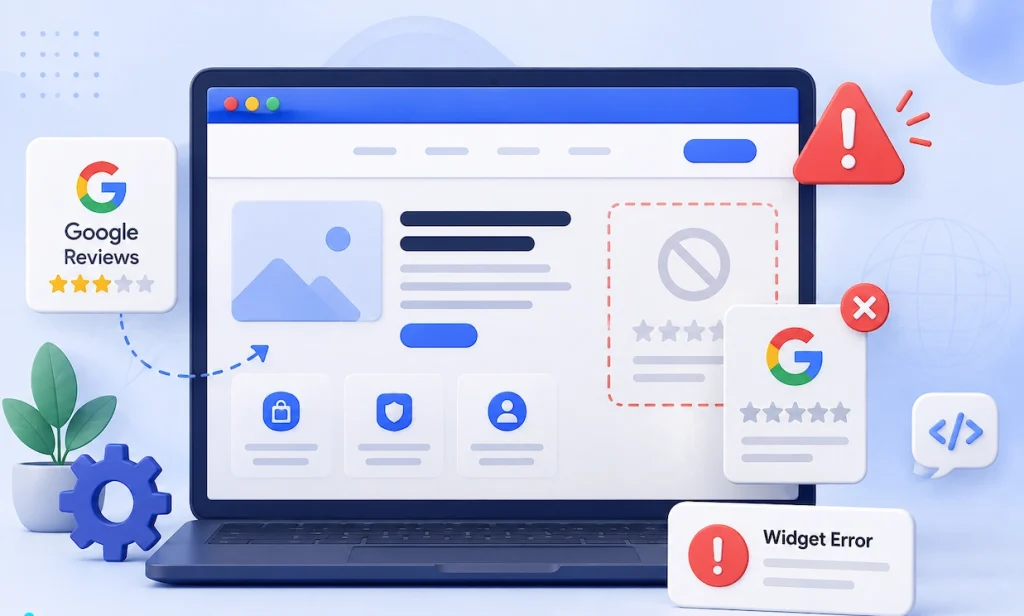
17. The widget’s connection to your Business Profile expired
Most Google review widgets connect through an API token or authorized connection to your Business Profile. These connections can expire or require re-authorization periodically, especially after Google pushes API updates.
Fix: Log into your review widget’s dashboard and reconnect your Google Business Profile account. This resolves the majority of “reviews not showing” cases for embedded widgets.
18. Your website is serving a cached version of the page
If your site uses caching, whether through your hosting provider, a CDN, or a caching plugin, visitors may see an outdated version of the page that doesn’t reflect newly synced reviews.
Fix: Clear your website’s cache (and your CDN’s cache, if applicable) after confirming new reviews are pulling through correctly on the widget provider’s dashboard.
19. The widget wasn’t set up to auto-refresh
Some review widgets pull new reviews on a fixed schedule rather than instantly, which can make a recently posted review appear to be “missing” for a short window even though it’s already live on Google.
Fix: Check your widget’s sync settings and manually trigger a refresh if you need the latest reviews reflected immediately rather than waiting for the next scheduled sync.
20. The Business Profile linked to the widget isn’t the correct one
If your business manages multiple locations or profiles, it’s possible the widget was connected to the wrong listing, one with fewer or older reviews than the one you’re actually trying to display.
Fix: Confirm the exact Business Profile URL connected in your widget’s settings matches the listing you intend to showcase.
21. The widget tool itself is outdated or poorly maintained
Some review widget integrations, especially older or unsupported ones, aren’t built to keep up with changes Google makes to its API and review data structure, which causes them to silently stop updating over time.
Fix: Use a review widget tool built to handle Google’s API changes and token renewals automatically. Tagembed’s Google Reviews widget is built specifically to keep syncing without needing manual reconnections every time Google updates something on its end, and it’s worth checking if a widget you’re already using is falling behind.
Collect, manage, and showcase authentic Google reviews with ease.
How To Check If Google Actually Removed Your Review
Since Google doesn’t notify businesses when a review is removed, confirming it takes a quick manual check:
- Log into your Google Business Profile and note your total review count from the dashboard.
- Open your listing in an incognito browser window, where you’re not signed into any Google account, and check the publicly visible count.
- Compare the two numbers. If the dashboard count is higher than what’s publicly visible, you’re dealing with a display or moderation issue rather than an outright removal. If both numbers match but are lower than you expected, the review has likely been removed.
- Cross-check on Google Maps directly, since Maps sometimes reflects review counts slightly faster than Search results do.
How to Recover a Deleted Google Review
If a review was removed and you believe it was a mistake rather than a genuine policy violation, there are a couple of paths worth trying.
1. Ask the reviewer to repost the review
If the original review contained a link, excessive promotional language, or other content that may have triggered Google’s filters, ask the customer to submit a revised version using plain, authentic language.
2. Contact Google Business Profile Support
If you believe the review was removed by mistake, submit a support request. Include the reviewer’s name, the approximate posting date, and any relevant details showing the review complied with Google’s policies.
3. Understand when recovery isn’t possible.
Reviews removed for confirmed policy violations or deleted by the reviewer cannot usually be restored. In these cases, asking the customer to leave a new review is often the fastest solution.
Best Practices to Prevent Google Reviews Issues
Follow these best practices to reduce the chances of missing, delayed, or removed Google reviews:
- Keep your Business Profile up to date. Ensure your business name, address, phone number, category, and verification status are accurate and consistent across all listings.
- Request reviews naturally over time. Avoid generating a large number of reviews within a short period, as sudden spikes can trigger Google’s spam detection systems.
- Avoid incentivizing reviews. Never offer discounts, gifts, or rewards in exchange for reviews, as this violates Google’s review policies.
- Monitor your reviews regularly. Compare your Google Business Profile dashboard with your public listing to spot missing or removed reviews early.
- Maintain your review widget. If you embed Google Reviews on your website, periodically check that the Google reviews API connection and cache are working correctly.
- Respond to customer reviews consistently. Replying to both positive and negative reviews helps demonstrate an active, trustworthy business profile.
Conclusion
Most Google Reviews issues fall into one of two categories: something happening inside Google’s own moderation and verification systems, or something specific to how reviews are being displayed, whether that’s on your Business Profile directly or through a widget on your website. The dashboard-versus-public-listing check resolves more confusion than any other single step, and it’s worth doing before assuming the worst.
Frequently Asked Questions
The most common reasons are that it’s still in Google’s moderation queue, it was posted by a new or low-activity account, or it contains a link that triggered automatic spam filtering. Most legitimate reviews appear within 24 to 72 hours.
Reviews are typically removed for violating Google’s policies, such as spam, fake content, or inappropriate language, or they may have been deleted by the reviewer themselves. Comparing your dashboard’s review count against the public listing count will tell you whether it was removed or is just a display issue.
This usually comes down to a broken or outdated review link, the customer not being signed into a Google account, or in rare cases, Google temporarily disabling reviews for a category or region.
Yes. Google’s systems automatically detect and remove reviews that violate its policies, including spam, conflicts of interest, and fake content, without notifying the business directly.
If the removal seems like a mistake rather than a clear policy violation, you can appeal through Google Business Profile support, or ask the reviewer to repost using cleaner wording if the original was flagged for something fixable, like an included link.
This is usually caused by an expired connection between the widget and your Business Profile, a caching issue on your website, or the widget syncing on a delayed schedule rather than instantly.
Check your permission level on the Business Profile first, since not every role includes reply access. If your permissions are correct, confirm the review is still live, since a removed review can no longer be replied to.
This is normal and usually means the review is still processing. Reviewers can see their own review in their account history before it’s publicly visible. Checking from an incognito browser confirms whether it’s actually live.
You can flag reviews you believe violate Google’s policies through your Business Profile, and Google will evaluate them for removal. You can’t manually delete reviews yourself, even ones you believe are fake.
It’s a common and effective way to surface reviews as social proof to website visitors, as long as the widget tool is actively maintained and reconnects automatically when Google updates its API, rather than requiring manual fixes every time something changes.
Embed social feed from Facebook, YouTube, Instagram, Twitter on your website, like a PRO
Invalid Email Address Multiple Themes