How To Add Google Reviews To Elementor Website?
You’ve driven traffic to your Elementor website, optimized your design, and written compelling copy, yet visitors still hesitate to take action. The missing piece? Social proof!
Without visible Google reviews on your website, users second-guess your credibility, bounce to Google, and often choose a competitor instead.
Adding Google reviews directly to your Elementor website keeps trust where it belongs on your page. This eventually helps visitors feel confident enough to click, inquire, or buy.


Why Add Google Reviews to Elementor?
A beautifully designed website alone doesn’t convince visitors to take action; trust does. And nothing builds trust faster than hearing directly from real customers, thats where Google Reviews come in.
When you add Google reviews to an Elementor website, you are placing powerful social proof exactly where decisions are made. 81%of consumers use Google reviews to evaluate local businesses, and 88% read them before choosing one.
Instead of asking visitors to believe your claims, you let your customers do the talking.

Here is why brands need to add Google Reviews to Elementor websites:
1. Builds instant credibility:
When you embed Google reviews on your Elementor website, they help real reviews reassure visitors that your business delivers on its promises. This helps reduce skepticism in the first interaction.
2. Improves engagement:
Live reviews keep your pages dynamic and encourage users to spend more time exploring your site. Instead of static pages that visitors skim and leave, real-time reviews provide users with fresh content to scroll through and respond to. This increased dwell time signals relevance and reliability, which benefits users and search engines.
3. Strengthens local SEO:
Google reviews serve as trust signals. This helps to boost visibility for location-based searches. Frequent positive reviews serve as strong signals of trust that search engines rely on to rank businesses higher for location-based queries. When Google reviews are visible on your website, they reinforce consistency across platforms and improve your local authority rankings.
4. Accelerates decision-making:
When visitors see positive experiences from others, they feel more confident in their own decisions. This answers unspoken questions: Is this brand reliable? Does it deliver what it promises? Seeing real opinions helps users move from doubt to confidence faster, reducing the time they spend second-guessing and increasing the likelihood of immediate action.
5. Increases conversions:
Whether it’s a service inquiry or a purchase, visible reviews remove hesitation and drive action. They reduce hesitation, build trust, and make the final step feel safer. As a result, users are far more likely to convert because they feel supported by the experiences of others who have already chosen your brand.
Simpler Way To Add Google Reviews To Elementor Page
We have developed a step-by-step process for adding Google reviews to an Elementor website using Tagembed.
1.) Create a Tagembed Account
- Sign up or log in to Tagembed

- Choose “Social Feeds on Website” out of the given options.

- Verify your email and select your industry, then click on “Submit.“

2.) Add Google Reviews as a Source
- Select Google Review as the source network.

- Connect your Google Business Profile
- Choose the business location
- Click Create Feed
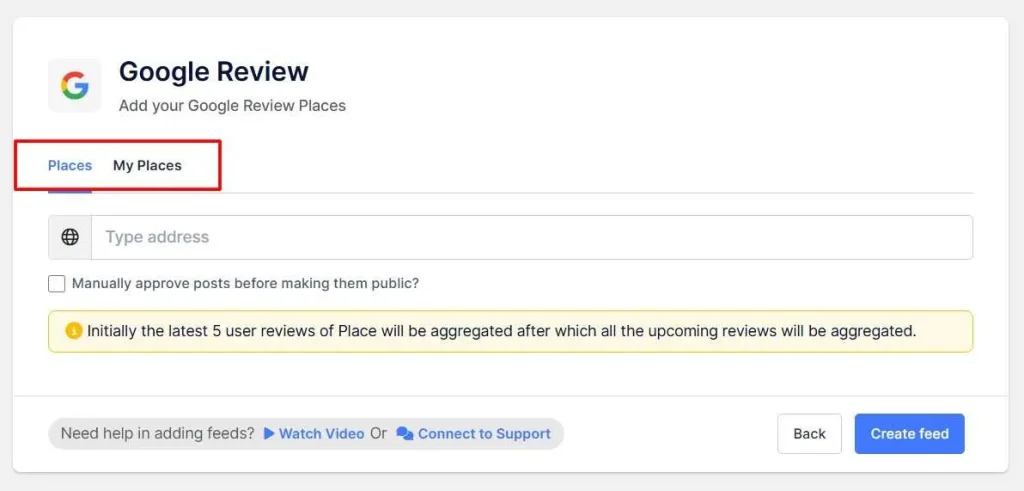
- Your Google reviews are now available in a single dashboard.
- Inside Tagembed, you can:
– Choose layouts (grid, carousel, slider)
– Change fonts, colors, and star styles
– Filter reviews (e.g., show only 4 stars & 5 stars)
– Moderate or hide unwanted reviews - This ensures the widget integrates seamlessly with your Elementor design.

3.) Customize Your Google Reviews Widget
- Now click on ‘Customize & Publish. ‘
- Select Website as the publishing channel
- Your Google review widget is created. A new window will open here; you can change your theme
4.) Generate Google Review Embed Code
- Customize settings like font color, font style, and card radius for the perfect look, then click ‘Generate Code‘.
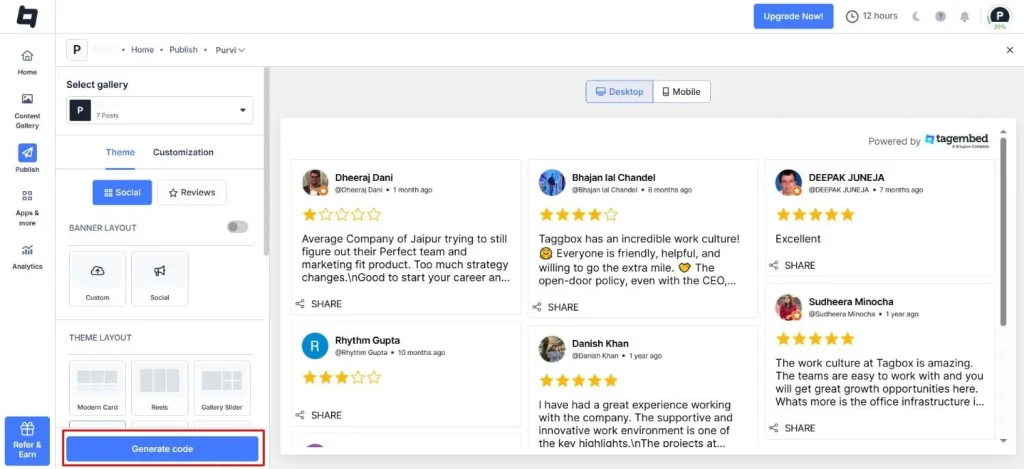
- Copy the Google review embed code.
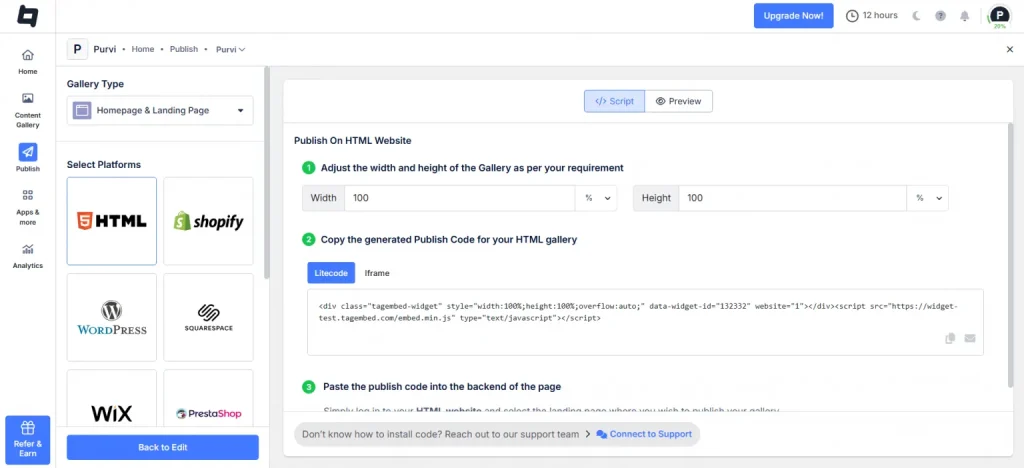
5.) Add Google Reviews in Elementor
Now bring it into Elementor:
- Open your WordPress page
- Click Edit with Elementor
- Drag the HTML widget into your layout
- Paste the Tagembed embed code
- Click Update
That’s it, your Google reviews are now live on your Elementor website.
Easily add real customer reviews and build instant trust with visitors!


Another Step-by-Step Process To Add Google Reviews to an Elementor Website
Step 1: Create Your Google Maps JavaScript API Key
To pull Google Reviews onto your website, you first need a Google Maps JavaScript API key from the Google Cloud Console. This key enables your site to securely connect to Google’s servers and retrieve review data.
Important things most people miss:
- Billing setup is mandatory
- Even if you don’t end up paying anything, Google requires a billing account to activate the API. The good news is that Google offers $200 in free monthly usage, which is more than enough for most websites.
Restrict your API key to your domain.n
Always limit the key to your website domain (for example, yourdomain.com). This prevents unauthorized usage and protects you from unexpected charges or errors.
If your reviews fail to load later, these two settings are the first things you should recheck.
How to create your API key:
- Go to the Google Cloud Console:https://console.cloud.google.com/
- Create a new project or select an existing one
- Navigate to APIs & Services → Library, search for Maps JavaScript API, and enable it
- Go to APIs & Services → Credentials
- Click Create Credentials → API Key
- Copy the generated key
- Edit the key:
- Under Application restrictions, select HTTP referrers and add your website domain
- Under API restrictions, limit usage to the Maps JavaScript API
Note: Google’s API only provides access to the five most recent reviews. This limitation is set by Google and cannot be changed.
Step 2: Install Unlimited Elements and Select a Review Widget
To display Google Reviews on an Elementor website, you’ll need Unlimited Elements Pro. The Pro version provides access to dynamic widgets that pull live API data.
What to do:
- Go to WordPress Dashboard → Plugins → Add New
- Search for Unlimited Elements for Elementor, install, and activate it
- Upgrade to the Pro version (required for dynamic integrations)
- Open the Unlimited Elements Widget Library
- Search for one of the following widgets:
- Review Carousel
- Testimonial Grid
- Testimonial Carousel
- Click Install on your preferred widget.
These widgets are fully customizable and designed specifically to work with dynamic review data.
Step 3: Add Your Google API Key to Unlimited Elements
Now connect your API key to Unlimited Elements so the plugin can fetch Google Reviews.
Steps:
- Go to WordPress Dashboard → Unlimited Elements → Integrations
- Locate the Google API Key field
- Paste your API key
- Click Save
Your site is now securely connected to Google and ready to pull review data.
Step 4: Add the Widget and Connect It to Google Reviews
With the API key in place, you can now add the review widget to your page.
How to proceed:
- Edit your page using Elementor
- Drag the installed widget (Review Carousel, Testimonial Grid, or Testimonial Carousel) onto the page
- In the widget settings panel, find Item Source
- Set it to API Integrations
- A new option will appear under API Type
- Select Google Reviews
Step 5: Get Your Google Place ID
Google needs a Place ID to know which business’s reviews to display. This ID uniquely identifies your business location.
How to find it:
- Visit the Place ID Finder tool:
https://developers.google.com/maps/documentation/javascript/examples/places-placeid-finder - Search for your business using the map or search bar
- Click your business listing on the map
- Copy the Place ID shown below
Where to add it:
- Return to the widget settings in Elementor
- Locate the Google Place ID field
- Paste the Place ID there
Step 6: Map Google Review Data to Widget Fields
The final step is telling the widget which review data should appear in each field.
In the widget settings, under Item Field Name, enter the following values exactly as shown:
- text – Review content
- author_name – Reviewer’s name
- author_photo – Reviewer’s profile image
- date – Review date (optional)
- rating – Star rating (if supported)
These field names come directly from Google’s API response. Once mapped correctly, your widget will automatically display live Google Reviews, fully dynamic, authentic, and always up to date.
Collect, Moderate, and embed Google Reviews on Elementor Website!
Best Places to Show Google Reviews on Elementor Pages
Displaying Google reviews on Elementor pages in specific locations on the website can help increase the click-through rate. Here are some of the best places to showcase Google reviews on an Elementor website.
A) Below the Homepage Hero Section
Placing Google reviews right below the hero section supports your headline with real customer validation. Visitors often scroll here to confirm whether your claims are trustworthy. Seeing authentic reviews at this stage reduces skepticism, builds instant credibility, and encourages users to continue exploring your website.
B) Near Service Page CTAs
Service pages trigger decision-making, often accompanied by hesitation. Adding Google reviews near CTAs reassures visitors as they consider taking action. Positive customer experiences reduce friction, reinforce your expertise, and make CTAs feel safer to click.
C) On Landing Pages Before Forms
Forms create resistance; users worry about spam, follow-ups, or wasted time. Displaying Google reviews just before a form builds confidence and lowers perceived risk.
When visitors see others successfully working with you, they’re more likely to complete the form and submit their details.
D) On Product Pages Under Pricing
Pricing is where the doubt peaks. Placing Google reviews beneath product pricing helps validate the value you’re asking for. Review reinforces quality, satisfaction, and reliability. This helps visitors justify their purchase decision and reduces cart abandonment.
E) On Contact Pages to Reassure Visitors
Visitors who reach your contract page are close to engaging but still seeking reassurance. Showing Google reviews here confirms they are reaching out to a trusted, credible business. This final layer of social proof builds confidence and encourages users to initiate contact without second-guessing their choice.
The Final Notes
Design brings users to your website, but trust moves them to act. In today’s decision-driven digital landscape, visitors don’t rely on claims alone. They look for reassurance from real people, real experiences, and real feedback.
That’s exactly why adding Google reviews to your Elementor website makes such a measurable difference. We have outlined the best process for adding Google reviews to an Elementor website. Try it and see your business grow.
Embed social feed from Facebook, YouTube, Instagram, Twitter on your website, like a PRO
Invalid Email Address Multiple Themes