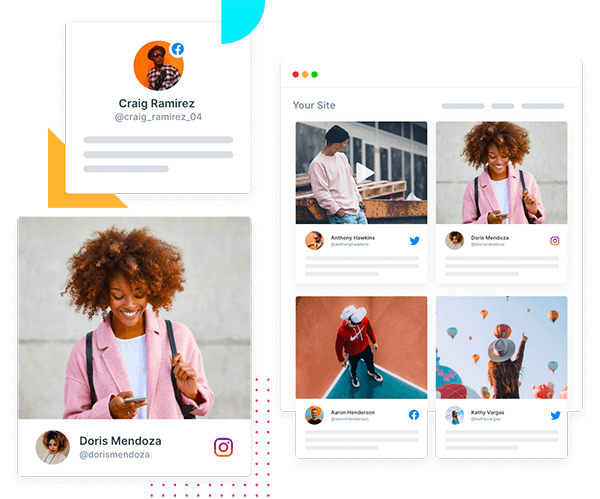
If your website still looks the same as it did three months ago, visitors notice. And one of the fastest ways to fix that without touching a single line of code is to pull your Instagram content straight onto your site.
An embedded Instagram feed does two things at once. It keeps your homepage or landing pages looking active, and it gives visitors social proof they can see and scroll through, not just read about. The catch is that Instagram doesn’t make this easy on its own. Here’s what actually works, and how to set it up properly.
Quick answer:
To embed an Instagram feed on your website, you can either grab the embed code of each post and paste it on your website or connect your Instagram account to a social media aggregator like Tagembed. Then, choose whether to pull posts by handle, hashtag, or mention, customize the widget layout, and then copy the generated embed code into your CMS (WordPress, Shopify, Squarespace, Webflow, Wix, or plain HTML). No developer or API setup required.
Quick Video : How to Embed an Instagram Feed on Website
What Are the Benefits of Embedding an Instagram Feed on Your Website?
Before getting into the how, it’s worth being clear on the why, because it shapes which method you should pick.
A live Instagram feed on your site:
- Keeps pages fresh automatically. Post on Instagram, and your website updates without anyone touching the CMS.
- Builds trust faster than stock photography. Real posts, real customers, real moments.
- Gives visitors a reason to stay longer, especially on product pages, landing pages, and homepages.
- Turn your Instagram following into website traffic and vice versa, since most social media feed widgets link back to the original post or your profile.
None of that happens if you’re stuck manually screenshotting posts every week, which is where most people start before realizing it doesn’t scale.

Instagram
Hashtag

Instagram
Handle

Instagram
Stories

Instagram
Reels

Instagram
Mentions & Tag
The Three Ways to Embed Instagram on a Website:
There are really only three routes here, and each one solves a different problem.
1. Instagram’s Native Embed (Single Post Only)
Instagram lets you embed one post or reel at a time. Open the post on the desktop, click the three-dot menu, select Embed, and copy the code it gives you. Paste that into an HTML block on your site.
This works fine if you want to drop in one specific post inside a blog article. It falls apart the moment you want an actual feed, because there’s no way to show multiple posts, filter by hashtag, or have it update automatically. You’d be back here every week manually swapping out embed codes. It’s also worth knowing that native embeds load Instagram’s own tracking scripts on your page, which can complicate GDPR compliance depending on your audience.
2. Instagram Graph API (Build It Yourself)
For developers, Instagram’s Graph API lets you pull feed data directly and build a fully custom display. You get complete control over layout, but you also inherit the maintenance: token refreshes, rate limits, API version changes, and the actual frontend work to render everything. This route makes sense if you have engineering resources to spare and very specific design requirements. For most marketing teams, it’s overkill.
3. A Social Media Aggregator (The Practical Middle Ground)
This is where most websites land, and for good reason. A tool like Tagembed connects to Instagram, pulls posts automatically by profile, hashtag, or mention, and gives you a ready-made widget you can style and drop into any website with one line of embed code. No API tokens to babysit, no developer needed, and the feed keeps itself updated in the background.
Here’s how the three methods stack up side by side:
| Method | Best For | Technical Effort | Automation |
| Native Instagram embed | Featuring a single post inside a blog or page | Low (copy and paste) | None, updated manually |
| Instagram Graph API | Enterprise sites needing a fully custom layout | High, requires a developer | Fully automated |
| Social media aggregator (Tagembed) | Marketing teams, small businesses, and most websites | Low, no code required | Fully automated |
Step-by-Step: How Do I Embed an Instagram Feed Using Tagembed?
Here’s the actual process, start to finish.
Step 1: Create a Tagembed Account

Sign up for a free account. You don’t need to touch code at any point in this process.
Step 2: Add Instagram as a Source
Click to create a new widget and choose Instagram as the source. You have three ways to pull content:
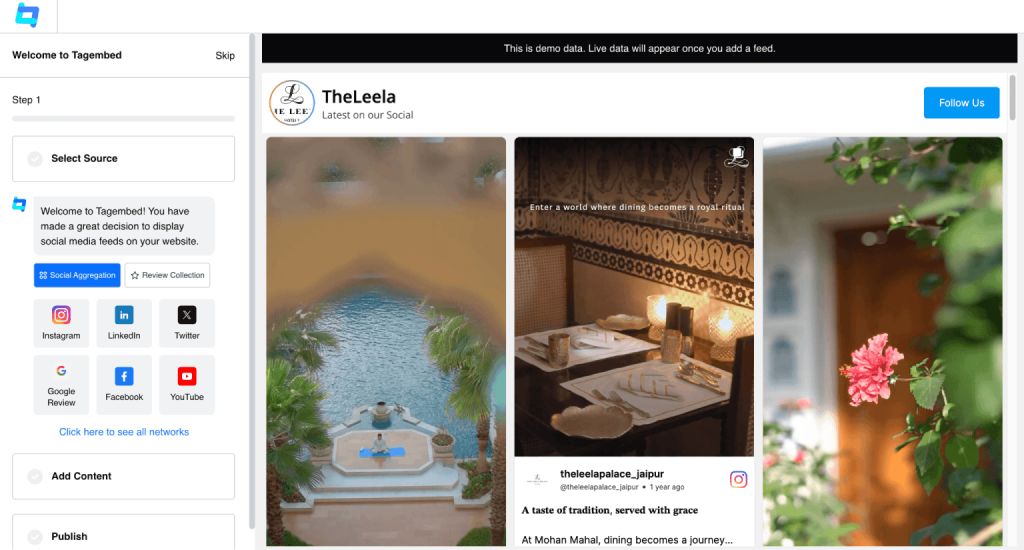
- By Handle – shows posts from a specific Instagram profile.
- By Hashtag – pulls in posts tagged with a specific hashtag, useful for campaigns or UGC.
- By Mention – shows posts where your account has been tagged, which works well for showcasing customer content.
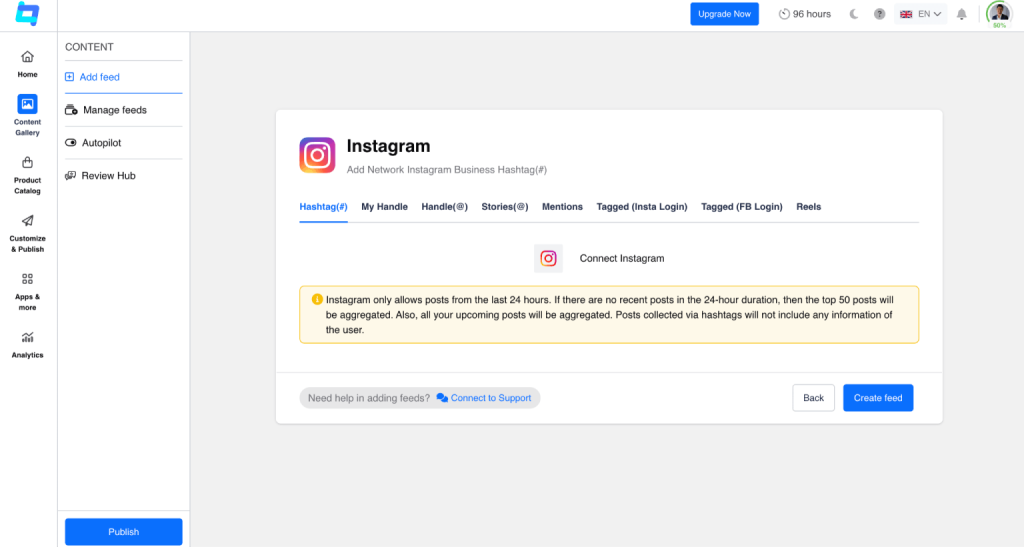
One thing worth flagging early: public profiles work without any extra setup, but if the account you’re pulling from is private, it needs to be switched to a Creator or Business account and connected properly before its posts will show up. Of all the setup issues people run into, this is consistently the most common one, and it’s rarely a bug. If your feed shows up empty right after connecting, check your account type before anything else.
Step 3: Customize the Feed Layout
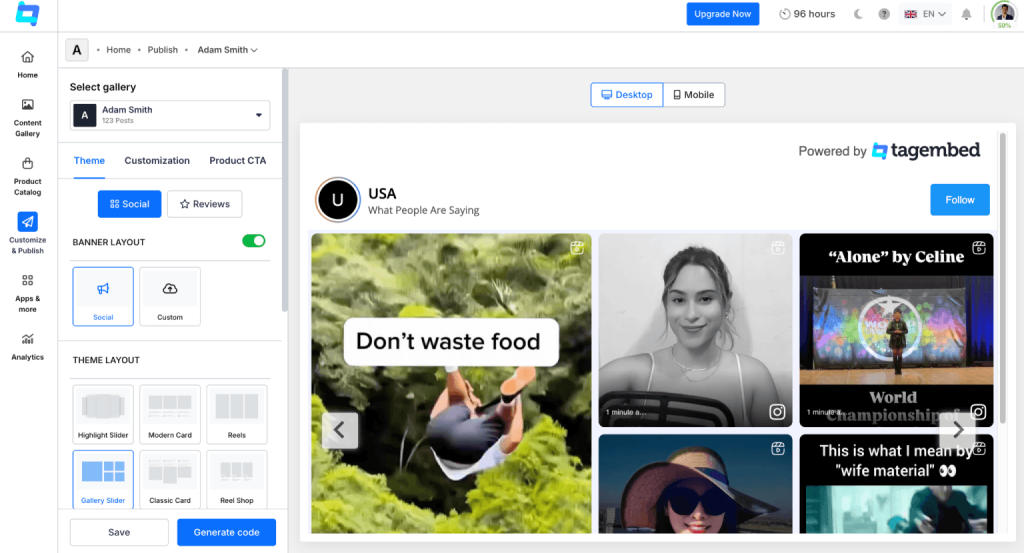
Once your source is connected, you’ll get a live preview you can adjust. Choose between grid, carousel, slider, masonry, or a social wall layout depending on where you’re placing it. You can also control:
- Number of posts shown
- Column and row count
- Colors, fonts, and spacing to match your brand
- Whether captions, likes, or usernames are visible
- Moderation settings, so you can approve or hide specific posts before they go live
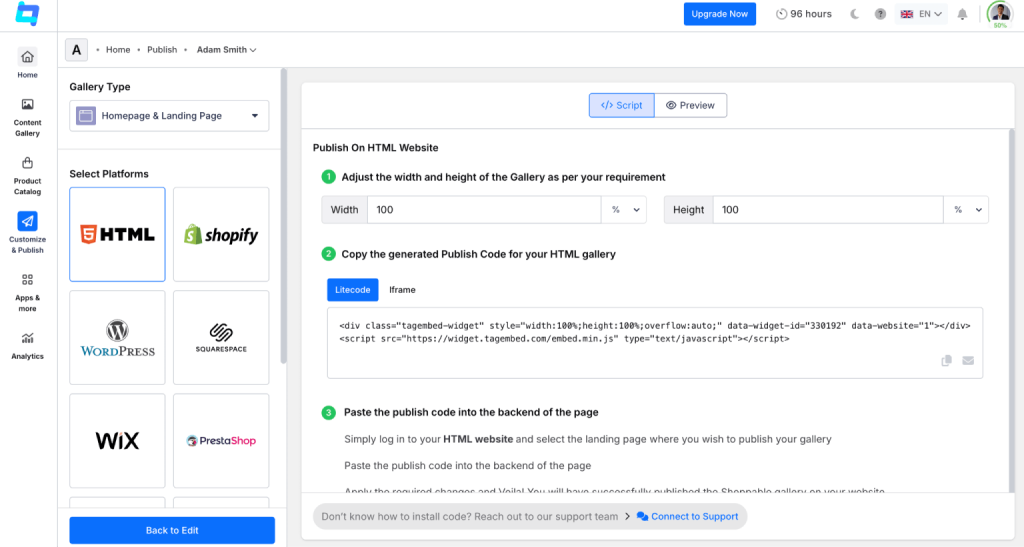
Step 4: Grab the Embed Code
Once the widget looks right, click the Publish button. Select the desired gallery, and then choose the desired layout from the given options. Click on the “Generate Code” button.
Step 5: Paste It Into Your Website
Once you’ve generated Instagram embed code, you simply need to paste it on the backend of your website. However, the exact steps from there depend on where your site lives, which is covered next.
Display Instagram Feed On Website
Collect, moderate, and add Instagram feed on website
Try Tagembed for freeHow To Add Instagram Feed Embed Code On Different Website Platforms:
Once you’ve generated your embed code from Tagembed, you can add it to almost any website builder or CMS. The process is largely the same everywhere: copy the code, find a Custom HTML or Embed block on your platform, paste it in, and publish.
1. Integrate Instagram Feed into HTML Website
Adding an Instagram feed to an HTML website is straightforward and works on virtually any static site. Follow these steps to get the feed live on your page.

- Click “Publish” once your feed is configured, then choose “HTML” as your platform.
- Click the copy code button to copy the generated embed code.
- Open your website’s HTML file in a text editor and navigate to the section where the feed should appear.
- Paste the code and save the file.
- Reload the page to see the live feed.
2. Add Instagram Feed To Shopify Website
Shopify stores benefit from Instagram feeds, especially on product and homepage sections, where social proof sits close to the buy button. Here’s how to embed an Instagram feed on Shopify website.

- Click Publish and choose Shopify as your CMS, then copy the code.
- Log in to your Shopify admin and go to the Online Store.
- Select Themes, then click Customize.
- In the left panel, select Custom Content.
- Add a Custom Liquid block and paste the embed code into it.
- Click Save.
3. Display Instagram Feed On WordPress Website
WordPress is the most common platform for this kind of embed, and Tagembed slots in through the standard block editor. These are the steps to add an Instagram widget to a WordPress website.

- Go to Publish and select WordPress from the platform list, then copy the embed code.
- Log in to your WordPress admin panel.
- Open the page, post, or section where you want the feed.
- Click the (+) Add Block button and choose Custom HTML.
- Paste the code and click Update.
4. Insert Instagram Feed into Elementor Website
If you’re building pages with Elementor, the feed goes in through its HTML widget rather than the standard WordPress editor. Here’s the process to embed an Instagram widget on an Elementor website.

- Click Publish and select “Other” as your platform, then copy the code.
- Log in to your Elementor site and open the page or post you want to edit.
- In the Elementor editor, find the HTML widget or drag a new one onto the page.
- Paste the embed code into the HTML widget.
- Save your changes.
5. Embed Instagram Feed On Squarespace Website
Squarespace requires the code to go into a dedicated code block rather than a general text section. Follow these steps to add Instagram feed on Squarespace website correctly.

- Click Publish, choose Squarespace, and click “Get code” to generate the embed code.
- Copy the code to your clipboard.
- Log in to your Squarespace account and navigate to the target page.
- Edit the page and add a new content block.
- Choose “Code” from the block options and paste the embed code in.
- Save your changes.
6. Include Instagram Feed On Webflow Website
Webflow renders embeds live inside the Designer, so you can preview placement before publishing anything. Here’s how to set an Instagram widget on Webflow website.

- Click Publish and choose “Other” as your CMS platform.
- Set the width and height of the widget, then click Copy Code.
- Log in to your Webflow admin panel and go to the page you want to edit.
- Click Add Element, scroll to “Embed,” and drag it onto the page.
- Paste the code and save your changes.
7. Insert Instagram Feed into Wix Website
Wix handles embeds through its iFrame element rather than a plain code block, which trips people up the first time. These are the steps to follow to include the Instagram feed on Wix.

- Click Publish, select Wix as your platform, adjust the width and height, and copy the code.
- Log in to Wix and open the page where the feed should go.
- Click the ‘+Add’ button, then ‘More’, and select ‘HTML iFrame’ from the embed options.
- Paste the generated code into the code field.
- Click ‘Apply’ to save.
8. Integrate Instagram Feed into Weebly Website
Weebly’s editor uses its own embed panel, separate from its standard content elements. Here’s how to add an Instagram widget to the Weebly website.

- Click Publish, choose “Other” as your CMS, adjust the width and height if needed, and copy the code.
- Navigate to the page on your Weebly site where the feed should appear.
- Open the ‘Embed Code’ option in the editor.
- Select the ‘HTML box’ element and choose ‘Edit Custom HTML.’
- Paste the code and save.
9. Include Instagram Feed On BigCommerce Website
BigCommerce is a common choice for online stores, and the feed can go on either a standalone page or directly into a theme template. Follow these steps to add an Instagram widget to the BigCommerce app:

- Click Publish, select “Other” as your platform, and copy the code.
- Log in to your BigCommerce account.
- Go to Storefront > Web Pages for a specific page, or Storefront > Theme for a product page or homepage.
- Click Edit on the page, then switch to the HTML editor (look for the “<>” or “Source” button).
- Paste the code, preview it, and publish the page.
10. Insert Instagram Feed into Google Sites
Google Sites has a dedicated embed option built into its page editor, which makes this one of the simpler platforms to work with. Follow these steps to add Instagram feed to Google sites.

- Click Publish and select “Other” as your platform. Adjust width and height, then copy the code.
- Log in to Google Sites and open the page you want to edit.
- Click “Embed” in the page editor.
- Choose “Embed code” and paste the code in.
- Save your changes.
11. Include Instagram Feed On HubSpot Website
HubSpot’s landing page editor tucks embed code into the page’s footer HTML settings rather than a visible content block. Here’s the process.

- Click Publish, select “Other” as your platform, and copy the code.
- Log in to HubSpot, go to the Marketing section, and open Landing Pages.
- Choose the page and click Edit.
- Go to File > Page Settings > Advanced.
- Paste the code into the Footer HTML field, then save and publish.
12. Embed Instagram Reel Discord Website
Discord doesn’t support a true embed the way a website does, so posts show up as shared links rather than a live feed. Here’s the workaround.

- Go to Instagram, find the post, click the three dots, and select “Copy Link.”
- Open Discord and go to the server or channel where you want to share.
- Paste the link into the chat box.
- Hit “Enter” to share the post.
13. Insert Instagram Feed into OpenCart
OpenCart handles embeds through its Extensions panel rather than a page editor, since most pages are generated from templates. These are the steps.

- Log in to your OpenCart admin panel.
- Go to Extensions > Extensions > Content > HTML Content.
- Click Add New and paste the embed code.
- Save and assign it to a layout, such as the home, product, or category page.
- Refresh your store to confirm the feed is live.
14. Embed Instagram Feed On React Site
For a React site, the feed goes in as a rendered component rather than a static paste, since React doesn’t allow raw HTML by default. Here’s how to add it.

- Copy the React/JavaScript embed code from the Tagembed dashboard.
- Open your React project and paste the code inside a component using dangerouslySetInnerHTML.
- Add the component to the page where the feed should appear.
- Save and run the app to confirm the feed renders.
Whichever platform you’re on, the underlying process is the same: generate the code, find a Custom HTML, Code, or Embed block, paste it in, and publish.
Hook visitors. Build trust. Drive clicks.


Embed Instagram Feed: Real Success Stories
Here are some of the real-life examples of websites and brands using Tagembed to embed Instagram feeds.
1. ORT University of Uruguay
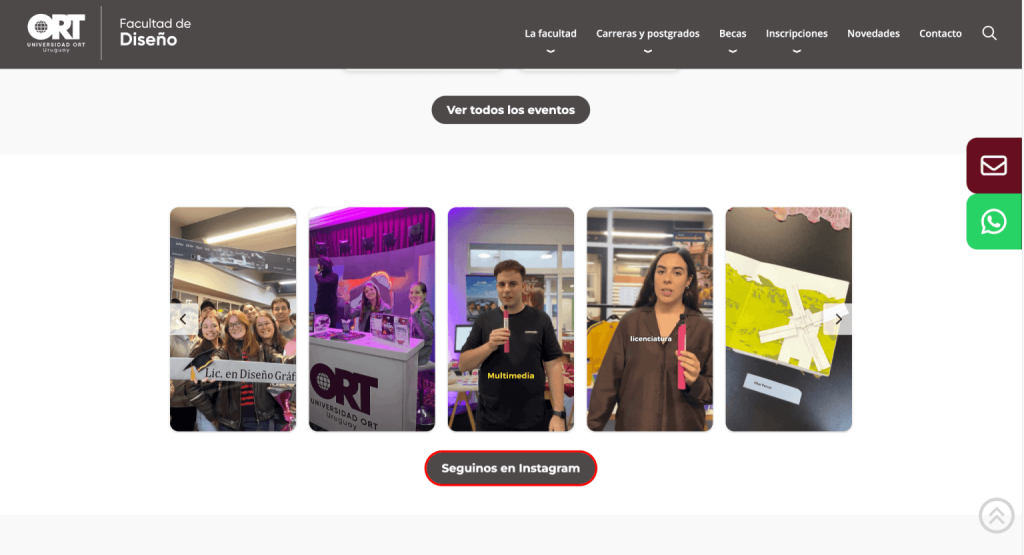
The ORT University of Uruguay embedded a live Instagram wall on its website to showcase campus life, student achievements, and events in real time. Instead of relying on static images, the university displayed fresh social content that made the website feel more active and authentic. This encouraged visitors to spend more time exploring the site while giving prospective students a genuine glimpse into campus culture.
“Adding a live Instagram feed made our website feel much more vibrant. Prospective students can now see campus life, events, and achievements as they happen, making the experience far more engaging.”
2. Funne
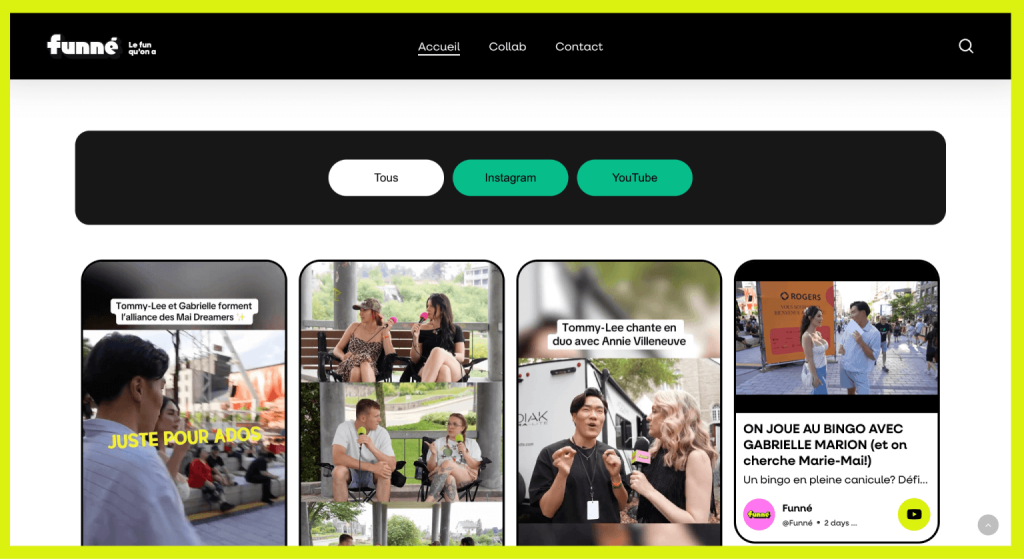
With a live Instagram feed embedded on its website, Funne ensured every new Instagram post automatically refreshed its web presence. The result was a website that looked consistently active, delivered fresh visual content, and reinforced customer confidence through ongoing social proof.
“Instead of manually updating visuals every few weeks, our website now refreshes automatically with new Instagram content. It’s an effortless way to keep the site looking active and modern.”
Common Mistakes People Make:
A few things that consistently cause problems, worth checking before you assume something’s broken:
- Trying to embed a private profile without switching to Business/Creator mode. The feed will just show empty or throw an error.
- Overloading the page with too many posts at once slows load time and hurts the mobile experience.
- Skipping moderation, especially with hashtag or mention feeds, where you don’t control what gets tagged.
- Not testing on mobile. A feed that looks great on desktop can break your layout on smaller screens if the widget isn’t responsive.
- Forgetting to check GDPR implications if you’re using a native embed and have visitors in the EU, since Instagram’s tracking cookies load with it.
Key Takeaways
Embedding a single Instagram post is simple and doesn’t need any tool. Embedding an actual live, updating feed is a different problem, and that’s where a proper aggregator earns its keep. If you want full control and have developers on hand, the Graph API route works. For everyone else, a tool like Tagembed gets a fully customized, self-updating Instagram feed onto your site in a few minutes, with none of the maintenance that comes with building it yourself.
Next steps once your feed is live:
- Check your site speed on Google PageSpeed Insights to confirm the widget is loading asynchronously and not delaying your main content.
- Test the feed on mobile, not just desktop, since layout issues tend to show up there first.
- Set moderation rules if you’re pulling from a hashtag or mention feed, so unrelated posts don’t slip through.
Frequently Asked Questions
Yes, you can embed an Instagram feed for free. Tagembed offers a free plan covering basic feed embedding for one source, which is enough for most small sites or personal blogs testing the layout before committing to a paid plan.
Yes, the feed updates automatically. Once your Instagram source is connected, new posts pull through on their own, and you never need to touch the embed code again.
Only partially. A personal private account can’t be embedded due to Instagram’s API restrictions, but switching it to a Business or Creator account and connecting it properly resolves this.
Not if it’s set up correctly. A well-built widget loads asynchronously, meaning it won’t block the rest of the page from rendering. The main risk is stacking several heavy feeds on one page, which can add load time.
Yes, hashtag-based feeds are supported. This is especially useful for campaigns or displaying user-generated content without manually curating each post.
Embed social feed from Facebook, YouTube, Instagram, Twitter on your website, like a PRO
Invalid Email Address Multiple Themes