Add Twitter Feed To Sharepoint
Your SharePoint might be clean and corporate, but that doesn’t mean it has to be boring. If your brand’s posting consistently on Twitter (or X), why not bring that energy straight to your SharePoint?
Adding a live Twitter feed into SharePoint keeps your team or audience in the loop without switching tabs. And no, you don’t need to code a single thing.
Here’s how to add a Twitter feed to SharePoint in under 1 minutes.
Try Tagembed – Create Your Free Account Now
How to Add Twitter Feed on SharePoint
Embedding a Twitter feed on SharePoint is a simple, straightforward process (easier than making your morning coffee).
Step-1: Log In to Tagembed
- Go to Tagembed.com and log in. If you are new, sign in (signing in with your Google account is quick).

- Once in, choose the “Display Social Feeds on Website” option.

Step-2: Choose Your Content Feed Source
- In the content gallery, you’ll have to choose the source to pull content from (Twitter or X, in your case).
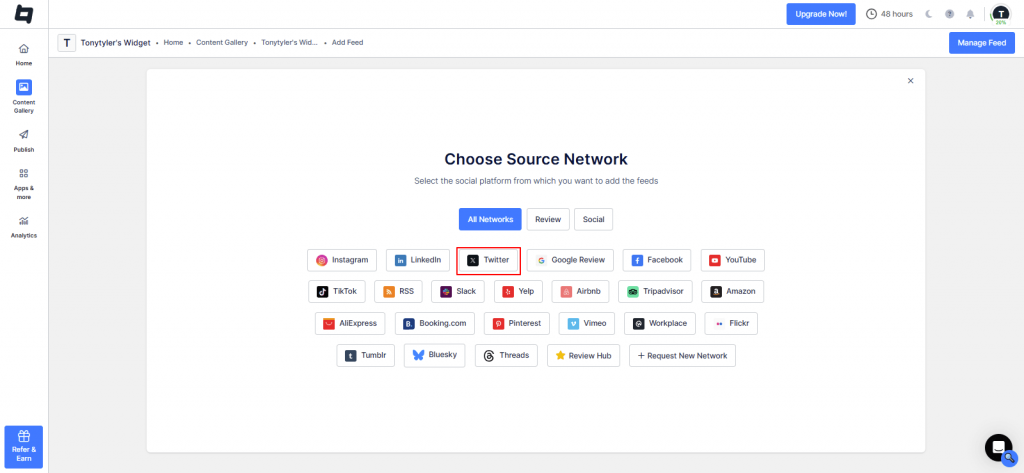
- You can choose to pull the content through a hashtag, handle, or mention.
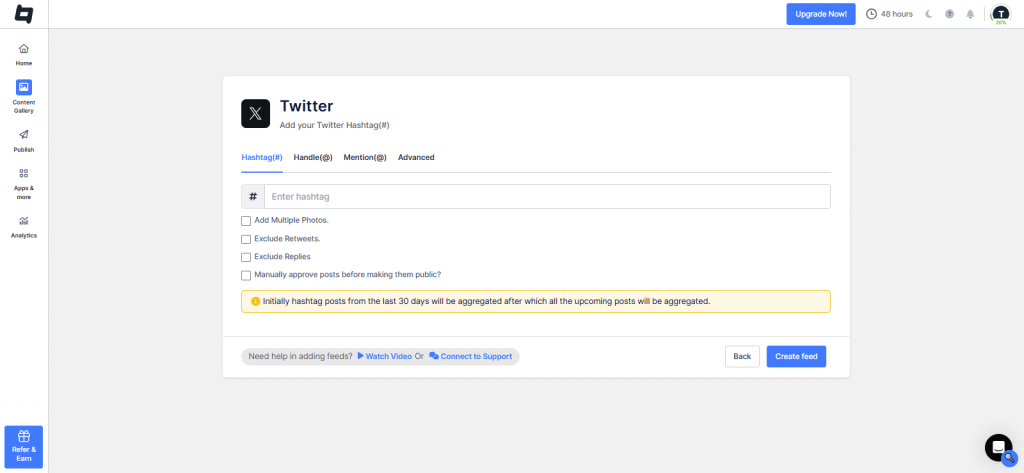
- Once your feed gets ready, you can moderate and filter out the content you don’t want to display.

Step–3: Customize Your Feed
- Want to customize your feed layout and style? Head to the “Publish” section where you can choose from different feed layouts and colors.

- Moreover, you can also add a call-to-action if you want. Once done, click on “Generate Code”.
Step–4: Copy the Embed Code
- Choose “Others” in the platform selection and set the right height and width for your Twitter feed widget.

- Copy the code.
Step–5: Add the Twitter Feed on SharePoint
- Go to your SharePoint site’s page backend, where you want to display the Twitter feed widget.
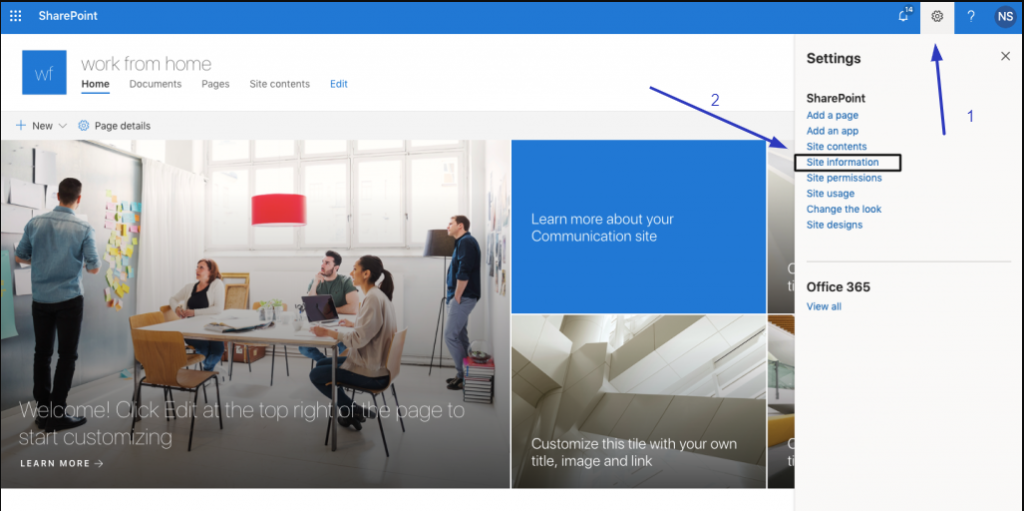
- Tap on “Edit” and then the (+) icon.
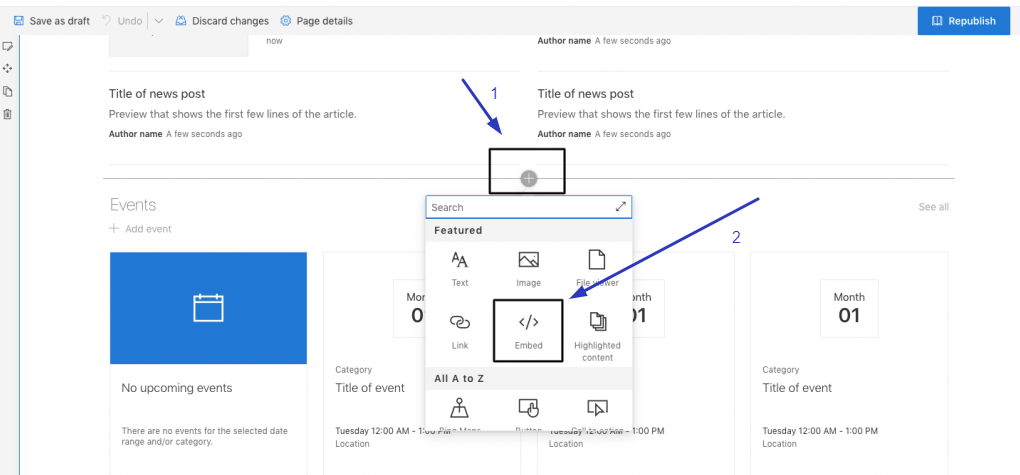
- Now, choose the “Embed” option. Simply, paste the embed code and click on save changes.
Try Tagembed – Create Your Free Account Now
If you face any issues, feel free to contact us or write us at support@tagembed.com