Want to make your website more engaging and show your visitors what’s happening on your X account (formerly X)? One easy way is to embed Twitter feed on website. By doing this, your latest X posts show up right on your site, so visitors can see updates without leaving the page.
In this guide, we’ll show you how to embed Twitter posts using simple methods to make your website more interactive and up to date with X’s new format.


| Multiple Themes |
Top 3 Ways To Embed Twitter Feed Widget On Website:
You can effortlessly complete the embedding process using three main methods. Let’s look at them and know how to embed a live Twitter post on your website:
A) Embed Twitter Feed On Website Using Tagembed
The first method to embed X feed on website is using a Twitter widget. A versatile tool, Tagembed, helps you complete the embedding process effortlessly with this tool.
Tagembed Twitter feed widget helps you to complete the embedding process effortlessly. This tool provides a code-free aggregation method, so you don’t require coding expertise if you’re not a technical expert. You just need to follow the simple embedding steps mentioned in this blog.
B) Using Plugins
Tagembed offers easy-to-use WordPress and Shopify plugins that let you seamlessly embed Twitter posts on your website. With just a quick setup, the Tagembed plugin enhances your site’s visual appeal and brings fresh, engaging content directly to your pages.
C) Embed Twitter Post On Website Using Native Method
The last method is the official one provided by Twitter. Twitter (X) published several embeddable widgets, depending on what you want to display. You will find two types of timelines for embedding from the Twitter (X) platform.
- Profile- This is where you can display public posts like Tweets from any account or user.
- List- This is where you can display public posts, such as Tweets, from publicly visible lists.
Ready to Display Twitter Post On Website
Collect, moderate, customize and publish live X feed on your website
Try NowMethod 1 – How To Embed Twitter Feed On Website Using Tagembed’s Twitter Widget
To collect, curate, and publish Twitter posts on your website with Tagembed, follow this step-by-step guide.
Step A – Log In To Tagembed
1. Start by creating a free Tagembed account or logging in if you already have one.

2. From the dashboard, choose from the options: Social feeds on website, or Shoppable feeds on website. Select the option that best aligns with your brand goals, then proceed.

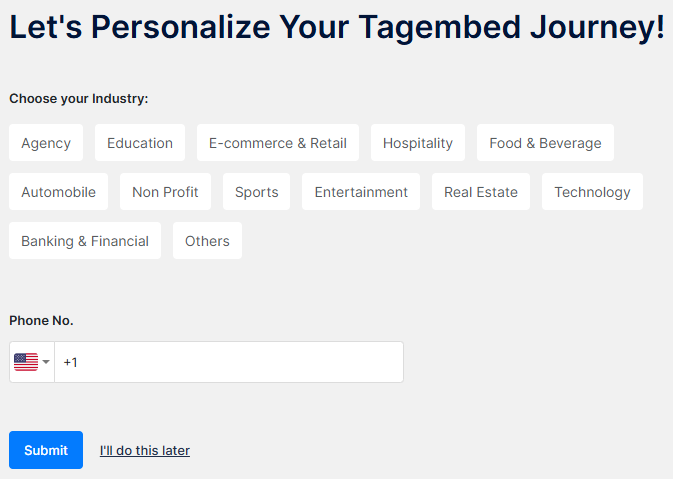
3. Select your industry, enter your phone number, and click Submit. Verify your email to proceed further.
Step B – Create a Twitter (X) Gallery
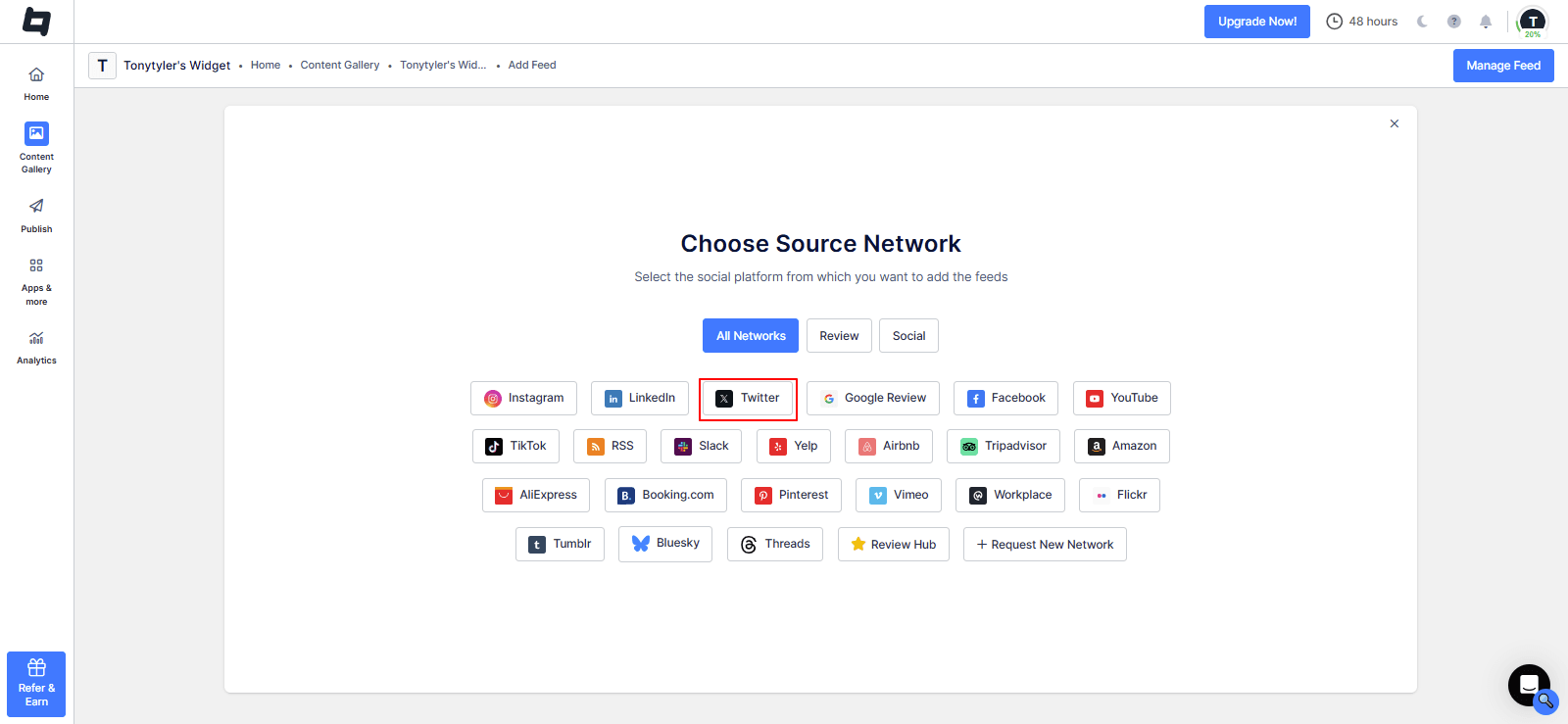
4. Choose ‘Twitter’ as your source network.
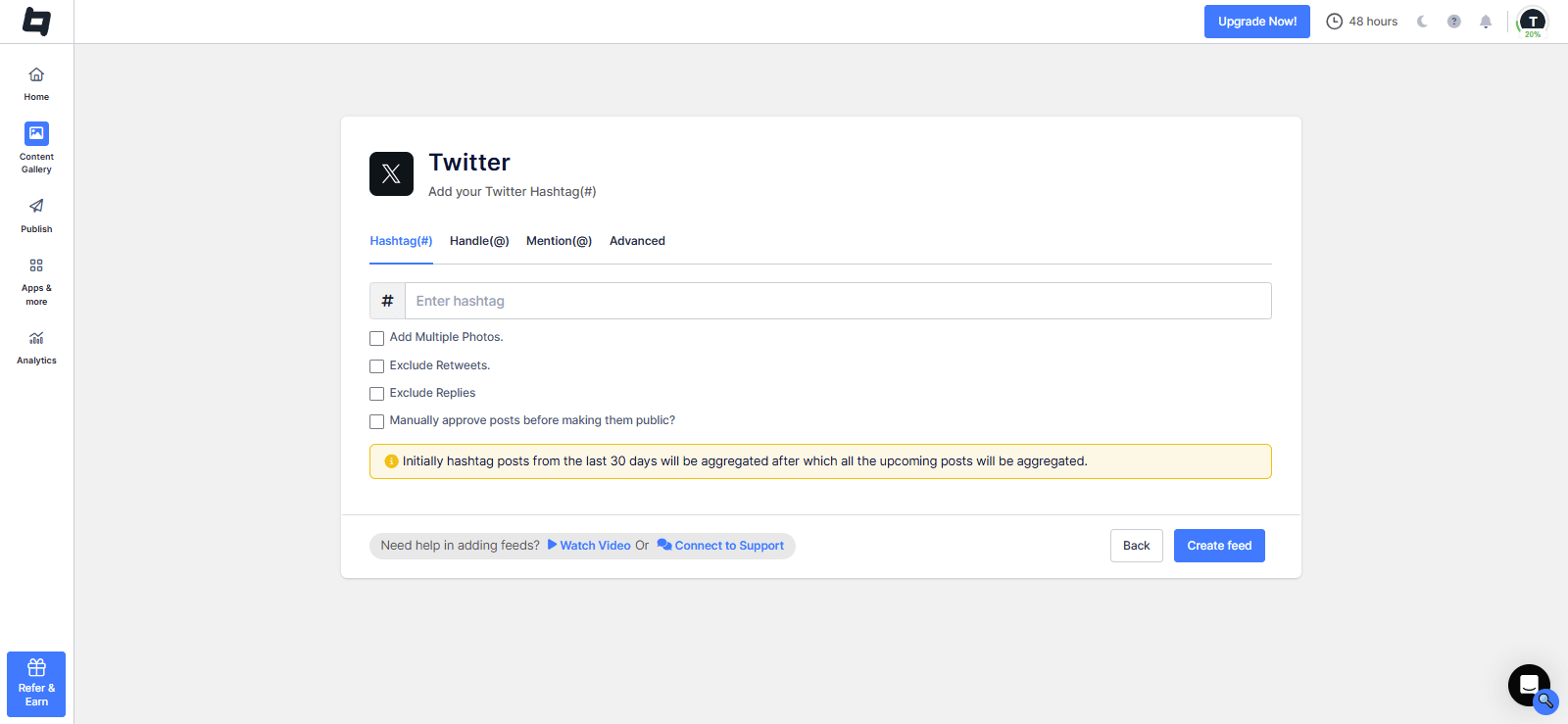
5. Add X content by selecting your feed type: Hashtag, Handle, Mention, and Advanced. Click on ‘Create Feed,’ and now you’re on the ‘Content Gallery’ dashboard.
6. Moderate your feed by removing the unwanted content either manually or using the autopilot feature.

7. Go to ‘Publish’ and Customize your X feed by choosing themes, layouts, backgrounds, etc., and click on ‘Generate Code’.

Step C – Generate Twitter Embed Code
8. Select your CMS platform, adjust the width and height, then copy the code.

Go to your website’s backend, paste the Twitter embed code. You have successfully embedded Twiter feed widget on your website using Tagembed.
Quick Video Guide: How To Embed Twitter (X) Feed On Website
How To Embed Twitter Post On Any Website Building Platform?
Follow the simple steps below to add a Twitter feed on popular website-building platforms.

To embed Twitter feed on an HTML website, click the embed widget button.
- Choose HTML from the list of website-building platforms.
- Tap on auto or change the width and height of the widget following your website.
- Tap on ‘Get code’ to develop the code and copy it to the clipboard.
- Now, paste the embed code to the main section of your website.
- Save the changes, and you will be done.

If you’ve built your website with WordPress CMS, then embed Twitter feed on WordPress using the steps below:
- Log in to your WordPress account first.
- Navigate to the webpage where you want to show Twitter feeds.
- Select ‘Text’ mode from the visual and text option on the page editor.
- Now, paste the generated embed code in this text mode.
- Save the changes, and your Twitter feed will be visible on your WordPress website.

- Open your Elementor page editor.
- Drag and drop an “HTML” widget to your desired section.
- Paste the Elementor Twitter widget embed code.
- Save & update.

To maintain your brand’s presence, Weebly helps you create a high-quality eCommerce website. You can easily create web pages on Weebly and integrate your Twitter feed by following these steps.
- Start by logging into your Weebly account.
- Reach to the web page where you want to paste the generated embed code.
- Tap on the “Embed Code” in the left navigation bar and paste it in the position where you want to showcase the post.
- Save your changes, and your Twitter feed will be on your website.

You can easily integrate your Twitter feed on the Squarespace website by following a few steps.
- Sign into your Squarespace account.
- Reach the webpage where you want to add Twitter feed to your Squarespace website.
- Tap on +Add/Edit block and choose Code.
- Paste the copied embed code and tap on the Apply button.
- Save the changes, and your Twitter feed will be published on your webpage.

To add a Twitter feed on the Wix website, quickly follow the below-mentioned steps:
- Sign into your Wix account.
- Navigate to the webpage where you want to embed Twitter feed.
- Tap on the “+Add” button to add a section.
- Tap on More and choose Embed A Site.
- Copy the embed code or embed widget link and paste it under the Embed Section of your Wix webpage.
- Tap on Apply and save the changes. Your Twitter feed is live!

Apply the following steps to add a Twitter feed to your Shopify website.
- Sign into your Shopify account.
- Reach the online store-> Themes Menu in the sidebar.
- Navigate to the Edit HTML/CSS button on the top right of the page.
- Choose the Layout/Templates/Section where you want to show the Twitter feed.
- Paste the copied code and tap on save to apply changes.
- Voila! Your Twitter feed is live on your Shopify website.

To Add twitter feed to SharePoint apply following steps
- Sign into SharePoint.
- Go to Site Settings > Site Contents.
- Add a Web Part (e.g., Content Editor).
- Insert embed code (iframe or other) in the Web Part.
- Save and publish the page.

To integrate twitter feed on drupal use following steps
- Sign into Drupal.
- Go to Admin Panel > Modules > Add New Module.
- Install and enable the module (e.g., Embed Media).
- Add embed code (iframe or external source) in content.
- Save and preview the changes.
Method 2 – Add Twitter Feed To Website Using Tagembed Plugins
Wondering how to embed a Twitter feed on your WordPress or Shopify website? Tagembed provides plugins for WordPress and Shopify website users that let them easily embed a Twitter post on their websites.
1. Tagembed WordPress Plugin

Wondering how to embed a Twitter feed on your WordPress or Shopify website? Tagembed provides a WordPress plugin that lets users easily embed an X feed on their website.
This tool is designed to be user-friendly. It enables users to link their Tagembed account with their WordPress website. This plugin aims to maintain a consistent user experience by preventing all errors that occur during Twitter feed creation. With the help of this WordPress plugin, any WordPress CMS user can add an X feed to WordPress without much effort. This feed will give the user’s website a glamorous look and intrigue their visitors.
2. Tagembed Shopify Plugin

Shopify is another CMS – a website-building platform that focuses on your website’s functionality by providing many features. This platform can significantly increase sales for your business account.
The Tagembed Shopify plugin will help you embed a Twitter feed on your Shopify website in a hassle-free way. The smooth user interface and built-in features make this app the perfect choice for Shopify users.

Method 3 – Embed Twitter Post On Website Using Native Method
X (Twitter) is one of the most popular social media platforms and provides its own embedding tool. Users can embed Twitter hashtag feed from the platform by following these steps:
Step 1- Navigate to the X Publish and paste the URL of the X post, profile, handle, or hashtag you want to embed. In the blank space, enter the media URL.
Step 2- Select the type of widget you want to embed in this step. You can choose an Embedded Video, Embedded Post, Embedded Timeline, and x Buttons.
Step 3- Paste the ‘Post URL’ you want to embed and click on ‘Preview.’
Step 4- You need to copy the Twitter feed embed code and paste it into the webpage of your website.
Tagembed: All-In-One Solution To Embed Twitter Feed On Website
Tagembed is one of the most efficient social media aggregator tools. It helps businesses collect and embed User-generated content from multiple sources. Tagembed offers users innovative features such as complete themes and layouts, manual moderation, and email support in its free plan.
This aggregator helps businesses collect, curate, and embed User-Generated content from several social media platforms and showcases it in a unified manner.
Here are the top features of why you should embed the Twitter (X) feed on your website using Tagembed:
1. Content Moderation
Not every Twitter post is worth embedding, right? And honestly, nobody has that much time and effort to manually remove the unwanted content every time. That’s where Tagembed will really help. Once you create your feed, you can easily remove the unfiltered content from your curated feed either manually or using the autopilot feature.
2. Shoppable Gallery
Do you own an e-commerce store or a brand? Well, Tagemend can turn your feed into shoppable galleries. You can tag the products in each Twitter embed post and enhance the shopping journey of your buyers. This will not only enhance conversions but also deliver a great user experience for your visitors.
3. 20+ Social Networks
Not just Twitter (X), but Tagembed supports other social media networks too. This way, you can easily gather all your posts and UGC for your website and offer quality content to your visitors. You can fetch engaging social content from platforms like Instagram, LinkedIn, Google reviews, and more.
4. Customization Options
Tagembed gives you full customization control so that you can effectively curate a feed perfectly aligned with your brand. You can choose from various layouts, themes, backgrounds, CTAs, and more. With flexible design settings and content control features, you can create a visually engaging and high-performing social feed experience.
5. Real Time Updates
With the native embedding method, you need to update each post manually, which is really time-consuming. Tagembed gets updated in real time, ensuring that the latest content appears instantly on your website without any manual effort.
6. Robust Analytics
Tagembed provides you with built-in analytics integrated with the platform that generates in-depth reports. You are tracking important metrics such as views, engagement, impressions, content cloud, and more, and improving your outcomes.
7. Custom CSS
Tagembed allows you to add custom CSS to your social feed, giving you complete control over its appearance and styling. You can modify fonts, colors, spacing, layouts, and other design elements to perfectly match your website’s branding and create a truly personalized display.
Types of Twitter Feed You Can Embed On Website:
1. Single X Feed
In the tweet feed, you can show a single tweet directly on your website. This is a great way to highlightan important message or announcement.
2. Profile Timeline Feed
In the profile timeline feed, you can display all the tweets from a specific Twitter account right on your website. It’s very helpful to show the important people’s profile feeds on your website.
3. X List
In Twitter list, you can show all the tweets from a specific group of accounts that you’ve organized by topic. This list can be displayed on the website resources page.
4. Handle Feed
In handle feed, you can embed the profile of any Twitter user on your website using just their username(handle).
5. Hashtag Feed
In the hashtag feed, you can simply embed X feed directly from a specific hashtag. You can use it to display trending posts on your website using trending hashtags.
Benefits Of Embedding Twitter Feed Widget On Your Website:
Embed X feed on website to grow a business on a large scale with benefits and opportunities.
To grow your business on a large scale, add Twitter to your website to expand your opportunities. Some of the benefits are mentioned below:
1. Enhances User Engagement
User engagement is critical to analyzing a brand and its website’s performance. The quality of the content is reasonably proportional to the interactions between the user and the brand. To attract more customers quickly, the precise and unique content on Twitter has the power. Therefore, it increases users’ dwell time and helps enhance user engagement.
2. Provides Website with a Responsive Look
Add tweets, retweets, images, expert reviews, mentions, and influencer reviews to make your website look exquisite and responsive. With the Tagembed Twitter hashtag tracking tool, you can also personalize your widget’s look to make it more visually pleasing.
Showing content on the website plays a significant role in many aspects. Add tweets, retweets, images, expert reviews, mentions, and influencer reviews to make your website look exquisite and responsive. You can also customize the look of your widget with Tagembed to make it more appealing.
3. Generates Trust With Social Proof
Twitter is the hub of user-generated content, which advocates for the brand’s products and services. To display your brand’s authenticity, embed X feed on the website and build trust among users. Social proof enhances the brand’s reliability and credibility.
4. Expand The Market Exposure
Embedding an X feed on your website is the best way to market your brand to all non-Twitter users. Displaying your brand’s reviews, tweets, and retweets to users worldwide helps you improve your business’s reach.
Twitter feed helps you increase your followers on your account and make an impactful online presence.
On Twitter, it will help you increase your followers and make an impactful presence.
5. Develop A Robust Twitter Following
People must know about your brand’s Twitter presence. You can introduce the brand’s presence by showcasing your Twitter post on the website. If they need help finding your handle, your X feed will help them reach your profile on the platform. They will have the option to follow you, which can help you develop a notable Twitter presence.
People must know your Twitter presence or need help finding your Twitter handle.
Best Practices For Embedding Twitter (X) Feed:
To boost engagement and showcase your brand’s personality, embedding a Twitter post on your website can be a strategic move. But you can’t just paste the code on your homepage for success. Here are some best practices to make sure your embedded X feeds thrive.
1. Measure SEO Impact And Engagement
Tagembed gives you access to metrics to analyze how effectively your embedded X feeds perform. Understanding the impact of Twitter feeds on SEO helps you fine-tune your strategy for optimal results.
- Tagembed Analytics Dashboard—The Tagembed analytics dashboard helps you track user engagement, impressions, and other metrics. These metrics provide insights into the performance of the feeds.
- Google Analytics Integration- Consider integrating Tagembed with Google Analytics to view user behavior. This integration enables you to analyze across platforms.
2. Mobile Responsiveness
In this mobile-centric world, you must optimize your X feeds for mobiles. To capture your audience’s attention, Tagembed ensures that all types of screens look amazing with your tweets.
- Responsive Widget Selection- You need to choose an inherently mobile-responsive Tagembed widget.
- Mobile Optimization Tips—Previewing your embedded X feed on mobile devices before publishing it is always a good idea. This process will ensure it appears correctly and responds well on screens.
- Simple Design- Keep the design and content simple to make your mobile viewing experience enjoyable without compromising engagement. A clutter-free interface will catch the user’s attention.
3. Keep Your Feed Fresh
Using Tagembed’s content curation and moderation features, you can maintain a fresh and relevant X feed. Crafting a narrative that aligns with your brand’s story is more important than what you display.
- Frequent Content Updates- You must update the content frequently to keep your X feed engaging and relevant to your users.
- Adequate Moderation filters- To filter out irrelevant and inappropriate content in your feed, use Tagembed’s moderation feature. This will maintain the integrity of your brand image.
- Strategically Utilize Hashtags- To stay connected with conversations on Twitter, include relevant and trending hashtags. Hashtags will add dynamic content to your feeds, keeping them relevant.
4. Don’t Slow Down Your Website
An embedded feed pulls external content, which can slow down your website if the right tool is not used.
Here’s what youcan do:
- Avoid embedding multiple feeds on the same page
- Use quality tools like Tagembed
If the loading speed is slow, visitors will leave soon rather than explore your content.
5. Match it With Your Website Design
A Twitter post that completely looks off from your website design can feel weird. Instead of matching the feed’s appearance, think of the X feed as a part of your brand’s identity.
Customize:
- Themes and layouts
- Width and height
- Background and more…
Keep it clean and aligned with your website.
6. Embed Strategically
Ensure that you place your X feed strategically rather than embedding it randomly. Some common smart placements include:
- Homepage sidebar
- Footer
- Below product pages
- Dedicated social proof
Avoid placing it randomly unless Twitter content is your main focus. Your main CTA should still win.
Embed Twitter Profile Posts On Website
Collect, moderate, customize and publish Twitter post on your website.
Try For freeCommon Challenges And Solutions For Embedding:
When you embed a Twitter post on your website, it can be a double-edged sword. However, Tagembed will steer you through navigating API limits and customization constraints.
1. Twitter API Restrictions
Twitter’s API limits the number of tweets you can showcase and how often they update. Tagembed recommends going around these restrictions to make the whole embedding process smooth. It’s much like understanding the rules and using them to your advantage.
- Stay Informed- For any changes and limitations in the API, keep an eye on Twitter’s developer documentation.
- Alternative Content Sources- Twitter’s unique features may be limited, so look for other content sources.
2. Customization Constraints
Every website has its unique design and requirements. Tagembed offers several ways to overcome customization constraints, enabling your embedded X feeds to seamlessly integrate with your website’s visual appearance.
- Widget Placement- Test widget locations across your webpage and choose the most appealing.
- Style & Color Consistency- Maintain consistency in style and color schemes for a unified integration.
Collect, curate, publish Twitter posts on your website.


Final Note!
In conclusion, we’ve learned about the embedding process of an X feed through several methods, as well as its benefits, challenges, and best practices. Twitter has become the most talked-about and visited social media platform as it provides authentic content to users. Embedding and aggregating posts from this platform is the best way to attract visitors to your website, improve engagement, and generate sales.
With social media aggregator tools like Tagembed, you can embed Twitter feeds on your website and in other marketing channels, such as emails, ad campaigns, and videos.
What are you waiting for? Start leveraging Tagembed to create impactful content for your website and business.
Frequently Asked Question
Yes! You can embed individual Twitter posts (X posts) by copying the embed code from the tweet and pasting it into your website.
Yes! With Tagembed, you can embed live Twitter feed on website so that any new X posts automatically appear on your site, making it interactive and dynamic for visitors.
Using Tagembed 4 Step method you can easily embed twitter timeline posts onto your website easily.
1.) Sign up on Tagembed
2.) Collect Twitter posts & Customize
3.) Generate embed code
4.) Publish your feed on website
Yes, Tagembed offers various customization options to modify the appearance of your embedded X feed to match your website’s style.
Embed Twitter Profile Feed on Website With Easy Steps
1.) Create your account on Tagembed.
2.) Select Twitter and collect X Feed.
3.) Customize the Twitter Post.
4.) Generate embed code and paste it into the website.
No, Tagembed simplifies the process, allowing you to embed Twitter feeds on your website without any coding skills required.
Embed social feed from Facebook, YouTube, Instagram, Twitter on your website, like a PRO
Invalid Email Address Multiple Themes