How To Embed Google Reviews On Website For Free?
People trust other customers more than they trust your own marketing copy. That’s not a guess; it’s why review sites and star ratings show up everywhere a purchase decision gets made. If those reviews are sitting only on your Google Business Profile, though, most site visitors will never see them.
Pulling your Google reviews onto your actual website closes that gap. Visitors get the social proof right where they’re deciding whether to buy, book, or sign up, without having to go search for you on Google first.
This guide covers what embedding Google reviews actually involves, why Google doesn’t make it as simple as you’d expect, and exactly how to set it up on WordPress, Shopify, Wix, and every other major website builder.

Google Places
Reviews

Google My Places
Reviews(GMB)
What It Means To Embed Google Reviews?
Embedding Google reviews means pulling the star ratings and written feedback from your Google Business Profile and displaying them directly on your website, in a widget that updates as new reviews come in.
Here’s the part that trips people up: unlike Facebook or LinkedIn, Google doesn’t offer a built-in “embed this” button for reviews. There’s no official Google tool that lets you copy a snippet and paste actual review content onto your site. Google gives you a review link and a static rating badge you can link to your profile, but neither of those shows the reviews themselves on your page.
To actually display live review content, you need a third-party tool that connects to your Google Business Profile through the API, pulls the reviews in, and generates an embeddable widget for you.
Why Bother Putting Google Reviews On Your Site
The case for doing this isn’t complicated, but a few points are worth calling out specifically.
Reviews written by real customers carry more weight than anything you’d write about yourself, and visitors know the difference. Research from the Spiegel Research Center found that products with reviews see conversion rates jump significantly compared to products with none, and the effect gets stronger as price goes up, since buyers want more reassurance before spending more.
There’s an SEO angle too. Search engines tend to favor pages with fresh, regularly updating content, and a review widget gives you that without writing a single new sentence. It also keeps visitors on your site longer instead of sending them off to check your reputation somewhere else.
And oddly enough, a few negative reviews mixed in with the positive ones tend to help rather than hurt. Shoppers actively look for critical feedback, and a page that’s suspiciously all five stars can read as less believable than one with an honest mix.
Why Google Doesn’t Make This Simple (And What Your Real Options Are)
Google doesn’t let businesses copy and paste review content directly onto a website. The two things Google does offer are a review link (a URL that sends people to leave or read reviews on Google) and a static rating badge, which shows your overall star average but not individual reviews, and just links back to your profile.
Neither of those actually displays your reviews on your page. For that, you need a review aggregator, a tool that connects to your Google Business Profile through the official API, pulls in the reviews, and turns them into a widget you control and can place anywhere on your site.
How to Embed Google Reviews on Your Website in 4 Simple Steps
Please follow the step-by-step instructions below to display Google Reviews on your website in seconds. Follow these steps:
1. Create an account on Tagembed
- Sign up for a Tagembed account or log in if you already have one.

- A dashboard will appear with the following options: Social feeds on the website or Shoppable feeds on the website. Select “Social feeds on website”.

- Select your industry, add your contact information, and click ‘Submit’. Next, verify your email address to continue.

2. Connect GMB Profile & Collect Google Reviews
- Choose ‘Google Reviews’ as your source network.

- Create your gallery in Places or My Places, and link your Google Business account for the reviews you want to embed.
- Tap on the ‘Create Feed’ option.

- You will be redirected to your ‘Content Gallery’ dashboard as your feed is created.
Here, you can moderate your feed and remove the irrelevant content either manually or using the autopilot feature.

- From the sidebar, go to the ‘Publish’ option and choose Website as your channel.

3. Customize Your Widget
- Next, you can customize your Google Review feed by choosing themes, layouts, CTAs, fonts, and more. Click on the ‘Generate Code’ option.

4. Embed the Widget into your Website
- Select your CMS platform for publication. Adjust the width and height and copy the embed code.
Go to your website’s backend and paste the code there.

Congratulations! You have successfully created your Google Review gallery for your website in no time. Here is how you can add a Google review feed for different CMS platforms.
Easily add real customer reviews and build instant trust with visitors!


How to Add Google Reviews On CMS – based Websites?
Every user uses a different website-building platform. To help you better understand, we have provided a detailed, step-by-step guide to displaying Google reviews across various CMS platforms. In addition to the platforms listed below, you can embed reviews on many others by following a similar process.
1. To WordPress Website
WordPress is a widely used content management system (CMS) that enables easy website creation and management without extensive coding knowledge. Follow the steps below to embed Google reviews on the WordPress website. In the developer community, WordPress is also referred to as WP.

- Select WordPress (WP) as your website-building platform and log in to your WordPress account.
- Visit the Page/Post where you wish to embed the feeds.
- On the right side of the web page, click on the visual and text options.
- Select Text mode.
- Paste the copied embedded code into the backend of your webpage.
- Click on Update to finish the process.
Also Read: How to Embed Google Reviews on a WordPress Website for Free
2. To Wix Website
Wix is a popular website-building platform known for its user-friendly interface. To integrate Google reviews into your Wix website, follow the steps below.

- Log in to your Wix account once you select Wix as your website-building platform option
- Click on the + option on the left side of the menu bar
- Click on More
- Select HTML iFrames from Embeds
- Paste the generated code in the code field
- Save the changes by clicking on the Apply button.
Also Read: How To Add Google Reviews To Wix Website For Free?
3. To the HTML Website
If your website is built with HTML (Hypertext Markup Language) and you’re wondering, “Can I add Google reviews to an HTML website?” The answer is yes. You can show Google reviews on your HTML website by following these instructions.

- Log in to your HTML account once you select HTML as your website-building platform
- Redirect to the webpage where you wish to integrate Google reviews into website
- Paste the copied embed code into the backend of the website where you wish to show Google reviews on website
- Voila! You will have done embedding the widget on your site.
Also Read: How to Embed Google Reviews on HTML website
4. To Squarespace Website
Squarespace is renowned for its user-friendly website builder, offering elegant templates and intuitive navigation. If your business site is built using Squarespace and you’re eager to embed Google reviews, follow these steps to seamlessly integrate them into your website and bolster your online presence.

- Once you are logged into your Squarespace website, click on the Edit option
- Next, click on the </> code on the pop-up on the right side
- Paste the generated embed code
- In the top left corner, click on the Done option
- Voila! You would have embedded the widget.
Also Read: How To Embed Google Reviews on Squarespace Websites
5. To the Shopify Website
Shopify is a prominent website builder platform for e-commerce businesses. If your online store is built with Shopify and you’re looking to embed Google reviews on your website, follow these straightforward guidelines to seamlessly showcase the feedback your customers have provided.

- Once you select Shopify as your website-building platform, start by logging into your account
- Click on the online store under the sales channel option
- Select Themes in the drop-down menu
- Click on Action
- Choose Edit code from the options
- Select the area/section where you want to show Google reviews on the website
- Paste the generated code and finally, save the changes.
Also Read: How To Add Google Reviews To Shopify Websites?
6. To Weebly Website
Weebly stands out as a user-friendly website builder, offering drag-and-drop capabilities and a selection of diverse customizable templates. If you’re keen on integrating Google reviews into your Weebly website, follow these step-by-step instructions for a seamless and efficient integration process.

- Select Weebly as your website-building platform and log in to your account
- Navigate to the embed code element option. Use the drag-and-drop option to embed the widget where you wish to
- Select the HTML box
- Choose the Edit Custom HTML option
- Paste the generated code in the given space
- Save the changes to complete the embedding process
7. To the Webflow Website
Webflow is one of the emerging no-code website builders. If you’re wondering whether you can embed Google reviews on your Webflow-based website, the answer is affirmative. Follow these straightforward steps to easily show Google reviews on your Webflow-based website.

- Log in to your Webflow account as an admin
- Navigate to the page or area where you want to display 5-star Google My Business reviews
- In the backend section, paste the embed code into the supplied field
- Paste the embed code in the backend
- Lastly, click on Save to complete the process
8. To Elementor Website
Elementor is one of the most popular no-code WordPress page builders. If you’re looking to show Google reviews on your Elementor website using Tagembed, the process is simple. Just follow these quick steps.

- Log in to your Elementor website and open the page or post where you want to display the reviews.
- In the Elementor editor, drag and drop the HTML widget to your desired location on the page.
- Paste the Google Reviews embed code from Tagembed into the HTML widget box.
- Click “Update” or “Publish” to save your changes — and you’re done!
9. To the BigCommerce Website
BigCommerce is a well-known e-commerce platform that empowers businesses to create online stores. If you have a BigCommerce store and you’re interested in integrating Google reviews into your website, here’s a simple guide to effectively display your customers’ valuable feedback.

- Log in to your BigCommerce account and on the dashboard, navigate to the Storefront
- Now select the Web Pages option
- The Web Pages option will redirect to your all pages. Now, Select Create a Web Page and fill in all your required details.
- Select HTML section
- Paste the code and click on update
- After filling in all details scroll down and click on Save & Exit
10. To the Blogger Website
Blogger is one of the prominent and oldest platforms allowing users to have their online presence. If you’re utilizing Blogger and aiming to integrate Google reviews into your blog, you can do it by following this method.

- Log in to your Blogger account.
- Select the post where you want to display your 5-star reviews
- Click on the embed button and paste the embed code.
- Finally, click on the Update button present in the top right corner of the screen.
11. To the Magento Website
Magento is a well-known e-commerce platform that helps businesses build and run online stores. If your online store is using Magento and you want to integrate Google reviews into the website, you can easily do so by following these simple steps.

- Log in to your Magento store using your credentials
- Navigate to the page where you want to show Google reviews
- Click on Content, select Elements, and then Pages
- Using the page builder, add an HTML Code block to your page.
- Paste the embedding code
12. To GoDaddy Website
GoDaddy is a prominent platform that facilitates website creation and hosting. By following these steps, you can display Google reviews on your GoDaddy-powered website within seconds.

- Log in to your GoDaddy account after copying the embedding code. To get the embedding code for GoDaddy, choose Other from the Choose Your Platform window in Tagembed. Now, open your GoDaddy page editor
- Click on Add Section. Next, scroll down and click the HTML option
- Click the Code will render here section and on the sidebar, enter any desired section title
- On the Custom Code field, paste the embedding code you copied from the Tagembed app
- Finally, click the View Site button
Collect, moderate, and display Google reviews on website.
Other Options To Display Google Reviews On a Website:
Another prominent way to show Google reviews on your website is through plugins or apps. For website owners who aren’t very tech-savvy or prefer not to modify their site’s code, plugins offer a great alternative.
A. Using the Tagembed WordPress Plugin

If you use WordPress, you probably know about WP plugins. In such a scenario, you can opt for the Tagembed Google Reviews plugin to display Google reviews on the website.
With the Tagembed WordPress plugin, you can expect features such as a moderation panel to help you remove Google reviews you do not want displayed in the widget. Additionally, you can access custom CSS to customize your widget. (Download now)
B. Using Tagembed Shopify App

If you are a Shopify seller, the Tagembed Shopify app is one of the best tools to rely on. This app enables users to curate and display customer reviews & social media feeds on Shopify websites.
In addition to Google, it allows you to aggregate customer feedback from other review platforms, including Facebook, Yelp, Airbnb, Etsy, Amazon, and Tripadvisor. Site owners can easily create customized Google review feeds that match the website’s look and feel. (Download now)
Google Reviews Statistics For Your Business in 2026
These are some of the important Google Reviews statistics that you must know to enhance your business:
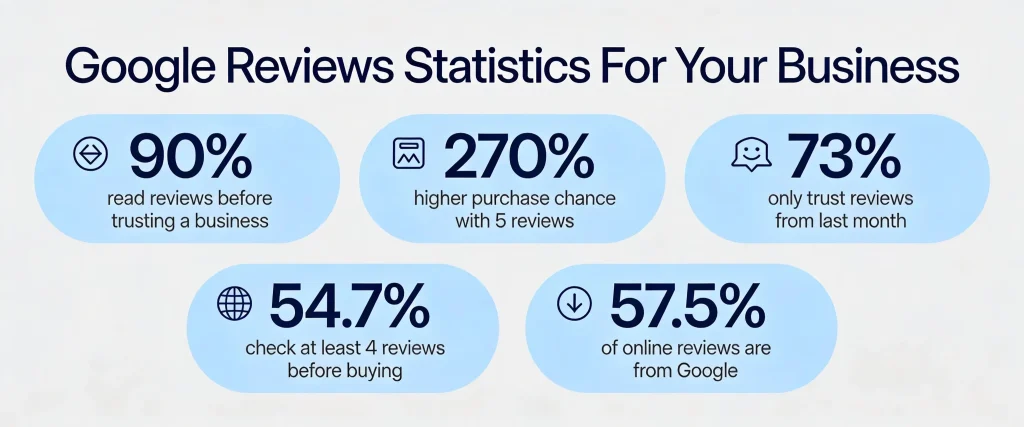
- Almost 90% of users read reviews before trusting any business.
- When a product receives five reviews, the likelihood of purchase increases by 270%.
- 73% of consumers trust only reviews from the last month.
- 54.7% of consumers check at least 4 product reviews before making a purchase.
- 57.5% of all reviews posted online are from Google.
89% of Customers Read Online Google Reviews Before Buying
Easily aggregate Google reviews and display them on your website for free.
Sign Up for FreeGetting The Most Out Of Your Review Widget
Where you place the widget matters as much as how it looks. The homepage tends to get the most traffic, so that’s usually the highest-impact spot, but placing reviews near a “Book Now” or “Add to Cart” button also works well, since that’s the exact moment a visitor is weighing whether to commit. If your business has more than one location, make sure the widget you’ve embedded on each page actually pulls reviews for that specific location rather than a blended average.
Filtering deserves a mention too. It’s reasonable to set a minimum star rating or hide a handful of reviews that are spam or clearly off-topic, but hiding every review below five stars tends to backfire. A page that’s suspiciously flawless reads as curated rather than authentic, and a visitor who then finds mixed reviews on Google itself will trust your site less going forward.
Benefits of Embedding Google Reviews For Your Business in 2026:
Here are the top-notch benefits of embedding Google reviews in your website:
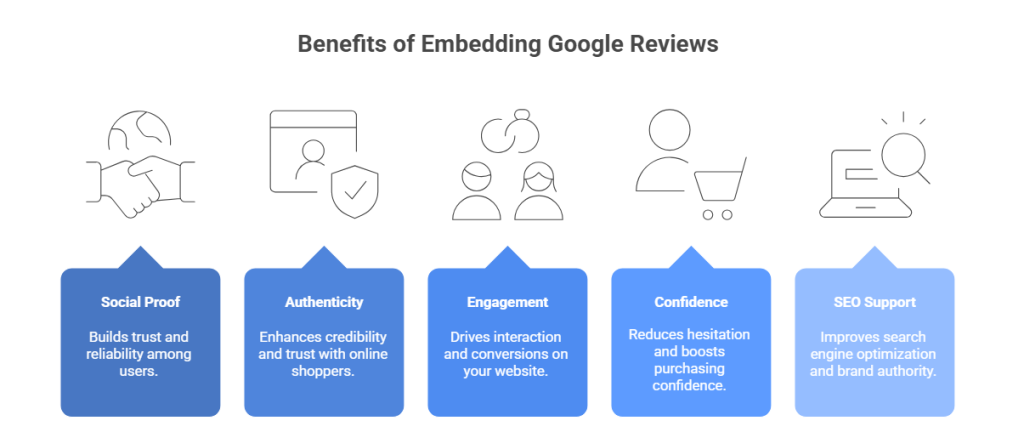
- Adding Google reviews to your website builds strong social proof that users can trust. This social proof enhances your offering and builds trust among users. When users see real reviewers, they are more likely to purchase from your website.
- Shoppers look to online reviews to assess a brand’s authenticity. Google reviews help build next-level authenticity, trust, and credibility, as 83% of consumers use them.
- Google Reviews help drive significant engagement on your website. Interactive review sections on your website encourage users to browse multiple reviews and comments, driving additional engagement and conversions.
- Displaying Google reviews on product landing pages, booking pages, and other decision-making areas helps reduce hesitation and boost purchase confidence. This, in turn, multiplies conversions and sales.
- Embedding Google reviews on your website supports SEO by giving more engagement, lowering bounce rates, and building your brand authority.
Collect, moderate, and display Google reviews on website
Try For FreeAn Alternative Method To Embed Google Reviews On a Website:
Without third-party plugins, Google offers a straightforward way to display Google reviews on your website. Users can use the review ‘Link’ option provided by Google. Use the review link to follow the steps below to manually integrate Google Reviews on your website.
- In Google Maps, head to your Google business page.
- Tap on the “reviews” button.
- Select a review.
- Tap the “Share” button below the review.
- Copy the link on the appearing screen.
- Go to your website’s admin panel and click on the login.
- Edit or create the page where you want to insert your Google reviews.
- On your website page, include an image or text that encourages visitors to check your Google reviews.
- You can also highlight the inserted image or text.
- Use your website builder’s link option and paste the Google Reviews link you copied.
Common Issues And How To Fix Them
- Reviews aren’t showing up at all. Double-check that your Google Business Profile is verified and that Tagembed has the right permissions if you connected through My Places. If you used the Places option, confirm the location you searched for matches your actual business listing.
- New reviews aren’t appearing in the widget. This is usually a sync delay rather than a broken connection. Give it some time, and clear your site’s cache (and any CDN cache) if it still hasn’t updated after a while.
- The widget looks cramped or oversized. Go back into Tagembed and adjust the width and height settings before regenerating the code. Most page builders also let you resize the embed container directly.
- Only a handful of reviews are showing, even though you have more on Google. Some sources cap how many reviews they return through the API at once. Check your widget’s display settings for a review count limit you can raise.
Why Use a Social Media Aggregator to Display Google Reviews?
Here’s why you must use a social media aggregation platform to embed Google business reviews on your website over native methods:
| Features | Native Embedding | Social Media Aggregator |
| Real Time Updates | Not Available | Yes |
| Review Moderation | Not Available | Yes |
| Custom Layouts & Templates | Not Available | Yes |
| Brand Customization | Very Limited | Full Customization |
| Multi-Platform Aggregation | Not Available | Yes |
| Multiple Google Location Embedding | Not Available | Yes |
| Mobile Responsive Display | Basic | Advanced and fully responsive |
| Analytics and Performance | Not Available | Yes |
Collect, moderate, and display Google reviews on website
Try For FreeReal-Life Examples: Brands Using Google Review Widgets
Seeing where this actually gets used helps make the case more concrete than a list of features. Here are two very different businesses putting Google reviews to work on their own sites.
1. Farmer Ted
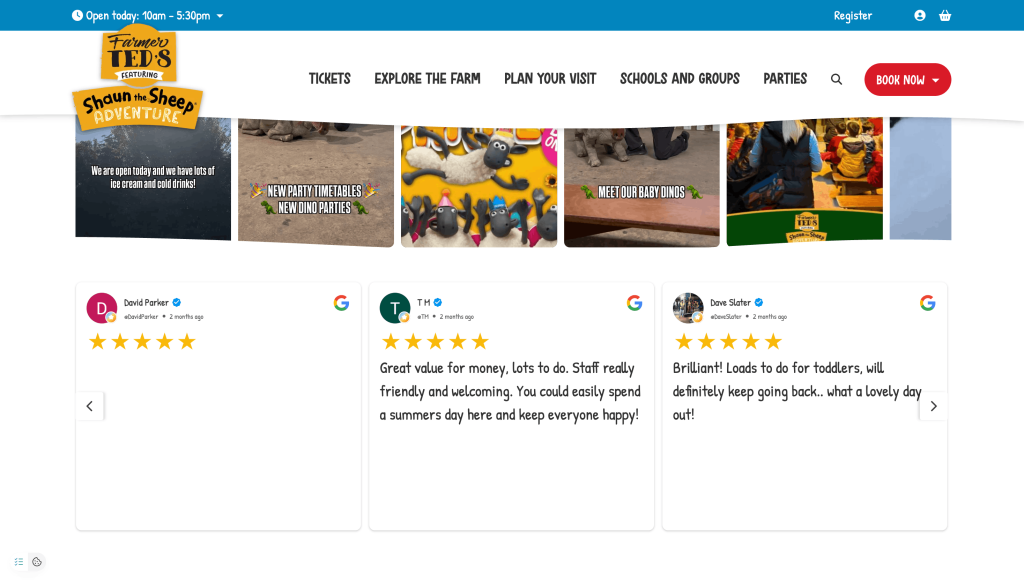
Farmer Ted is a family day-out attraction in Ormskirk, UK, built around its Shaun the Sheep experience, farm animals, play areas, and seasonal events. For a business where the entire purchase decision happens before a family ever sets foot on-site, trust signals matter more than most e-commerce categories, since a parent choosing a day out for their kids is relying almost entirely on what past visitors say the experience was actually like. Displaying live Google reviews on a site like this gives hesitant visitors the reassurance of real family feedback right where they’re deciding whether to buy tickets.
2. The Boxery
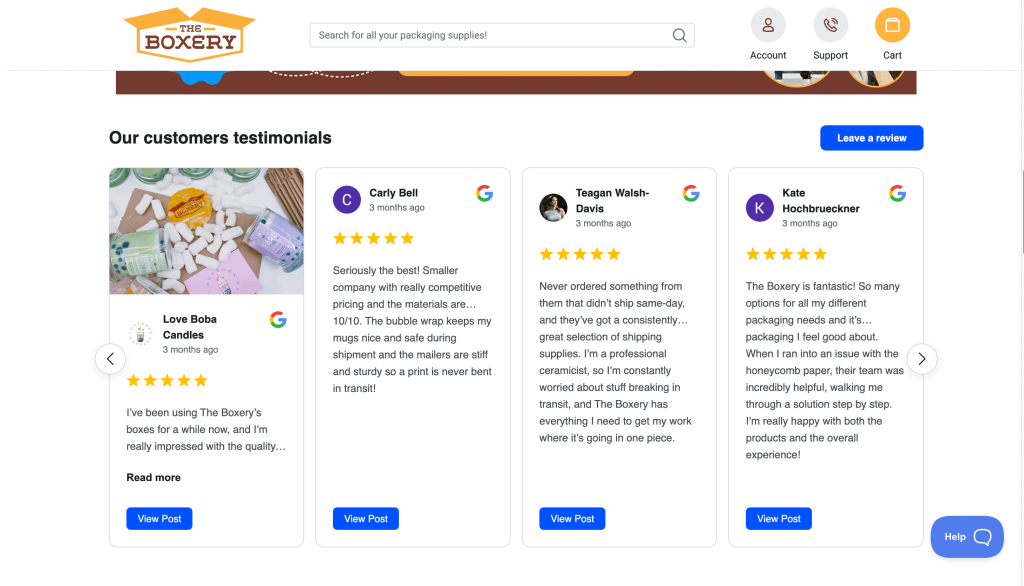
This is an online retailer selling shipping boxes, mailers, tape, and packaging supplies to both individual and wholesale buyers. Packaging is a low-emotion, price-comparison-heavy category, so buyers often default to whichever supplier feels most established and reliable. A visible bank of Google reviews next to product and category pages gives that reassurance without the buyer needing to leave the site to check reputation elsewhere, which matters even more for wholesale buyers placing larger, recurring orders.
3. Milito’s Car Wash – Google Review Slider
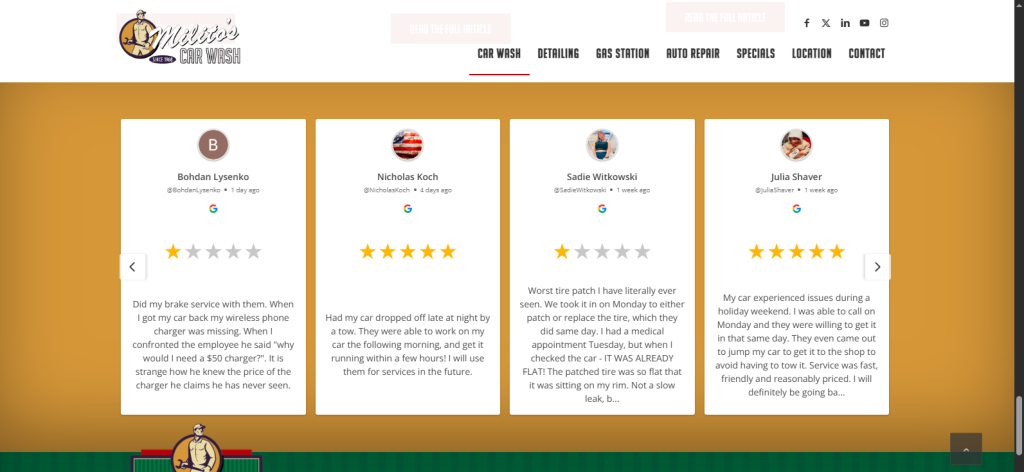
Milto’s Car Wash has been an automotive service business in Chicago for years. It offers some of the most comprehensive services, including expert auto repair, full-service car washes, gas station service, and more. To establish trust on its website, this company has embedded its positive Google reviews using Tagembed.
They used the Google Reviews Slider template by Tagembed and displayed reviews across areas such as the About Us section, homepage, and footer. This not only helped the company drive higher engagement on their website but also increased foot traffic, trust, and credibility.
4. WealthCare Financial – Google Review List

WealthCare Financial is a financial planning and advisory firm in Florida, offering services including retirement, investment, and tax planning. They have curated a separate ‘Client Testimonial’ page on their website to build credibility and authority. The Google Review List template they used not only organizes their Google reviews in a clean, clear format but also highlights social icons to drive audience engagement. This helped the company maintain a professional online presence while building trust and engagement.
5. Generator Supercenter – Google Review Badge

Generator Supercenter has added a visible Google review badge to its website, highlighting real customer ratings and experiences. This badge links directly to their live Google reviews, making it easy for visitors to verify their reputation without leaving the site. By putting reviews front and center, Generator Supercenter builds trust, reduces hesitation, and helps potential customers feel more confident about choosing their generator sales, installation, and maintenance services.
6. Perfect Gift – Google Review Grid

Perfectgift.com is an online gift card and e-gift platform that lets users purchase, customize, and send physical and digital gifts effortlessly. For gifts, you need to be thoughtful and sometimes pay high prices, too. This sometimes makes users hesitate about whether to trust a brand.
That’s why perfectgift.com has created a Google Reviews page on its website that displays verified customer reviews. They have used the Google Review Grid template to display reviews in a neat row-and-column format for smooth browsing. Hence, they have successfully established trust and delivered a smooth customer experience.
7. OddBall Entertainment – Review Carousel

Based in Chicago, Odd Ball Entertainment plans awesome corporate outings and trips. They’ve done something smart on their website, too. They have effectively displayed customer reviews on their site using Tagembed’s review widget. These reviews show how satisfied their customers are with their work. And you know what? This has helped them get even more people interested in what they offer. So, it’s like their website is speaking for them and bringing in more business. Cool, right?
Powerful Tagembed Features to Showcase Google Reviews
These are some of the best practices of the Google Review widget powered by Tagembed:
a) Content Moderation
Tagembed’s AI-powered content moderation helps filter fake or unprofessional Google reviews from your feed. With manual or autopilot options, it ensures your website maintains professionalism, builds trust, and tracks user interactions to enhance authenticity and transparency.
b) Rating Schema

The Rating Schema feature by Tagembed displays star ratings on websites and on search engine results, and improves your SEO. Not only that, but it also boosts visibility, increases website traffic, and enhances your presence in the SERPs. These trust-building elements appear with ⭐ under your listing with no complexity and enhance your CTR.
c) AI Summarizer

The Tagembed’s AI summarizer analyzes hundreds of Google reviews present on your website and gives a positive snippet of them to your users. This means visitors will no longer have to search for positive reviews in the pool of reviews. The feature automatically highlights what makes your brand stand out. This helps customers make informed purchase decisions and displays an overall star rating without much scrolling.
d) Banner to Collect More Reviews

The Google Review Banner lets you add a banner to your website featuring your 5-star reviews. This helps in turning your customer feedback into trust-building elements that are likely to boost conversions and credibility. This helps display your overall reviews at the top of your template, so they instantly catch visitors’ attention and influence their purchase decisions.
e) Google Review with Photos
The Tagembed’s Google review with photo feature lets you display authentic Google reviews on your website, including the review photo. No matter which template you choose, the photo with a name will appear with the review that not only builds strong social proof but also increases engagement and boosts conversions.
f) Review Hub
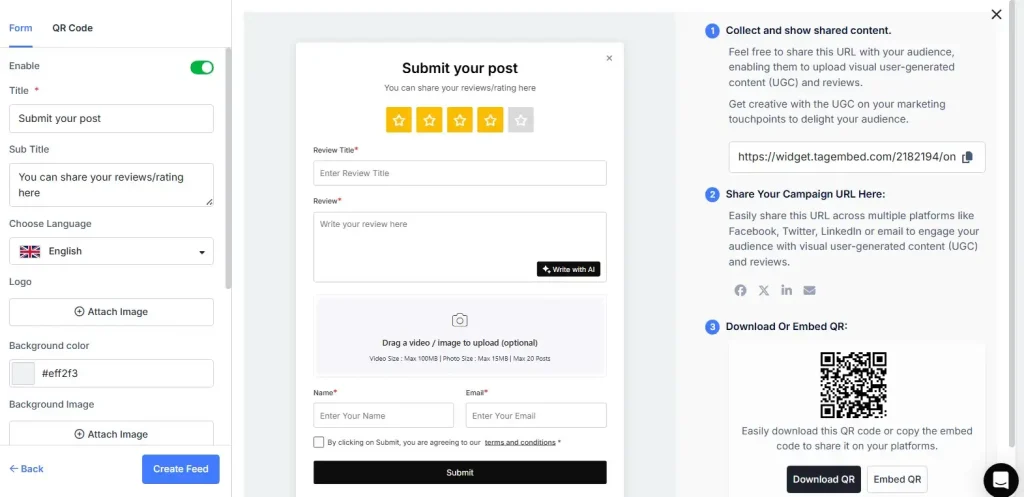
Want to collect more reviews from your users effortlessly? Then the Review Hub feature by Tagembed does the job for you. It simply allows users to scan the QR code and leave reviews that appear on your website in real time. This means instead of navigating to the website<review page<review, users have to scan and upload. It not only simplifies the review process but also helps you get more reviews, sales, and leads.
What Our Customers Say
Our entire setup was incredibly smooth and the workflow very easy. Embedding Google reviews took just a few minutes. The platform is beginner-friendly, well-guided, and the widget looks clean and professional—instantly increasing trust on my product pages.
I like using Tagembed for displaying the latest Google Reviews on my website. It’s great because of the ease of installation and the customization options, which save me time and make my site look good. If I ever encounter issues, the online help is great and really supportive.
I like the ease and simplicity of using tagembed. The instructions made it easy to integrate into my website and whenever I came across an issue, I received help quickly. On top of that its free to get started!
Key Takeaways
Google doesn’t give you a native way to embed actual review content on your website, only a link and a static badge. To show live, auto-updating reviews, you need a tool that connects through Google’s API and generates a widget for you. Every major platform, from WordPress to Shopify to plain HTML, supports pasting that widget in, even though the steps differ slightly by builder. And once it’s live, where you place it and how you filter it matters more than the design itself.
If you’d rather not manage the setup yourself, Tagembed connects to your Google Business Profile, keeps the widget current automatically, and gives you filtering, layout, and branding options built in, along with a dedicated WordPress plugin if you’d rather skip the code entirely.
Frequently Asked Questions
Yes. Tagembed and similar tools offer free plans that cover a live, auto-updating widget at a smaller review count, with paid tiers for higher volume and full customization.
No. Google provides a review link and a static rating badge, but neither displays actual review content on your page. A third-party tool connected through Google’s API is required to show live reviews.
Yes, most review widgets let you filter by star rating or hide specific reviews. It’s worth being cautious about hiding too much, since an unnaturally perfect rating can come across as less trustworthy than an honest mix.
Will the widget update automatically when I get new reviews? Yes, once it’s connected to your Google Business Profile, a widget from a tool like Tagembed pulls in new reviews without you doing anything further.
Yes. You can create separate feeds for different locations and place the relevant widget on each corresponding page.
No. The embed code is copy-paste, and most page builders have dedicated blocks or elements built for pasting third-party widgets in.
Embed social feed from Facebook, YouTube, Instagram, Twitter on your website, like a PRO
Invalid Email Address Multiple Themes