Instagram Embed Code for Website: How to Get and Use It
Instagram is more than a social media platform. For businesses, it is a place to showcase products, share customer experiences, build brand awareness, and create visual content that connects with potential customers.
But what if you want to display that content directly on your website?
That is where an Instagram embed code for a website becomes useful. It lets you display eligible Instagram posts on a webpage without uploading the same content separately. Depending on your requirements, you can embed an individual post or use an Instagram feed widget to display multiple posts in a customized layout.
In this guide, you will learn how to get Instagram embed code, add it to your website, choose the right embedding method, and troubleshoot common issues.
Generate Instagram Embed Code in Seconds
Create your Instagram feed, customize and get the embed code for your website.
Get Embed CodeWhat Is Instagram Embed Code?
Instagram embed code is a snippet of code, typically HTML and sometimes JavaScript, used to display eligible Instagram content, such as public posts and videos, on an external website. It allows website owners to showcase Instagram content directly on a webpage without uploading the media files separately.
You can obtain embed code from Instagram for supported individual posts or use a social media aggregator like Tagembed to collect, customize, and display multiple Instagram posts in a single feed. The embedding method depends on the content type, account privacy settings, and the tool you use.
Instead of downloading an Instagram photo or video and uploading it to your website, you can embed the original content. Visitors can view the post on your webpage, along with supported Instagram elements and a link back to the original content.
There are two common ways to embed Instagram content:
- Instagram’s native embed code: Best for displaying an individual public post or Reel.
- An Instagram feed widget: Best for displaying multiple posts in a customized feed that can be embedded on your website.
The right method depends on whether you want to showcase one specific post or create a dedicated Instagram section on your website.
How to Get Instagram Embed Code
You can obtain Instagram embed code for a website directly from Instagram or generate an embed code for a complete feed using a third-party widget tool.
Method 1: Get Instagram Embed Code Directly From Instagram
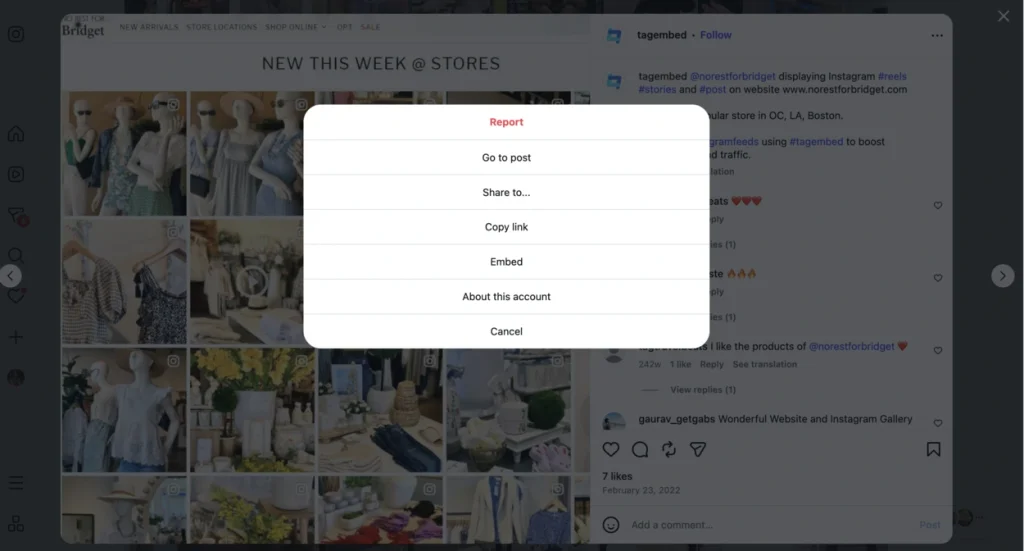
Instagram’s native embedding feature is useful when you want to display a particular post or Reel on your website.
Follow these steps:
Step 1: Open Instagram in a web browser
Visit Instagram.com using a desktop browser. Find the public post or Reel you want to display on your website.
Step 2: Open the post options
Click the three-dot menu associated with the post. If embedding is available for that content, you should see an Embed option.
Step 3: Select Embed
Choose Embed from the menu. Instagram will display an option to copy the embed code. Depending on the interface, you may also be able to choose whether to include the caption.
Step 4: Copy the embed code
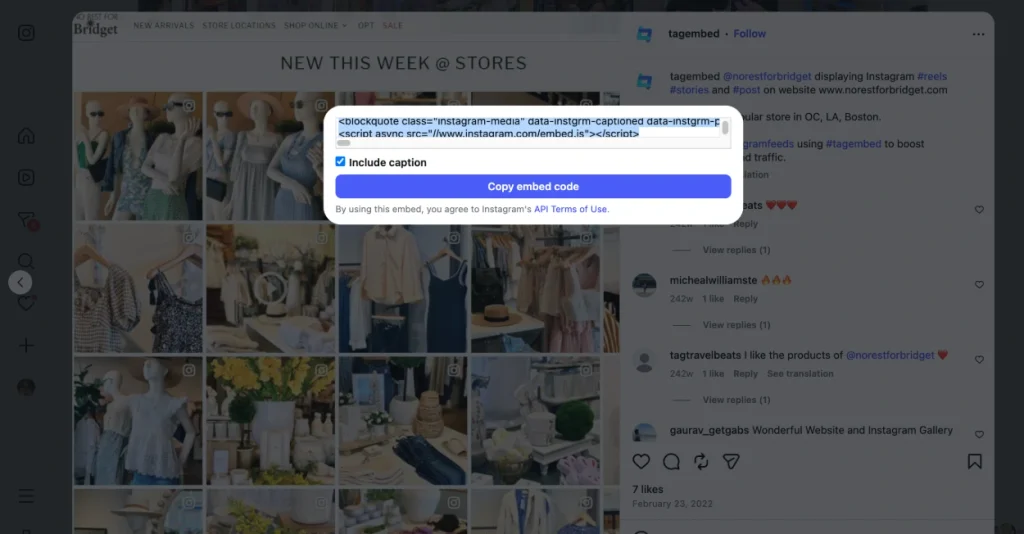
Click Copy Embed Code to copy the snippet.
Step 5: Add the embed code to your website
Open your website editor and navigate to the page where you want the Instagram post to appear. Use an HTML, custom-code, or supported embed block to insert the complete snippet.
Save your changes and preview the published page.
Important: The native Embed option is not available for every post. Private content and accounts that have disabled embedding are not supported. Interface options may also change over time.

Instagram
Hashtag

Instagram
Handle

Instagram
Stories

Instagram
Reels

Instagram
Mentions & Tag
Method 2: Generate Instagram Posts Embed Code Using Tagembed
What if you want to display several Instagram posts rather than just one?
Copying individual embed codes can become inconvenient when you want to create a gallery or showcase an ongoing stream of Instagram content. An Instagram feed widget offers another approach.
Tagembed helps you collect Instagram content from supported sources, such as handles, hashtags, and mentions, customize its presentation, and generate code for embedding the resulting feed on a website. Unlike Instagram’s native embed feature, which is designed for individual eligible posts and videos, a third-party aggregator lets you display supported content in a responsive grid or carousel layout.
Here is the general process:
Step 1: Create an Instagram feed widget

Open Tagembed and start creating an Instagram widget. Follow the available setup instructions to connect or select your Instagram content source.
Step 2: Choose your content source
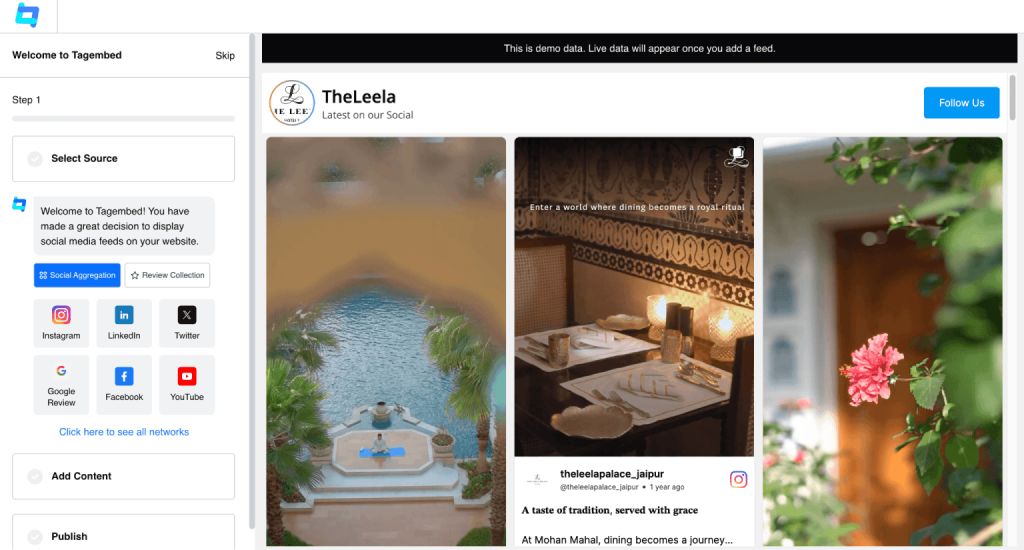
Select how you want to collect Instagram content. Depending on the available integration, you can use sources such as Instagram handles, hashtags, or mentions. Supported Stories content may also be available through specific integrations.
Step 3: Customize and moderate your feed
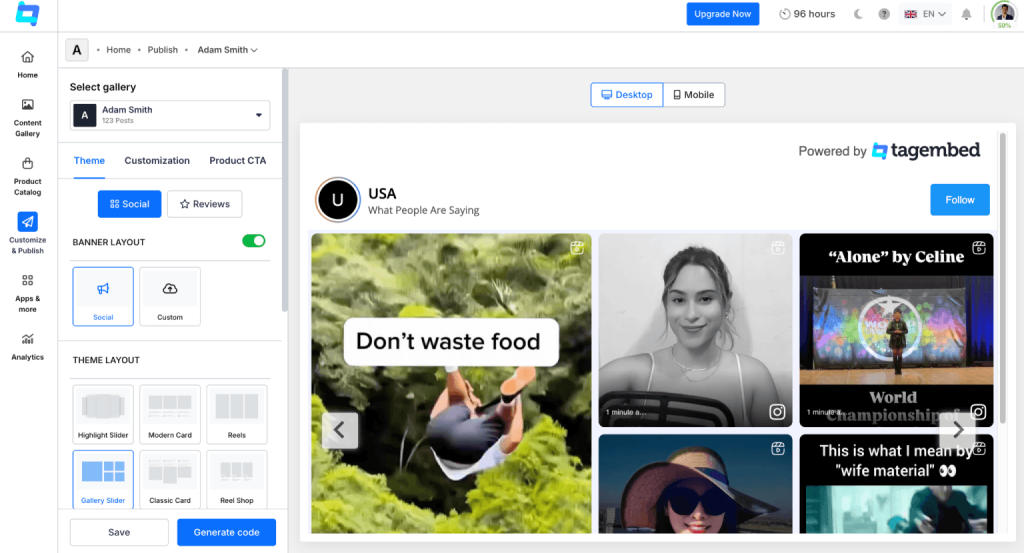
Adjust the feed’s layout, theme, spacing, and colors to match your website. Review and moderate the content to ensure only relevant posts appear in your Instagram feed.
Step 4: Copy the generated embed code
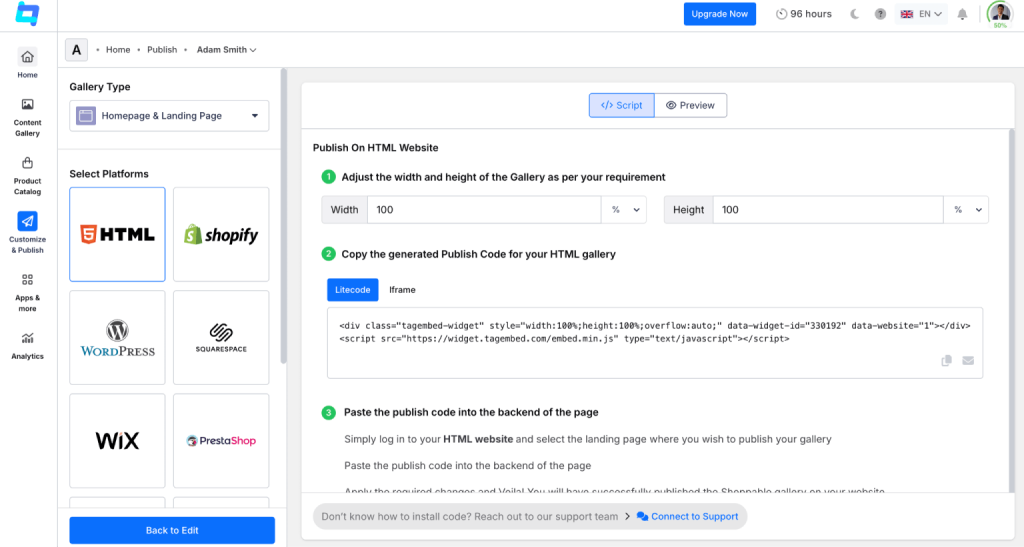
Once your widget is ready, obtain the Instagram embed code for a website from Tagembed. You can choose between HTML code and iframe code based on your website’s requirements and copy the code you need.
Step 5: Add the embed code to your website
Paste the code into a compatible HTML or embed block on your website. Save the page and check that the feed displays correctly.
You can explore the Tagembed Instagram Widget to learn more about the available setup options.
The main advantage of this approach is that you can manage a feed through a widget instead of manually placing each individual post on your page.
How to Add Instagram Embed Code to Your Website
After copying your Instagram embed code, the next step is to add it to the correct location in your website editor.
The exact process depends on the platform you use.
1. How to Add Instagram Embed Code in an HTML Website
You can embed an Instagram feed on an HTML website by adding the generated embed code to your webpage’s HTML source. If you want to display multiple Instagram posts in a single feed, use an Instagram feed widget such as Tagembed to collect, customize, and generate the embed code.
Follow these steps:
- Open the HTML file for the page where you want the Instagram content.
- Find the section where the post or feed should appear, such as a gallery section or a space below a product description.
- Paste the complete embed snippet into the appropriate location within the page’s body.
- Save the file and publish the updated page.
- Open the live page and confirm that the content loads correctly.
For example, the structure of an HTML page may look like this:
This is only a placement example, not a complete Instagram embed snippet. Use the actual code provided by Instagram or your feed widget.
If you are using a widget, follow its installation instructions. Some embed codes require a script or other supporting elements to work correctly.
2. How to Add Instagram Embed Code in WordPress Websites
WordPress users can embed individual Instagram posts or display multiple posts using Tagembed’s WordPress plugin.
To embed an individual Instagram post:
- Open the WordPress page or post editor.
- Add a supported Instagram embed block or paste the public post URL into a compatible embed block.
- Follow the editor’s instructions to create the embed.
- Preview the page and publish your changes.
To embed an Instagram feed using the Tagembed WordPress plugin:
- Install and activate the Tagembed plugin from your WordPress dashboard.
- Create an Instagram widget and select your supported content source, such as a handle, hashtag, or mention.
- Customize the feed’s layout and appearance to match your website.
- Generate the embed code or follow the plugin’s instructions to add the feed to your page or post.
- Preview the feed to ensure it displays correctly, then publish your changes.
The Tagembed WordPress plugin provides a convenient way to add an Instagram feed to your WP website. If you prefer, you can also use the HTML-based embedding method by copying the generated embed code into a Custom HTML block.
Some WordPress setups restrict scripts or custom HTML, so the available embedding options may vary depending on your installation and permissions.
3. How to Add Instagram Embed Code in Shopify Websites
Adding Instagram feed on Shopify can help online stores showcase product-related content, customer photos, and brand updates.
To add an Instagram feed using Tagembed:
- Create an Instagram widget in Tagembed and select your supported content source.
- Customize the feed’s layout and appearance to match your Shopify store.
- Copy the generated embed code.
- Open your Shopify admin and navigate to the page or theme section where you want the feed to appear.
- Add a compatible Custom Liquid, HTML, or app block, depending on your theme and the supported embedding method.
- Paste the embed code, save your changes, and preview your storefront.
You can also check whether the Tagembed Shopify app is available for your store to simplify the integration process.
If you are adding code directly to a theme, consider making a backup before editing theme files.
For ecommerce websites, placing an Instagram feed near relevant products, customer testimonials, or other trust-building content can make the page more engaging. Keep the feed relevant to the products and the audience viewing it.
4. How to Add Instagram Embed Code in Wix or Webflow
Wix and Webflow offer ways to add external content, but the exact process depends on the editor and the type of code you have.
For Wix:
- Open the relevant page in the Wix editor.
- Add the appropriate HTML or embed element.
- Paste the Instagram post code or feed widget code.
- Adjust the element’s dimensions and placement.
- Preview the page and publish it.
For Webflow:
- Open your project in Webflow Designer.
- Add an Embed element where the Instagram content should appear.
- Paste the supported HTML snippet.
- Save and publish the website.
- Test the published page rather than relying only on the Designer preview.
Some platforms limit the scripts that can run inside embed elements. If the content does not render, consult your platform’s current documentation and the widget provider’s installation instructions.
Create Your Instagram Feed Embed Code
Collect, customize, and display Instagram content on your website with Tagembed.
Get Embed CodeNative Instagram Embed Code vs. Instagram Widget Embed Code: Which Should You Choose?
Both methods let you display Instagram content on your website, but they solve different problems.
| Feature | Native Instagram embed | Instagram Widget Embed |
| Setup | Copy code for an eligible post | Configure a widget and copy its embed code |
| Best use case | Displaying a specific post | Displaying a collection of posts |
| Layout customization | Primarily Instagram’s presentation | Depends on the widget’s features |
| Multiple posts | Add individual embeds separately | Manage multiple posts in one feed |
| Content management | Manage each embed individually | Manage content through widget settings |
| Automatic feed updates | Does not create a continuously updated collection | Depends on the configured source and update settings |
| Cost | Native embedding is generally free | Free and Paid Plans |
Choose Instagram’s native embed code when you only need to feature one public post or Reel.
Choose a feed widget when you want a customized Instagram gallery, a collection of brand posts, or an ongoing feed that is easier to manage.
Neither option is automatically better for every website. The best choice depends on how much content you want to display and how much control you need over its presentation.
Common Instagram Embed Code Issues and How to Fix Them
Even when you have copied the correct code, an Instagram embed may not display as expected.
Here are some common issues and their possible solutions.
1. The Embed Option Is Missing
The post may belong to a private account, or the account owner may have disabled embedding.
What to do: Check whether the content is public and whether embedding is enabled. If the content belongs to someone else, you may need to ask the account owner to change the relevant setting.
2. The Embed Code Appears as Plain Text
This often happens when code is pasted into a normal paragraph or text block instead of an HTML or embed element.
What to do: Move the complete snippet to the appropriate code block. Make sure the editor does not remove or escape the HTML.
3. The Instagram Post Does Not Load
An embed may fail because the Instagram Couldn’t Refresh Feed or the post is unavailable, the required script is blocked, or the website editor restricts external content.
What to do: Confirm that the post is still publicly accessible, check the browser console if you have access to developer tools, and review any content-security or script restrictions.
4. The Feed Looks Wrong on Mobile
An embed may be wider than its container or may not adapt well to smaller screens.
What to do: Check the widget’s responsive settings, adjust the container width, and test the published page on a mobile device. Avoid fixing the layout using arbitrary widths that cause horizontal scrolling.
5. New Instagram Posts Do Not Appear on the Website
A manually embedded post represents a particular piece of content. Publishing another Instagram post does not automatically replace the existing embed with the new one.
What to do: Add the new post manually or use a feed widget that supports updating its displayed content. Check the widget’s source configuration and refresh settings if updates are delayed.
Best Practices for Using Instagram Embed Code on Your Website
Embedding Instagram content is only the first step. To get the most out of your Instagram feed, consider its placement, design, performance, and accessibility.
1. Place the Instagram Feed Where It Adds Value
Add your Instagram feed to relevant sections of your website, such as product pages, portfolios, event pages, or customer story sections. Choose a placement where the content supports the page’s purpose rather than adding it simply to fill empty space.
2. Keep the Feed Design Consistent
Choose an Instagram feed layout that complements your website’s colors, spacing, and visual hierarchy. A consistent design helps the embedded content feel like a natural part of your website.
3. Optimize the Feed for Mobile Devices
Test your Instagram embed on different screen sizes to ensure posts, images, and videos display correctly. Choose a responsive layout that works well on mobile devices without taking up excessive space or disrupting the browsing experience.
4. Consider Website Performance
Third-party Instagram embeds may load additional scripts and resources, which can affect page speed. Avoid adding unnecessary embeds, and monitor your website’s performance after integrating the feed.
5. Respect Content Ownership and Platform Terms
Use Instagram’s supported embedding methods and follow applicable platform terms. When featuring content created by other people, obtain permission where appropriate, particularly for commercial use. Embedding publicly available content does not automatically grant every right to reuse it.
6. Improve Accessibility and Provide Context
Introduce your Instagram feed with a descriptive heading that explains its relevance to the page. Ensure the surrounding content remains understandable if the embedded feed fails to load, and consider accessibility when choosing layouts and displaying images or videos.
7. Test the Published Page
An editor preview may not always match the final website experience. After publishing, open the live page in a separate browser session and check that the Instagram feed loads correctly, displays as expected, and works across desktop and mobile devices.
Final Thoughts
Adding Instagram content to your website does not have to involve complicated development work.
If you want to display one specific post, Instagram’s native embed code is a straightforward option. If you want a collection of Instagram posts in a customized layout, an Instagram widget may be a better fit.
Start with your website’s goal, choose the embedding method that suits it, and test the result on desktop and mobile before publishing.
If you want to display and manage a customized Instagram feed, explore the Tagembed Instagram Widget to see whether it meets your website’s requirements.
Frequently Asked Questions
Open an eligible public Instagram post in a web browser, select its options menu, and choose Embed if available. Copy the provided code and paste it into a compatible HTML or embed block on your website.
Yes. You can add a feed widget’s generated embed code to a supported HTML or embed element. The widget handles the feed configuration, while the code places it on your website.
Instagram’s native embed feature is generally free to use for eligible content. Third-party feed widget services may offer free and paid plans with different limits and features.
Yes. You can use Instagram’s native embed code on a website that supports the required HTML and scripts. A plugin or widget may be more convenient when you want to manage a collection of posts.
Common causes include private or unavailable content, disabled embedding, scripts being blocked, or code being placed in an unsupported editor block. Check the content’s availability and the website platform’s embedding requirements.
A single post embed does not automatically become a different post when you publish new content. A feed widget may update its collection automatically, depending on its source configuration and refresh settings.
An Instagram embed code typically displays a specific piece of content. An Instagram widget can display a collection of posts in a managed layout, with features that depend on the provider.
Embed social feed from Facebook, YouTube, Instagram, Twitter on your website, like a PRO
Invalid Email Address Multiple Themes